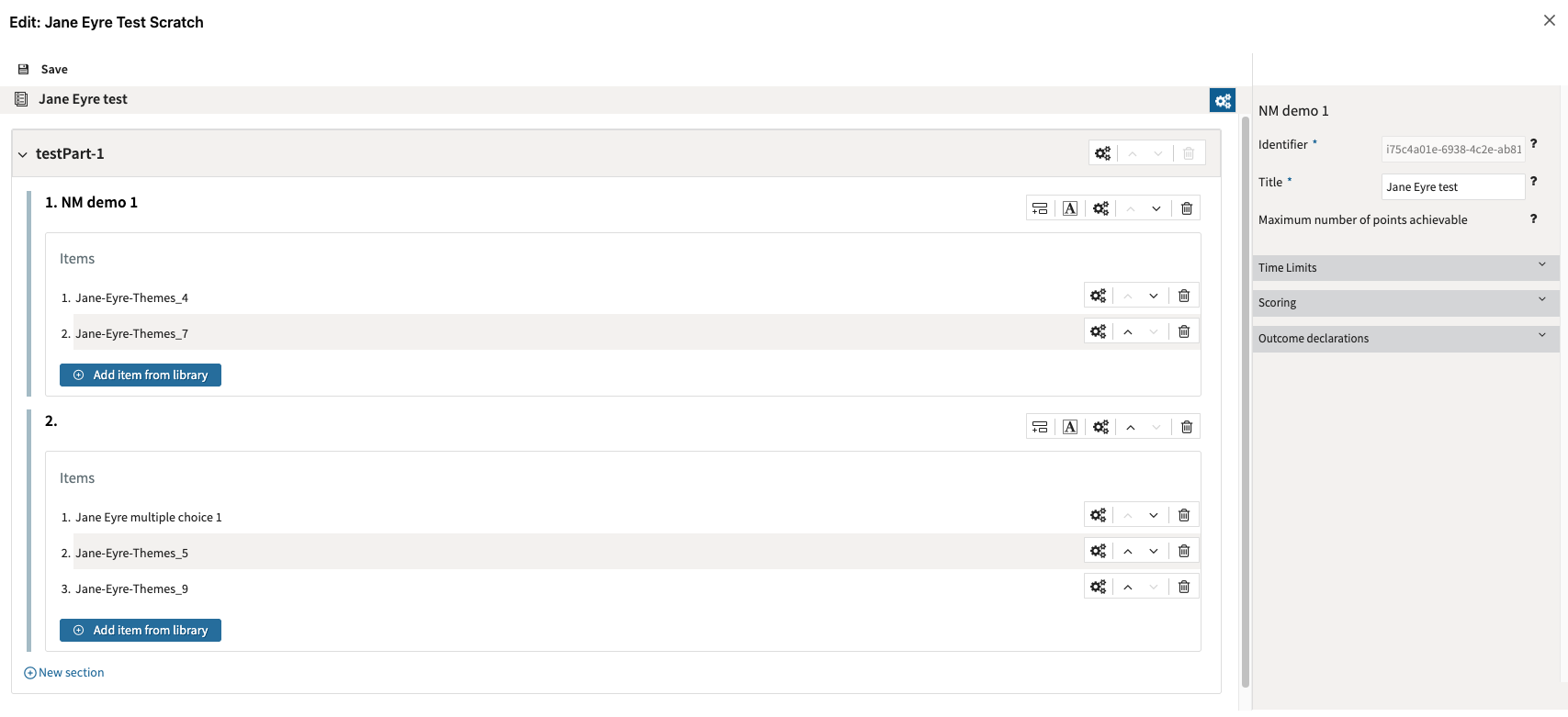
This section provides a guide on using the test editor in in TAO Studio.
Prerequisite
You have questions in your library by having completed one of the following workflows:
Steps
-
From the sidebar menu select Create questions & tests > From scratch.
-
TAO Studio opens the Create from scratch view.
-
Select Test under Content type.
-
Enter a test title and internal identifier.
-
Wait for the embedded editor to load.
-
Use Close to leave the editor.
-
If the editor has unsaved changes, TAO Studio asks for confirmation before discarding the session.
The test editor workflow
-
Open the test editor.
-
Click Add item from library. Use the dialog to search the library for one or more items.
-
Complete the test properties, such as scoring and time limits.
-
Add parts and sections to organize your items.
-
For information on configuring test parts (such as test navigation), see Test Part settings.
-
For information on configuring test sections, see Test Section settings.
-
-
Configure the test item properties.
-
Click Save in the top-left corner.
The test will be stored in the library. From the library, you can edit the title or return to the test editor.