
This chapter covers the following workflows: importing and exporting content from the library, searching the library for specific files/documents, and inspecting files in the library.
Accessing the library
-
Start from the home page and open Library from the left navigation, or select the dashboard Library card under Your content.
-
A table will display will all library files:
-
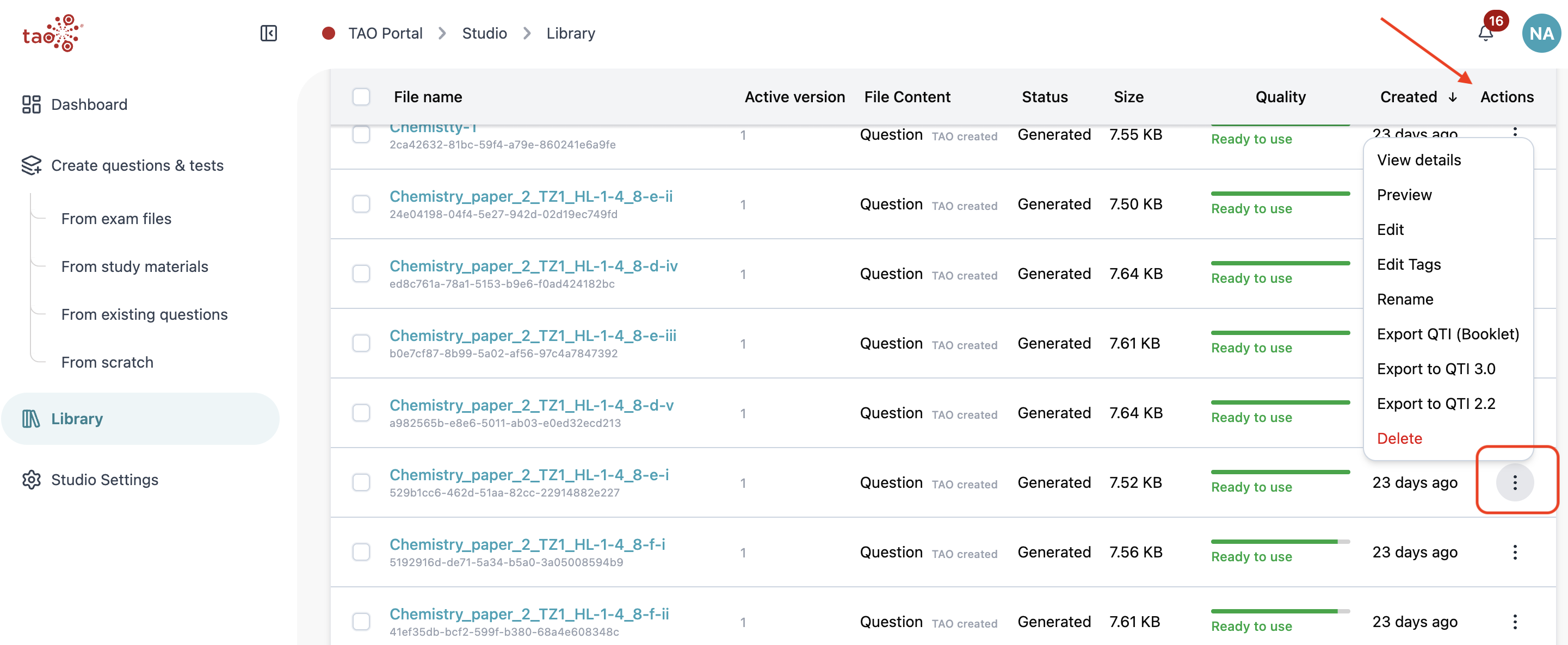
File name: with a unique identifier under the title. Click this once to preview, or twice to edit.
-
Active version: for projects with multiple executions (see section below)
-
File Content: question, test, study materials, exam/question files
-
Status
-
Size
-
Quality: whether the entity passes the TAO Studio quality check
-
Created: when the entity was created on the platform
-
Actions: each row has a menu for actions on that single file. Selecting the menu shows the Action menu for that file:
-
-
Above the table, search and filters help narrow the list, and Upload Content starts a new file upload.
Files created in Studio, such as questions and tests produced by conversion or From scratch, can show a TAO created badge next to the file content type.
Understanding the library
The library contains all content types and documents imported or created in TAO Studio. These files are not organized by folders, but can be located by using the filter search feature.
Resource files, such as existing exam questions/study materials, that are uploaded to the library are available for use when converting or generating content.
Resource files to not need to be previously uploaded to be used for conversion or generation. They can be retrieved from your files when completing one of these processes; they will be automatically added to the library if used.
Content that is created in TAO Studio is also housed in the content library.
File Content
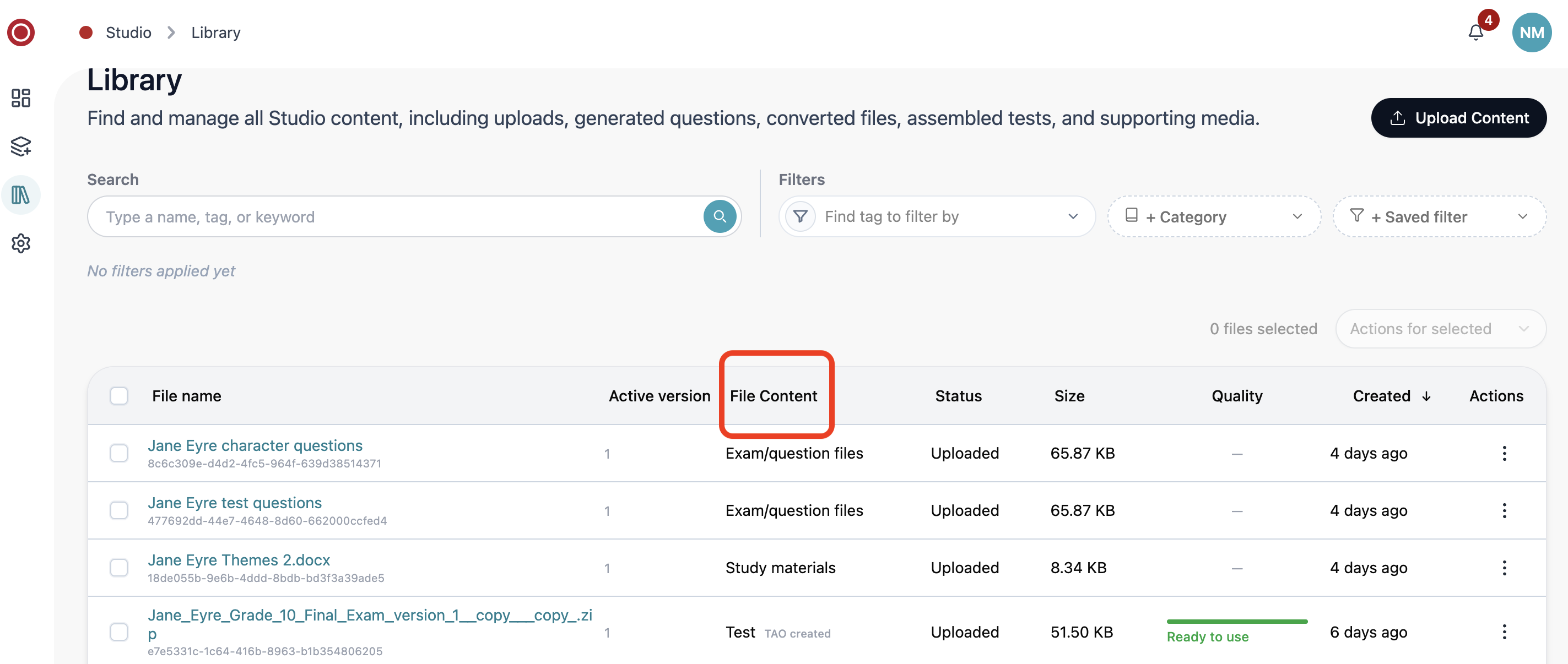
You can view the different types of content in the table that displays, particularly the File Content column. This column displays the following fields:
-
Exam/question files: Files that were uploaded and tagged as exam files, such as a PDF of assorted exam questions.
-
Study materials: Files that were uploaded and tagged as study materials, such as a .docx file containing notes on class themes.
-
Test: A test that was generated by TAO Studio.
-
Questions: Questions that were generated by TAO Studio.
Document revisions
Each file in the library keeps one identifier and one table row. When the underlying file is replaced, TAO Studio stores a new revision on that same identifier.
-
Active version in the table shows which revision is current.
-
File details always reflect the active revision (file size, summary, validation state).
-
Created stays the original date; later processing can still change size and related metadata on the same row.
-
Re-running conversion on the same source updates the existing output linked to that source when the output name matches. Two different sources that happen to produce outputs with the same display name remain separate library items.
Important: There is no library button to upload a replacement file or open a full version-history page. Preview offers a version picker when more than one revision exists so you can look at an earlier file.