
This article covers the Content Library workflow for bringing files into TAO Studio, adding the right metadata, and previewing different document types.
Source files that are uploaded to the library can be used to generate questions or tests directly, while files such as images can be used in item creation.
Uploading content
TAO Studio accepts several kinds of learning and assessment content. The available document-type choices depend on the file format and on the taxonomy configured for the workspace.
-
Enter the Content Library, then select Upload Content.
-
Browse your computer and select a supported file (see section below).
-
Once selected, you can edit the document name by selected the text on the left. That name is what appears in the library list; the original filename on disk does not have to match.
-
Specify if the file being uploaded contains test questions or study materials.
-
Enter any required metadata values for the file. TAO Studio shows the metadata categories assigned to that document type. These fields come from the taxonomy configured in Studio Settings > Content organization.
For example:
-
Exam/question files can request fields such as file format, source, subject, content status, difficulty, grade level, and question type.
-
Study materials can request fields such as source, subject, content status, file format, grade level, and learning module.
-
Question and Test packages can request assessment-focused metadata such as subject, content status, grade level, and source.
AI-assisted tags: The upload form can also use AI-assisted tagging. When selected, TAO Studio fills blank metadata fields after upload where it can infer values from the file. You can still enter important fields manually before upload and review the results later in file details.
PCI packages wait until their preview HTML is ready before summary and AI tags are filled. That can take a little longer than a PDF or Word upload.
-
Click Save and next.
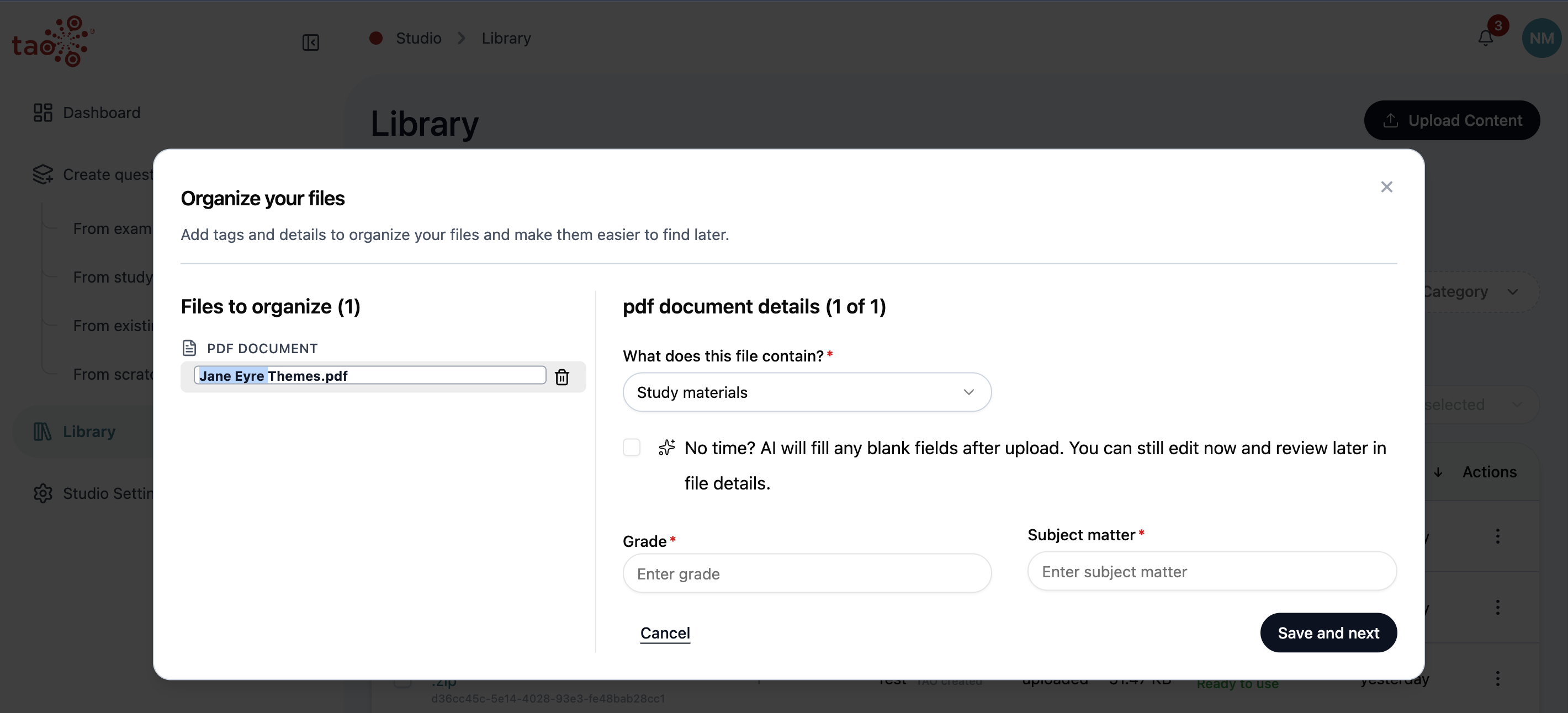
Common upload cases/document types
Choose the file content type carefully. It controls which metadata fields appear, which actions are available later, and whether the file can be converted, previewed, or exported.
-
PDF source files: For example, a scanned exam booklet or reading passage. A PDF can usually be classified as Exam/question files or Study materials.
-
DOCX source files: For example, a teacher-authored lesson sequence or assessment document. DOCX files can also appear as exam material or study material.
-
CSV question files: For example, a structured list of questions and answer data prepared for conversion.
-
QTI ZIP packages: For example, an existing QTI question package or QTI test package. These can be classified as Question or Test.
-
SCORM 1.2 packages: A SCORM 1.2 ZIP is classified as Study materials. You can preview the first activity in the SCORM player and use the file as generation source material. SCORM 2004 packages are not treated as playable SCORM.
-
PCI packages: A portable custom interaction ZIP is classified as PCI. Preview opens when the package preview is ready.
-
Stimulus packages: A ZIP that contains a single shared reading passage is classified as Stimulus. Preview shows the passage. Stimulus files can be tagged, downloaded, and deleted; they are not converted or generated on their own.
-
Supported media or text assets: When enabled in the workspace, images, text files, and other supported assets can be uploaded and previewed according to their type.
Uploading multiple files
You can select more than one file from your computer. When uploading more than one file, the files are listed according to document type prior to upload.
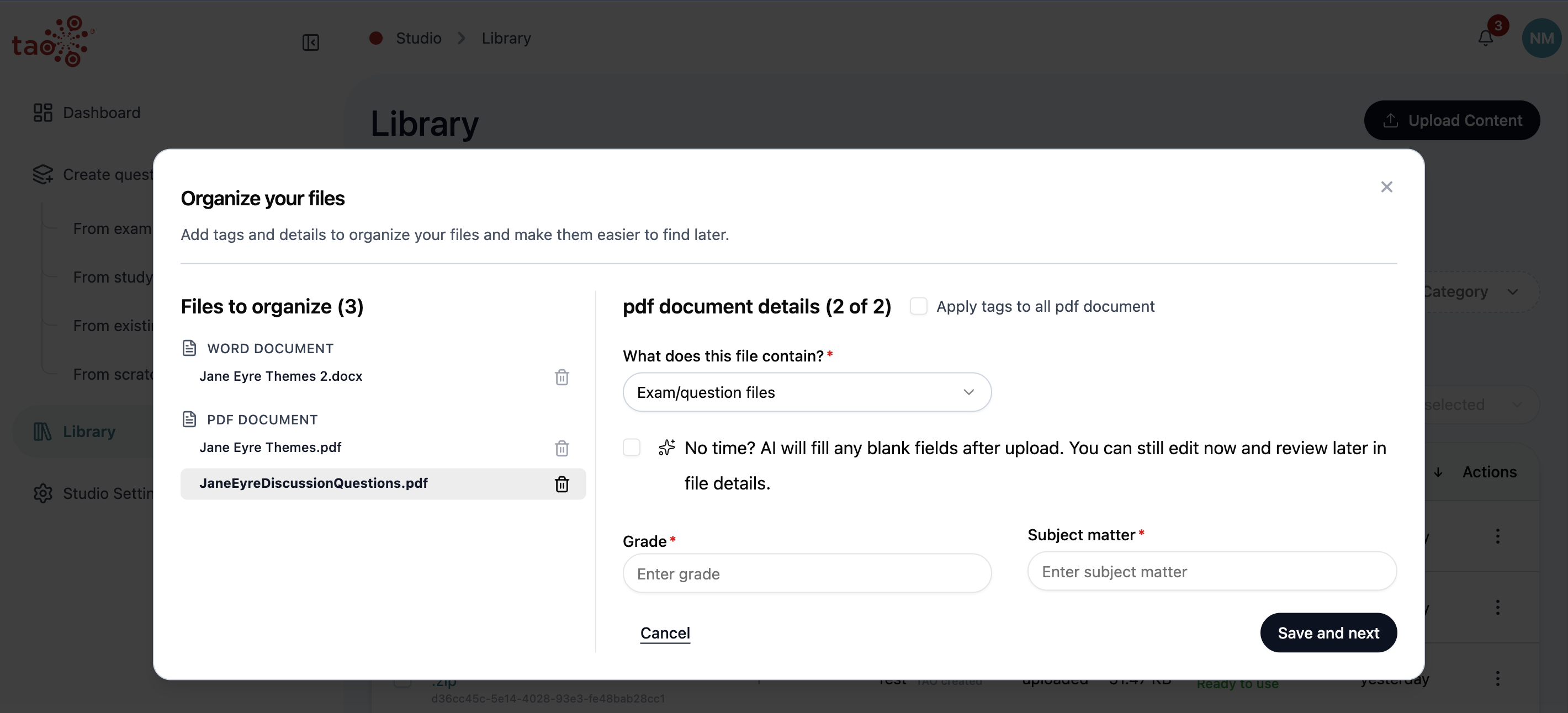
Work through the files one by one, choose the correct file content type, remove any file that should not be included, and use Save and next to continue.
Previewing uploaded content
Once a file has been uploaded, use Preview before exporting or sharing content. For more information, see Previewing library content.