This module helps users understand and navigate the main workspace areas.
The TAO Studio dashboard consists of three major zones: the left sidebar, the top header, and the central content canvas.
Left sidebar
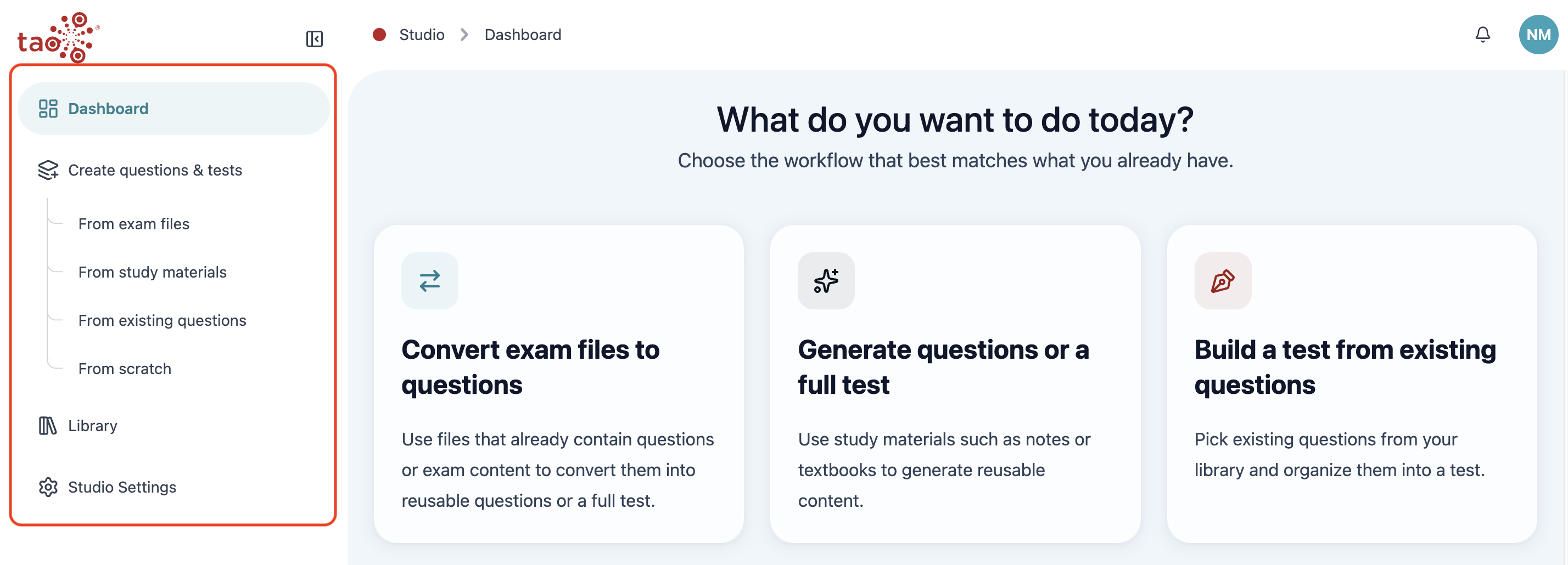
The left sidebar is the fastest way to move between major work areas. The left sidebar can be expanded or collapsed by clicking the icon in it’s top-right corner (above Dashboard).
-
Select Dashboard to return to the home workspace.
-
Under Create questions and tests, you can see the task options available. Each option corresponds to a different way to generate test materials and tests.
-
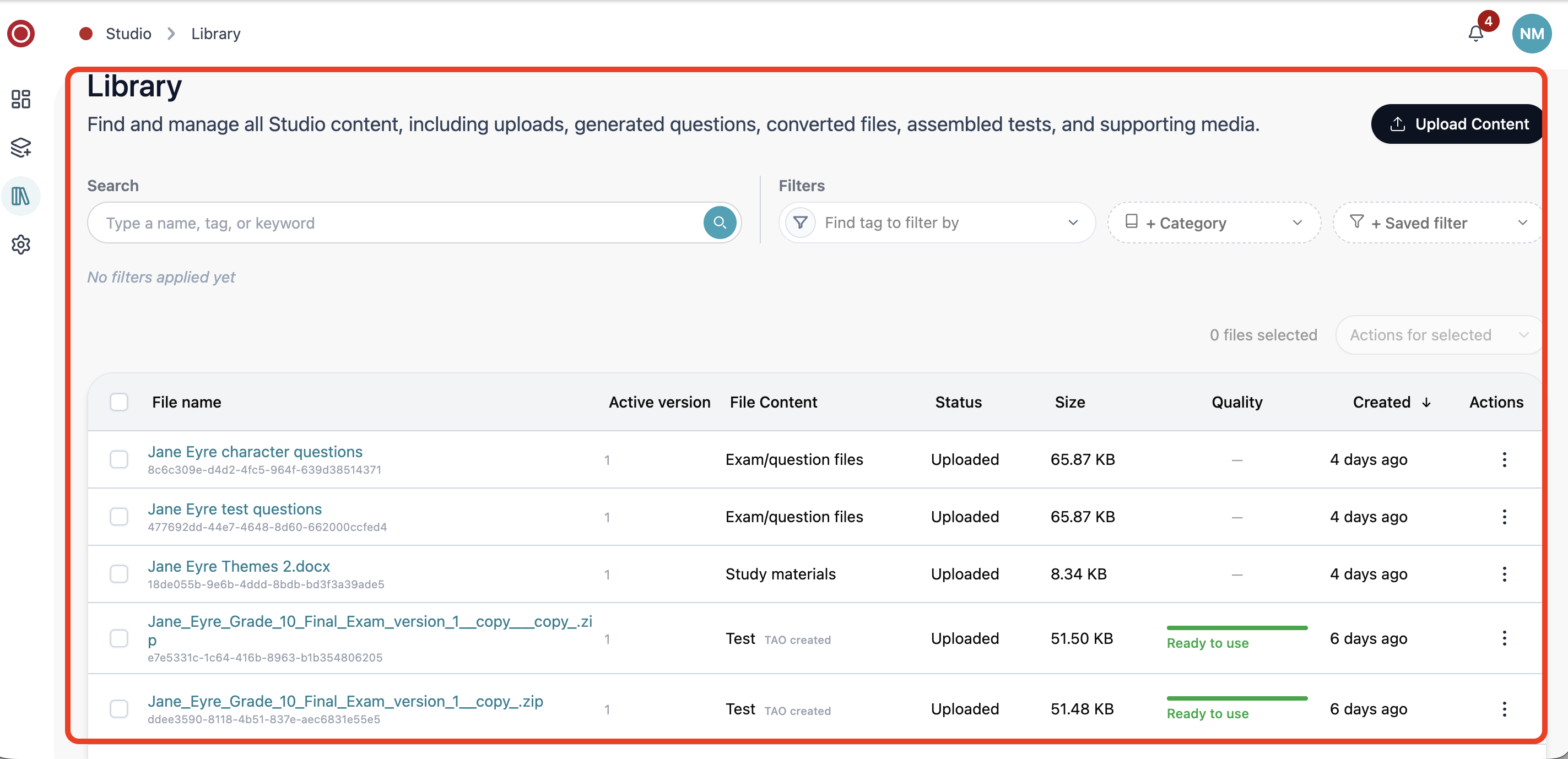
Select Library to search, preview, tag, edit, import, or export files and questions.
-
Select Settings to manage output quality, taxonomy categories, tags, document types, and saved filters.
Top header/breadcrumbs
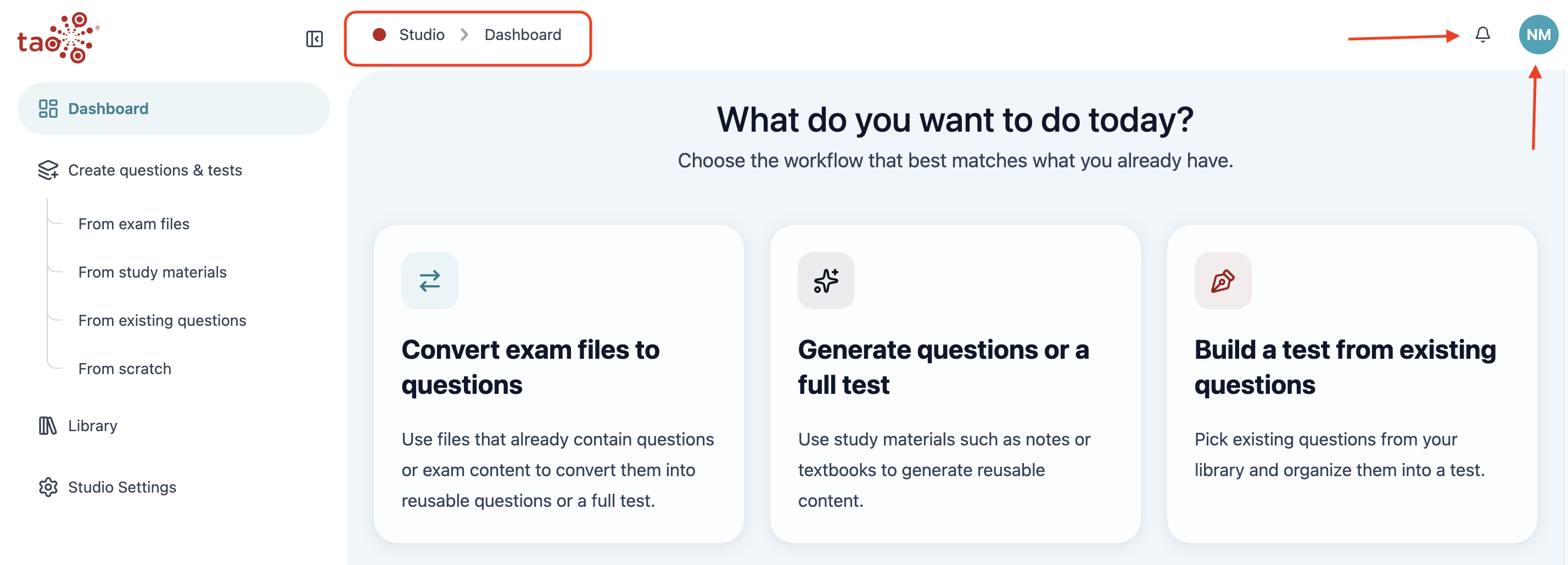
The top header keeps portal-wide controls visible while you work.
-
Use the breadcrumb trail (Studio > current page name) to confirm where you are.
-
Open Task monitoring (notification bell) to review import, conversion, generation, and export activity.
-
Open the user menu when you need account actions such as signing out.
Central content canvas
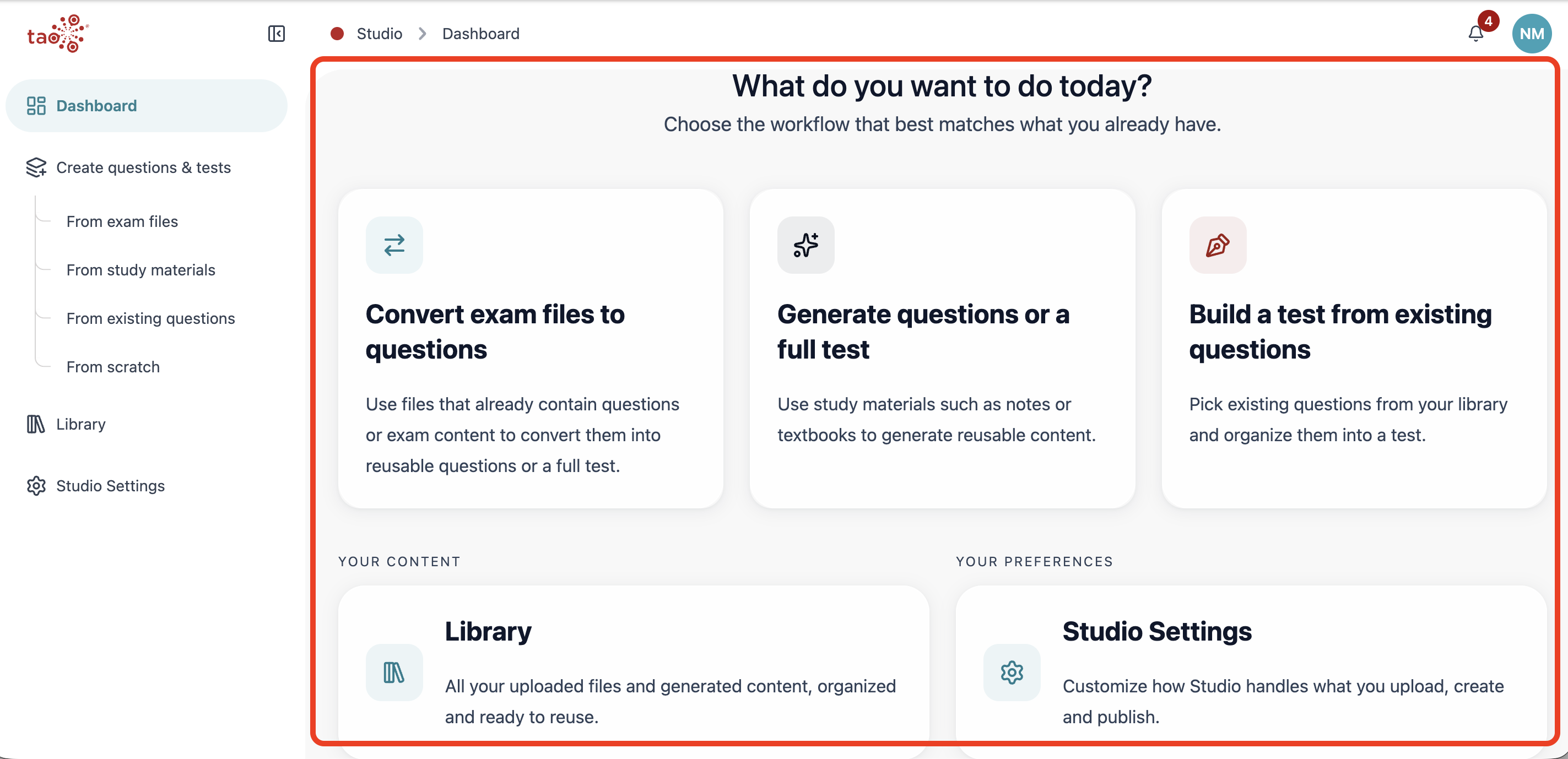
The central canvas changes depending on the page you choose:
On the dashboard, it shows the primary creation cards.
In the library, it becomes a searchable file list and preview workspace.
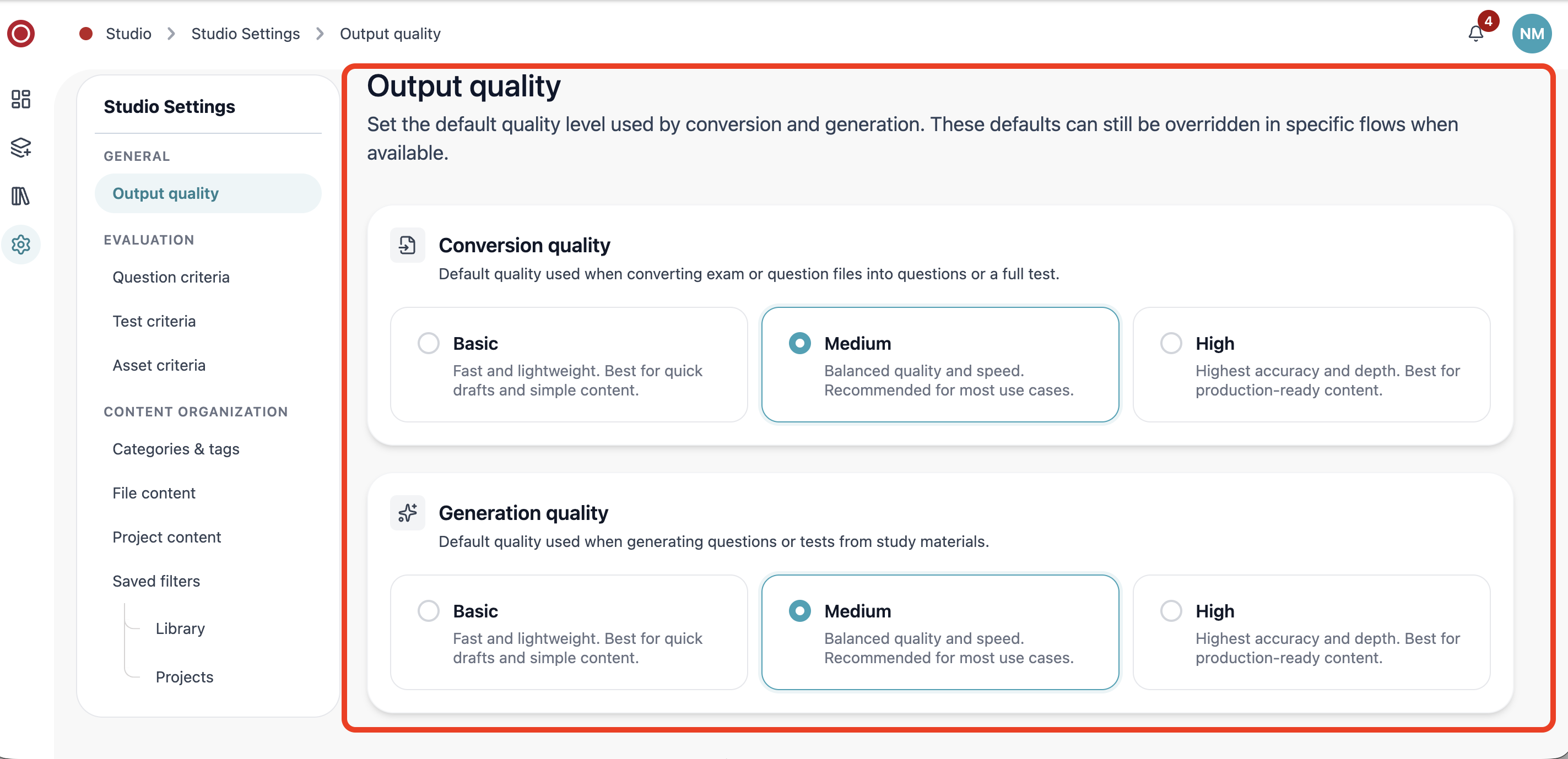
In Studio Settings, it becomes a form-based administration area.