
This module teaches you how to inspect a library file after it has been uploaded, generated, or converted. You will learn how the details drawer changes for QTI-based content versus non-QTI content, how to read every Overview field, how to review AI-suggested tags, and how to use relationships, quality, and conformance information before editing, exporting, or deleting content.
Accessing document details
-
From the Action menu on the right side of a file, select View details.
QTI-based vs non-QTI details
Details differ according to file type:
-
Source documents such as PDF, DOCX, CSV, and general study material normally show the core detail tabs: Overview, Tags, and Relationships.
-
QTI-based files, such as questions and tests, can show additional Quality and Conformance tabs when TAO Studio has analysis or validation data for them.
-
PCI packages use the core tabs only; they do not show Quality or Conformance scoring.
What changes by file type
-
Non-QTI files help you confirm the original file, metadata, tags, summary, and lineage.
-
QTI-based files include the same baseline details plus assessment-specific review areas.
-
Quality appears when item quality traits have been evaluated.
-
Conformance appears when QTI 3.0 or QTI 2.2 validation has been run.
-
Use the tab set itself as a quick signal of how much review data exists for the selected file.
-
PCI summary and AI tags can appear after preview is ready, a little later than for a PDF or Word file.
Navigating document details
The Overview tab
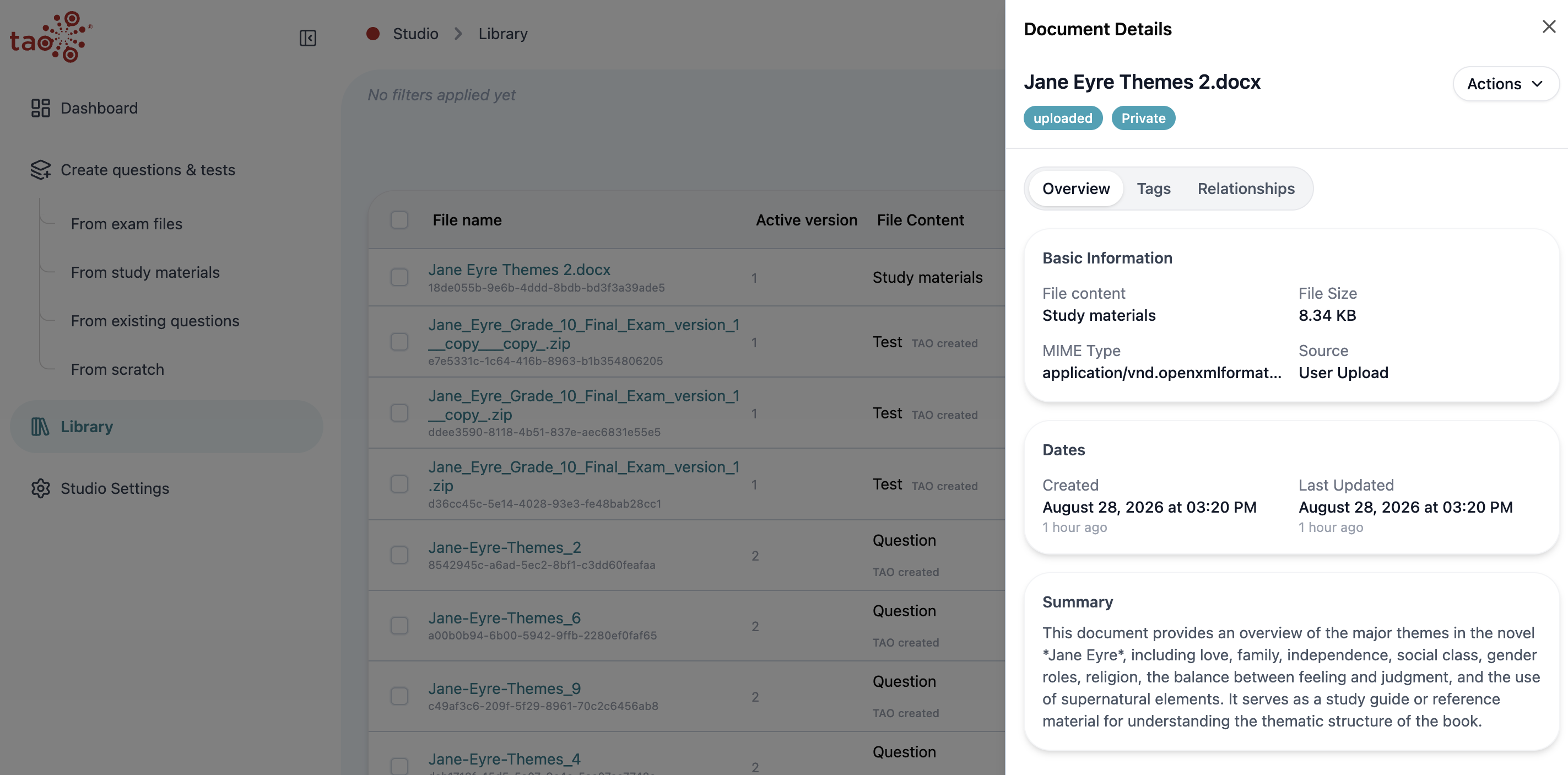
The Overview tab gives you the fastest explanation of what the file is and where it came from:
-
File name: the selected library item.
-
Status: the processing or availability state of the file.
-
Access scope: whether the file is private, visible to everyone in your workspace, or available more widely.
-
Actions: the menu for operations available on that file type.
-
File content: the document/content type assigned to the file, such as source file, study material, question, or test.
-
File size: the stored file size of the active revision (the same number shown as Active version in the library table).
-
File format: the stored format, such as PDF, DOCX, CSV, ZIP, QTI package, SCORM package, or PCI package.
-
Source: how the file entered the library, such as user upload, generated output, conversion output, or export.
-
User Selected Quality: the Basic, Medium, or High quality level chosen when content was generated or converted. This is the user's requested processing level, not the same thing as the automated Quality tab score.
-
Created and Last Updated: when the file was first stored and when its metadata or content last changed. Last Updated and file size can change when a new revision is stored on the same library item (for example after a conversion re-run updates the output), even though the library still shows one row.
-
Summary: a generated summary of the file content. Treat it as a review aid and search signal, then verify important details against the file itself.
The generated summary can help you quickly identify the purpose of a source file or converted question, but it should not replace human review for high-stakes use.
The Tags tab
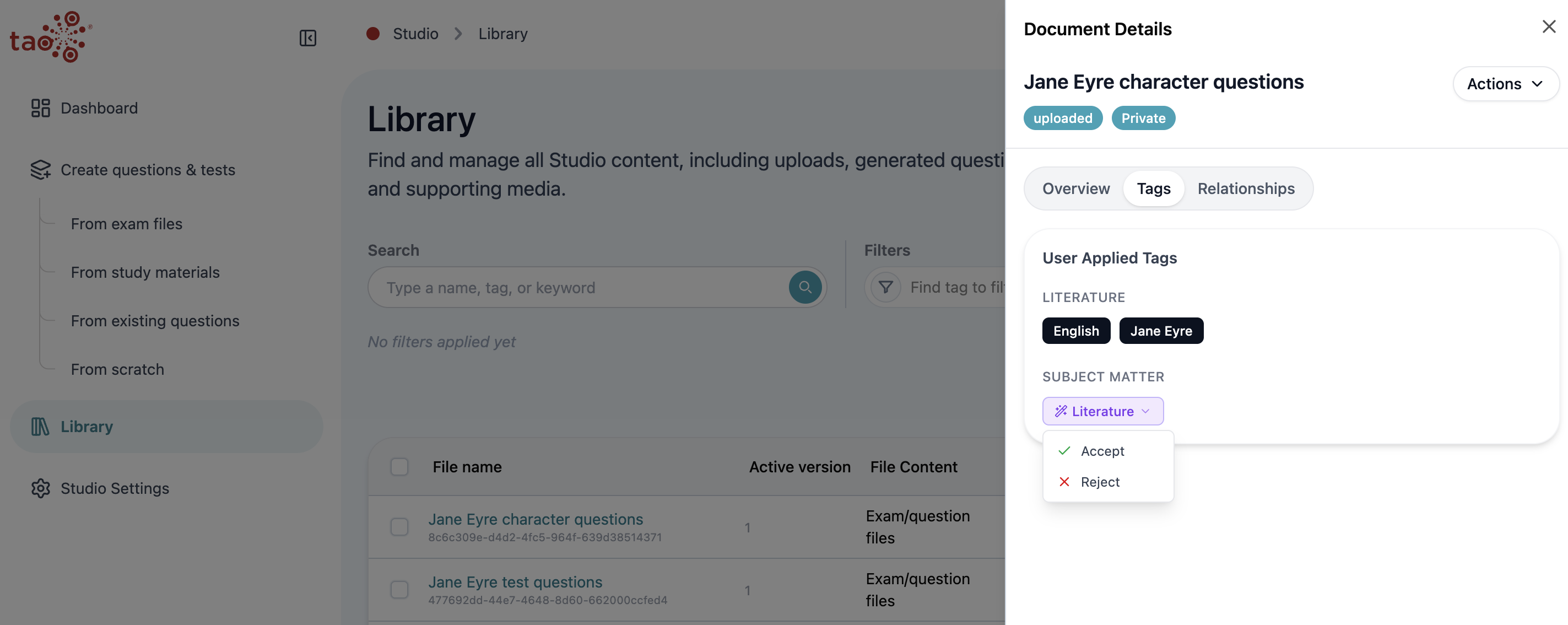
The tags tab displays metadata that has been assigned to the file by a user or the AI option.
The Tags tab separates normal user-applied tags from AI-generated suggestions. AI suggestions are shown with a distinct AI/wand treatment and must be accepted or rejected by a person before they become confirmed metadata.
-
Review confirmed tags first; these are already applied to the file.
-
Look for AI-suggested tags and open the suggestion menu.
-
Choose Accept only when the suggestion is correct; choose Reject when it is not.
-
After tags are confirmed, use Actions > Edit Tags to make normal metadata changes.
AI tags are useful for speed, but the library treats human confirmation as the trusted step.
The Relationships tab
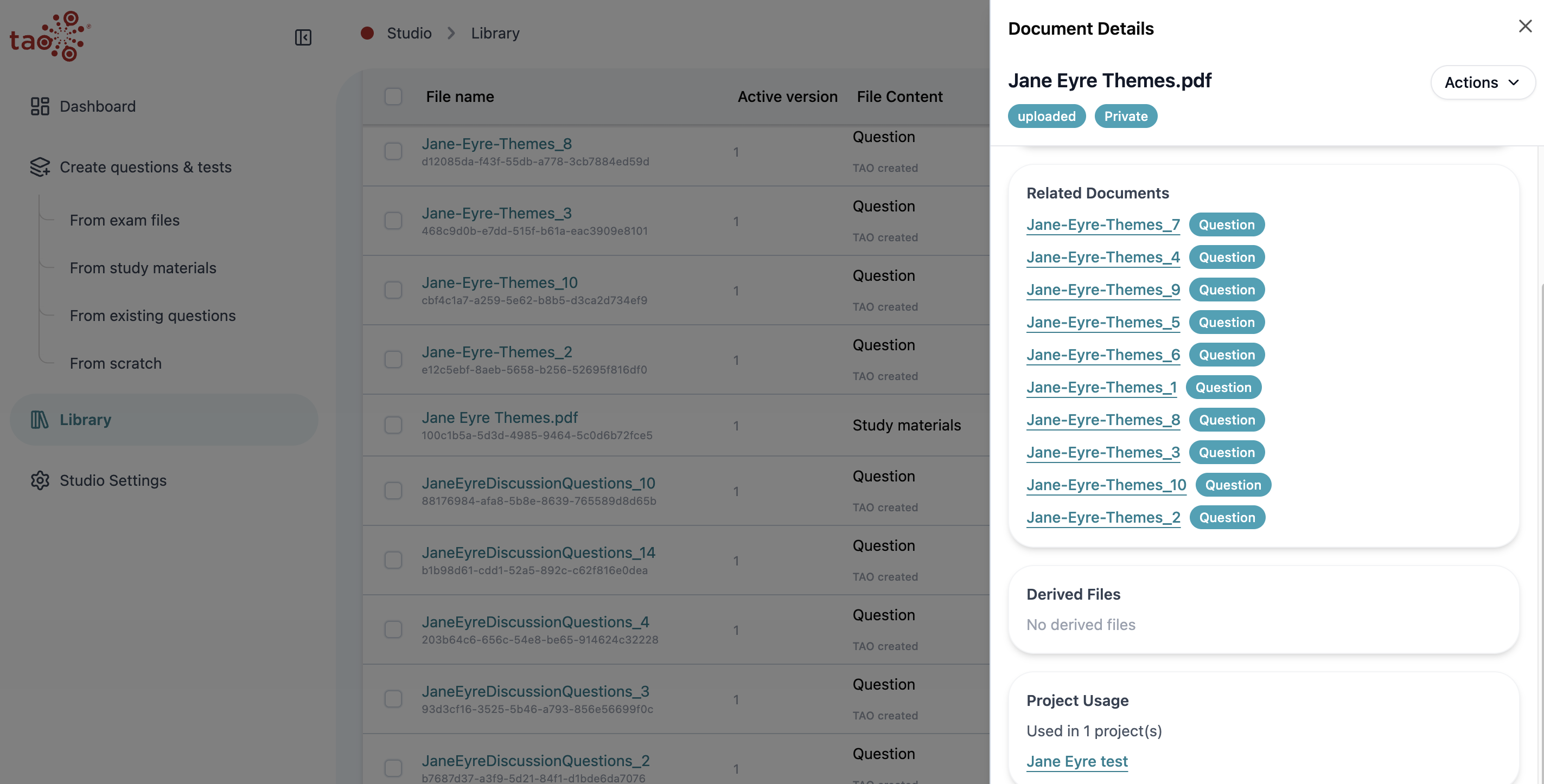
The Relationships tab explains how a file is connected to other content. These sections help you understand lineage before editing or deleting a file.
-
Origin Document: the parent source file that produced the selected item. For a generated QTI question, this is often the original CSV, PDF, or DOCX.
-
Related Documents: other documents generated from the selected file, or sibling content connected through the same source. If you run conversion again on the same source, the related output with the same name should stay one library item (a new revision on that output), not a duplicate row.
-
Derived Files: downloadable assets or generated files linked to the selected document.
-
Project Usage: projects, tests, or workflows currently using the file.
If a file is already used in a project or test, coordinate before deleting or heavily editing it. A small metadata change can affect review, delivery, or export workflows.
Quality traits
The Quality tab is available for questions, tests, or assets (media files).
The quality traits that display are configured in User preferences. They are can be updated - if changed, they will apply to all relevant entities in the library.
The quality check is color-coded:
-
Green means a trait passed
-
Yellow means a trait needs review
-
Red means a trait conflicted with the quality check and the entity may not be usable
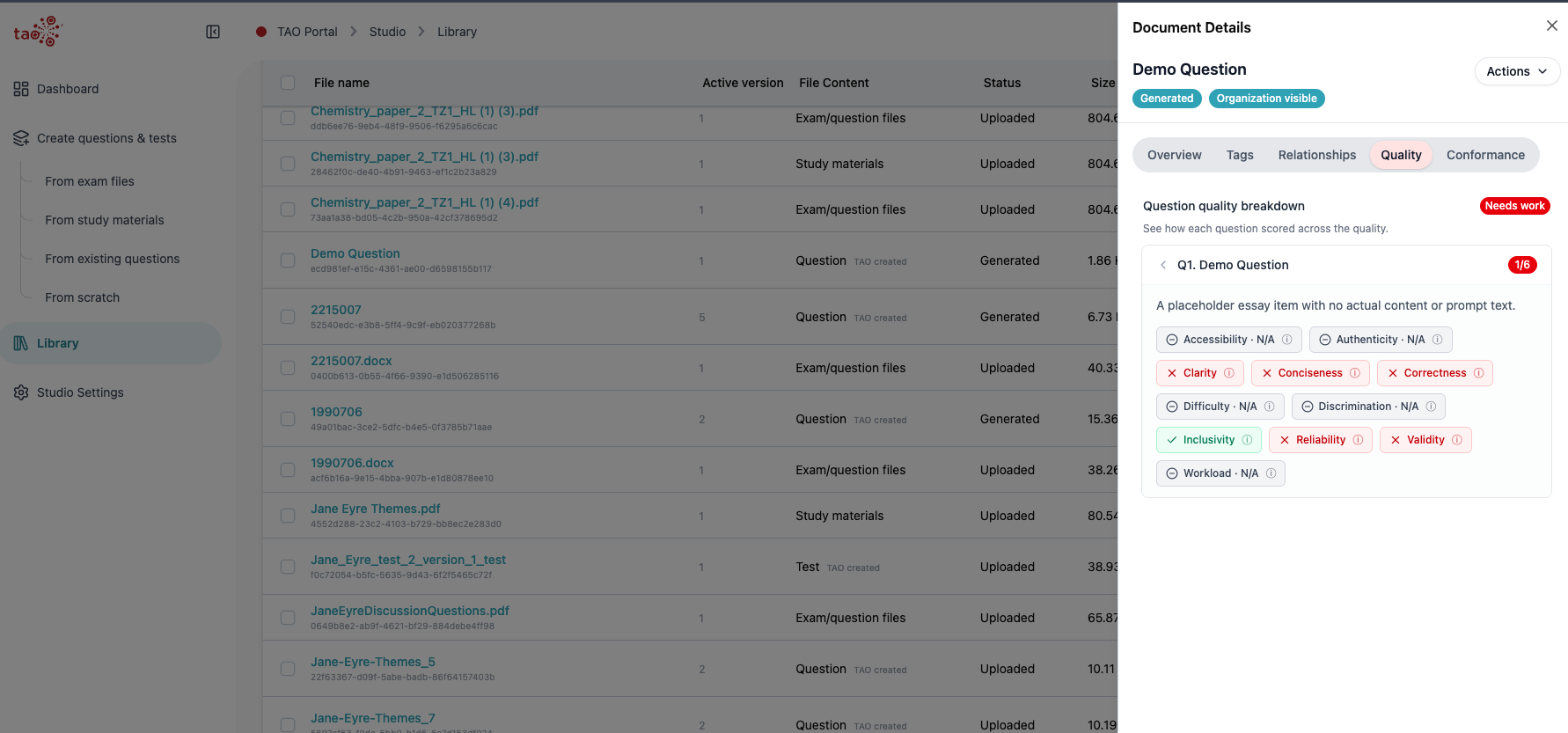
Question quality
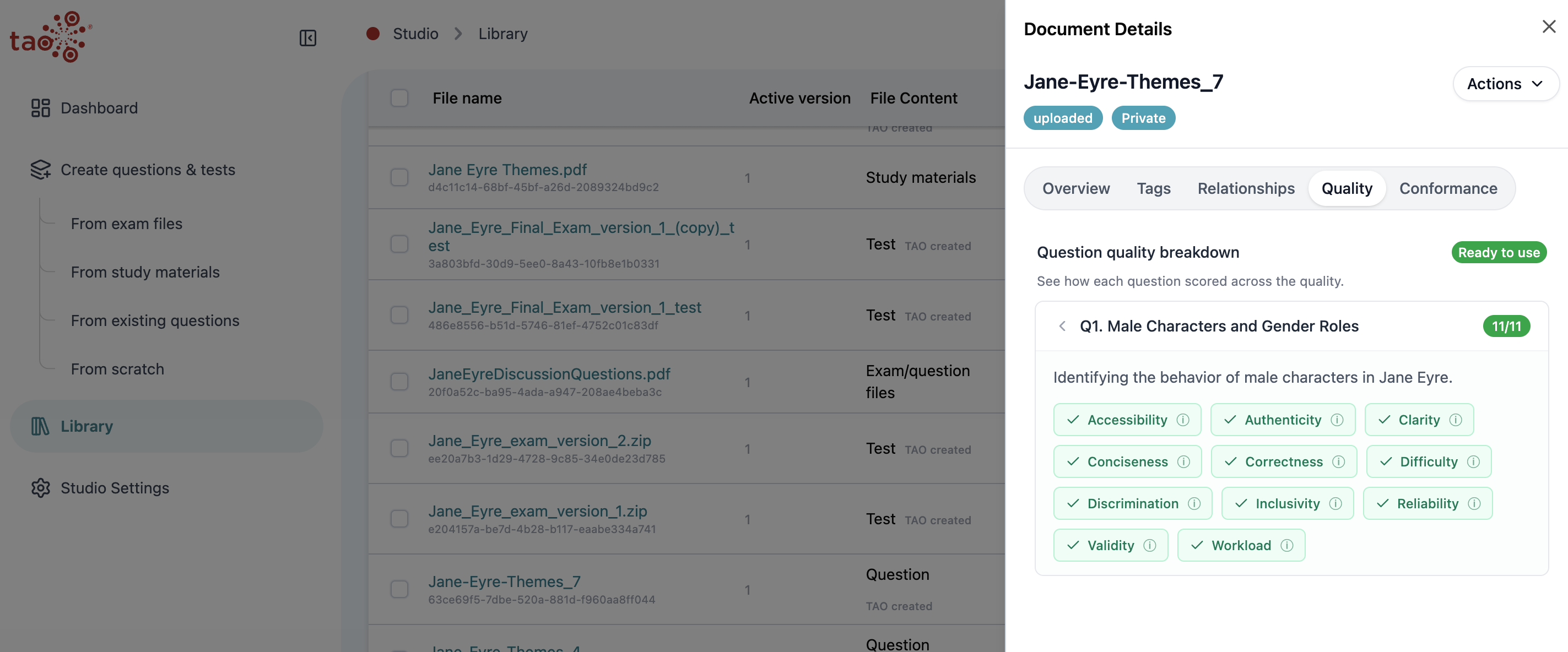
TAO Studio evaluates the question’s traits and gives it a score. The score shows how many traits passed for the selected item, while the detail view explains individual strengths and review needs.
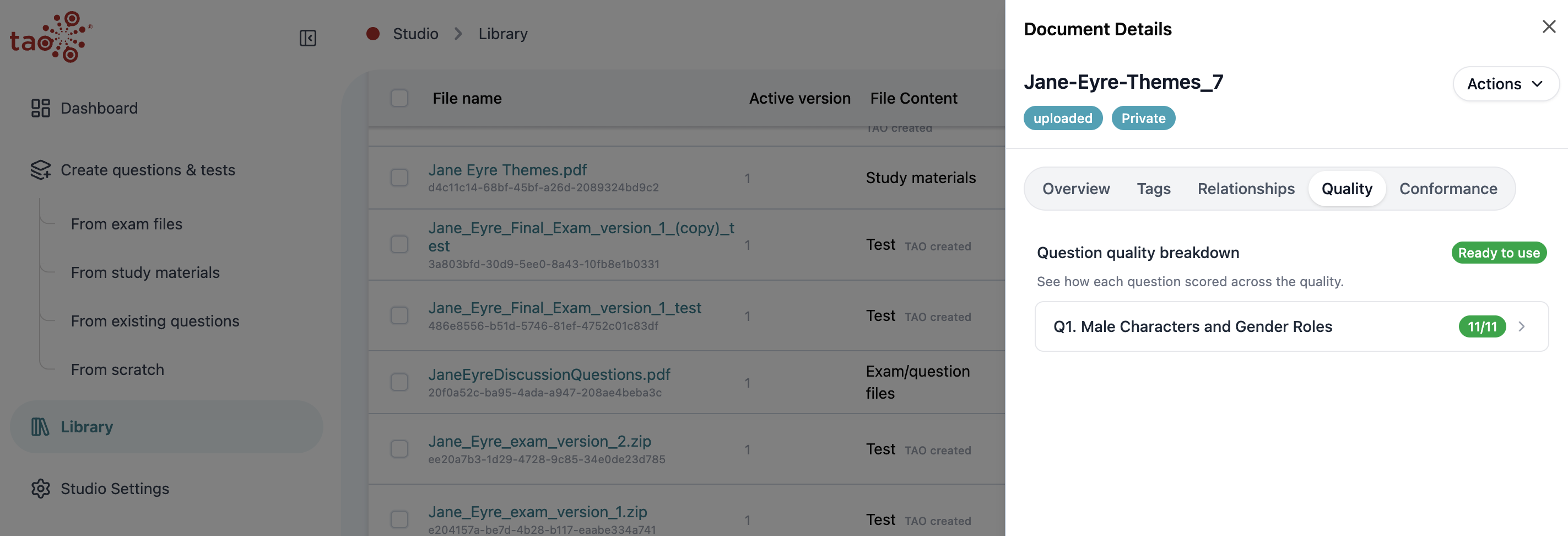
Select the question under Question quality breakdown and review how the item’s score details.
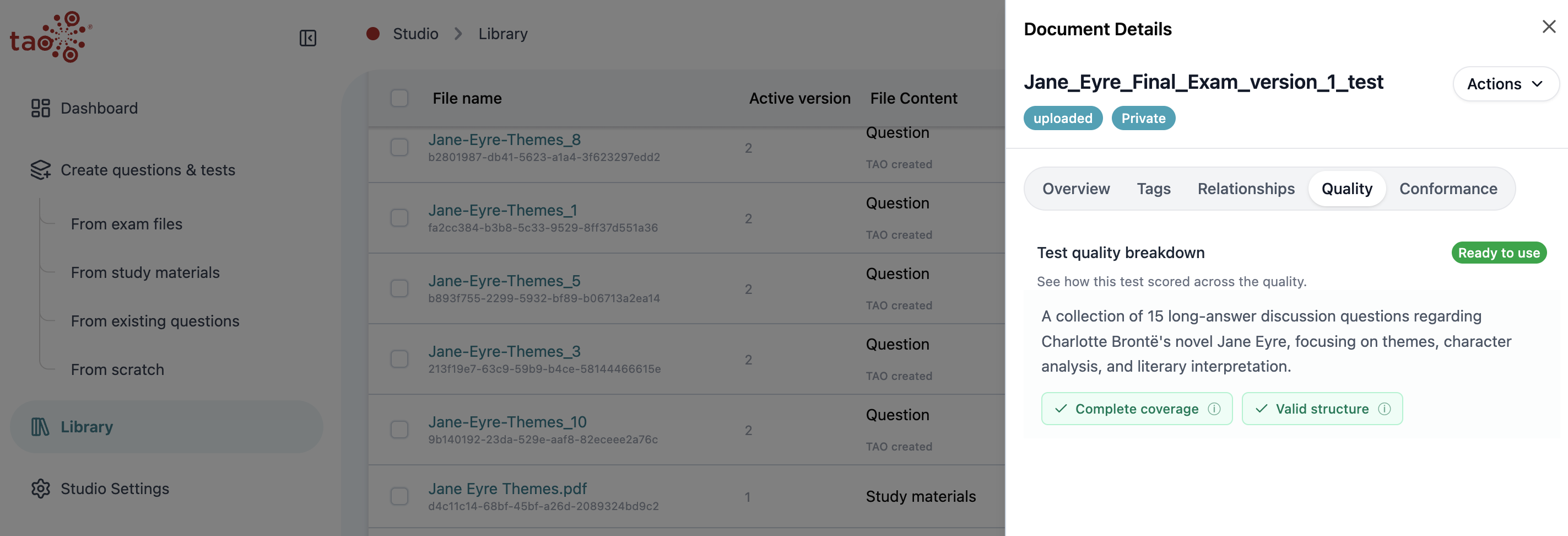
Tests quality
Under Test quality breakdown you will see a summary of the test criteria and whether the test passed the check.
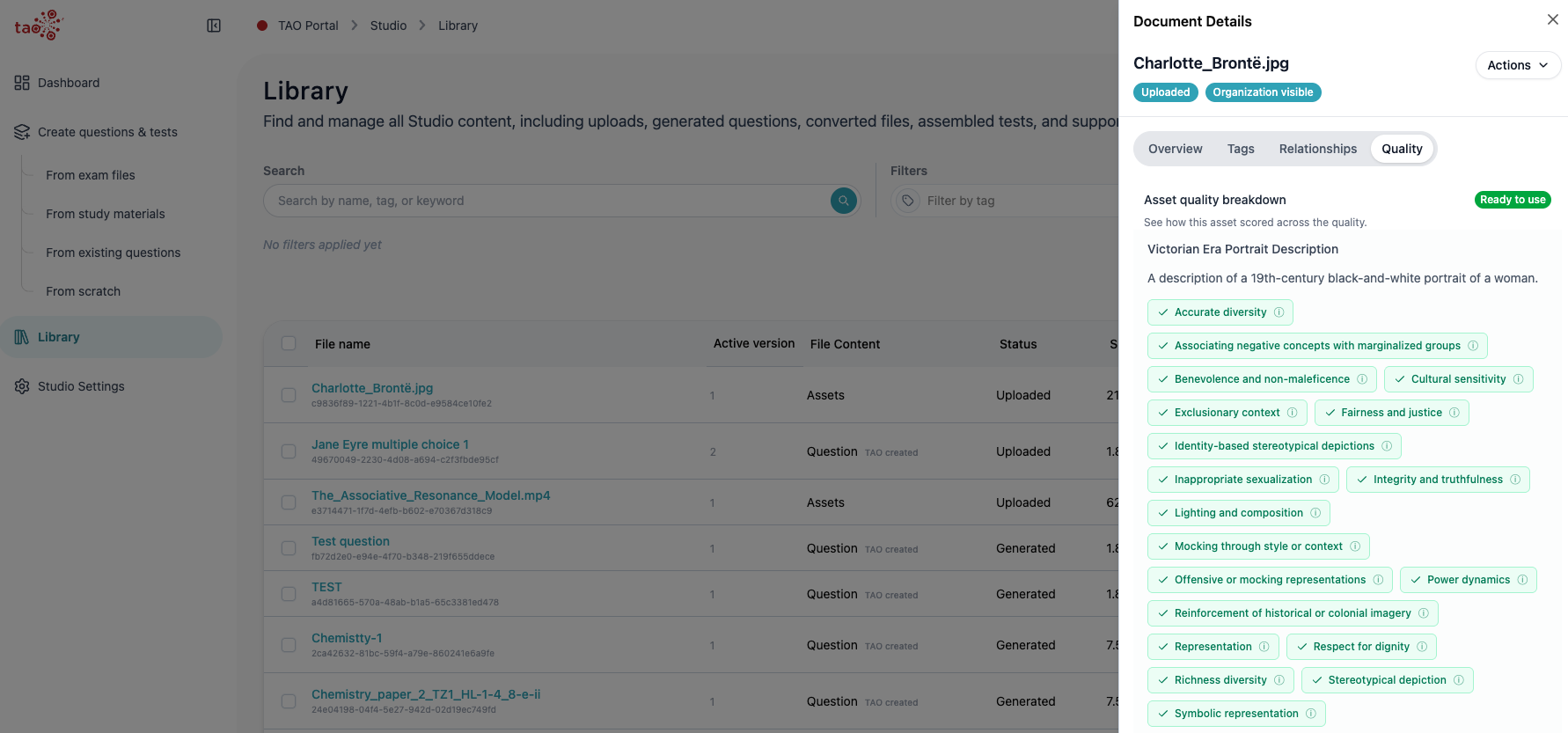
Asset quality
Under Asset quality breakdown you will see a summary of the asset criteria and whether the asset passed the quality check.
The Conformance tab (QTI-based)
The Conformance tab is available for QTI-based content, such as a test or question. It explains whether the package structure is valid for supported QTI standards.
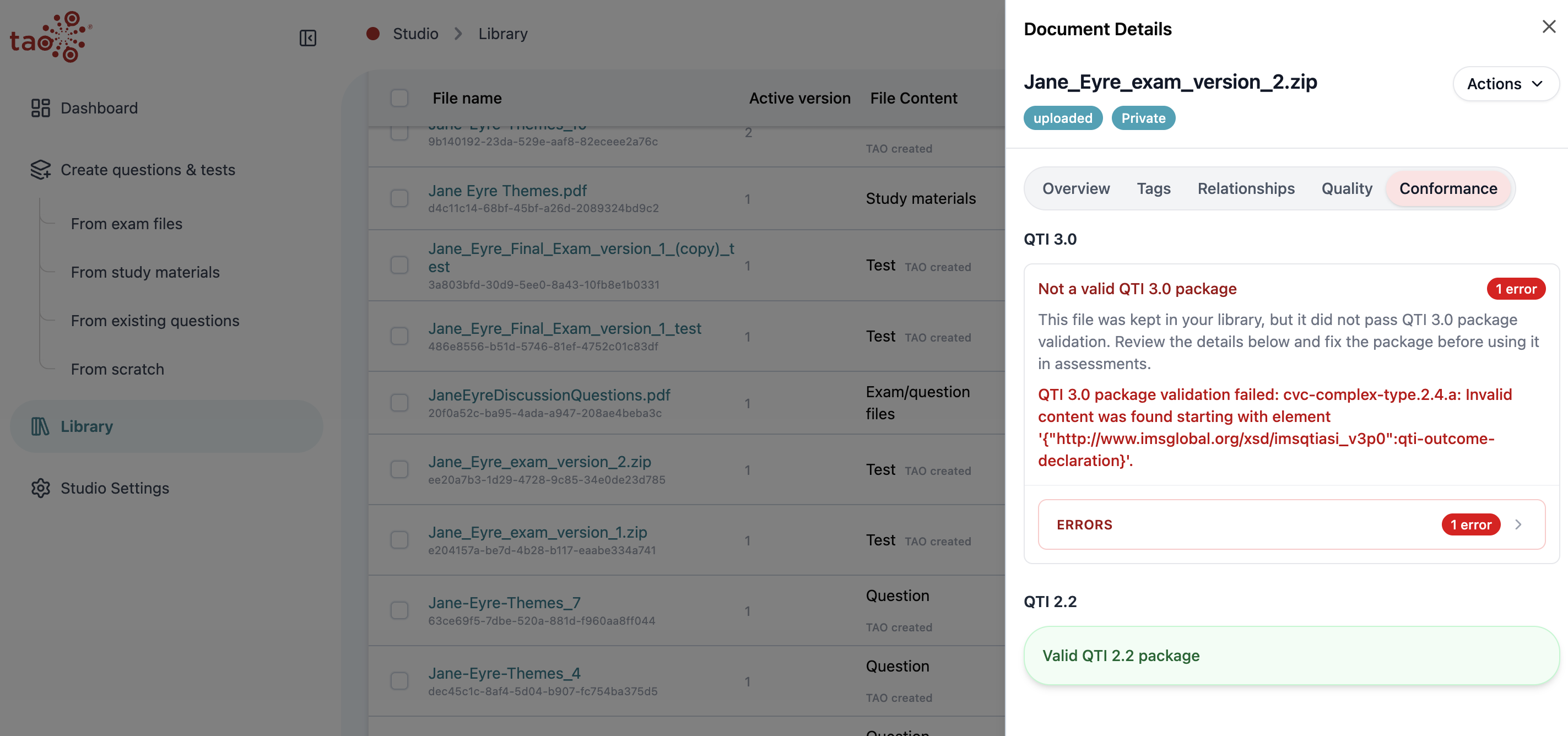
What conformance means:
-
QTI 3.0 validation checks whether the item or package follows QTI 3.0 structural expectations.
-
QTI 2.2 validation checks the equivalent compatibility path for QTI 2.2.
-
Valid means the structure passed validation for that standard.
-
Pending means validation has not finished yet.
-
Invalid means the validation panel should be reviewed for errors or warnings.
Conformance is about technical package validity for delivery and export. Quality is about instructional and assessment quality. Use both signals together for QTI-based content.