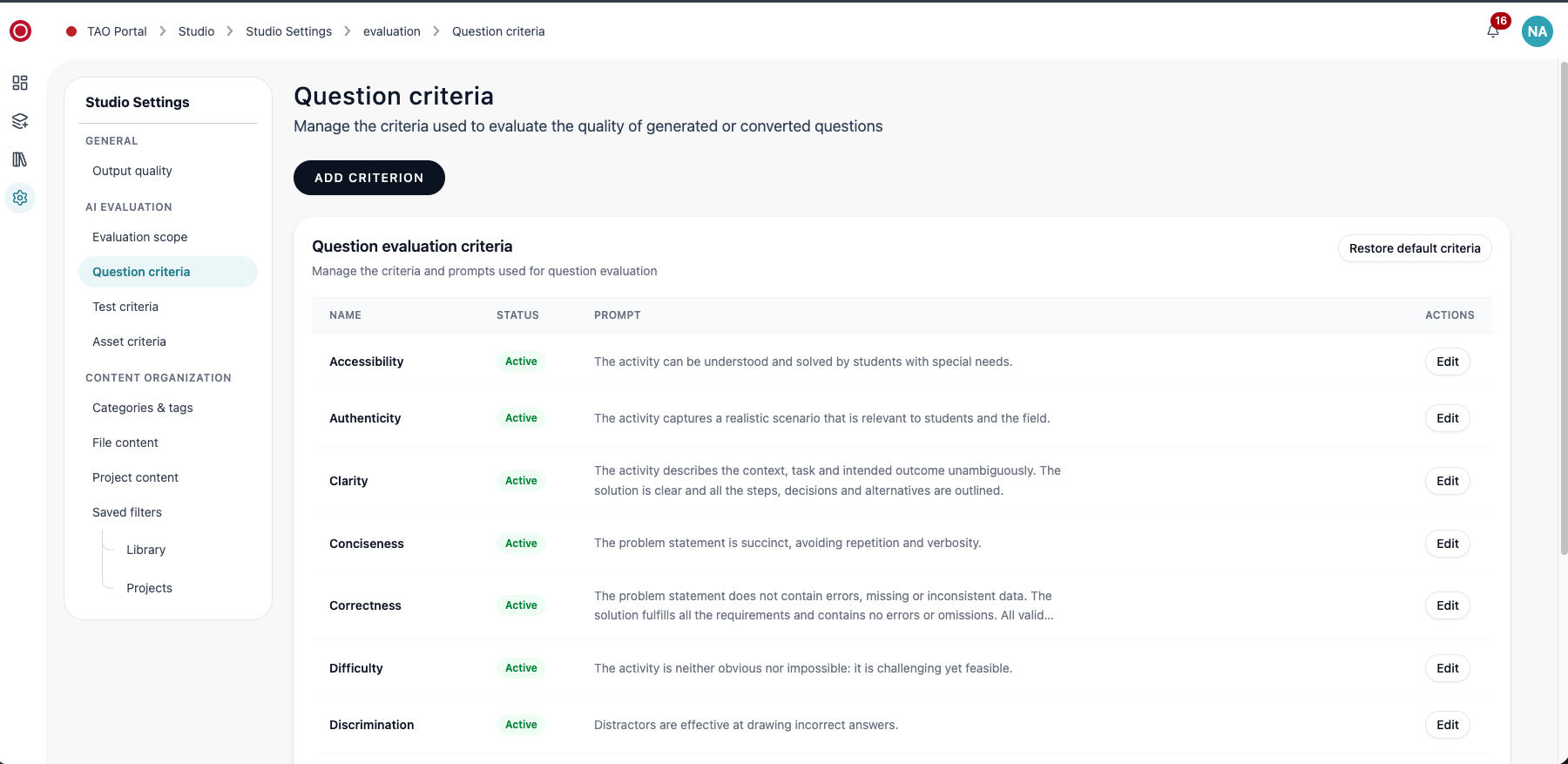
TAO Studio provides a default set of criteria which is used to evaluate (via AI) the quality of questions, tests, and assets. These set of criteria differ according to content type, and can be edited in from the Evaluation scope page in User preferences.
Viewing Quality evaluations
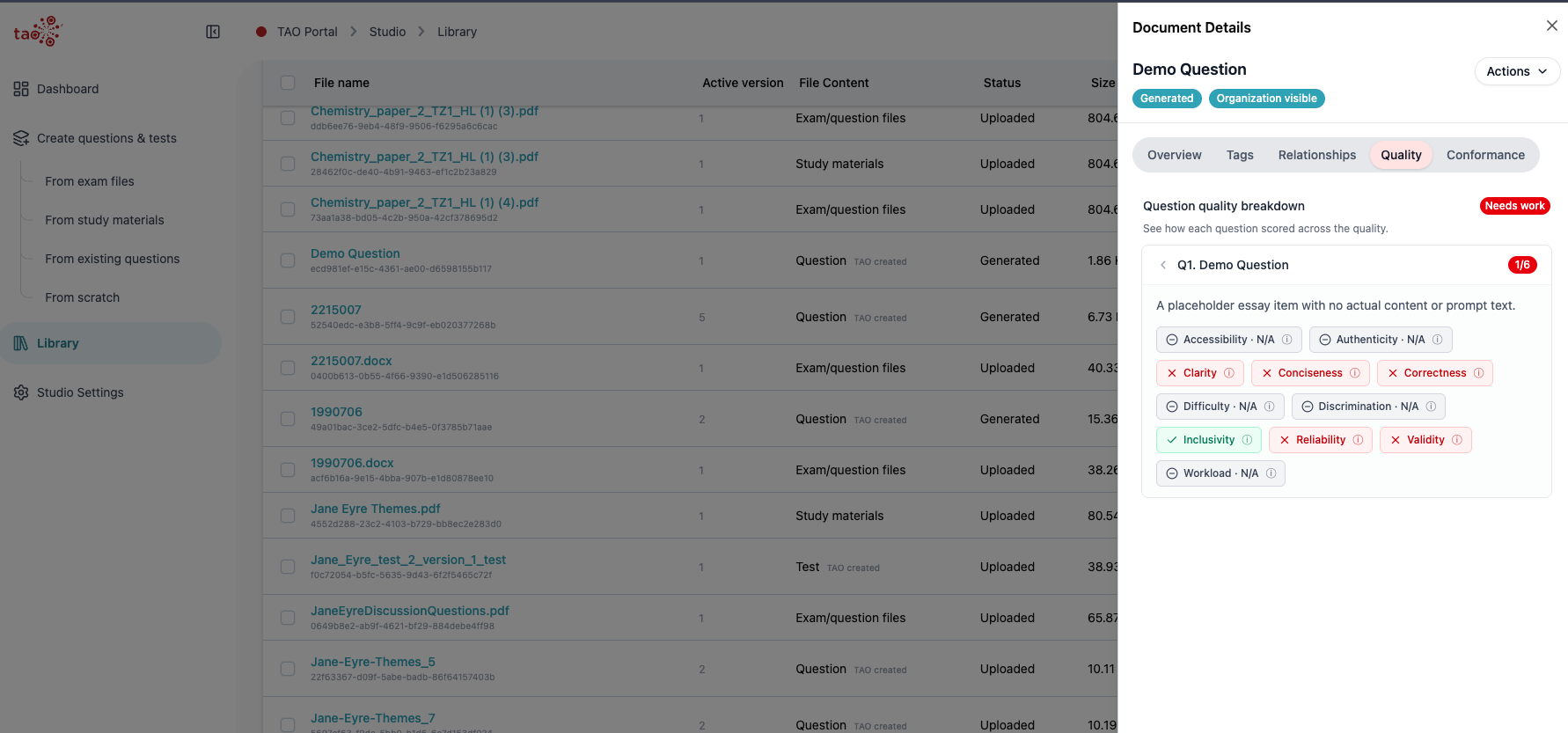
When viewing document details for questions, tests, or assets, the Quality tab displays whether the document/entity passes TAO Studio’s quality check:
From the library:
-
Select the action menu for a document
-
Select View details > Quality
The quality check is color-coded:
-
Green means a trait passed
-
Yellow means a trait needs review
-
Red means a trait conflicted with the quality check and the entity may not be usable
Customizing the evaluation criteria
Evaluation scope
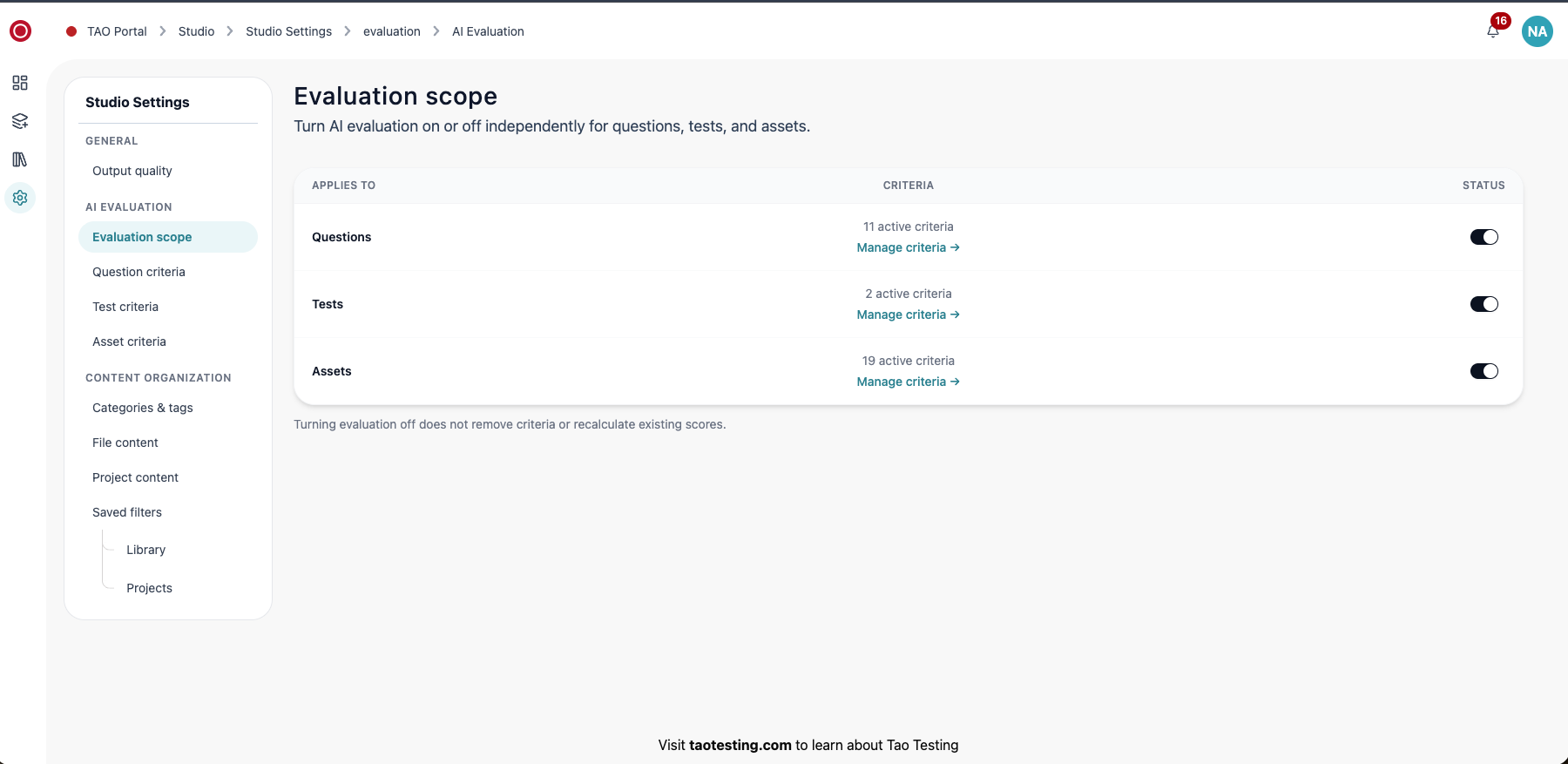
In User preferences under AI evaluation, the Evaluation scope page provides an overview of the number of active criteria for each content type. From this page you can:
-
Select Manage criteria to add or remove criteria from that content type
-
Under Status, toggle the option to disable the evaluation entirely for that content type
Adding and managing criteria
-
From the Evaluation scope page, select Manage criteria for a specific content type, or select one of the individual options from the Studio Settings menu (under AI Evaluation).
-
The list displays all criterion, active and inactive. To add one, click Add Criterion.
-
Enter a name, status, and prompt for the criterion. Be specific to ensure the system evaluates against the description correctly.
-
Once the criterion is added, you can click Edit to update any part of the name, description, or to deactivate it.
-
Deactivating does not remove it from the list; to remove entirely click Edit > Remove criterion.
-
-
Click Restore default criteria to remove all custom entries.