
Preview support can vary by file format and processing status.
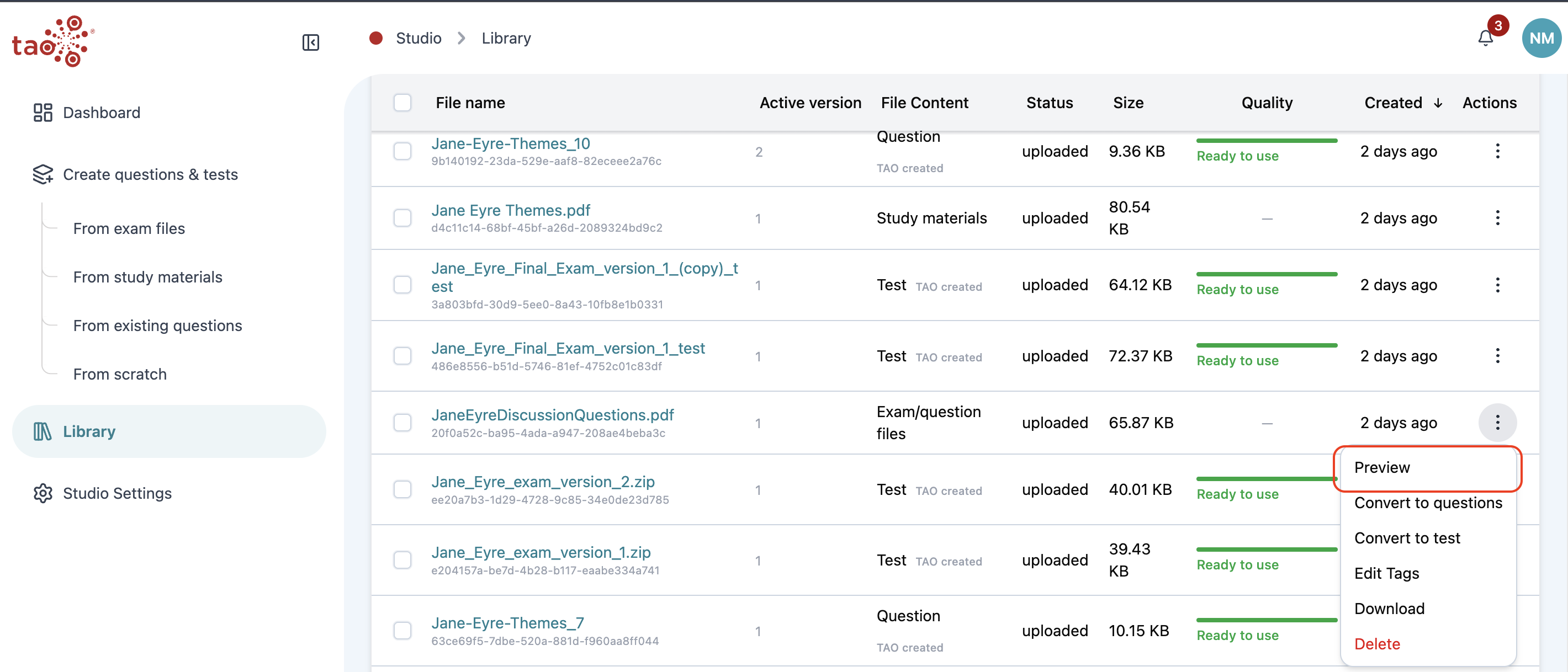
Preview is available from the row menu and from the file details drawer when the file type supports it.
You can also access preview by clicking the File name.
Examples
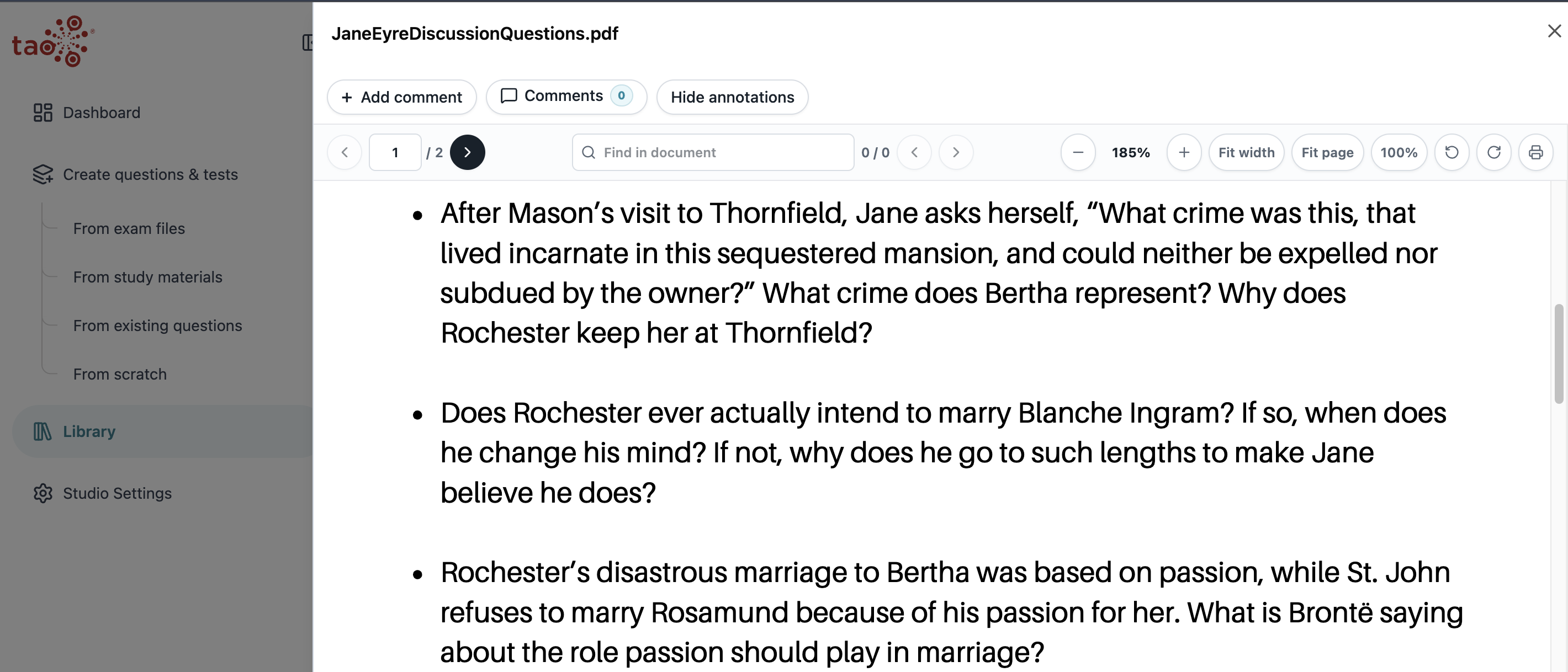
PDF files open in a PDF preview.
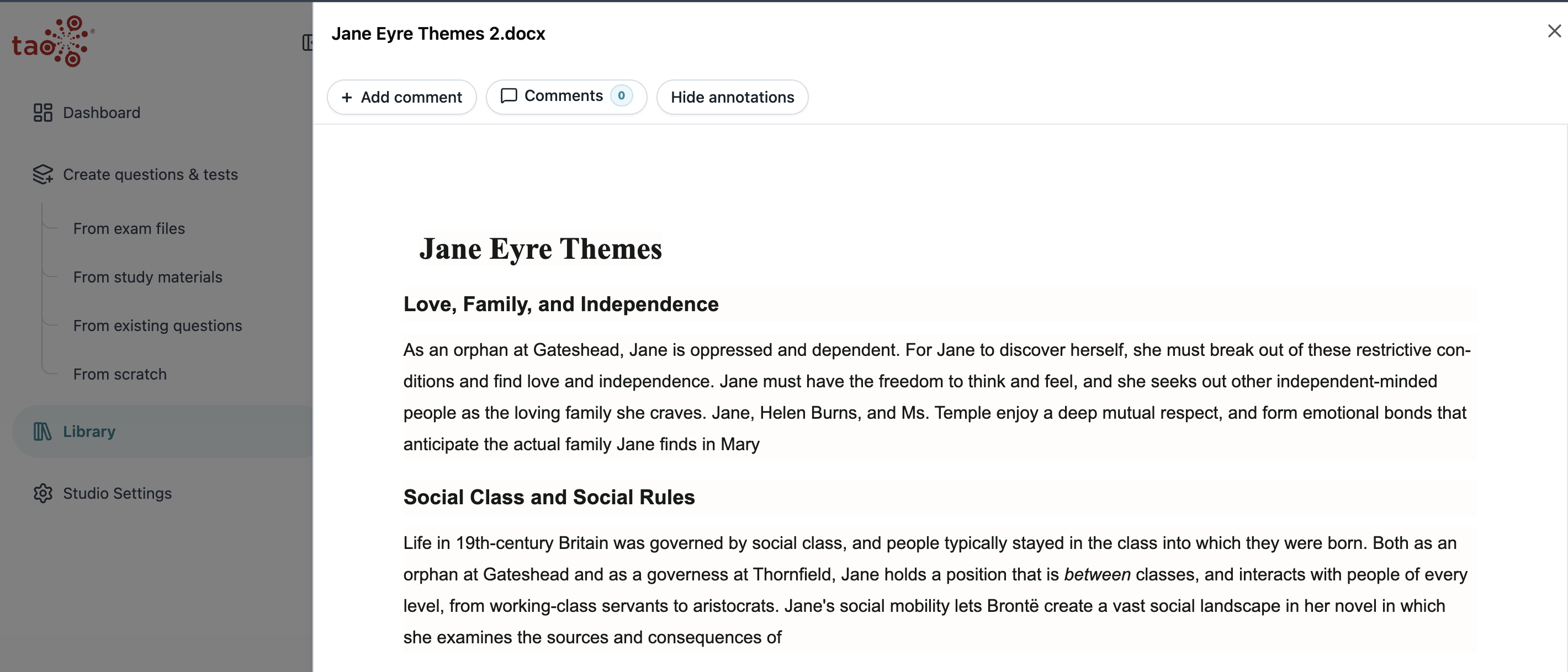
DOCX files render as readable document content.
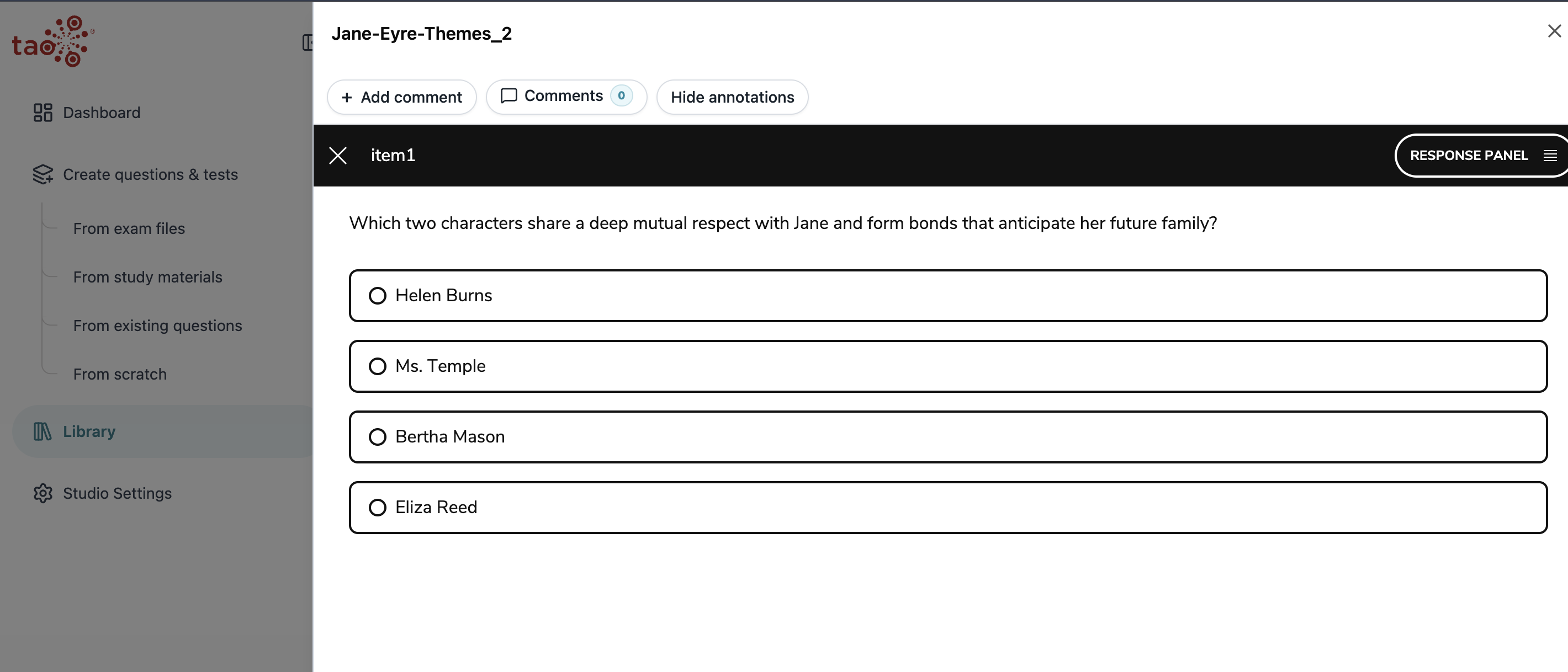
Question files open in the QTI preview player.
Test files open in the QTI preview player as a test package.
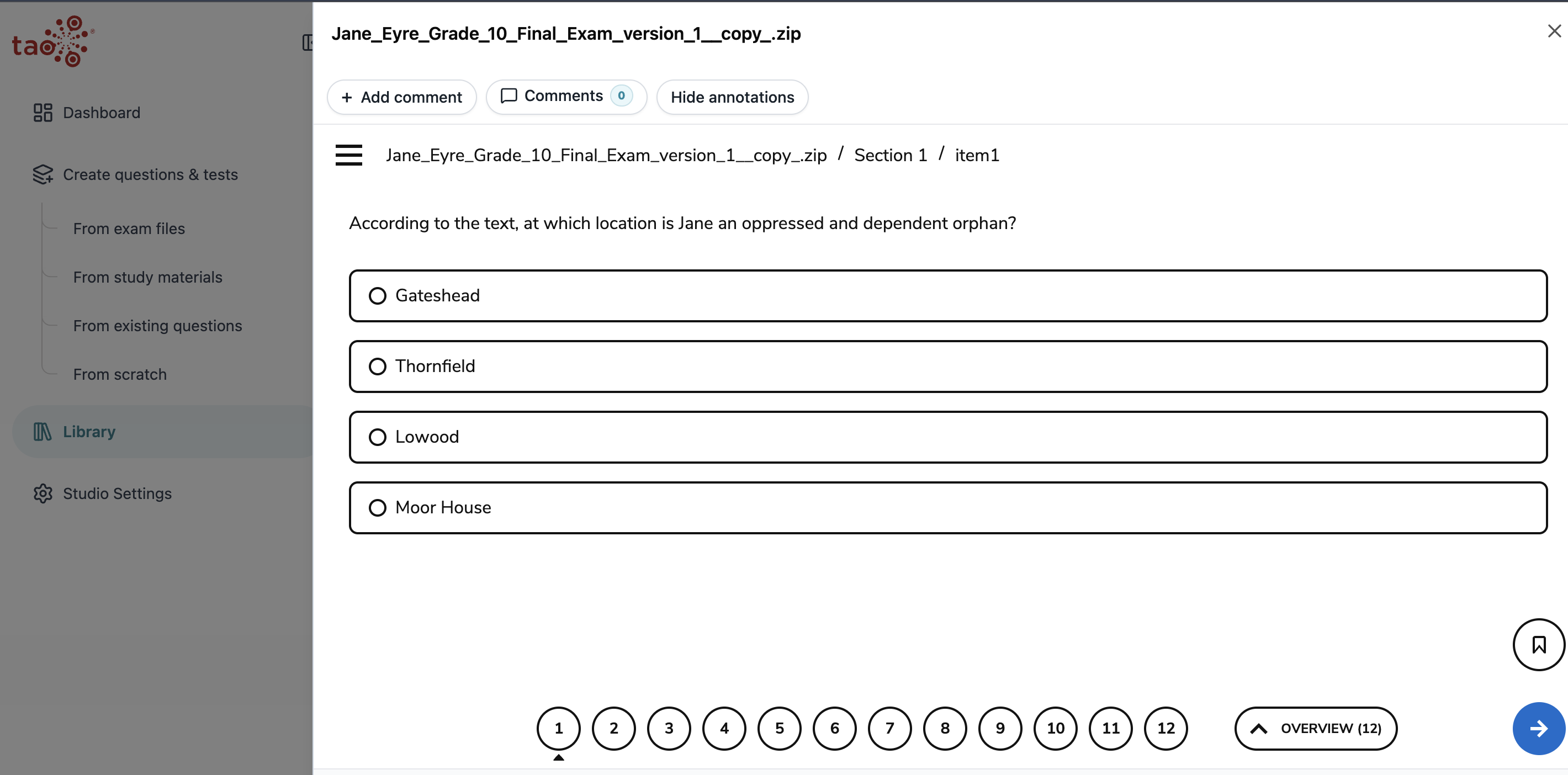
SCORM 1.2 study materials open in the SCORM player at the first activity.
PCI packages open a preview of the custom interaction when generation has finished. Until then the menu can show Preview (Pending).
Stimulus packages open a preview of the shared passage.
Previewing active versions
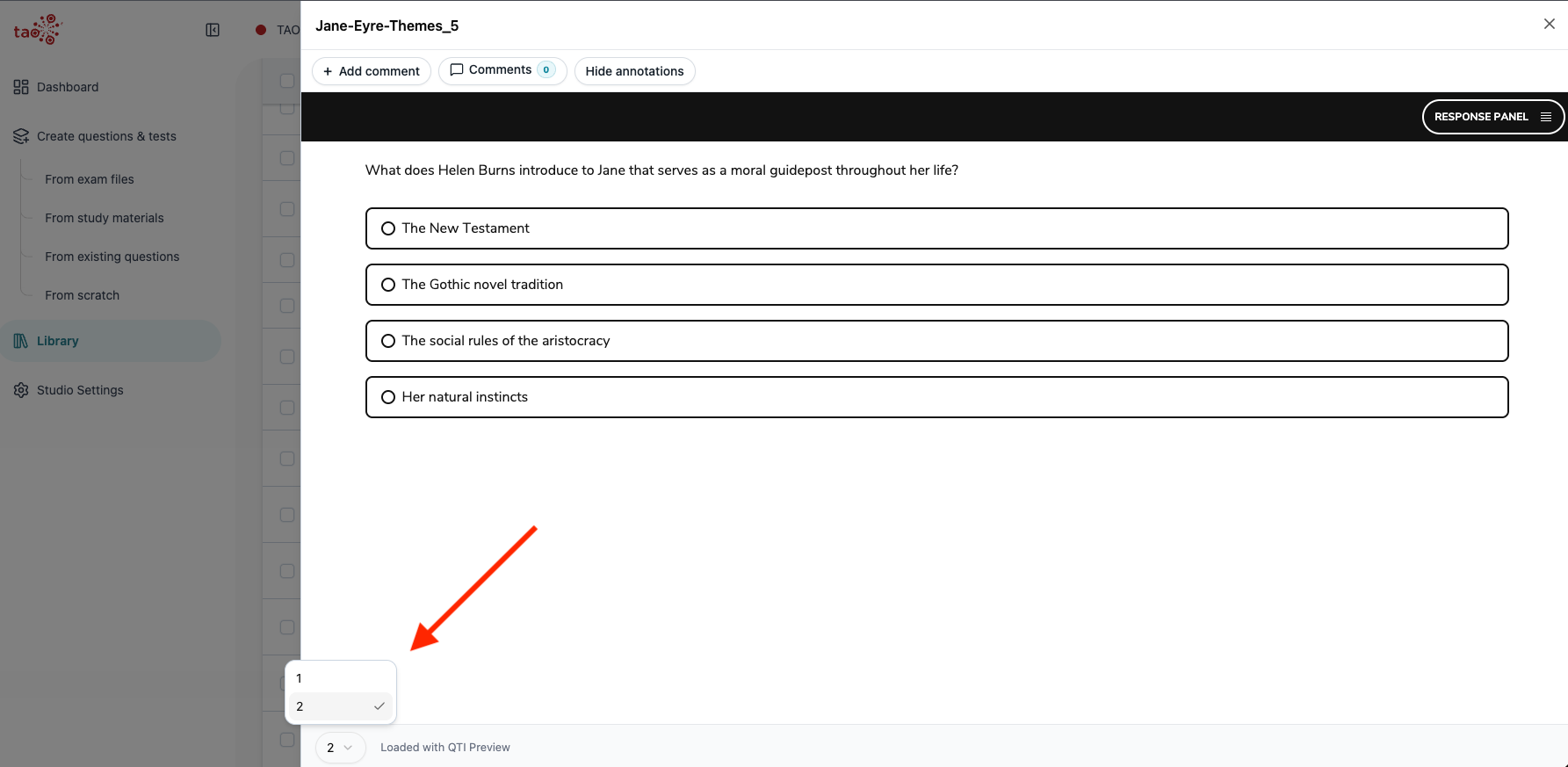
If a file has more than one active version, you can select which version to view in the bottom-left corner of the preview window:
Adding annotations
There is an option to add annotations (comments, questions, change requests) to any type of content during preview. Select Add comment in the top-right corner, then select which type of annotation you want to add.
You can view all annotations that you or another user have previously added by opening the Comments tab.
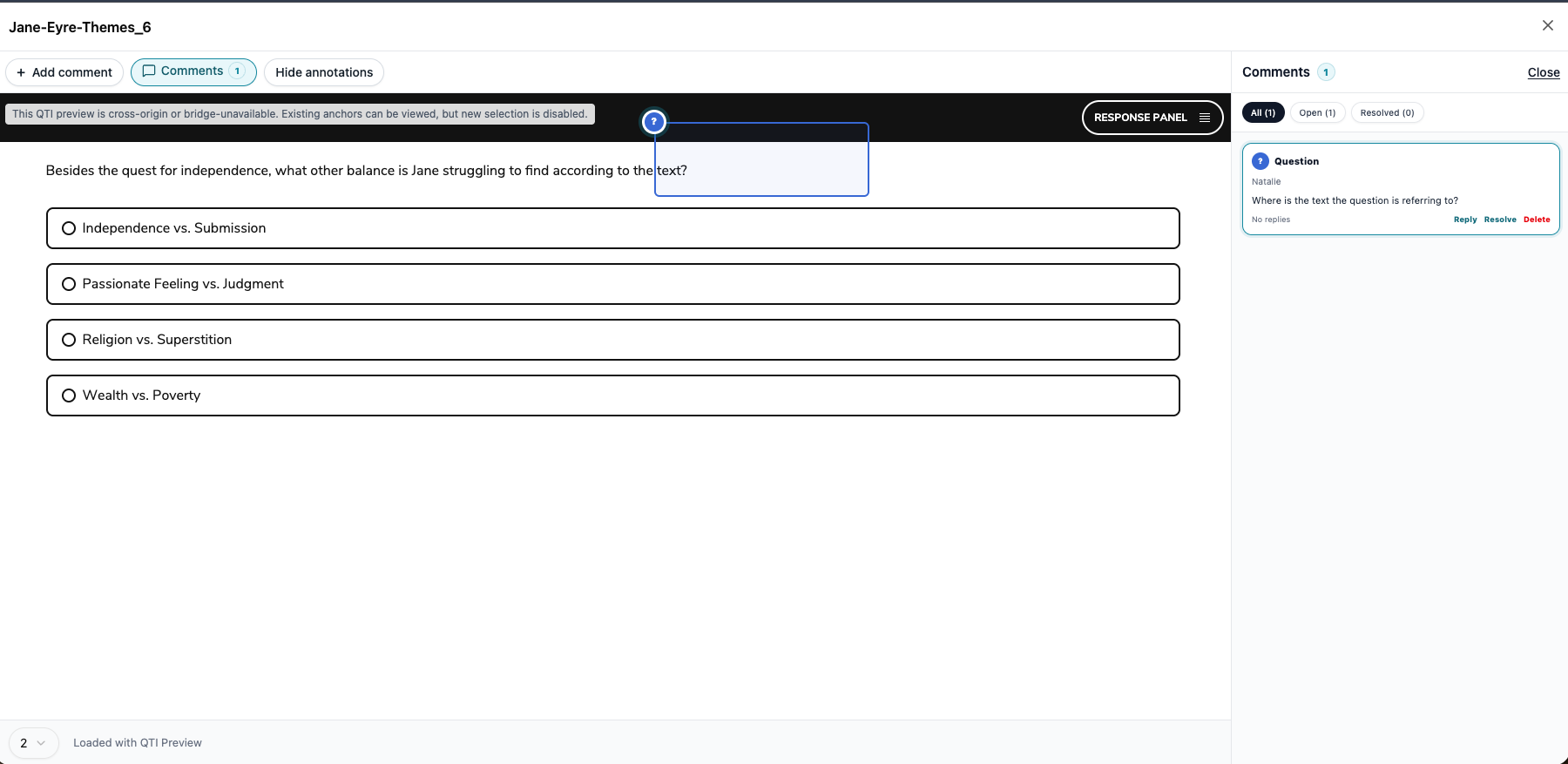
There is also an option (Hide annotations) to remove all markings from the entity while you are in preview.