
The Content Library can grow quickly. This article teaches you how to find files using the top search bar, narrow results with categories, understand category counts, and reuse common searches with saved filters.
Searching from the top bar
The search bar at the top of the Library is a unified search. It can match file names and visible metadata, search inside file summaries and extracted content, and return semantic matches when the words in the file are related to the idea you typed.
The library table also shows a unique identifier under each File name, plus Active version and Created, so you can tell one file from another even when titles look similar.
-
Open Library.
-
Click Type a name, tag, or keyword.
Type a direct term or a natural-language phrase, such as discussion questions.
-
Select the search button or press Enter.
-
Search is useful even when you do not remember the exact title. For example, a file may appear because the summary discusses bonding or forces, even if the title only says that it is a chemistry sample.
-
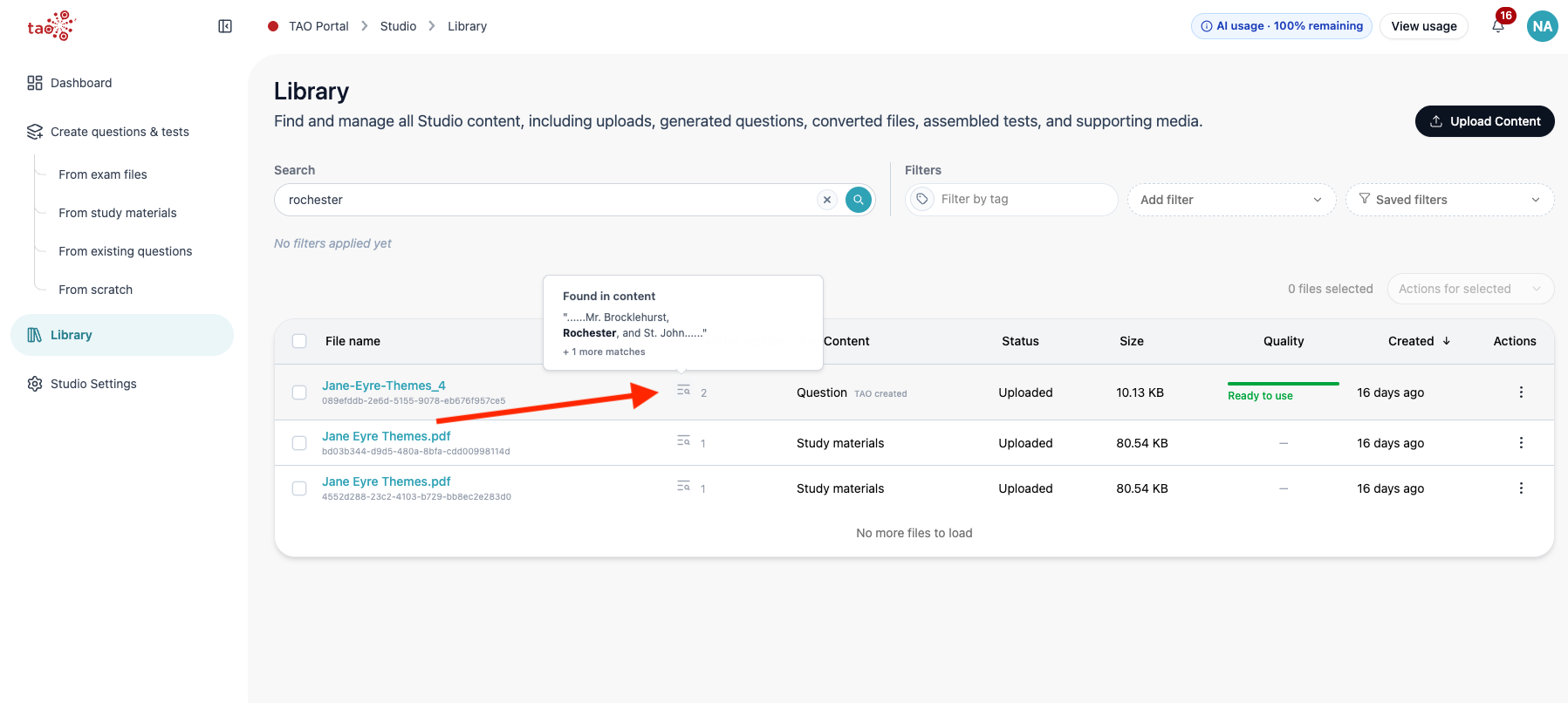
Look for the Found in content indicator on results that matched inside a file or its summary.
-
Hover the indicator to read the matching fragment.
-
Using filters
Assigning categories and tags to all library files is crucial to maintaining an organized set of content. The Library’s filtering mechanisms use those categories and tags (as well as content types/size, etc) to narrow down searches and make it easy to retrieve content.