Filtering by category
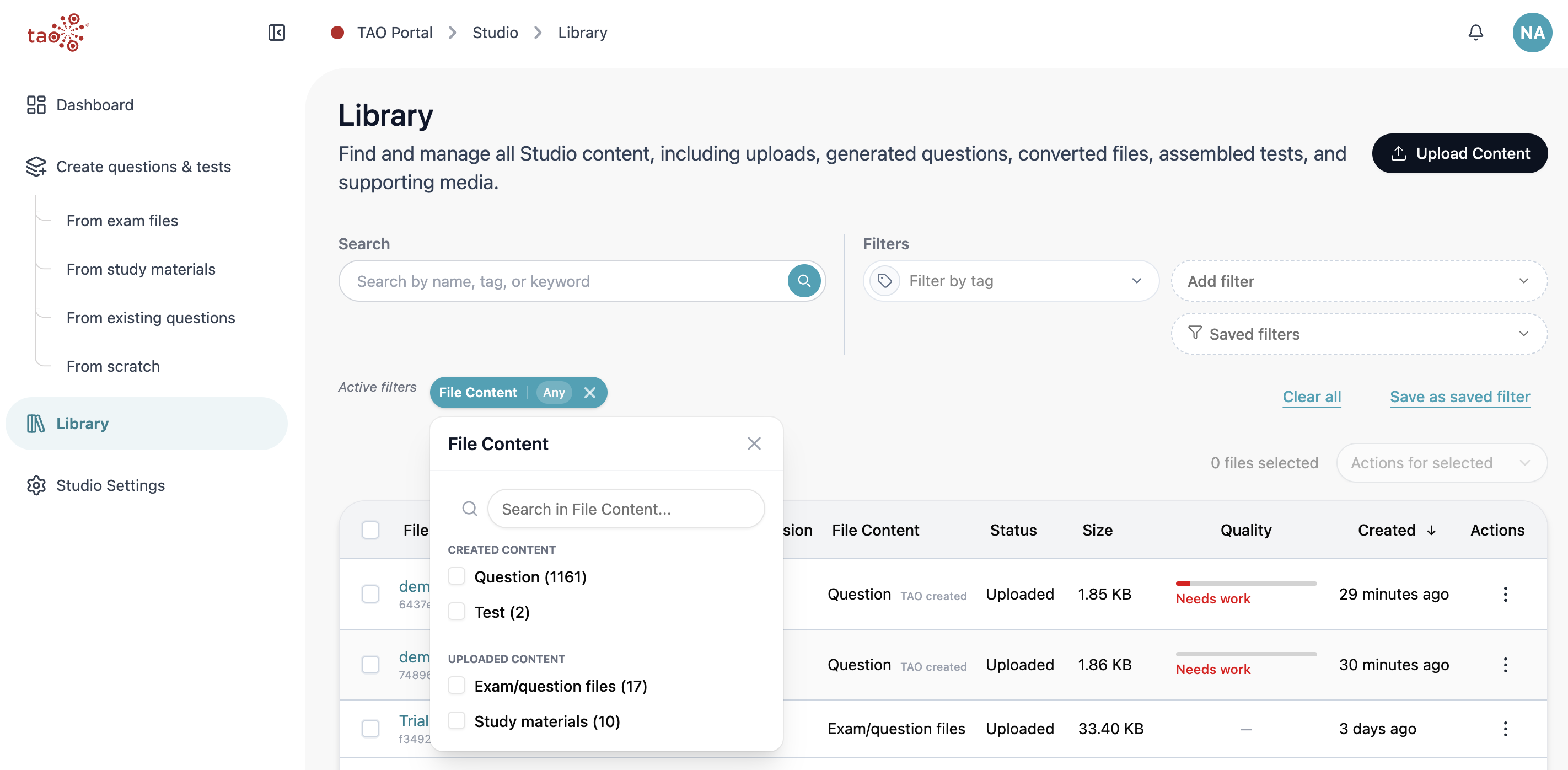
The Add filter dropdown menu shows all available filter categories and the number of files currently associated with each category.
These counts follow the search and filters you already applied, so typing a name in the top search bar can reduce the numbers you see.
-
Select Add filter.
-
The filters that display correspond with columns in the library table, and any existing custom categories.
-
Use the number beside each category to understand how many files are represented there.
-
-
Select a category. You can narrow the search further by selecting a subcategory from its tag panel or by using the search bar within the filter.
Tip: Search text, tag filters, category selections, and saved filters can be combined. Start with the broadest filter, then add the next filter only when the result list is still too large.
Filtering by tags
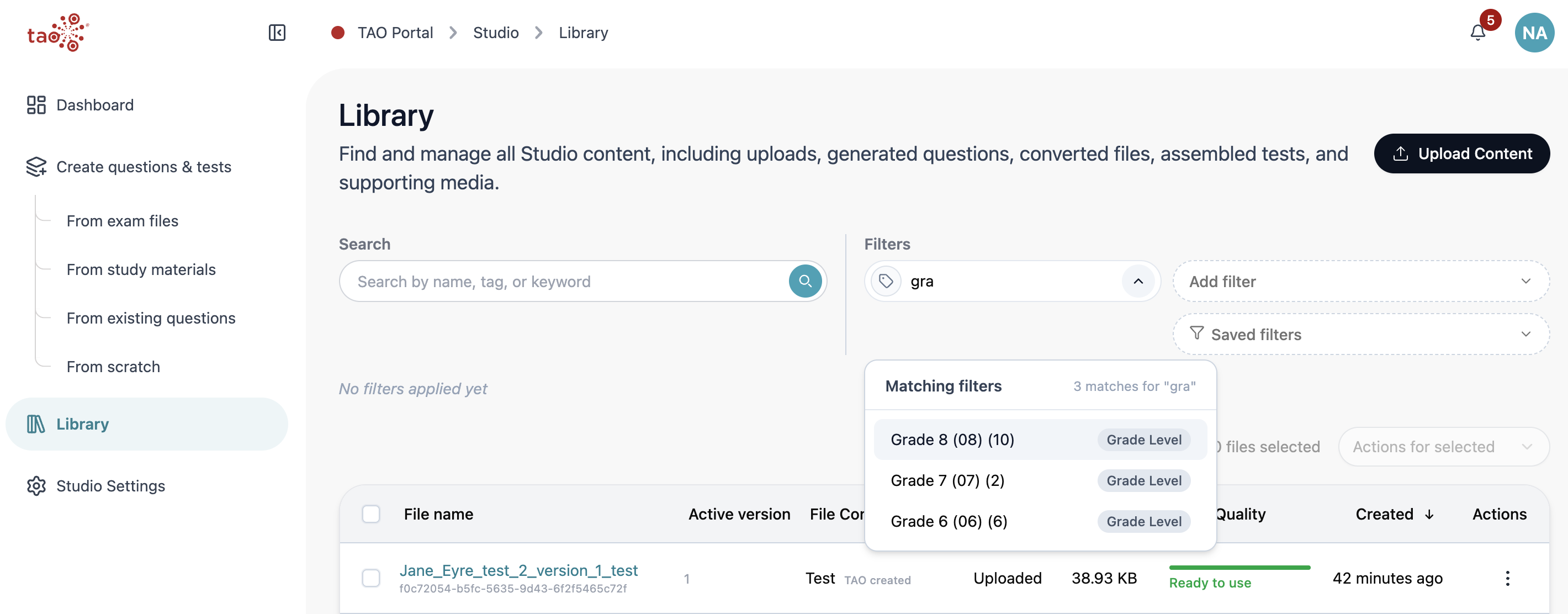
Tags are the individual values that are assigned to entities within an broader category. For example, if the you want to search for Grade 8 materials, and your organization has grade level as a mandatory category, these steps tell you how to use the value Grade 8 for a narrow search.
You can search across tags by typing part of a tag name. This is faster than opening categories filters if you know the name of the tag.
-
In the Library, click Find by tag
-
Type a few letters, such as gra.
-
Review matching suggestions, such as Grade 8.
-
Select the tag.
-
Confirm that the file list narrows to content with that tag.
You can remove the selected chip later, or add more tags to refine the same result set.