
You can narrow a search even further when combining the filter by category and filter by tag features.
Search using categories and tags
For example, if you have categories set up for Grade and Subject matter, and want to search for Grade 8 Math questions:
-
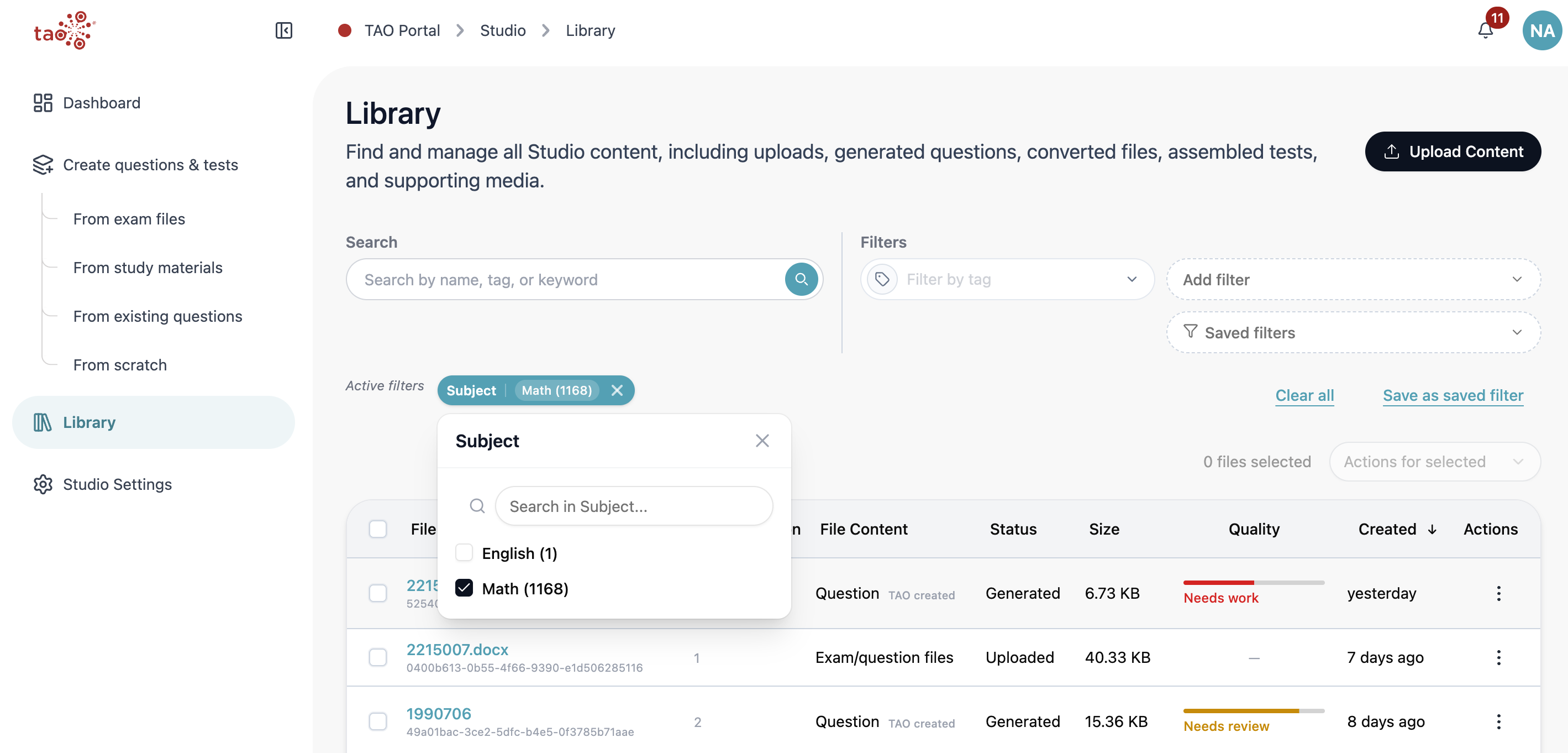
From the Add filter dropdown, select Subject.
-
From the filter tile, select Math.
-
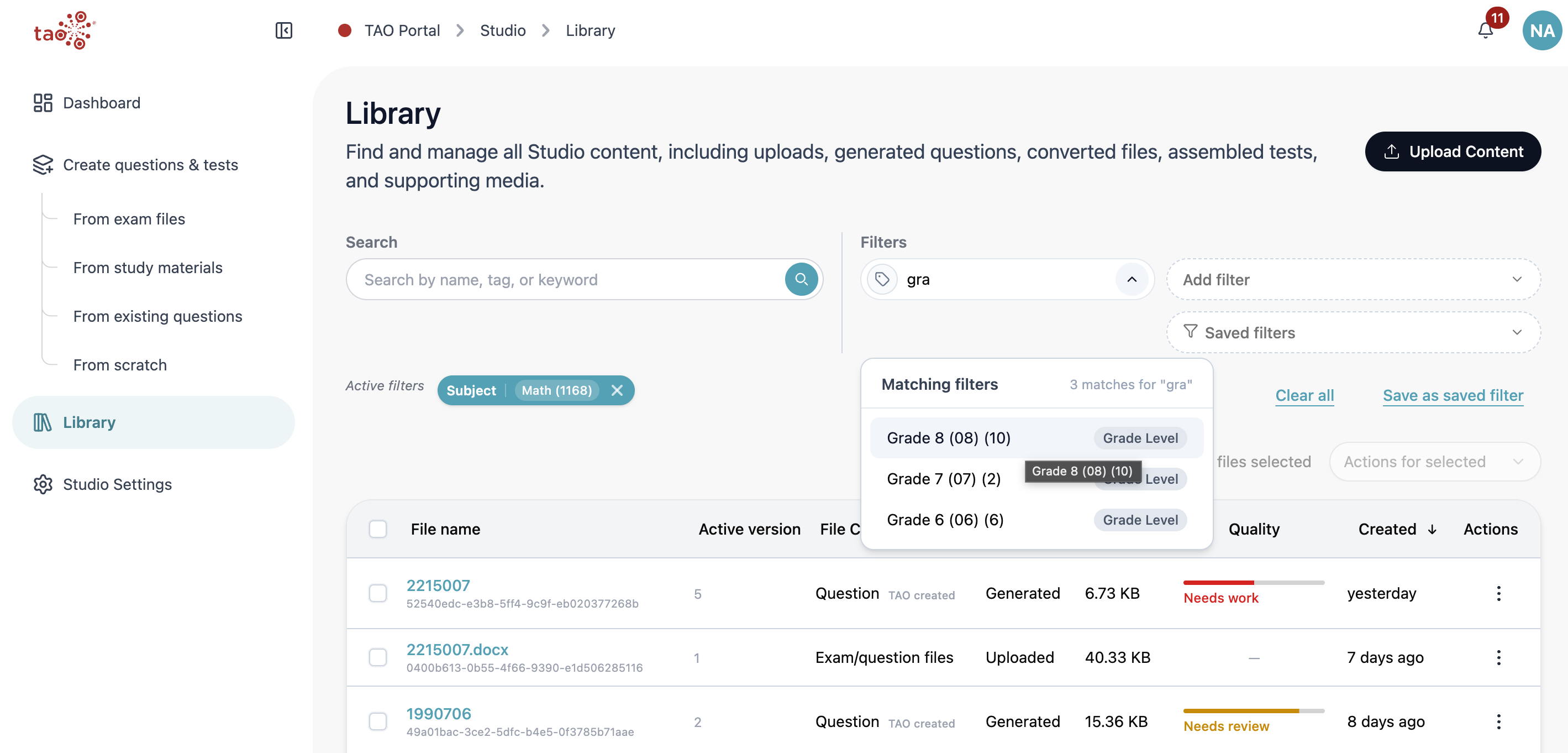
In the Filters search bar, type “gra”.
-
From the list of possible grade values, select Grade 8.
-
The list will now reflect all Grade 8 Math questions.
Saving a library filter
When you have already built a useful filter in the Library, you do not need to recreate it later in settings. After applying category filters, select Save as saved filter directly from the filter area.
Save from the library
-
Open Library.
-
Apply one or more category/tag filters (see section above).
-
Select Save as saved filter.
-
Enter a clear name, such as View: Math Grade 8.
-
Save the filter and confirm the success notification.
This option is the fastest path when the view you want is already visible on screen. The saved filter is created with the active category/tag rules.
Saved filters are managed in Studio Settings. For more information, see Creating a saved filter for library search.
Using saved filters
-
Open Library.
-
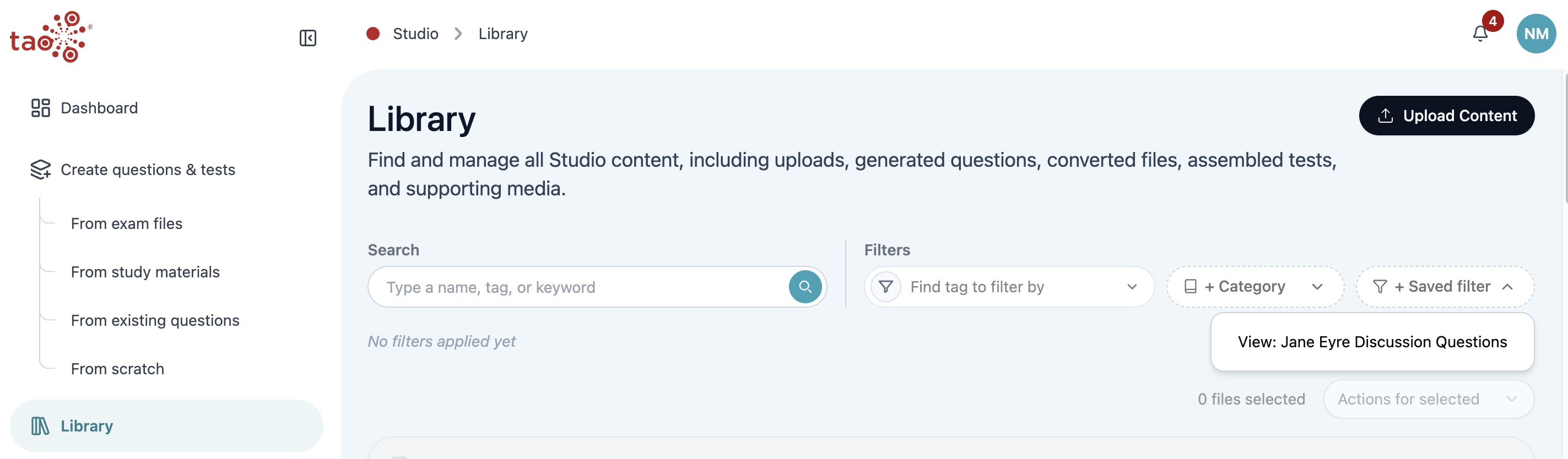
Select + Saved filter.
-
Choose a view.
-
Review the filtered file list.
Saved filters are best for recurring work: department banks, source-specific imports, review queues, grade-level collections, or combinations that multiple authors need to use consistently.