
This article covers the Content Library workflow for choosing the correct export or download action.
Export and download options depend on the document type. Source files, generated questions, and generated tests do not all expose the same actions.
-
View which actions are available:
-
Row menu: Use this for quick single-file actions directly from the library table.
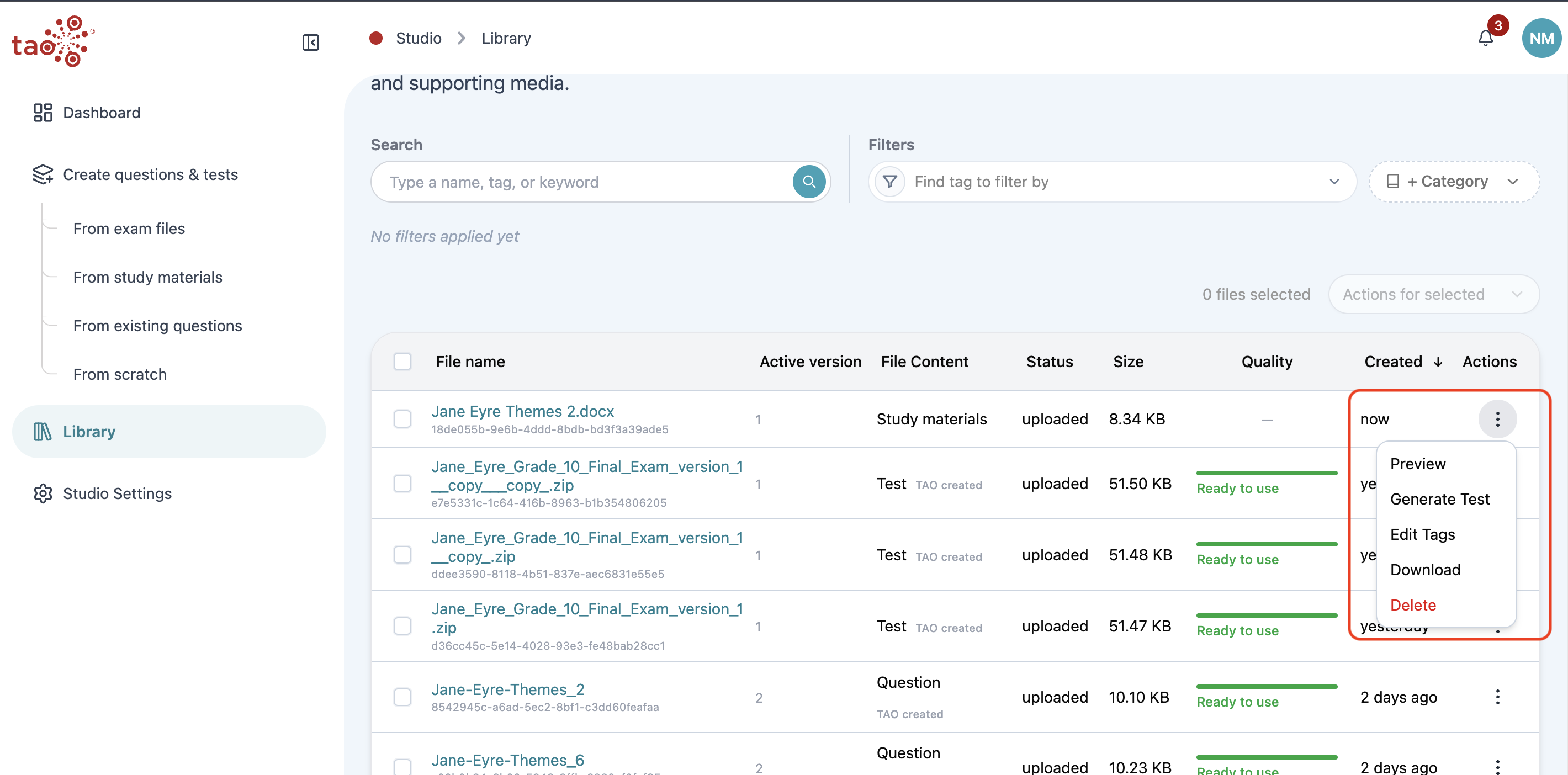
-
Bulk actions: Select multiple files, then use Actions for selected.
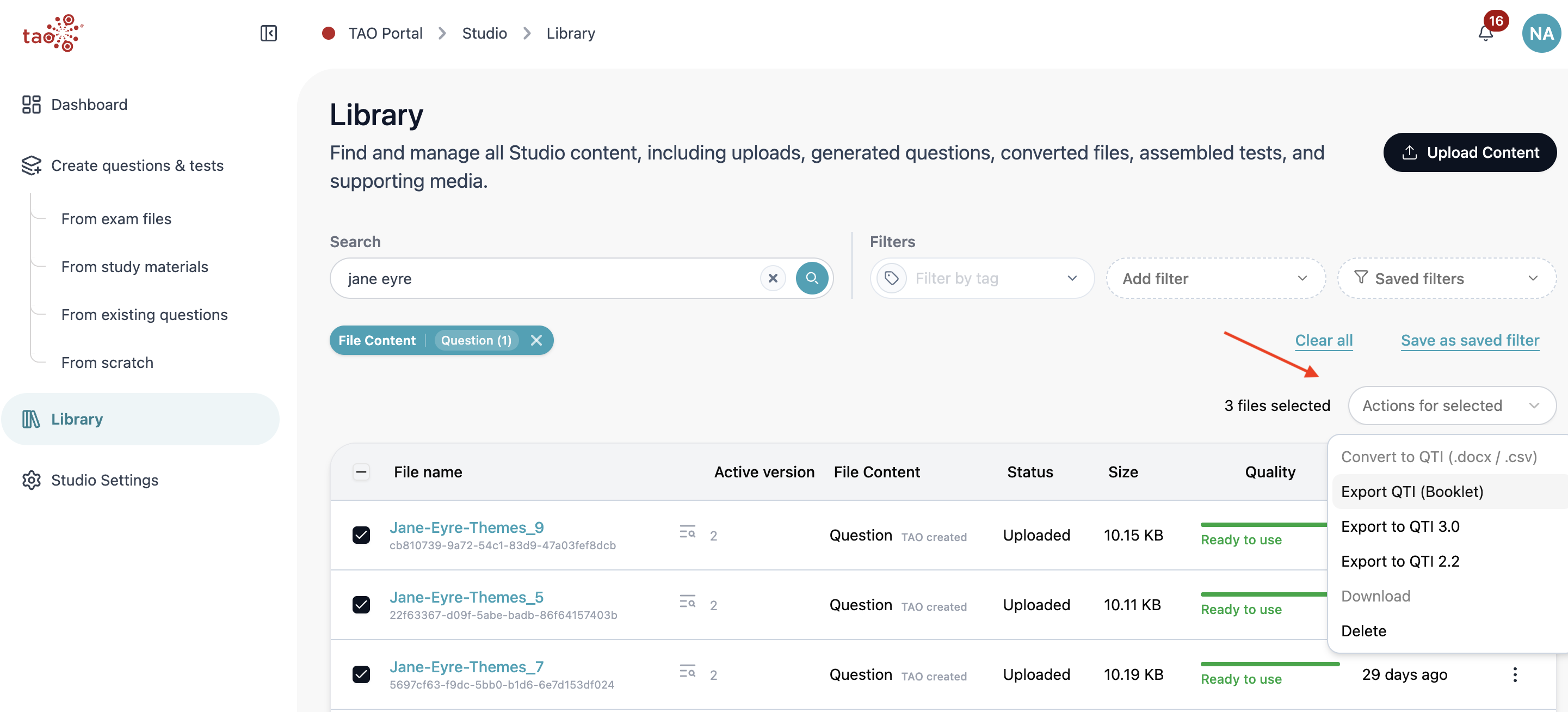
-
Common actions
-
Source exam/question files can offer Convert to test, Convert to questions, Preview, Download, Edit tags, and Delete.
-
Study materials can offer Generate test, Preview, Download, Edit tags, and Delete.
-
Questions can offer Preview, Export QTI (Booklet), Export to QTI 3.0, Export to QTI 2.2, Download, Edit, Edit tags, and Delete.
-
Tests can offer the same export actions, publishing, plus Edit when Studio can open the test in the test editor.
-
PCI packages can offer Preview, Download, Edit tags, and Delete.
-
Stimulus packages can offer Preview, Download, Edit tags, and Delete.
Exporting as a booklet
For supported questions and tests, choose Export QTI (Booklet), then select the desired booklet output format.
Use Export as DOCX when the booklet should remain editable, and Export as PDF when the booklet is ready for fixed-layout distribution.
Preview the content and check its metadata before exporting. This helps prevent draft content or incomplete tags from being shared as final material.
Bulk actions
Available bulk actions can include conversion, booklet export, QTI 3.0 export, QTI 2.2 export, download, delete, and edit tags. TAO Studio disables actions that do not apply to the current mixed selection.