
This article provides brief descriptions of how you can edit and configure interactions, as well as links to relevant authoring articles.
When you click editable text or areas within the interaction, the rich text toolbar appears above the canvas. Use it for the prompt, passage text, table text, feedback text, and answer-option text.
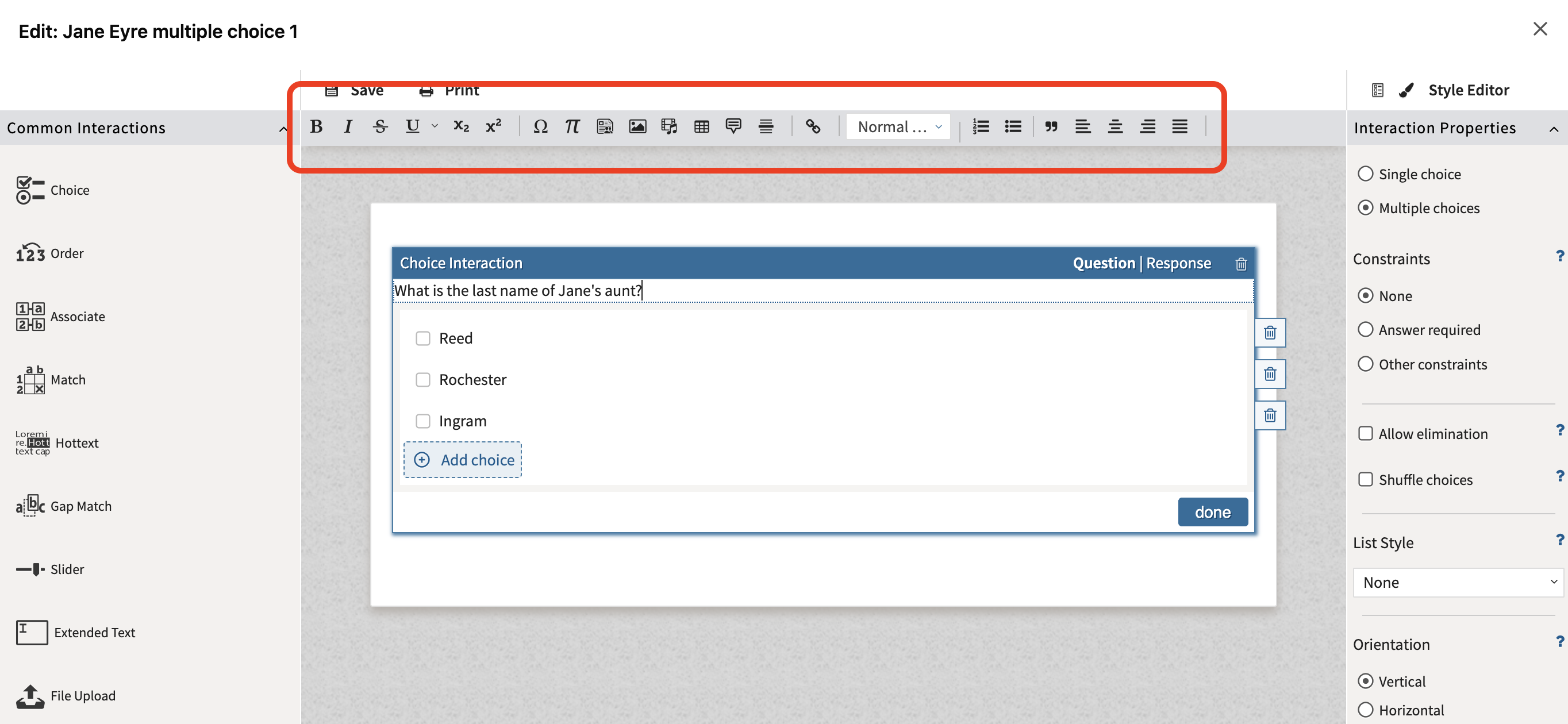
The following options are available from the toolbar:
Paragraph and structure
-
Paragraph format: changes the selected block style, such as normal text or another available paragraph style.
-
Numbered list: creates or removes an ordered list.
-
Bulleted list: creates or removes an unordered list.
-
Block quote: formats selected text as a quoted block.
-
Table: inserts a table for structured content, comparisons, data, or layout that genuinely needs rows and columns.
Text formatting
-
Bold: emphasizes important text.
-
Italic: marks emphasis, terms, titles, or conventional notation.
-
Strikethrough: shows removed or invalid text when that is part of the item content.
-
Underline: underlines selected text. Use sparingly because underlining can be confused with links.
-
Subscript: places selected text below the baseline, useful for chemical formulas such as H2O.
-
Superscript: places selected text above the baseline, useful for exponents, ordinal markers, and units such as cm2.
Alignment
-
Align left: aligns text to the left margin.
-
Center: centers the selected paragraph or block.
-
Align right: aligns text to the right margin.
-
Justify: distributes text across the full line width.
Insert tools
-
Insert special character: inserts characters that are hard to type, such as mathematical symbols, accented characters, or punctuation marks.
-
Insert math expression: inserts a MathML-based mathematical expression (see below).
-
Insert shared stimulus: links shared stimulus content into the item when your workflow uses reusable passages or assets.
-
Insert image: adds an image into the selected text area.
-
Insert media: adds audio or video into the selected text area.
-
Tooltip: adds a small explanatory note attached to selected content.
-
Link: adds or edits a hyperlink.
Math expressions
Use Insert Math Expression for mathematical notation that needs to render as math rather than plain text. MathML preserves structure for fractions, roots, superscripts, subscripts, operators, and other expressions so the item can display and export the equation more reliably than a screenshot.
Good uses include:
-
Inline expressions inside a sentence.
-
Display equations that should stand apart from the passage.
-
Fractions, roots, powers, subscripts, inequalities, and symbolic notation.
-
Expressions that need accessible alternative text or semantic structure.
Authoring workflow:
-
Click the exact text location where the expression belongs.
-
Open Insert Math Expression.
-
Build or paste the expression in the math editor.
-
Insert the expression into the item.
-
Confirm it appears in the correct location and aligns with surrounding text.
-
Reopen or preview the item to verify the expression is readable and preserved after save.
Use toolbar subscript and superscript for simple text-level notation. Use Math Expression when the notation is a real equation or contains structured math such as a fraction, square root, matrix-like layout, or expression that should be accessible as math.
For more information, see Inserting a math expression.
Style editor
The Style Editor changes the appearance of the item, not the individual interactions. The appearance of individual interactions must be customized by the toolbar.
Style Controls
-
Add Style Sheet: attach a custom stylesheet when your organization uses one.
-
Background color: changes item background styling.
-
Text color: changes text color.
-
Border color: changes border color.
-
Table headings: changes table-header styling.
-
Font family: selects the font family.
-
Font size: sets or adjusts text size.
-
Item width: controls how wide the item is on screen.
For more information, see Item style editor.