
This article explains how to navigate the item editor.
The editor has three working zones plus a top action bar.
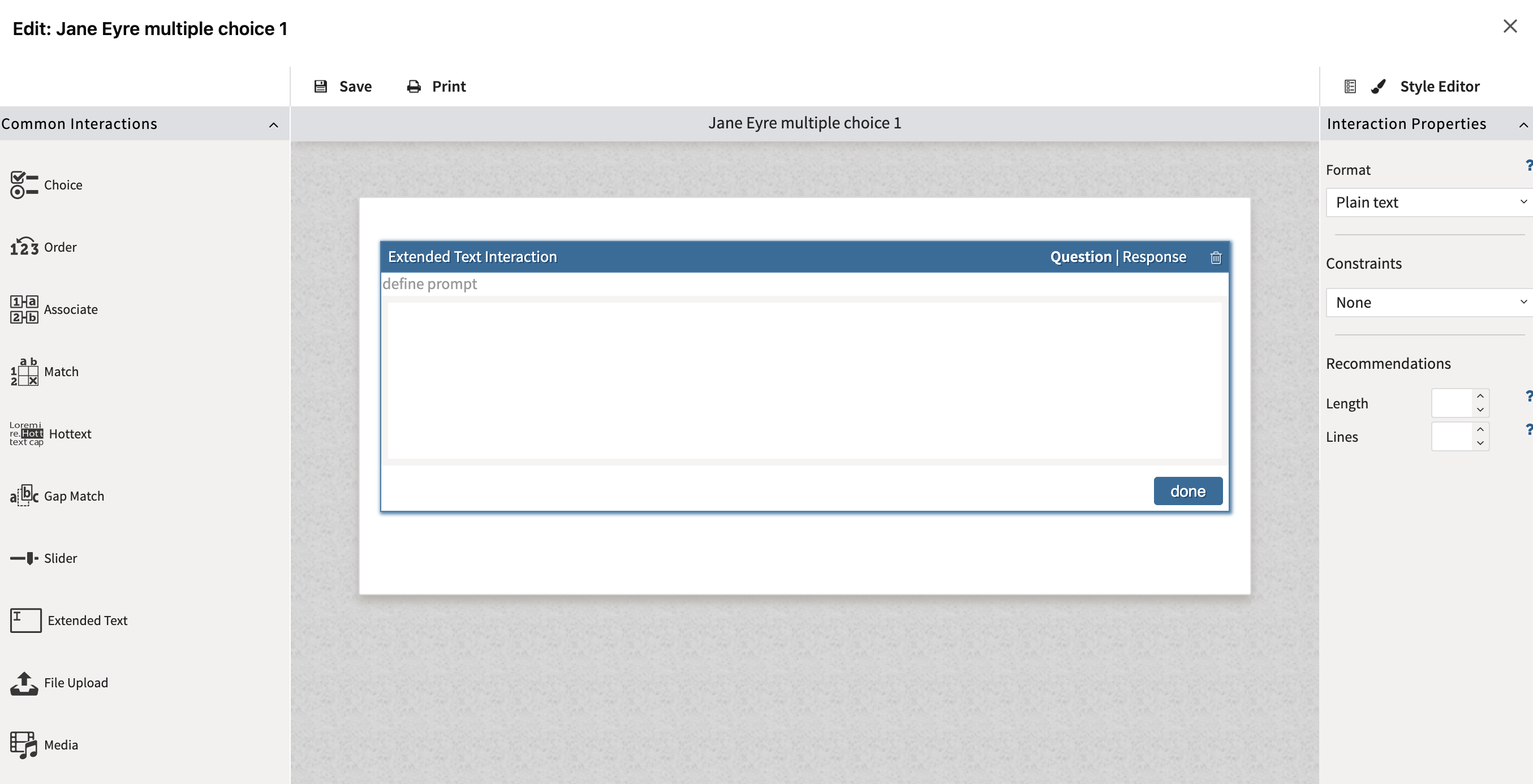
Top action bar
-
Save: saves the active item and sends the saved checkpoint back to TAO Studio.
-
Print: opens a print-oriented view of the current item.
Left interaction panel
The left panel is the interaction palette. It groups the interaction types you can add to the item:
-
Custom Interactions, when available in the environment
Drag the interaction tile into the central item area (see below) where the interaction should appear. You can use more than one interaction in a single item.
Central editing canvas
The center is the item canvas. Selecting the item, prompt text, interaction, answer options, or response area changes what is shown on the right (see below).
Right properties panel
The right panel is contextual. It can show:
-
Style Editor: shows style and layout controls.
-
Item Properties for the whole item. This includes:
-
the internal identifier
-
title
-
language
-
-
Interaction Properties when an interaction is selected and is on the Question tab. The options in this panel depend on the type of interaction.
-
Response Properties when the interaction is selected and on the Response tab. This is where the scoring method is configured.
-
Text Block Properties when a text block is inserted and selected.
-
Choice Properties when an answer option is selected. This will display under the Interaction properties, and contains one configurable option:
-
Internal identifier for the choice. Setting this to an easy-to-read label ensures that reporting is understandable.
-
For more information, see Configuring interactions.