
Conversion projects in TAO Studio can use CSV files containing existing exam questions as source material. This article explains how to structure CSV files so that TAO Studio can identify and convert their contents into digital assessment items.
For more information on how conversion works, see Conversion from exam files.
Preparing the CSV file
A well-structured CSV helps TAO Studio distinguish between question prompts, answer choices, correct answers, internal and external identifiers, and any supporting metadata.
Organize the CSV so that each row represents one question and each column represents a consistent type of information. The column header should clearly identify the purpose of each column.
Depending on your content, the CSV columns should minimally include:
-
Question prompt: The question or instruction presented to the test taker.
-
Identifier: The internal identifier for each individual question/item.
-
Title: The title of the question.
-
Option A, Option B, Option C, Option D: The available answer choices. Use a separate column for each option.
-
Correct answer: The option that should be identified as correct. Use a consistent format throughout the file, such as
A,B,C, orD. -
Metadata: Optional information that provides additional context or can help categorize the generated content, such as subject, grade, difficulty, standard, or source.
Important: For metadata to be considered valid, existing metadata categories must be used in the CSV file.
Example
For example, a CSV containing three multiple-choice questions could be structured as follows:
|
Question |
Identifier |
Title |
Option A |
Option B |
Option C |
Option D |
Correct answer |
Subject |
Grade |
|---|---|---|---|---|---|---|---|---|---|
|
What is 8 × 7? |
multiply1g6 |
Multiplication |
54 |
56 |
64 |
48 |
B |
Math |
6 |
|
Which planet is closest to the Sun? |
planets1g6 |
Planets |
Venus |
Earth |
Mercury |
Mars |
C |
Science |
6 |
|
Which fraction is equivalent to 0.5? |
fractions1g6 |
Fractions |
1/4 |
1/3 |
1/2 |
2/3 |
C |
Math |
6 |
Using the CSV file for conversion
CSV files can be used to convert questions directly from the library, or when creating a conversion project.
Converting from the library
To complete a conversion from the library, the CSV file(s) must first be uploaded to the library.
Once uploaded, you can:
-
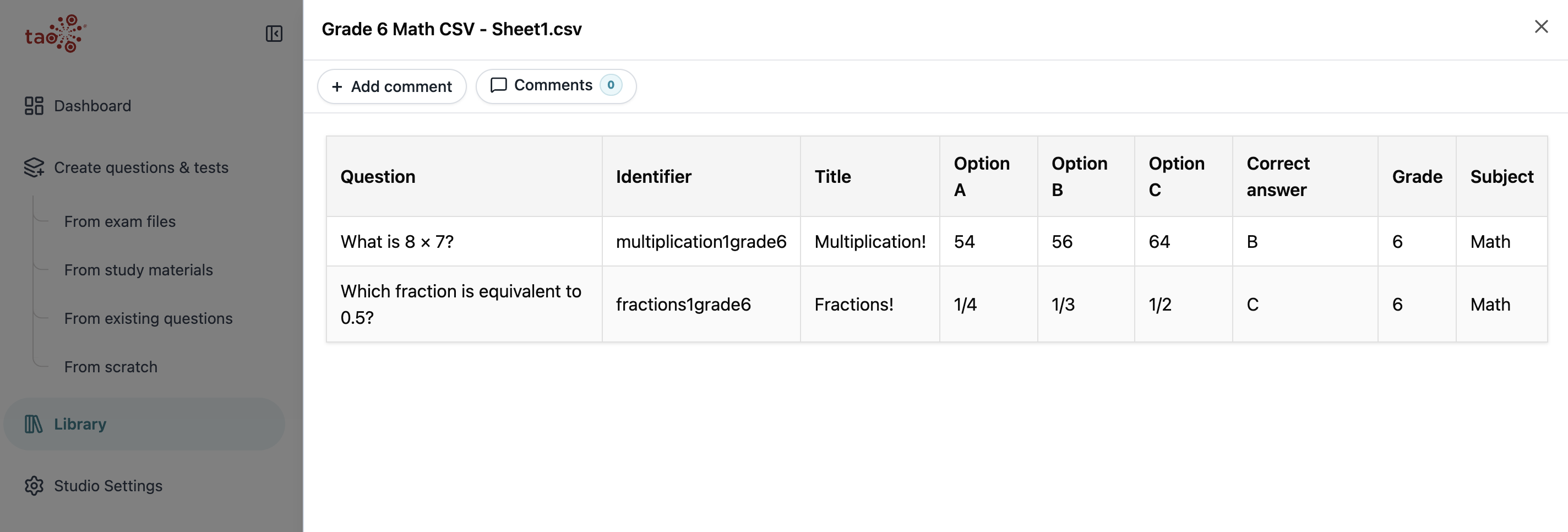
Click the document title (in the File name column) to view the CSV preview:
-
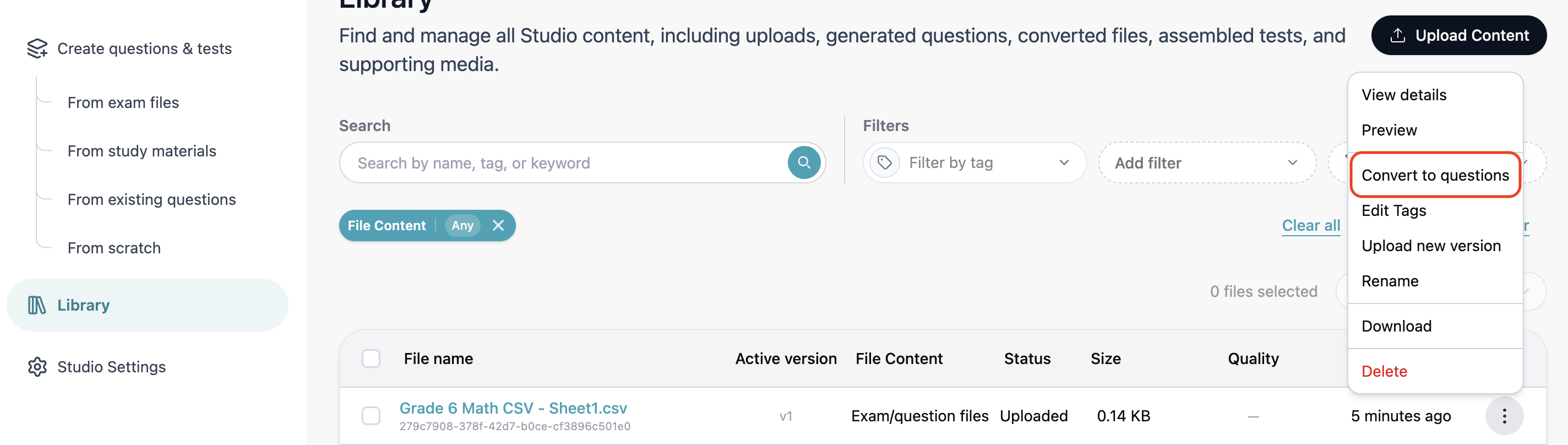
Select the Action menu for the CSV file, then click Convert to questions.
Using a CSV file in a conversion project
-
Create a conversion project (Select the From exam files card on the dashboard or Create questions and tests > From exam files in the left sidebar)
-
In the project setup, select the CSV as the source file for the project. When using the CSV in a conversion project, you can select it directly from your local drive.
Reviewing the conversion mapping
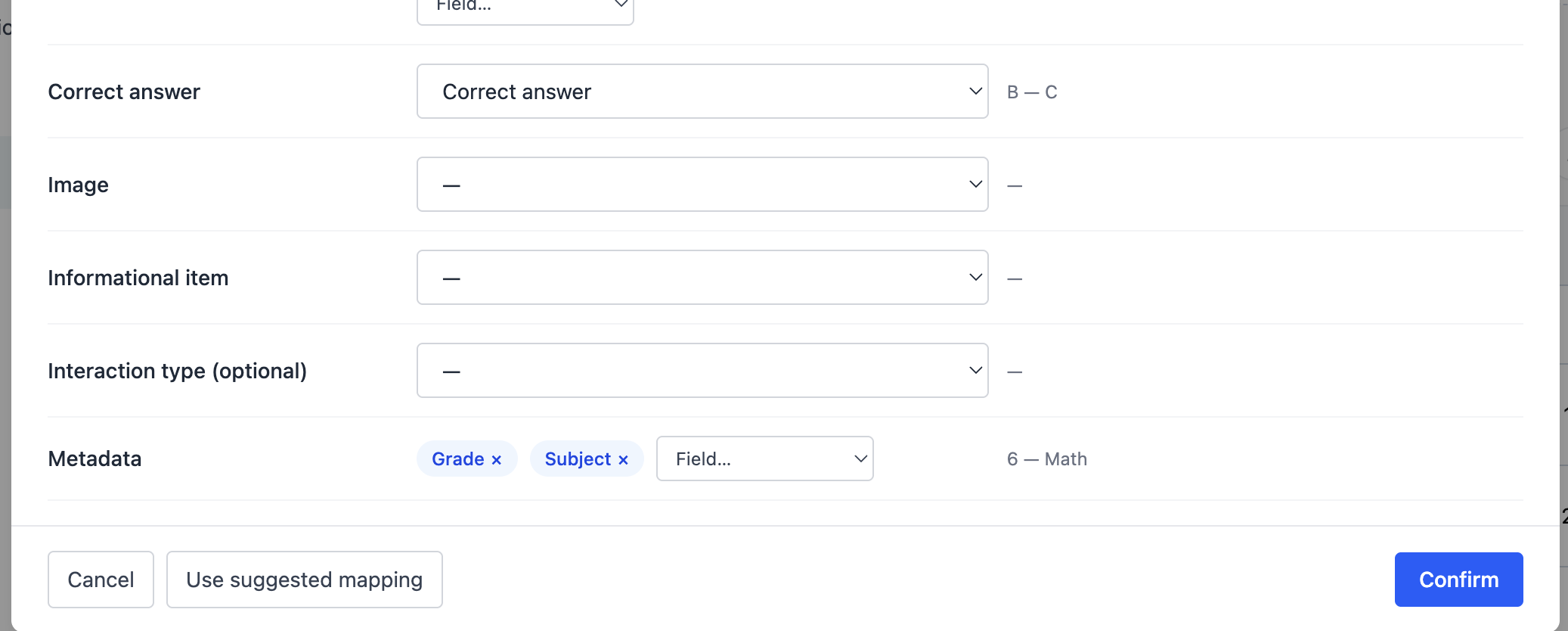
Once the file is selected for conversion, you will be prompted to review column and value mapping.
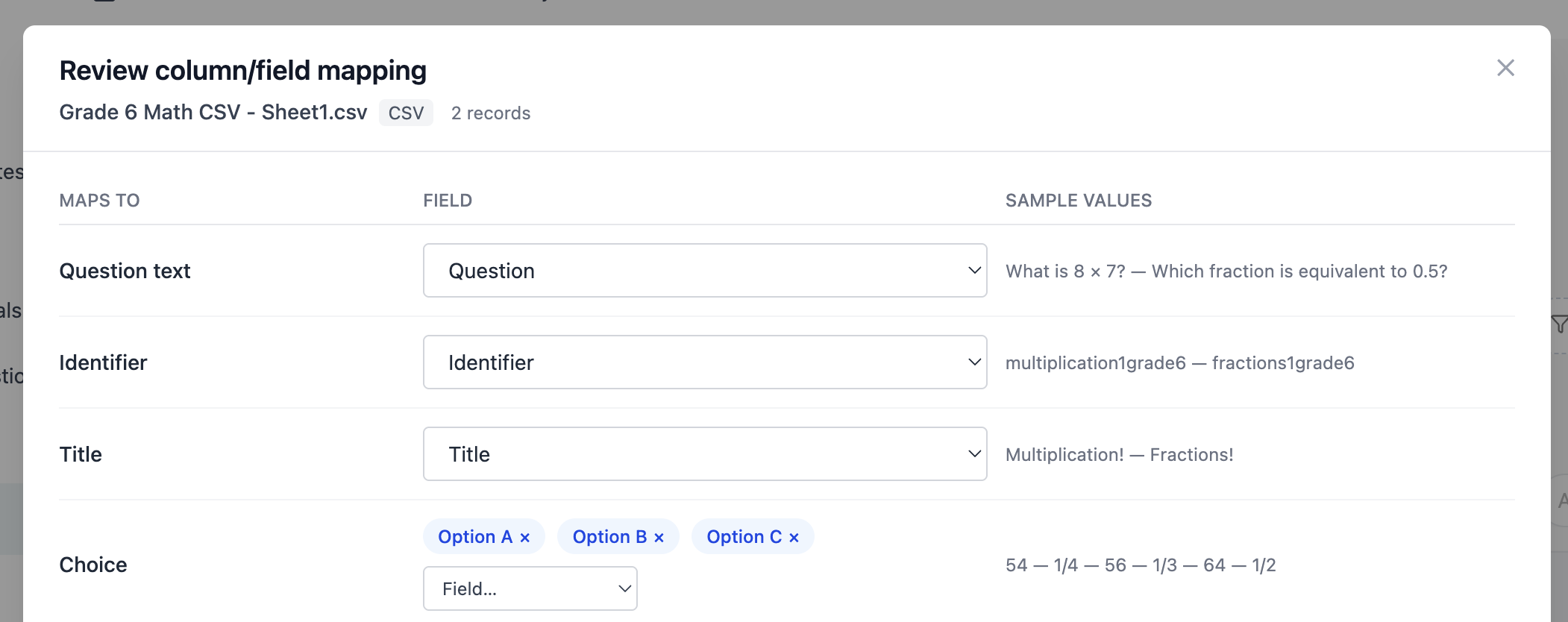
In this dialog that displays, review the following columns:
-
Maps to displays which aspect of the question is being mapped
-
Field displays the different column headers
-
Sample values displays question values as they map to each column
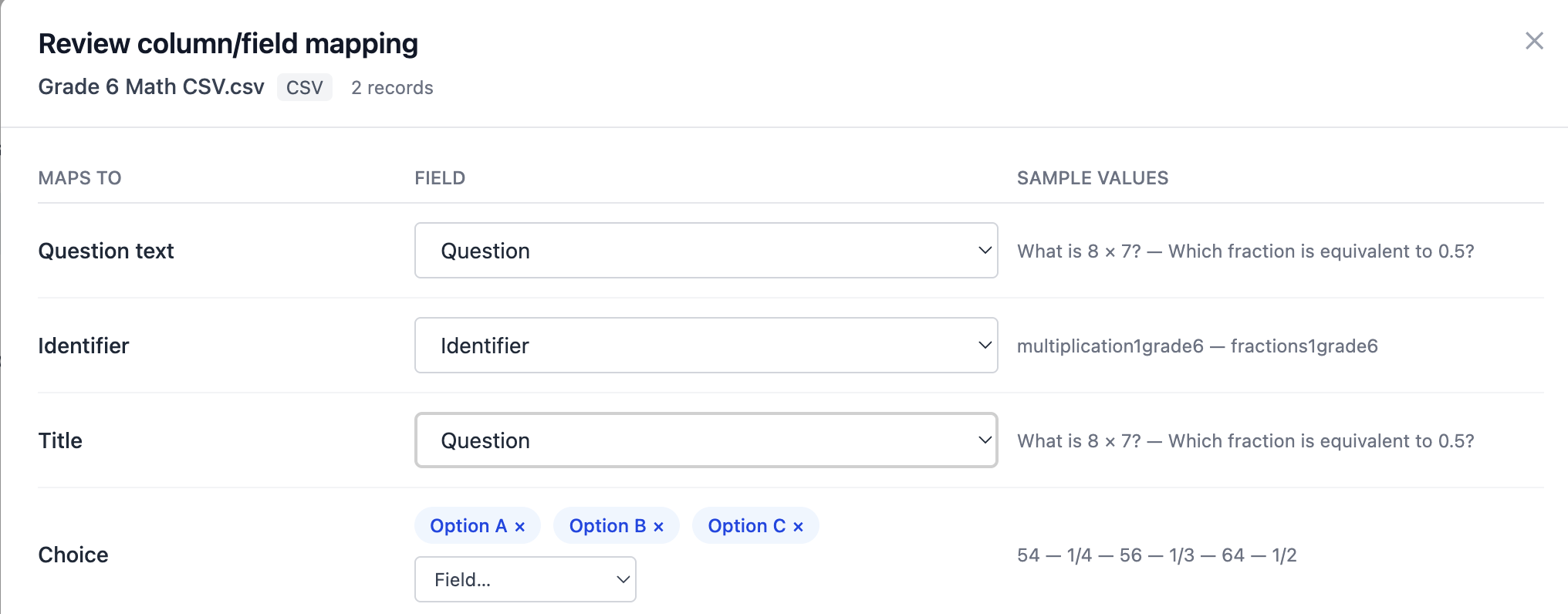
To make any changes to the Maps to field, select a different column header from the dropdown list.
For example, you could change the question title to display the question text. You could also remove option columns (this change would be applied to each question in the CSV).
Add or remove metadata fields from the item. If any changes are made and you wish to revert to the original mapping, select Use suggested mapping. Once the mapping is reviewed, click Confirm.
What happens during conversion
During conversion, TAO Studio analyzes the first 50 records to identify which columns contain relevant information. AI may be used during this step to determine how the columns correspond to these fields.
Once the columns have been identified, mapping is applied to the entire CSV. Each row is converted into a separate question, and each column designates the configuration of that question. During this process:
-
Answer choice columns are converted into answer options, with empty options omitted.
-
Correct answer values are preserved.
-
Additional columns can be converted into metadata.
-
Common question types, including single choice, multiple choice, true/false, and essay, can be inferred from the source content.
-
Plain text is converted to safe HTML, while existing HTML is preserved.
-
Valid image URLs can be used to embed images in questions.
The data is saved to the TAO Studio library as QTI material. Depending on the selected conversion mode, the output can consist of individual questions or questions assembled as part of a test.