
Test part level properties icons can be found in each grey Test part bar when authoring a test. Settings configured at the Test level will override settings configured at the test Part level.
Click on the Test-part level properties icon.
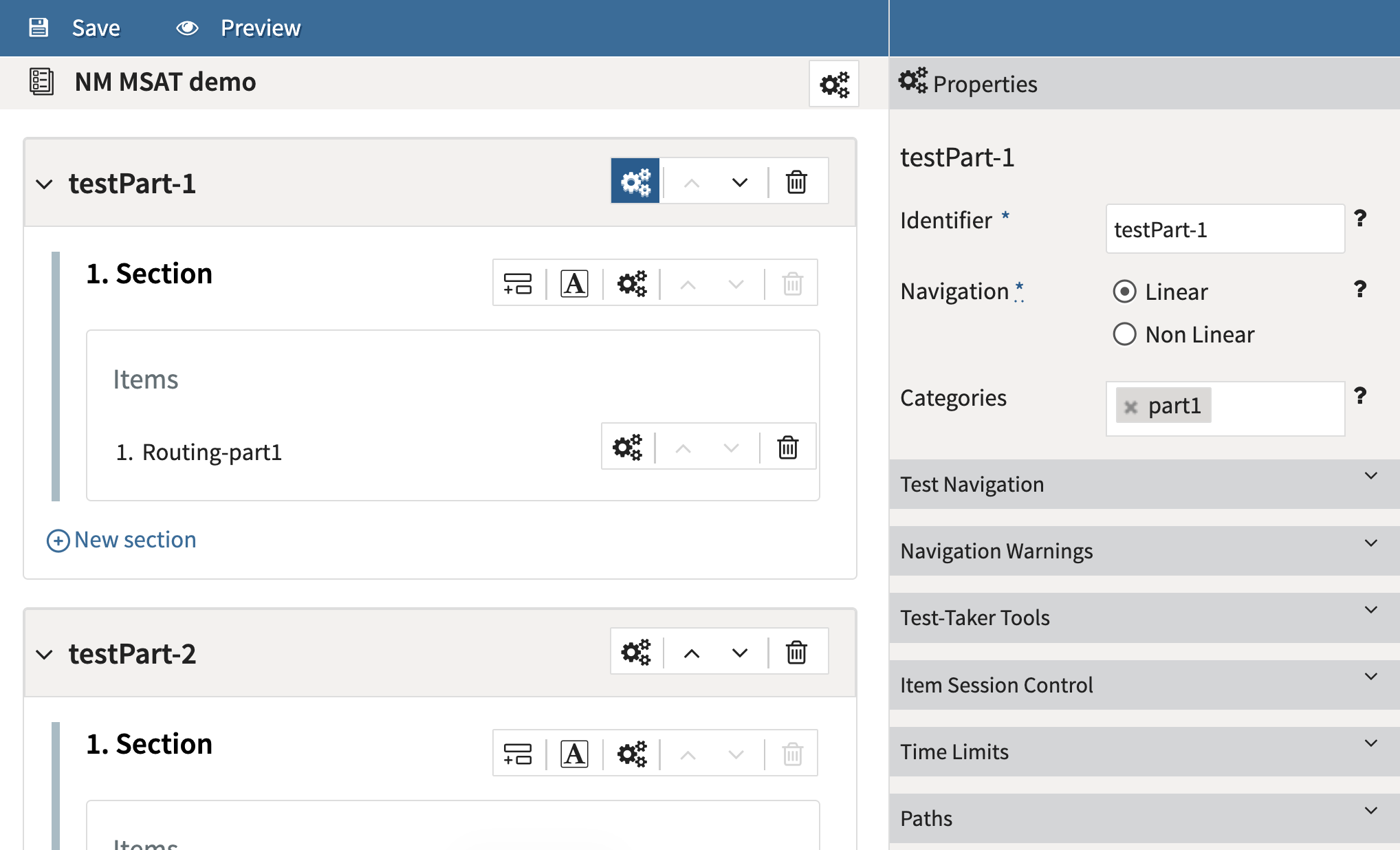
General Properties
In the general properties panel, the Identifier box should be renamed as appropriate.
The Navigation box, or how the test-taker is allowed to answer questions, should be selected as either linear (first question first, second question second, etc.) or non-linear (can be answered in any order).
For information on guided navigation for linear tests (TAO Advance), see the section on Item properties.
Restrict non-linear navigation for TAO Advance: The option to restrict non-linear navigation so that users can freely go back to any item, but can only go forward to the next item is now available. Once this feature is enabled, this behavior will replace the existing behavior for the non-linear navigation (users freely navigating to any past or future item). This feature is configured platform-wide via System Settings.
For more information on Categories, see Test categories.
Test Navigation
Check Informational Item Usage if the entire test Part has been included in the test for informational purposes only. No test taker input or scoring data is collected. If this box is checked for the test at the Part or Section level, it applies it to all items underneath that section or test part.
Navigation warnings
For TAO Advance users, most of these warnings are hardcoded and cannot be enabled/disabled. To view how these warnings appear to test takers, see Test navigation for test takers.
For test Parts with time limits configured (see section below), by default a test taker will be presented with a popup at the end of the timer. The test taker needs to click OK before proceeding to the subsequent test Part. Select Do not show alert on timeout to disable this popup; when this box is checked, test takers will automatically move to subsequent test parts without interruption after the timer expires.
TAO 3.x (deprecated)
In the Navigation Warnings panel, check the boxes where you would like the test-taker to receive (or not receive) the warnings listed.
TAO 3.x is a deprecated product. For more information, see TAO Core (deprecated).
Test taker tools
In the Test taker tools panel, you can enable which tools you want to be visible during the test Part. For more information, see Test-taker tool configuration.
Test taker tools can also be enabled at the Item level. See the section below for details.
Item Session Control
In the Item Session Control Panel, set the following properties:
-
Set Max Attempts to the number of attempts the test-taker may have (the default setting 0 permits an unlimited number of attempts).
For non-linear tests with maximum attempts configured, only visits where an actual attempt is made count toward the number of attempts recorded, regardless of whether an item is skipped before or after being attempted.
-
Check the Show Feedback box if the test-taker should see the modal feedback (instant feedback) after completing this test-part.
-
TAO Core only: An Allow Skipping box will be visible if this has been configured on the server. If this box is checked, a Skip button will appear during the test for the questions in this test-part. The test-taker can choose to pass on any of the questions by selecting this button. In other words, if the test-taker selects the Skip button, they will be taken to the next question in the test and any answer given to the question on the screen will be disregarded, and therefore not submitted for processing. In contrast, if the test-taker selects the Next button, they will also be taken to the next question, but in this case any answer given will be submitted for processing.
There is no Skip button in TAO Advance. This setting simply allows the test-taker to skip the question by going to the next one without answering.
-
Check the Enforce Item Constraints box to prevent the test-taker from navigating to other items until any configured item constraints (such as if the minimum and maximum choices specified for that question have been given) are met. Leaving this box unchecked will allow free navigation, even if the responses don't comply with the item constraints set. For more information on constraints, see Placing constraints on the response.
The Enforce Item Constraints box can be checked for all items in a Part or Section, or for individual items.
Time limits
The time limits section is similar in nature to the time limits section for the test level properties, except that the settings apply to the current test-part only. For more information on time limit options, see Test settings.
The time limit set for a test Part must be less than or equal to the time limit set for the Test.
Paths and Prerequisites
These editors allow you to configure tests for adaptive testing/branching (MSAT). For more information, see Adaptive testing options.