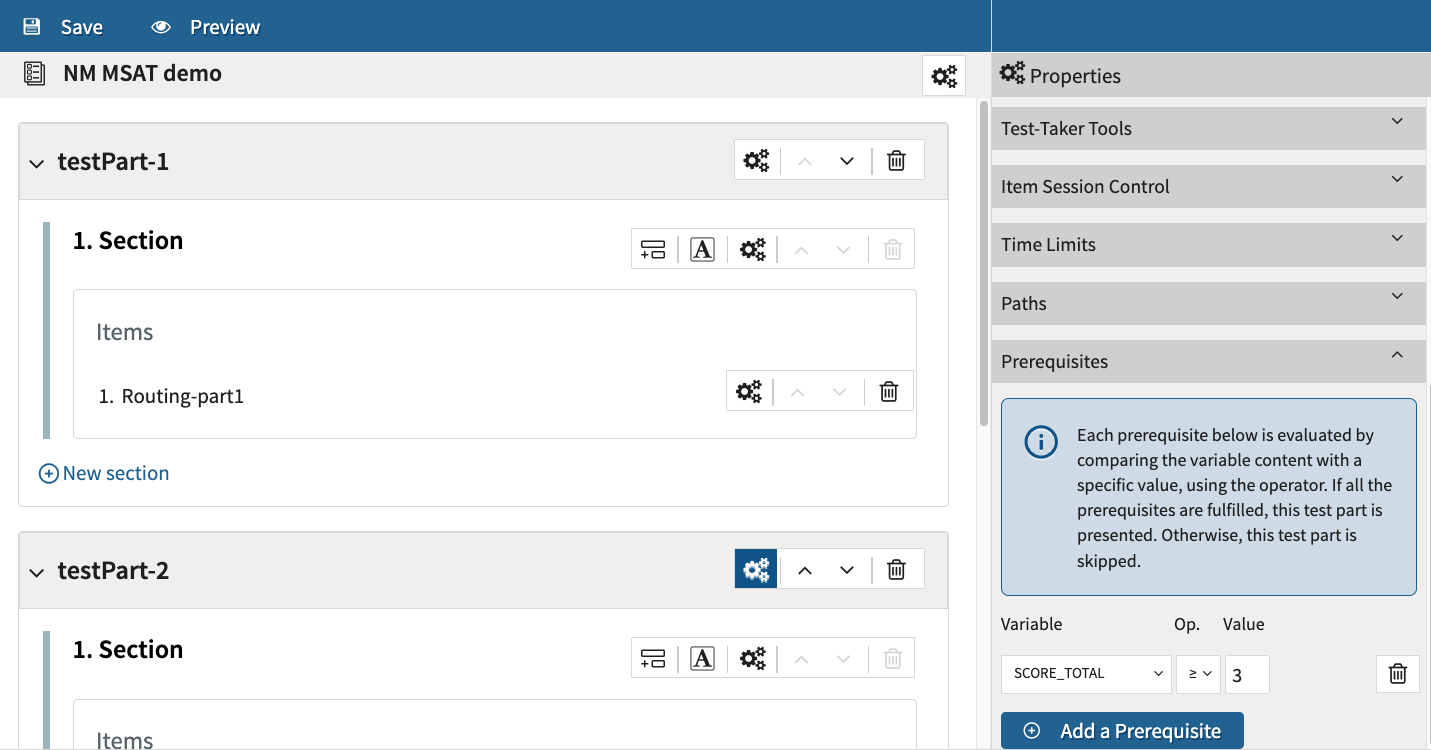
The Path and Prerequisite editors in test Part properties allow test authors to create multi-stage adaptive tests using scoring-based rules between test parts.
Multi-stage adaptive testing (MSAT) is a test design where test-takers are routed through pre-assembled groups of items (in this case, test Parts) based on their performance/score of the first Part of the test they complete, rather than receiving subsequent test parts one-by-one.
Prerequisite: Configure the Test level properties
1. Configure the test’s scoring properties.
The Test level properties icon can be found in the Test bar at the top of the canvas. Click on the dropdown Scoring.
In Outcome processing, select either Total Score or Cut Score. In the graphic below, Total Score is selected. For descriptions on each of the scoring options, see Configuring scoring for tests.
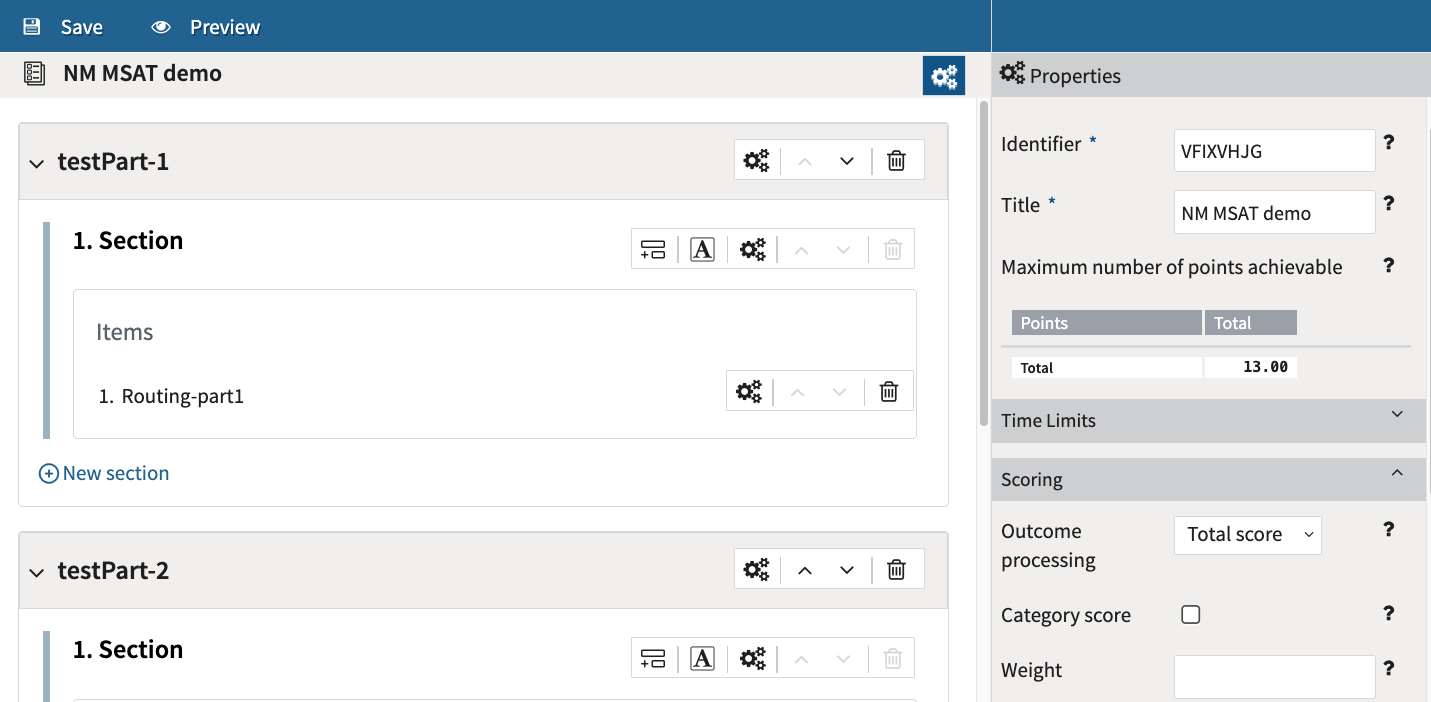
If you have Categories set for your parts or items, check the Category score box.
2. Click on the Test Part level properties icon.
Test part level properties icons can be found in each grey Test part bar when authoring a test.
Multi-stage adaptive testing is only available for tests with three or more test Parts.
Configure the areas of the Part (described in Test Part settings) as needed.
3. Configure the Path and Prerequisite editors (see below).
The Path and Prerequisite editors can work in tandem but one is not required for the other to function.
The Path editor
The Path editor allows you to set conditions where, depending on the test-taker’s performance in the Part being edited, redirects the test taker to a different test Part.
-
Click Add a Path.
-
Under Target, select the test Part the test taker will be redirected to if the conditions are met. Choose Test End to exit test takers from the test if the conditions are met.
In this example, the test taker will be redirected to test Part 3 from test Part 1: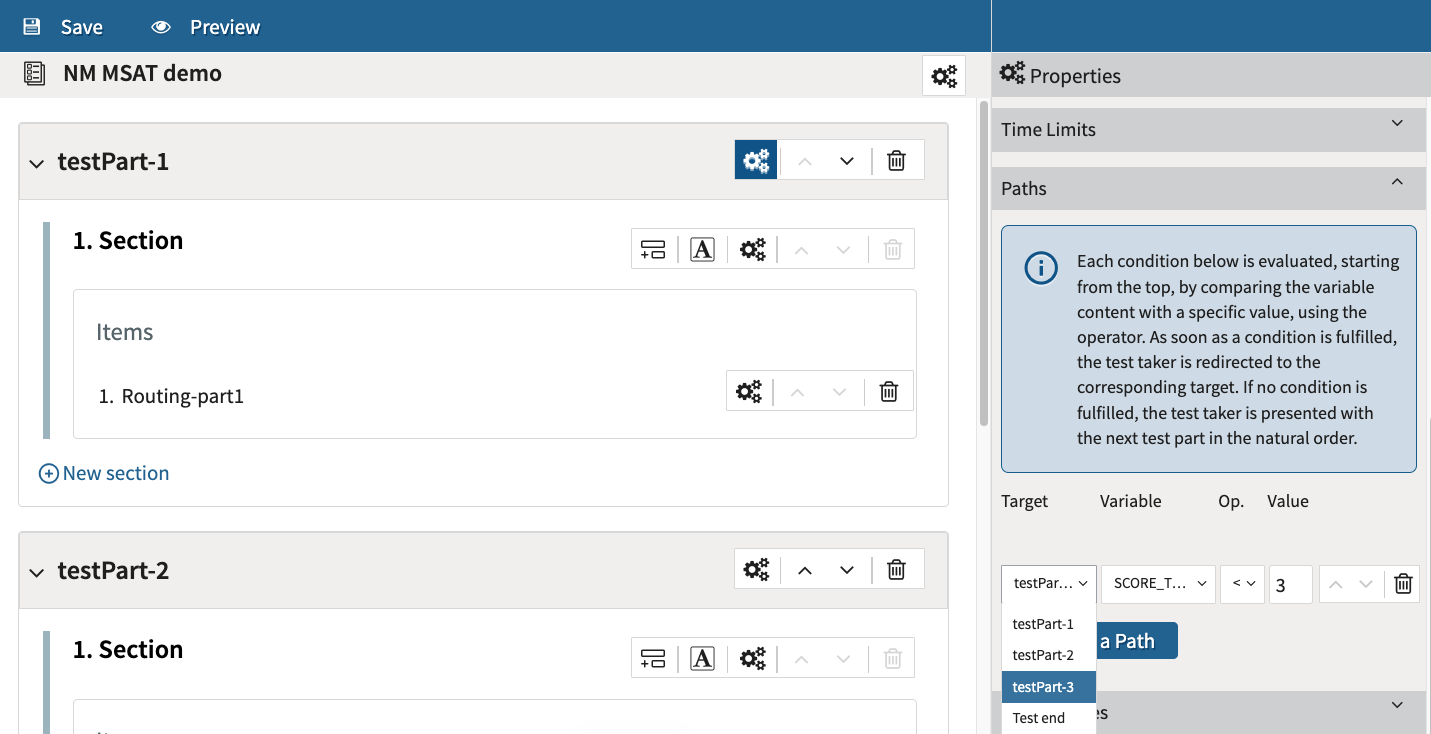
-
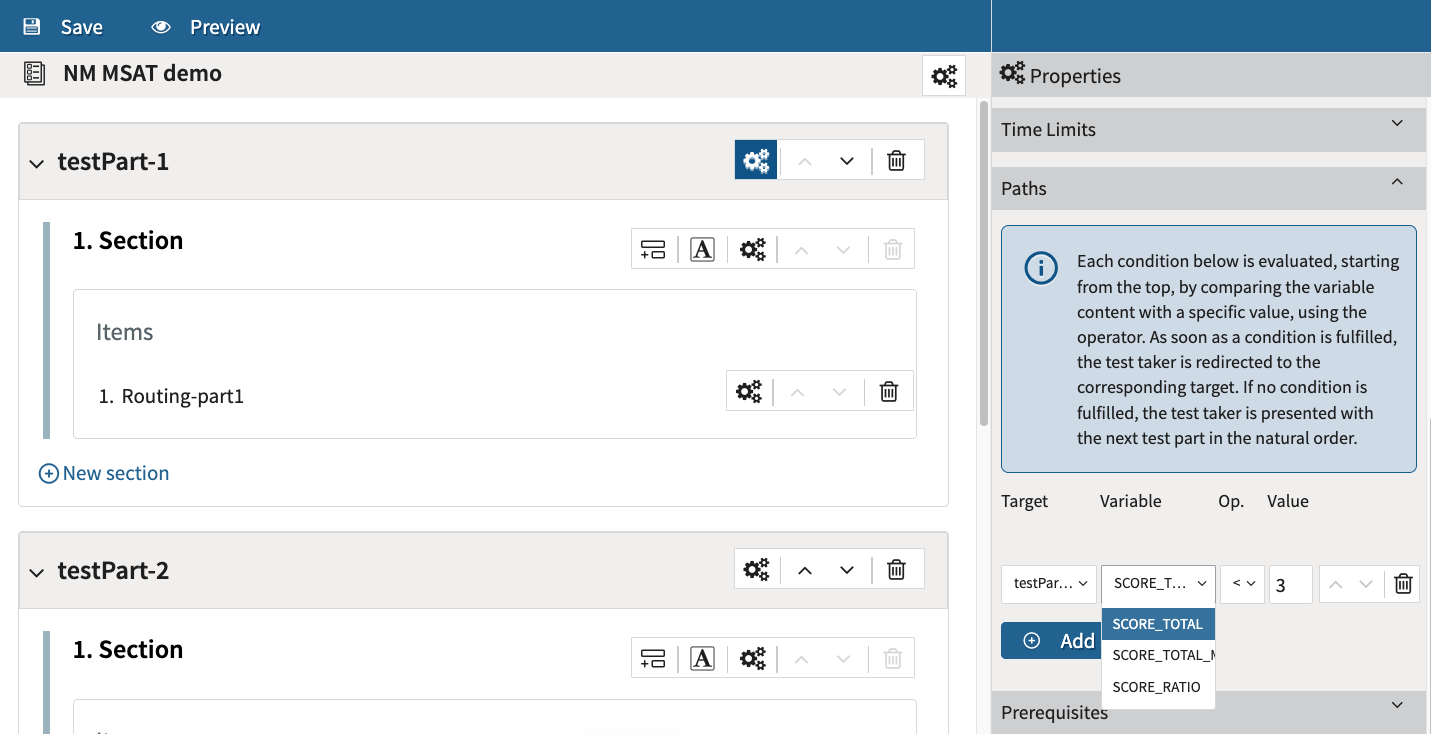
Under Variable, select the score variable that will be used to determine the conditions. This element should be configured to reflect how the test taker performed in the test Part being edited. The options are:
-
Score total: The total number of points achieved in the test Part being edited.
-
Score total max: Use this option if the test taker needs to achieve the test Part’s maximum amount of points to be redirected to the Target.
-
Score ratio: What percentage the test taker achieved (how many points achieved out of the maximum available).
-
-
In the Op. (operator) box, select an option. The operator calculates whether the test taker achieved the conditions; for example, if a test taker needs to achieve less than the amount of points designated in the Value field, select <.
-
In the Value box, enter the number of points or the ratio the test taker needs to achieve to be redirected to the target.
Repeat this process if multiple paths are needed.
Category Paths
If categories are set for Parts or specific items in the test Part, you can redirect the test taker depending on how they performed in that specific Category. The same scoring variables (total, total max, and ratio) will be available for each category. If you use one of these options, ensure that the Category score box in test Scoring is checked (see above).
For this example, if the test taker scores a total of less than 3 points in test Part 1, they will be redirected directly to test part 3.
The Prerequisite editor
The Prerequisite editor allows you to set conditions for a specific test Part, so that the Part is only shown to test takers who meet those conditions. This is to prevent test takers from viewing a test Part if they do not meet the conditions set in the Prerequisite editor.
This is especially useful for tests with several test Parts (more than 3). For example, if a test taker is redirected to part 3 from part 1 (due to Path configuration), they will continue the subsequent test Parts in order. If that test taker should not view any of those subsequent test Parts, you can set a Prerequisite for that test Part rather than configuring another Path.
-
Click Add a Prerequisite.
-
Under Variable, select the score variable that will be used to determine the prerequisite. This element should be configured to reflect how the test taker performed in the selected test Part (typically a test Part that would be presented before the test Part being configured). The options are:
-
Score total: The total number of points achieved prior to arriving at the selected test Part.
-
Score total max: Use this option if the test taker needs to achieve the maximum amount of points available (from completed test parts) to view the current test Part.
-
Score ratio: What percentage the test taker achieved (how many points achieved out of the maximum available) from completed test parts prior to viewing the test Part being edited.
-
-
In the Op. (operator) box, select an option. The operator calculates whether the test taker achieved the prerequisite; for example, if a test taker needs to more points than the amount designated in the Value field, select >.
Repeat this process if multiple paths are needed.
Category Prerequisites
If categories are set for Parts or items, you can allow or prevent the test taker from viewing the Part with a prerequisite depending on how they performed in a specific Category. The same scoring variables (total, total max, and ratio) will be available for each category. If you use one of these options, ensure that the Category score box in test Scoring is checked (see above).
In the graphic below, the test taker will not be directed to test part 2 if their accumulated total score (prior to test Part 2) is greater than or equal to 3.