
Test Section level properties icons can be found in each Test Section bar when authoring a test. Settings configured at the Test and test Part levels will override settings configured at the test Section level.
Click on the Section level properties icon. This brings up eight panels on the right: general properties, Test Navigation, Navigation Warnings, Test-taker Tools, Selection properties, Ordering, Item Session Control, and Time Limits.
Most of the panels for Section properties are the same as in the test Part properties, while Ordering and Selection are different.
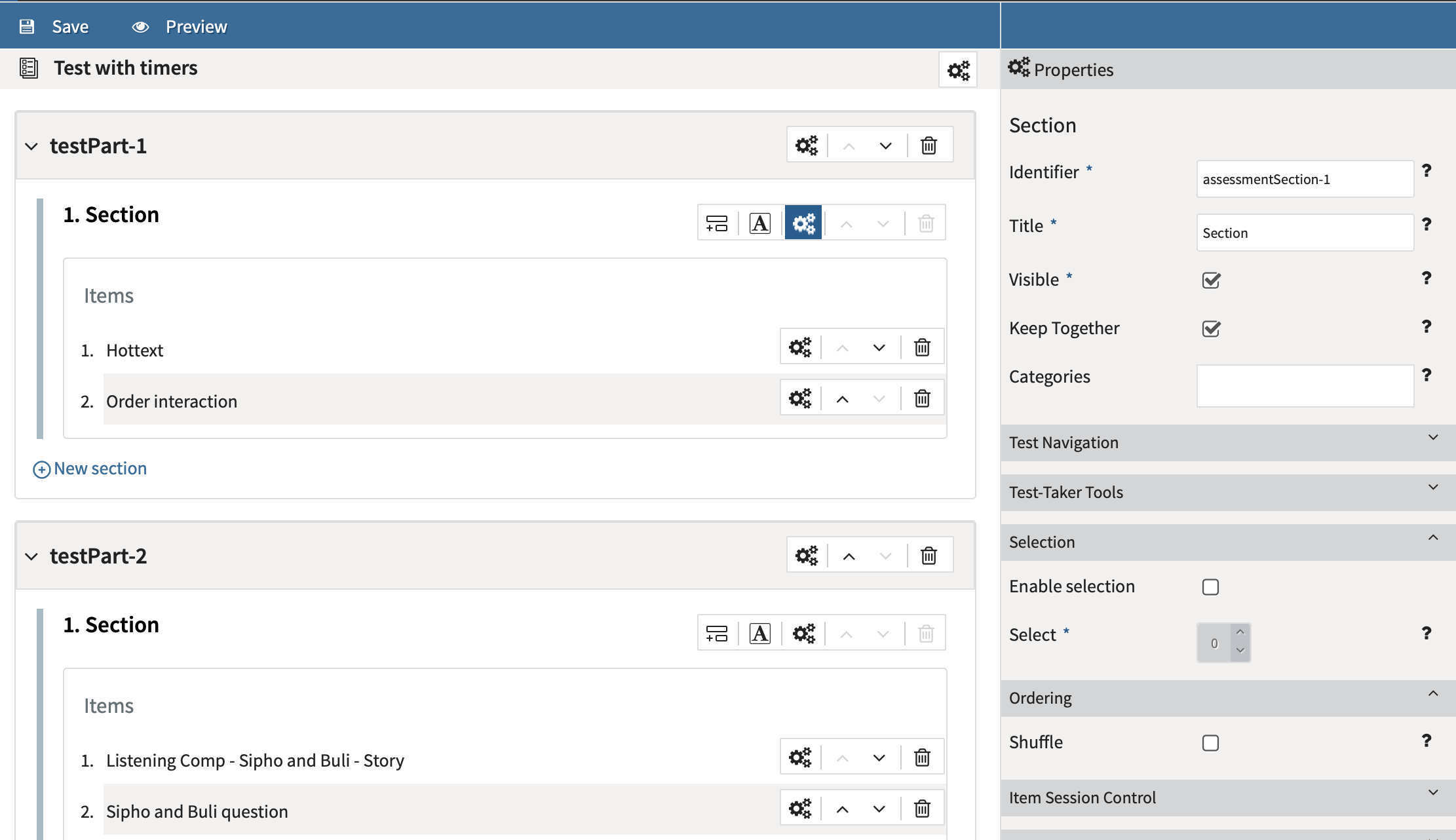
General Properties
The general properties include an identifier and title: the default name in the Identifier box should generally be maintained, while the Title can be changed to suit the test.
In general, the Visible box should be checked (or else the test-taker is unable to see the section), and the Keep Together box should also be checked if it is important that the entire section be completed before moving onto the next section.
Categories
For more information and category options, see Test categories.
Test Navigation
Check Informational Item Usage if the item has been included in the test for informational purposes only. This prevents the item being treated as a question.
TAO 3.x (deprecated)
If Enable Review Screen is checked, a review panel will appear on the left when a test-taker is taking the test. If Enable Mark for Review is checked, the test-taker has the option of flagging items in the test (to be able to return to them later). For more information, see the chapter on the Review Panel.
TAO 3.x is a deprecated product. For more information, see TAO Core (deprecated).
If you are using TAO Advance, the option to configure the review screen for test takers is displayed when creating or editing a session. For more information, see Creating a session.
Navigation Warnings
TAO 3.x only: In the Navigation Warnings panel, check the boxes where you would like the test-taker to receive (or not receive) the warning in question.
For TAO Advance users, these warnings are hardcoded and cannot be enabled/disabled.
Test taker Tools
In the Test-taker Tools panel, set the tools which should be made available to the test-taker for this section. See the chapter on Test-taker Tool Configuration for more information on the tools available.
Selection
The Selection panel asks if the delivered test section should include only some of the items assigned to it (Enable selection), and if so, how many (Select). This option ensures that test takers will not all receive an identical test.
By default, enabling the selection option results in the selected items being presented in their original order during the test session.
For example: If items 2, 4, 6, 8, 10 are selected (by adding 5 to the Select option) out of a 10 item test, they will be presented in that order during the session.
In order to provide further randomization to the selected items, the Shuffle option (see section below) must be checked. This ensures that the selected items (even, odd, or a combination) will not be presented in the same order for each test taker.
For information on section
Ordering
Ordering contains only one property setting, which is Shuffle. This setting randomizes the question/item order, and is also used for section shuffling. For more information on section shuffling, see Test section shuffling.
Item Session Control and Time Limits
For Item Session Control, see the descriptions in Test Part settings. For Time Limits, see Test settings.