Skip table of contents

System Settings

System Settings provides a centralized location where admins can configure system-wide updates across their platform(s).

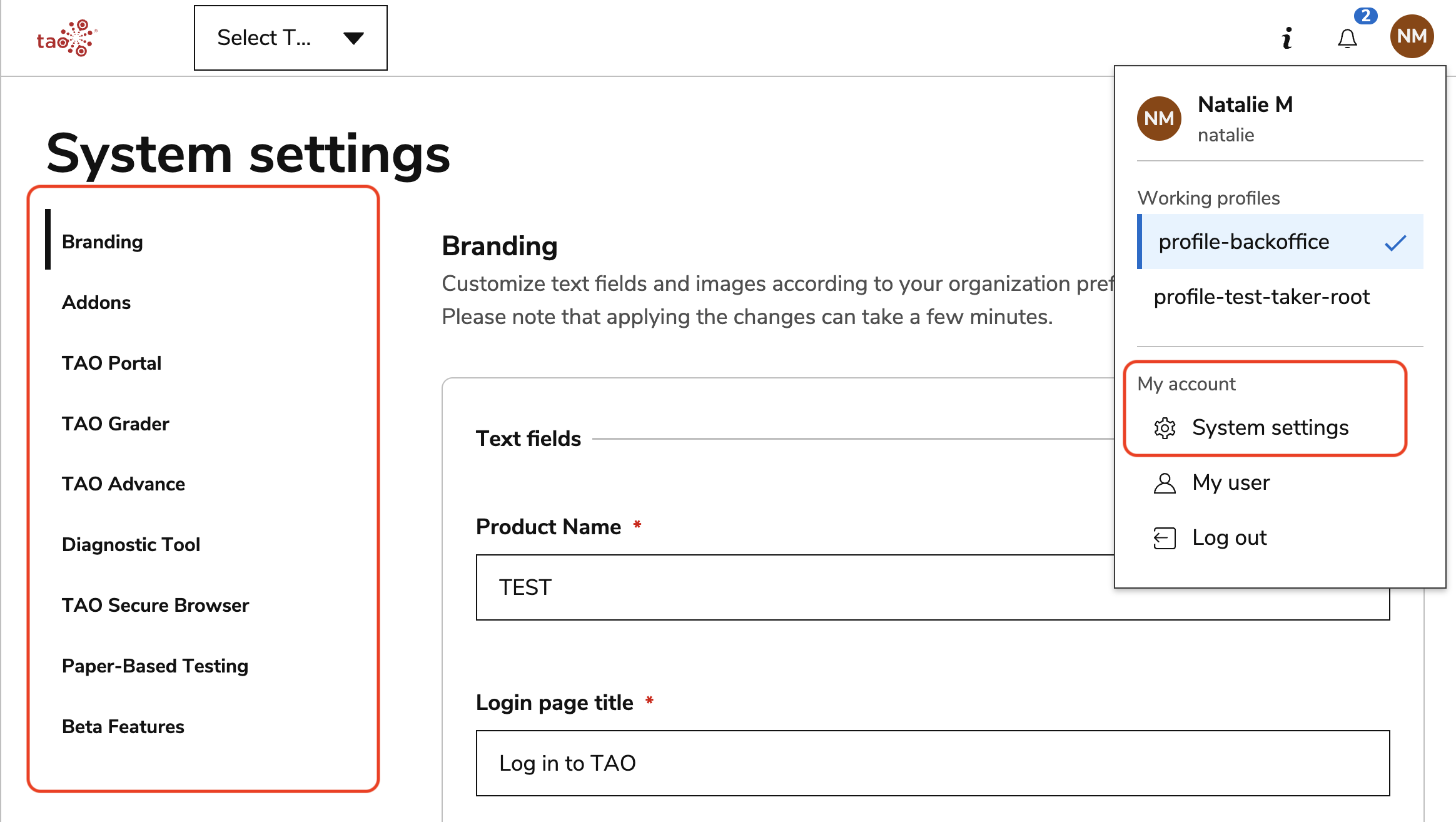
To access System Settings, log in as an admin to TAO Portal. In the top-right corner of the Portal interface, select the circular button. In the menu that displays, select System Settings.

system-settings.png

Branding

This editor allows you to customize text and images across all environments in your organization. The following aspects of your user interface are configurable:

  • Product name: Enter the name of your organization.

  • Login page title: Edit this text, which will display above the username and password text boxes.

  • Corporate title: This text displays to the left of the username and password text boxes.

  • Corporate text: This text displays to the left of the username and password text boxes.

  • Display login page links: Toggle this option on or off to display the TAO-branded links on the login page (i.e knowledge base, service desk).

  • Images

    • Login page background image

    • Logo image (displays in top-left corner of the Portal).

TAO Portal

This editor displays which aspects of the TAO Portal that are currently editable at the system-wide level. The current option is to make email a mandatory field for new users (see Creating a new user).

TAO Advance

This editor displays which aspects of session presentation are configurable system-wide.

Breadcrumbs

Breadcrumbs display at the top-left of an open session. They typically display name of the test, section, and item the test taker is currently on.

system-settings-breadcrumbs.png

In the TAO Advance editor, you can disable whether the test, section, or item title displays (or all disable breadcrumbs). You can also edit what will display instead of the original names/titles.

These titles can also be edited during test authoring. For more information, see Test settings.

Test navigation

Enable linear navigation delay: Add a delay (in seconds) before the forward navigation button becomes clickable in linear navigation tests/parts. This prevents test takers from accidentally skipping an item without being able to go back.

Restrict non-linear navigation: The option to restrict non-linear navigation so that users can freely go back to any item, but can only go forward to the next item is now available. Once this feature is enabled, this behavior will replace the existing behavior for the non-linear navigation (users freely navigating to any past or future item).

Images

Add a test runner logo image. This will display in the top-left corner of a test session.

Diagnostic Tool

In this editor, account administrators can configure custom fields in the system settings to collect information from users. The collected values can then be used to filter and analyze the captured diagnostic data.

JavaScript errors detected

Please note, these errors can depend on your browser setup.

If this problem persists, please contact our support.