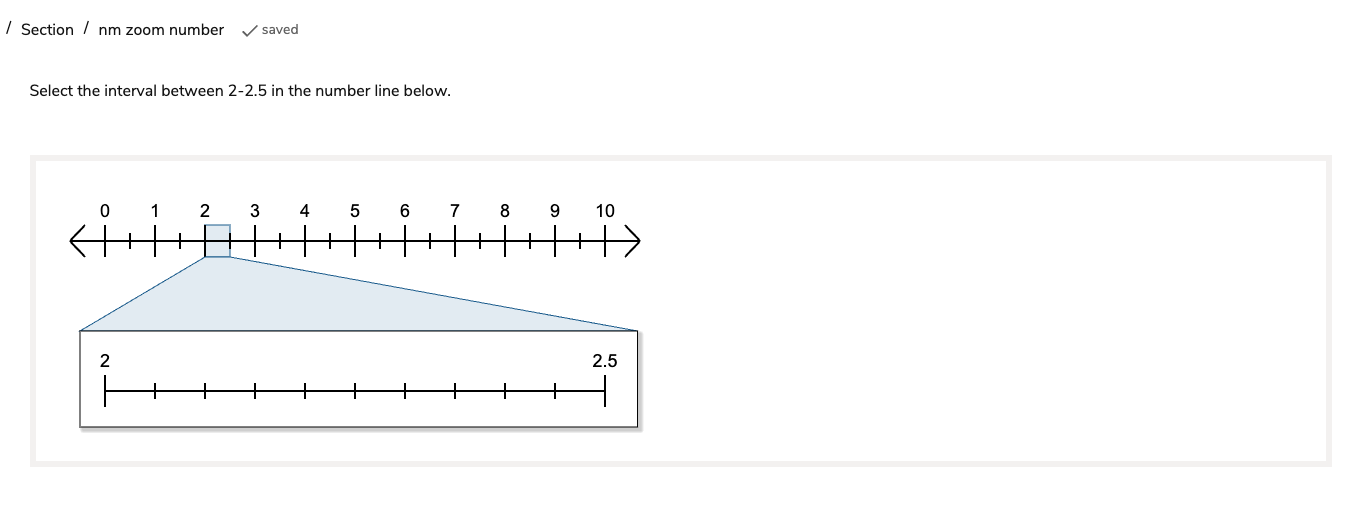
A Graphing Zoom Number Line interaction is useful if you would like the Test-taker to provide a visual answer as a decimal value by selecting it on a graduated line. A zoom is available to help the test-taker select a precise value. The Graphing Zoom Number Line Interaction is one of the Portable Custom Interactions in the standard TAO package.
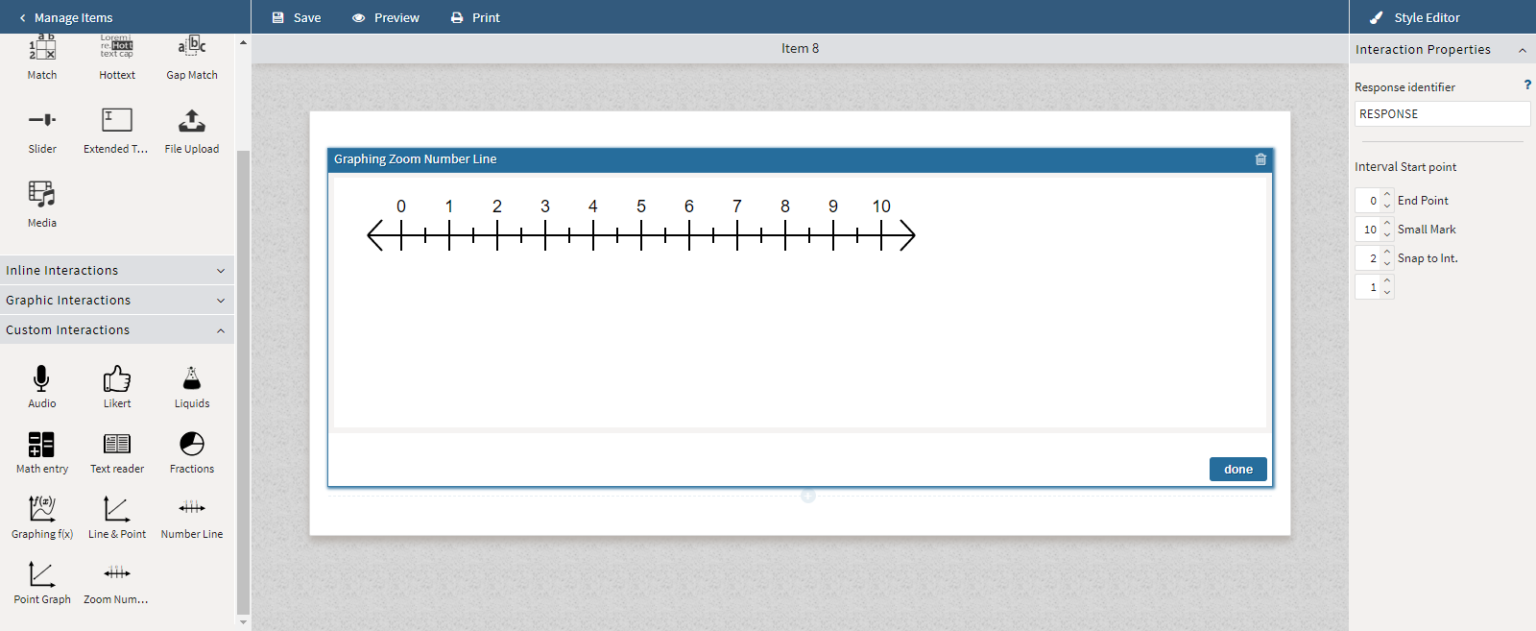
1. Configure the interaction’s display properties.
Under Interaction Properties, the following aspects of the interaction are configurable:
-
End Point: Adjust this value to reflect the first/lowest number to appear on the number line.
-
Small Mark: Adjust this value to reflect the last/highest number to appear on the number line.
-
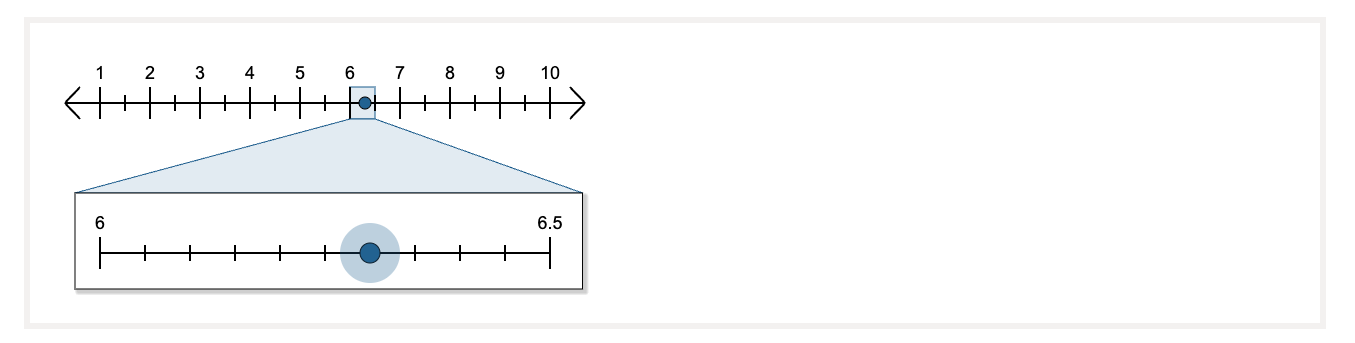
Snap to Int.: Adjust this number to reflect how many integers (i.e selectable spaces) should appear on the number line between the whole numbers. When the test taker selects a spot on the number line, the zoomed view to select a precise location (see graphic below) will reflect each integer.
2. Configure response processing and scoring.
The Graphing Zoom Number Line Interaction allows test-takers to provide a visual numerical response by selecting a precise decimal value along a graduated number line. A zoom function supports fine-tuning the placement of the response, ensuring greater accuracy in selecting values that represent estimates, measurements, or computed results.
Configuring Response Processing
Some Portable Custom Interactions (PCIs), such as the Graphing Zoom Number Line, may not include a Response tab in the Authoring Tool interface. Because response processing is configured at the item level (not only individual interactions), you can still add or edit scoring logic through this workaround:
-
Add a Temporary Interaction: Insert another interaction type (for example, a Multiple Choice or Text Entry interaction) within the same item.
-
Access the Response tab for the temporary interaction: The Response tab becomes visible once any interaction with built-in scoring is added.
-
Configure Response Processing: Define the scoring or response rules for the Graphing Zoom Number Line interaction, including any expected numeric values or scoring ranges. Either you need to define custom processing rules, or add some outcome declarations which would trigger manual scoring.
-
Remove the Temporary Interaction: After saving your response processing configuration, delete the extra interaction. The scoring settings remain linked to the item itself.
Scoring Options
In most cases, the Graphing Zoom Number Line Interaction requires manual scoring, as test-takers may select any value on a continuous line.
For more information on configuring scoring, see Scoring.