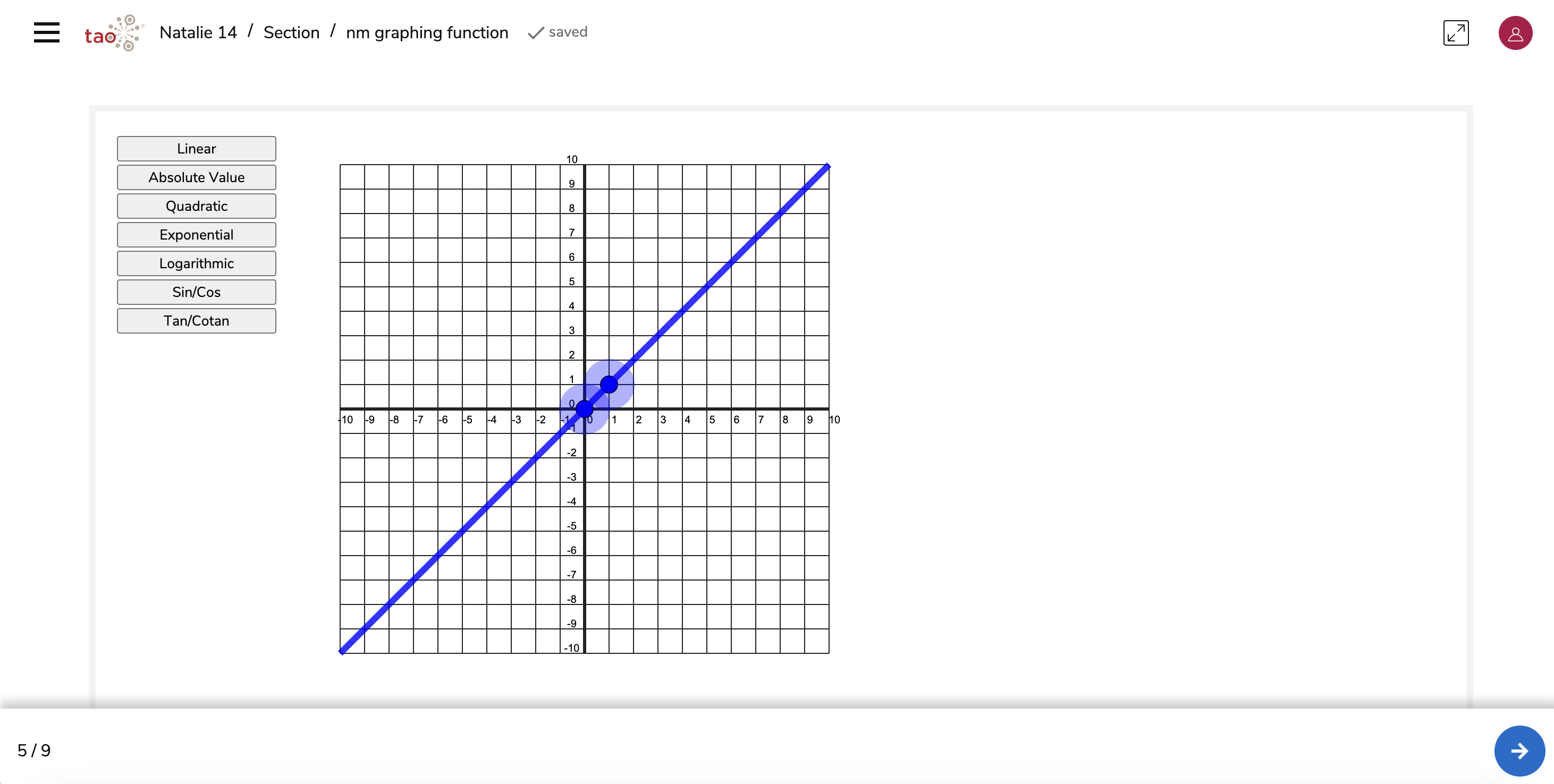
A Graphing Function interaction is useful if you would like the Test-taker to provide a visual answer in the form of a function type with two point coordinates. The Graphing Function Interaction is one of the Portable Custom Interactions in the standard TAO package.
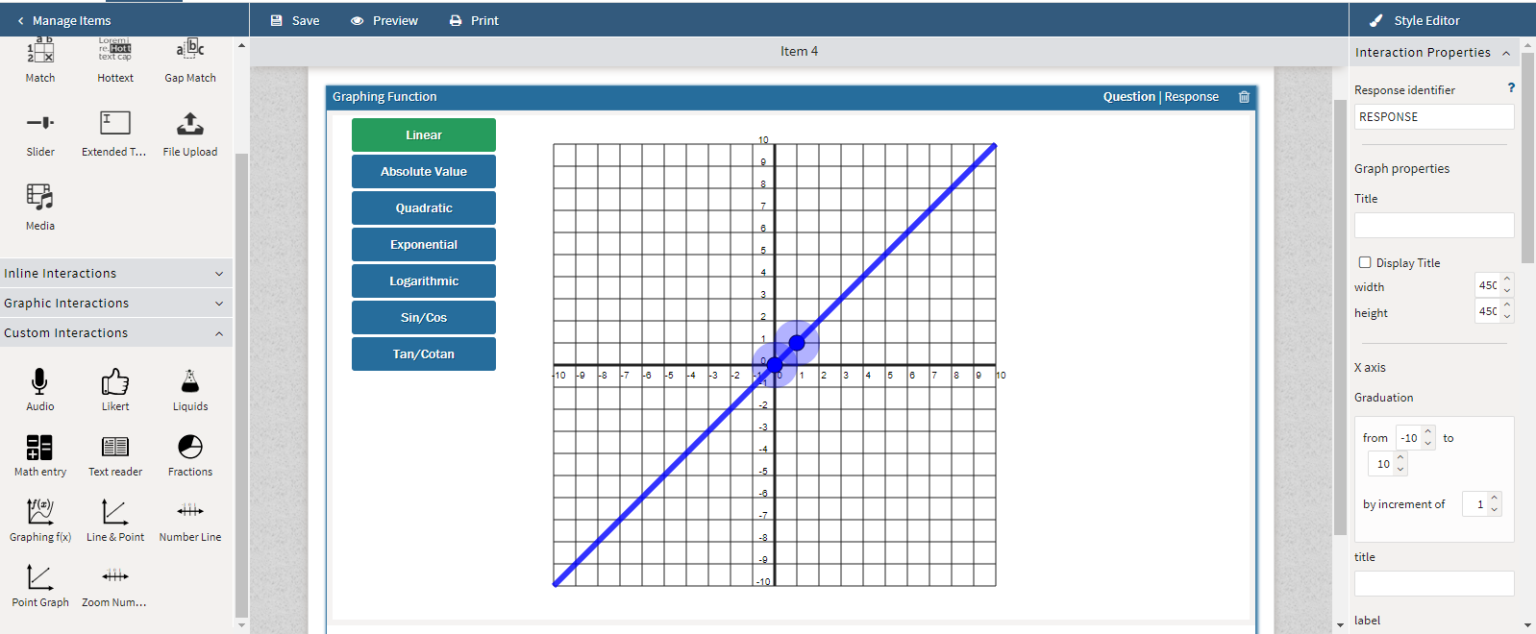
1. Configure the interaction’s display and functionality properties.
Under Interaction Properties, the following aspects of the interaction are configurable:
-
Title: Enter in the text box the title of the graph (usually related to what the test-taker will produce). Check Display Title for the title to be visible above the graph. The width and height of the title may also be adjusted.
-
X axis: For the graph’s horizontally line, adjust the numerical range (and the increment by which each number is to increase/decrease) to be displayed in the Graduation section.
-
Title: Enter the title of the X axis. This will display horizontally under the graph.
-
Label: Enter the label of the X axis. This will display adjacent to the x axis number line.
-
-
Y axis: For the graph’s vertical line, adjust the numerical range (and the increment by which each number is to increase/decrease) to be displayed in the Graduation section.
-
Title: Enter the title of the Y axis. This will display vertically to the left of the graph.
-
Label: Enter the label of the X axis. This will display above the y axis number line.
-
-
Graph Appearance: In this section, you can adjust the visual elements of the graph.
-
Available Graphs: Check each graph type that will be visible as an option to the test-taker (these options will display to the left of the interaction’s graph) to choose which type of graph they will produce: linear, absolute value, quadratic, exponential, logarithmic, sin/cos, and tan/cotan.
2. Configure the interaction’s response.
Click on the interaction’s Response tab.
In the interaction’s graph, select the points that create the correct graph.
In the Response Properties, there is an option to enter the correct equation to be matched against what the test-taker produces in the graph. Enter this in the Equation text box.
By defining the correct graph, this interaction supports automatic scoring. Manual scoring may optionally be configured. For more information, see Scoring.