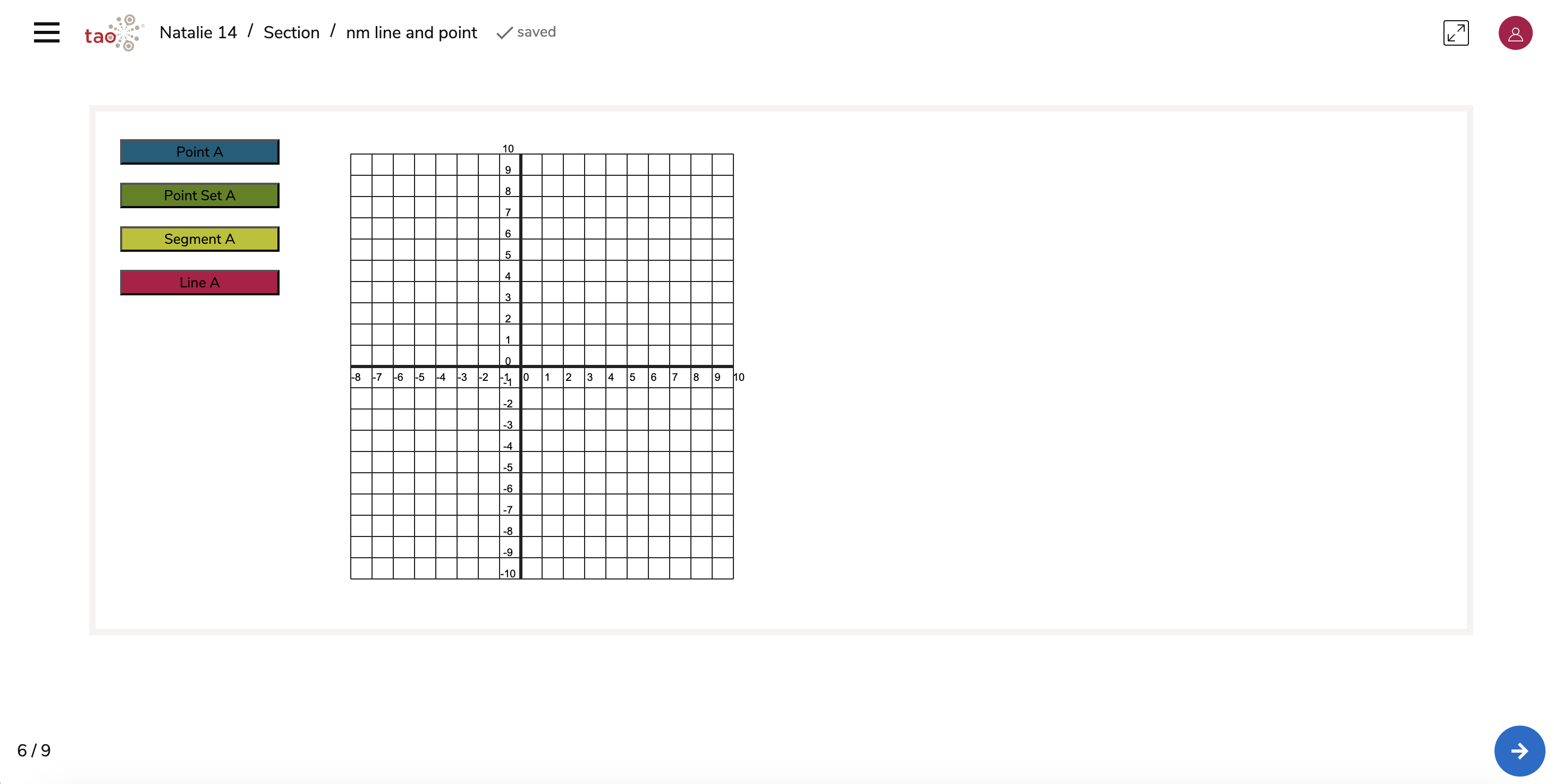
A Graphing Line & Point interaction is useful if you would like the Test-taker to provide an answer either with simple point coordinates, segments or lines (defined by two points), or any combination of these. The Graphing Line & Point Function Interaction is one of the Portable Custom Interactions in the standard TAO package.
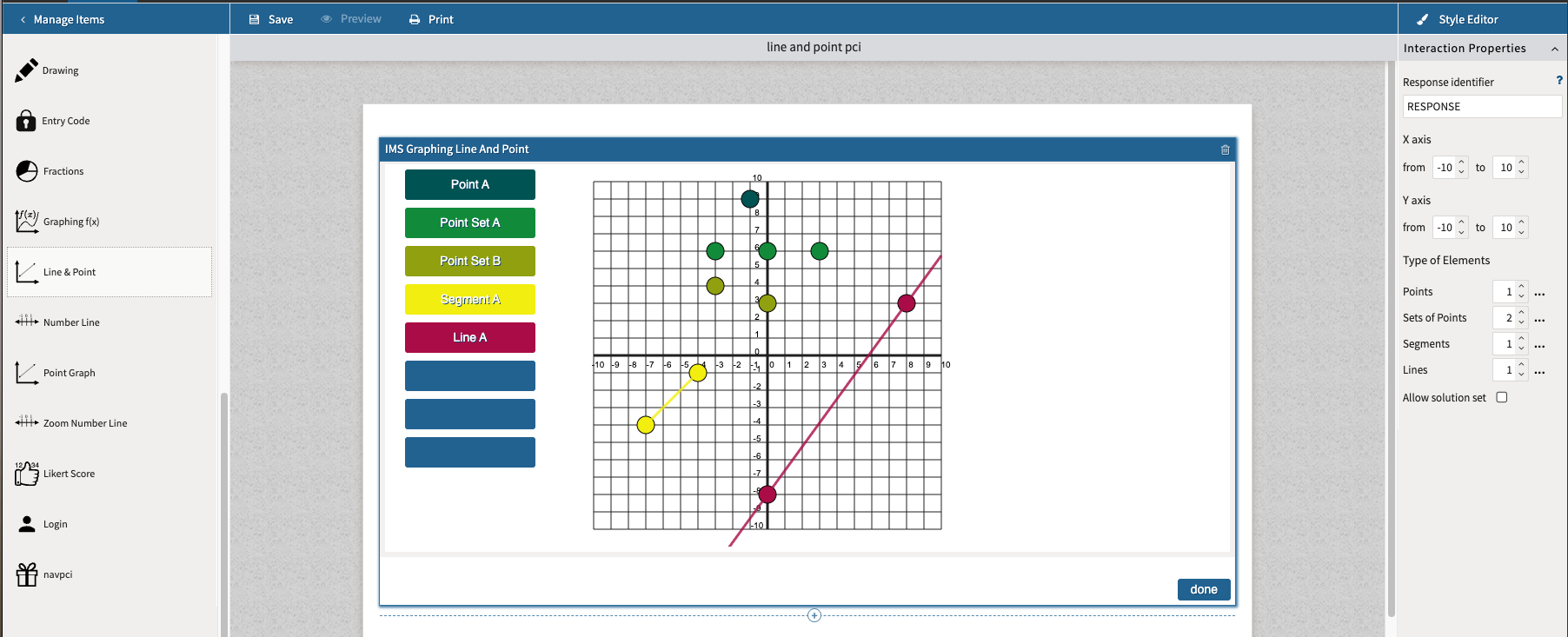
1. Configure the interaction’s display properties.
Under Interaction Properties, the following aspects of the interaction are configurable:
-
X axis: For the graph’s horizontally line, adjust the numerical range.
-
Y axis: For the graph’s vertical line, adjust the numerical range.
-
Points: Adjust how many points appear on the graph. To define these points, select the colored tab on the left of the graph (i.e Point A); click on the part of the graph where the corresponding colored point should appear.
-
Sets of points: Similar to the singular point, adjust this number to reflect how many sets of points should appear on the graph (color coded). To define these sets, select the colored tab to the left of the graph (i.e Point Set A); click on the parts of the graph where the corresponding points should appear.
-
Segments: Adjust this number to reflect how many segments (two points conjoined) should appear on the graph. To define these segments, select the colored tab to the left of the graph (i.e Segment A); click on two points of the graph to form a segment.
-
Lines: Adjust this number to reflect how many lines (two points forming a cross-graph line) should appear on the graph. To define these lines, select the colored tab on the left of the graph (i.e Line A); click on two points of the graph to form a line.
2. Configuring the response/scoring.
Some Portable Custom Interactions (PCIs), including the Graphing Line & Point Interaction, may not display a Response tab. Since response processing is an item-level configuration (not within a specific interaction component), it is still possible to add or edit scoring rules using a simple workaround:
-
Add a Temporary Interaction: Insert another interaction type (such as a Multiple Choice or Text Entry interaction) into the same item.
-
Open the Response Tab: With the new interaction added, the Response tab becomes available in the item editor.
-
Configure Response Processing: Set up the scoring or response rules you need for your Graphing Line & Point interaction.
-
Delete the Temporary Interaction: Once your rules are configured, you can remove the extra interaction. The response processing settings will remain attached to the item.
Scoring Options
The Graphing Line & Point Interaction typically requires manual scoring, since test-taker responses can vary greatly in structure and precision (for example, selecting specific points versus drawing approximate lines). When designing the item, consider:
-
Automated Scoring (limited use): Possible if you define exact coordinate values or line equations and configure the response rules accordingly.
-
Manual Scoring: Recommended for most use cases, where assessors review plotted responses visually and assign scores based on accuracy or completeness.
For more information on configuring scoring, see Scoring.