
An Audio interaction enables the Test-taker to record a short spoken response, typically to test his/her speaking ability. The Audio Interaction is one of the Portable Custom Interactions which is part of the standard TAO package.
In this interaction, the test-taker is presented with an image of a tape recorder. They can record speech by clicking on the record button, then check the recording using the play-back button. The response format is an audio file.
For Safari users, playback of audio recordings is only supported if the recording was created in a different browser.
A connection via https is always required when using this interaction.
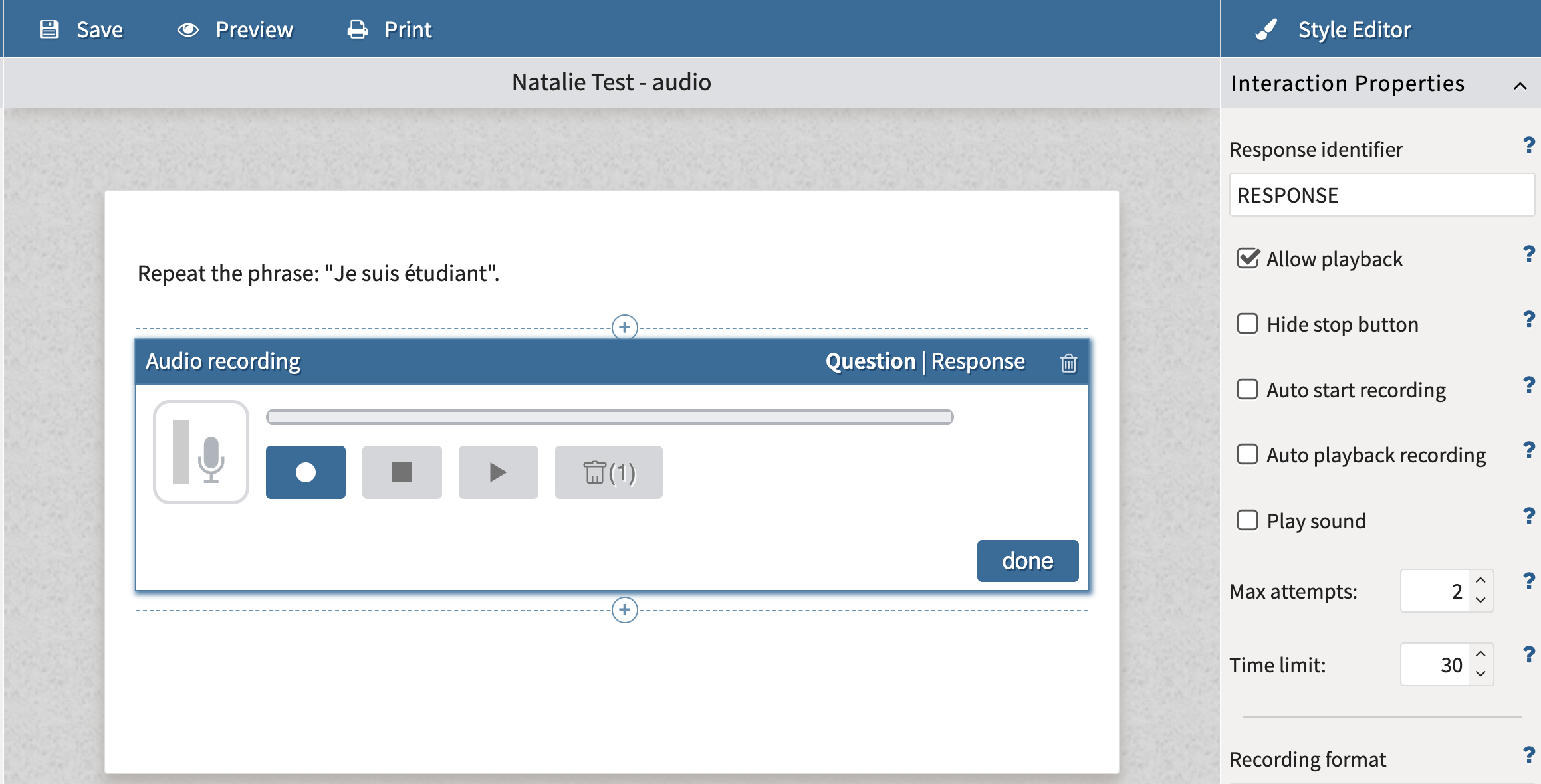
1. Drag Audio onto the canvas from the Custom Interactions dropdown.
If you want to add a question or a prompt for the test taker to respond to, drag Text from the Inline Interactions drop down and add your text.
2. Configure the interaction’s display and functionality properties.
Under Interaction Properties, the following aspects of the interaction are configurable:
-
Allow playback: Check this box to allow test takers to listen to their recording after completing it.
-
Hide stop button: This hides the stop button from test takers. When this box is checked, test takers cannot pause and resume while completing their recording.
-
Auto start recording: Checking this box forces the test taker to begin their recording immediately upon moving to the interaction.
-
Auto playback recording: Check this box to auto play the test takers response to the test taker after completion.
-
Play sound: Check this box to add a sound at the beginning and end of the recording; this indicates to the test taker when the recording has started and ended.
-
Max attempts: Adjust the number of attempts the test taker is allowed. Add “0” to allow unlimited attempts.
-
Time limit: Set the maximum amount of time allowed for the recording in seconds (the minimum is 5 seconds). The recording will be cut off when the maximum time is reached.
-
Recording format: Select either compressed (default) or uncompressed. With a compressed recording, the audio is saved as a smaller file (.webm or .ogg). With uncompressed, the recording saves as a much bigger .Wav file.
-
Audio bitrate: Adjust the audio recording’s bps (bits per second). This number determines the tradeoff between audio quality and file size. With the default value (20.000bps), a 2 minute recording renders a roughly 300KB audio file.
3. Configuring the response/scoring.
Select the Response tab to define the scoring methods for the interaction. The Audio Interaction is generally suited for manual scoring.
Configure Response Processing: Either you need to define custom processing rules, or add some outcome declarations which would trigger manual scoring (recommended).