
The TAO Grader editor in System Settings allows you to configure which scoring method will be used and which tool will display to scorers (and reviewers) for manually scored assessments.
Manual grading method
Read-behind scoring is a beta feature which allows manual scoring to be comprised of a two step process: scoring and score reviewing.
Toggle Enable Read-Behind as a beta feature to present the option of read-behind scoring during session creation/editing. For more information on read-behind scoring, see Reviewing scores (read-behind scoring).
Once read-behind scoring is enabled in System Settings, it can be enabled for individual sessions (see Creating a session)
Annotation tools
Choose either a highlighter or marking symbols as a tool to assist scorers.
Highlighter tool
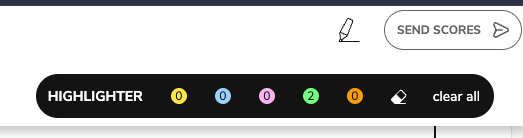
Select Highlights to display a highlighter tool to scorers. The highlighter tool allows scorers to highlight areas in the test-taker’s response to help them identify information that contributes to the final score of the interaction.
Marking symbols
Select Marking symbols to configure which marking symbols will be available to scorers.
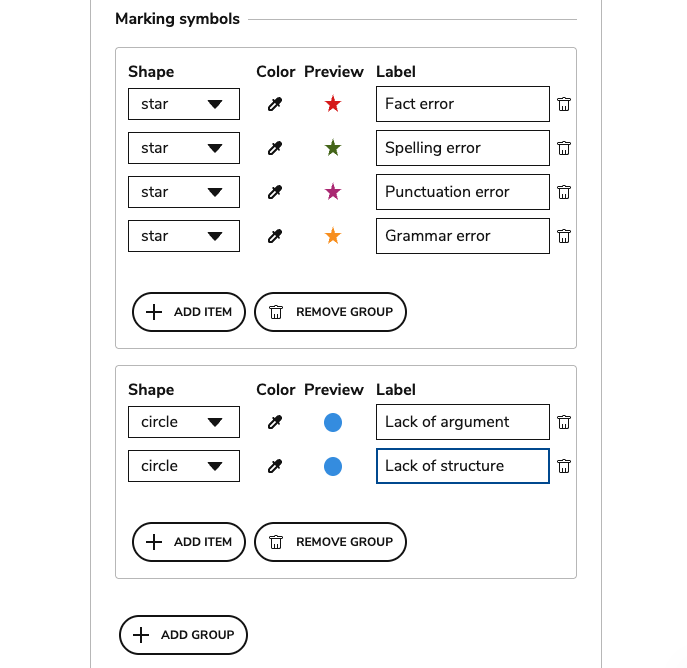
A list of symbols will display by default; the list will display the shape, color, a preview, and the symbol’s label:
|
Shape |
Select a shape from the dropdown menu. The option are diamond, square, start, and circle. |
|
Color |
Select this field to adjust the color of the symbol. |
|
Preview |
This column displays each symbol as it appears to scorers. |
|
Label |
This field determine’s what each symbol means to scorers. This field can be edited. |
-
To remove a symbol, select the trash icon.
-
To add a new symbol, click Add Item.
-
To remove the current group of symbols, click Remove Group.
-
To Add a new group of symbols, click Add Group.
Batch size for scoring and reviewing
When scoring and reviewing multiple sessions at once, you are presented with a batch of test-taker’s sessions. The default maximum is 5; adjust the organization-wide default by entering a number in the text box.
The value defines if batch scoring is enabled or not:
-
Adding a value smaller than 2 → batch scoring disabled
-
Adding a value of 2 or higher → batch scoring enabled
Once enabled, this feature is accessed by the Score All option (in manual scoring) and Review All option (in read-behind scoring reviews).