Read-behind scoring is a beta feature which allows manual scoring to be comprised of a two step process: scoring and score reviewing.
What is read-behind scoring
Read-behind scoring is a process used in assessments with manual scoring, where a score reviewer reviews a percentage of test responses that have already been scored by one or more scorers.
For sessions with read-behind scoring enabled, score reviewers will be able to view and score items for manual scoring once scorers complete their grading of a test-taker’s session.
Important: For a full walk-through of the read-behind scoring process, see How does read-behind scoring work in the Knowledge Base.
Roles
Read-behind scoring involves users with the group roles of:
-
Scorer
-
Score reviewer
This article focuses on the tasks performed by the score reviewer. Users with the scorer role complete the initial scoring using the typical manual scoring process.
For more information on assigning roles, see the following articles:
Reviewing scoring as a score reviewer
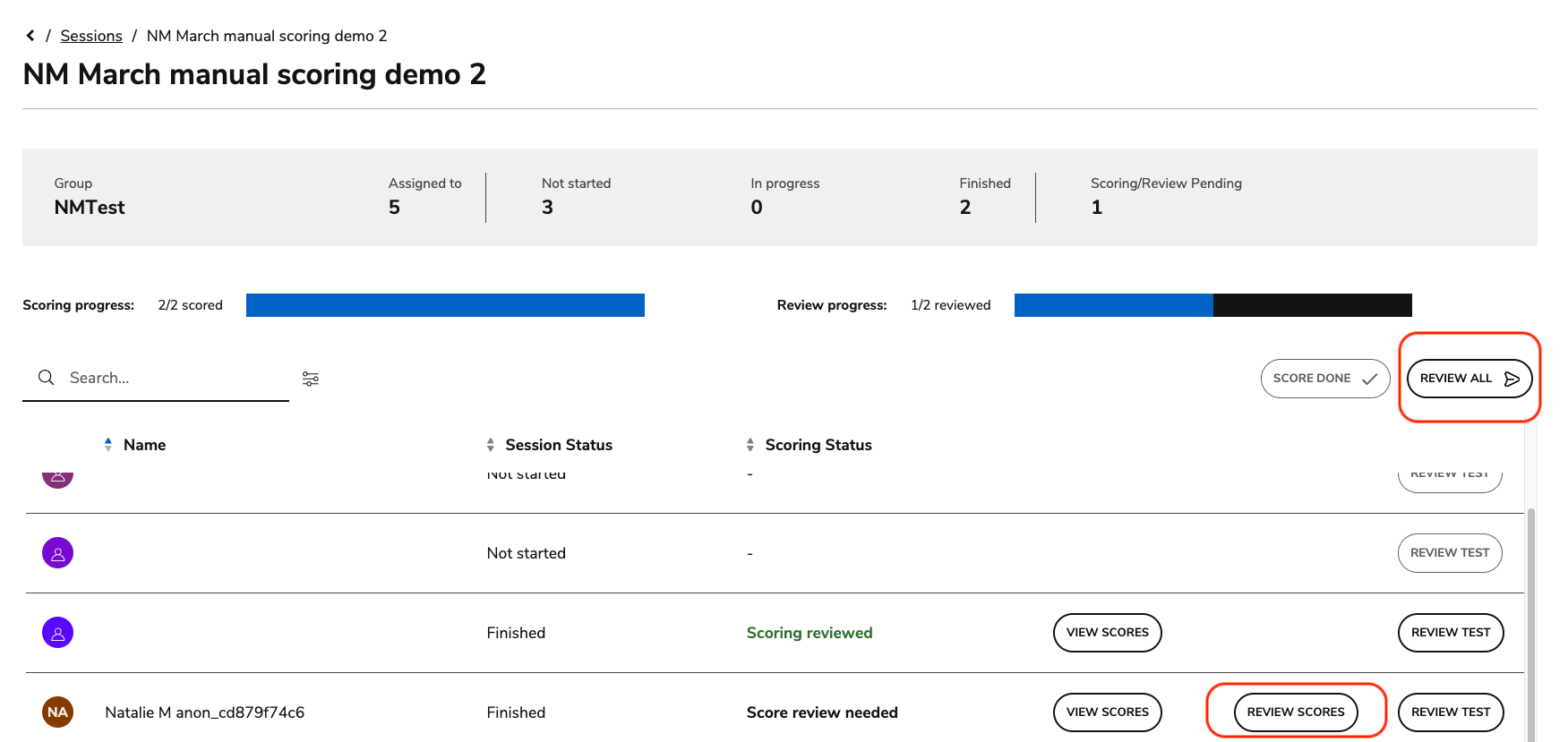
Score reviewers access the Review Scores action from the session overview page after manual scoring has been completed by the scorer.
1. Select Enter session on the right side of the session you want to view.
Below the session details, a table displays the following information for all test takers assigned to the session:
-
Name: The name of a test taker.
-
Session status: Displays which stage of the session a test taker is currently in (Not started, In progress, Finished).
-
Scoring status: Displays whether a test taker’s assessment has been graded. If the session has been graded, the status will display as Score review needed.
The following actions are available for score reviewers once a scorer has completed grading the assessment:
|
Action |
Description |
|---|---|
|
View Scores |
A read-only version of all scores provided for the session. See the section below for more information. |
|
Review Scores |
This option triggers the score reviewing process. |
|
Review Test |
This option opens the test review as it is displayed to a test taker. |
2. Select Review Scores to review the scoring, or select Review All to review each completed assessment.
The grading panel opens.
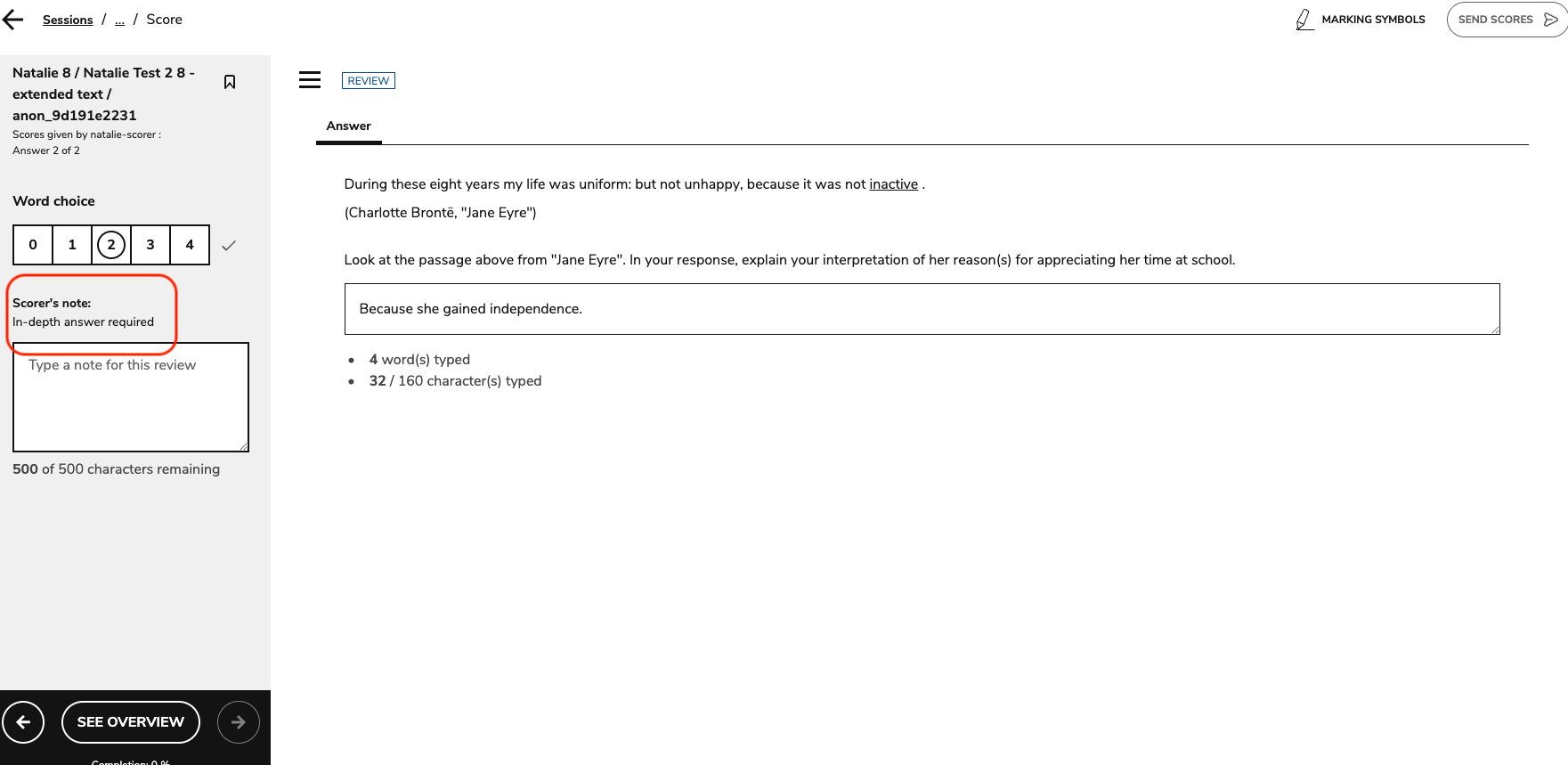
In the panel on the left side of the interface, the reviewer will see the following:
-
The outcome declaration(s) defined for each interaction, along with the score range defined for each outcome declaration.
-
The scorer’s score for that interaction, as well as any notes left by the scorer in the text box (under Scorer’s notes).
-
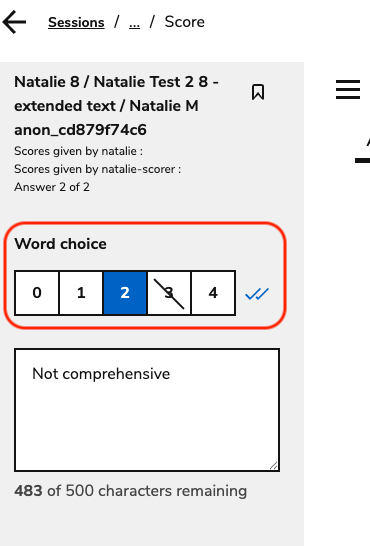
If scoring has been reopened by an administrator (see Scoring assessments manually (TAO Ignite)) and re-submitted by the grader, the original score and new score will be visible.
As a reviewer:
-
Add your own score, notes, and markings (pencil icon in the top-left).
-
Leave directs comment to the test taker’s response by selecting text from the response and clicking Write Feedback → Save.
For more in-depth descriptions on navigating the grading interface, see Scoring assessments manually (TAO Ignite).
3. Once you have completed the review, (see percentage bar in the bottom-left corner), select SEND SCORES.
The test taker’s Scoring Status will appear as Scoring reviewed in the session overview page.
Admins may reopen a scoring review; select the ellipses for a test taker with the Scoring reviewed status. Select reopen scoring review.
If a scoring review has been re-opened, the original reviewers score will display.
Viewing scored sessions (score reviewer)
From the session overview page, there are two options to view the completed test and scoring in a read-only view.
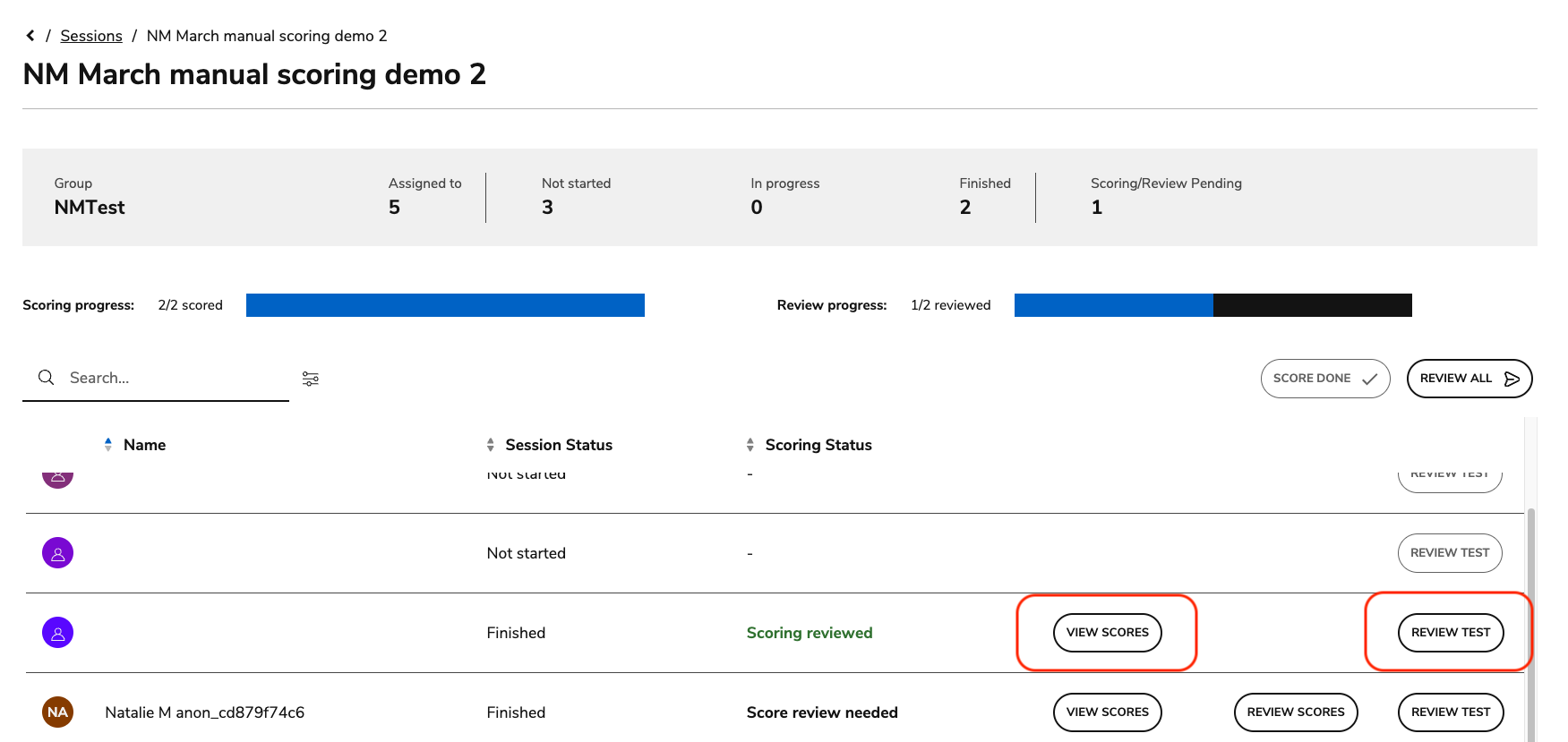
View Scores
Select View Scores to view a read-only version of all scores provided for the session.
The scoring window opens, but is not editable. Reviewers can use the Scorer and My Final Score tabs to view ther scorer’s notes and inline feedback provided, as well as their own.
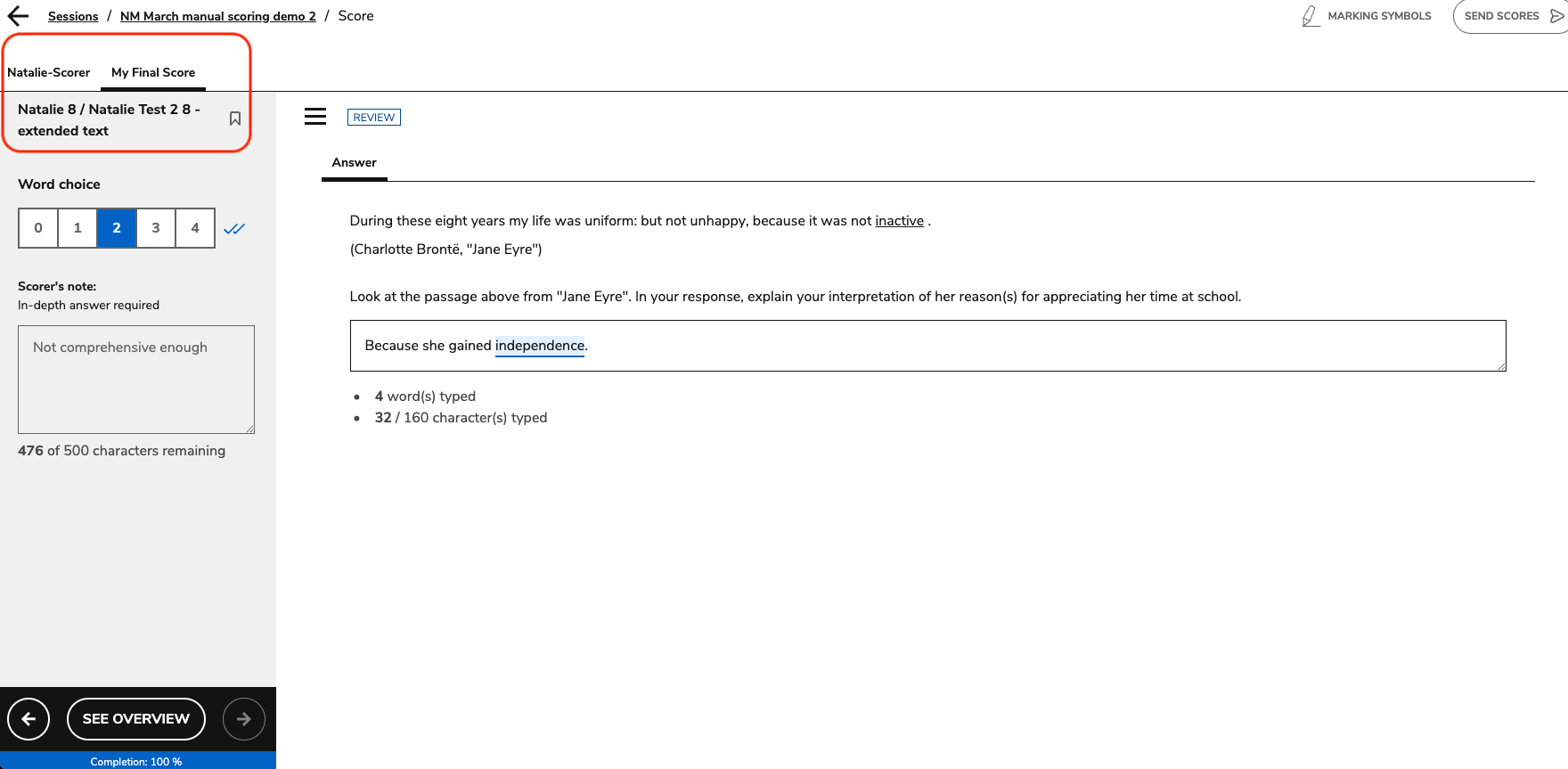
The View Scores option becomes available for score reviewers when:
-
The scoring process is complete but the review process is incomplete/underway
-
After the review process is complete
Review Test
Select Review Test to open the test review as it is displayed to a test taker.
This option becomes available when the test taker submits the assessment, regardless of the scoring status. Prior to scoring, scorers and reviewers will only be able to see the original question, the test taker’s answer, and the defined correct answer.
Each item is presented in the format of the test taker’s session (linear or non-linear navigation). Use the three tabs to view each item in the following ways:
-
Question: This tab presents the item as it appeared to the test taker.
-
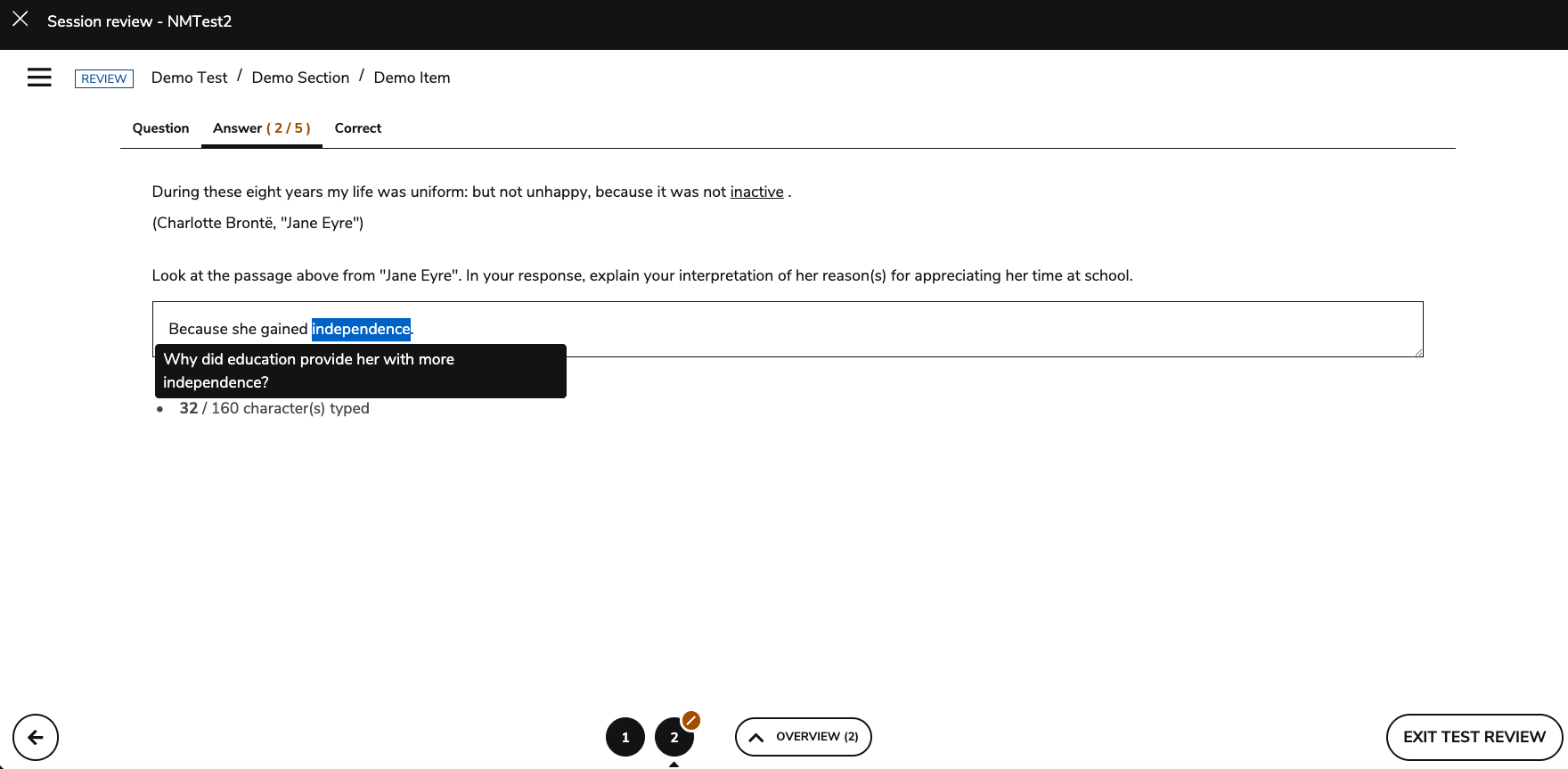
Answer: This tab presents the item with the test taker’s response.
-
This tab will display if the answer was correct or incorrect (if automatic scoring was used or if the item was already manually scored)
-
This tab will also display inline feedback left by the original scorer.
-
-
Correct: This tab presents the defined correct answer for the item.