
Related articles
Applies to
Personas
-
Administrators
-
Scorers
-
Score reviewers
Prerequisites
To follow along with this playbook, ensure that:
-
Manual scoring has been configured for the assessment.
-
Read-behind scoring has been enabled as a beta feature in System Settings.
-
A session has been created with Read-behind Scoring enabled.
-
Users have been assigned the appropriate Scorer and Score Reviewer group roles.
Purpose
Read-behind scoring adds a second layer of quality assurance to manually scored assessments. After a scorer completes grading, a score reviewer independently reviews a configurable percentage of completed responses before the scoring process is finalized.
This playbook explains how read-behind scoring is configured, how reviewers participate in the workflow, and how reviewed scores are managed within TAO.
Recommended workflow
When using read-behind scoring, follow these phases:
-
Enable the feature in System Settings.
-
Configure read-behind scoring for a session.
-
Complete manual scoring.
-
Review selected responses.
-
Finalize reviewed scores.
Workflow
1. Understanding the Read-behind Scoring workflow
Read-behind scoring is a two-step manual grading process:
-
A Scorer grades the assessment.
-
A Score Reviewer reviews a selected percentage of completed responses.
Unlike standard manual scoring, reviewers do not begin their work until scoring has been completed for a test-taker's session.
The percentage of responses reviewed is determined during session configuration.
2. Enable Read-behind Scoring
This section applies to Administrators in TAO Portal.
Read-behind scoring is available as a beta feature.
Before it can be used:
-
Open System Settings.
-
Navigate to the TAO Grader configuration.
-
Enable Read-Behind Scoring as a beta feature.
-
Save the configuration.
Once enabled globally, the feature becomes available when creating or editing individual sessions.
3. Configure Read-behind scoring for a session
This section applies to Administrators in TAO Portal.
When creating or editing a session:
-
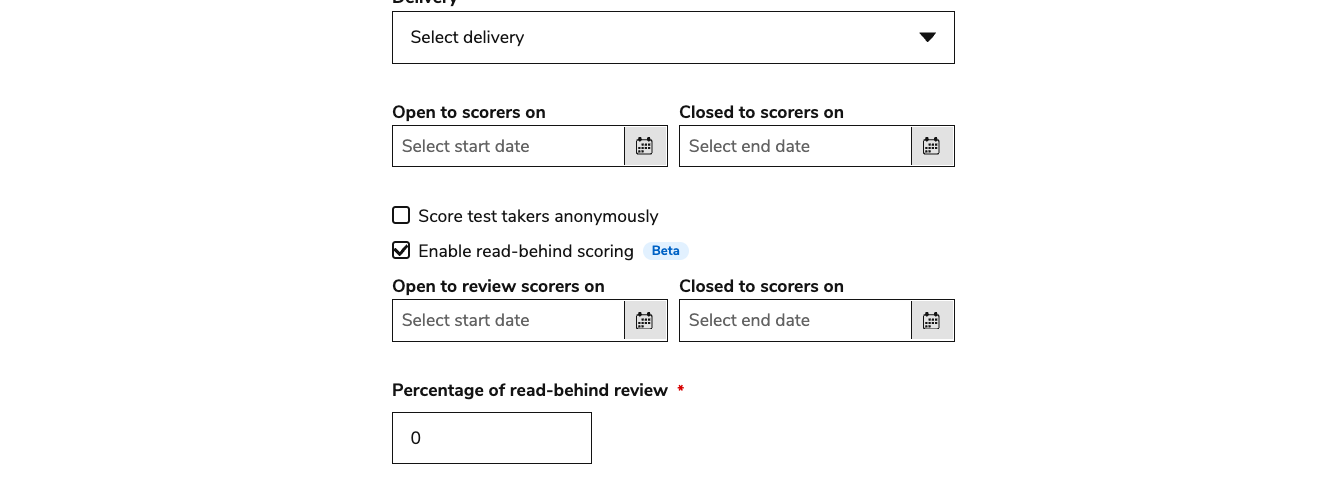
Navigate to the Scoring configuration options > Scoring section.
-
Enable Read-behind scoring.
-
(Optional) Define the review open and close dates.
-
Enter the Percentage of read-behind Review. For example:
-
25 reviews approximately 25% of completed responses.
-
50 reviews approximately half of completed responses.
-
100 reviews every manually scored response.
-
-
Optionally, enable Score test-takers anonymously to hide the names and usernames of scorers and reviewers during the scoring and review process.
4. Assign the appropriate roles
This section applies to Administrators in TAO Portal.
Read-behind scoring requires two group roles:
|
Role |
Responsibility |
|---|---|
|
Scorer |
Performs the initial manual scoring of responses. |
|
Score Reviewer |
Reviews a percentage of completed scoring before it is finalized. |
Both roles must be assigned to users before the scoring workflow begins.
Group roles can be added while:
-
Creating or updating a group (Users tab)
-
Editing an individual user’s group role (Groups tab)
5. Complete the first round of manual scoring
This section applies to Scorers.
Lead (initial) scorers complete the assessment using the standard manual scoring workflow.
Once the first round of grading is complete for a test-taker, the session becomes available for review.
In the session overview, the scoring status changes to indicate that a Score Review is required.
6. Reviewing scores as a score reviewer
This section applies to Score Reviewers.
Score Reviewers begin the review process from the session overview.
To review scores:
-
Open the session.
-
Select Enter Session.
-
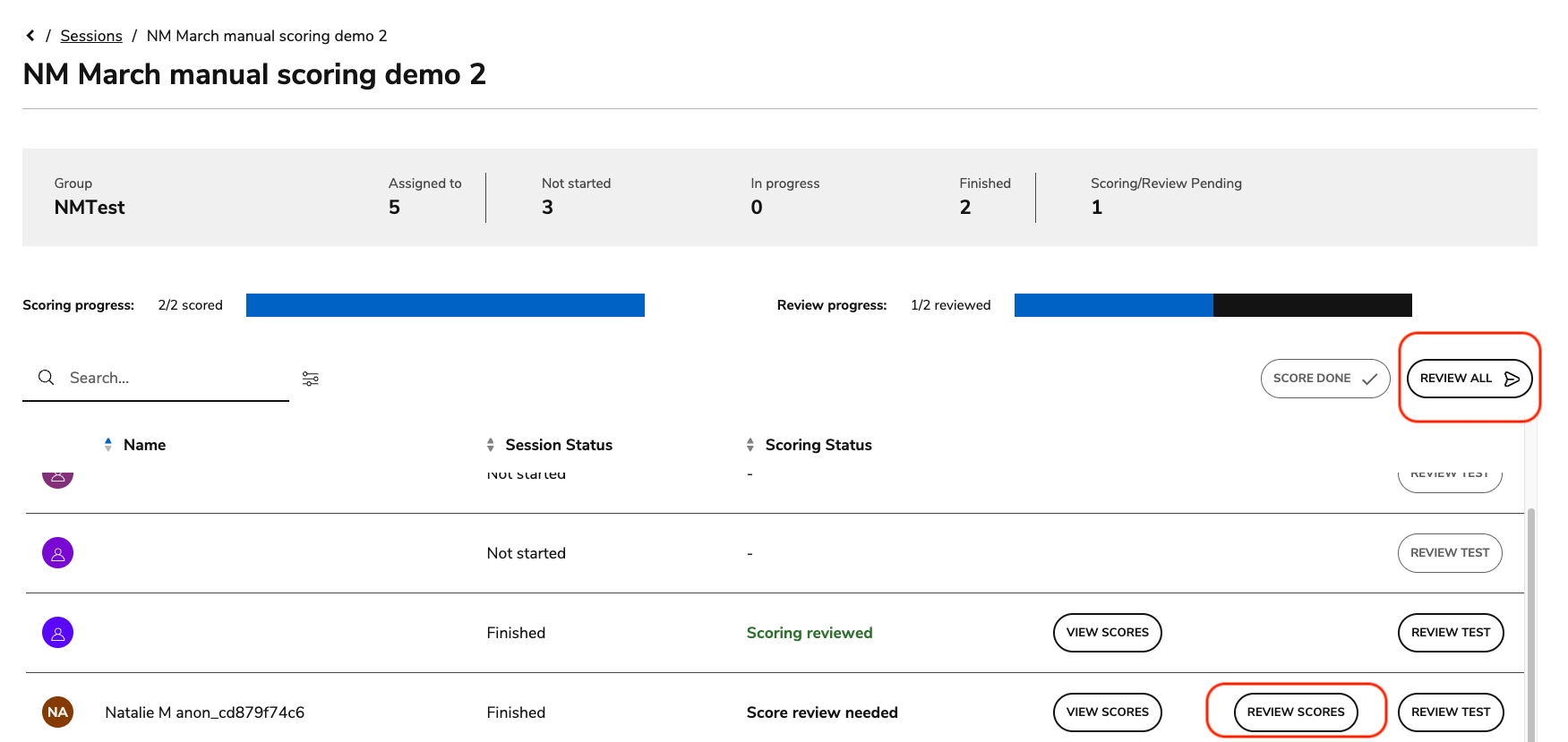
Locate the test-taker whose status is Score review needed.
-
Select Review scores.
To review multiple completed assessments, select Review All.
The grading interface opens with the review panel.
6a. Evaluating the submitted scores
During the review process, reviewers can examine the work completed by the original scorer.
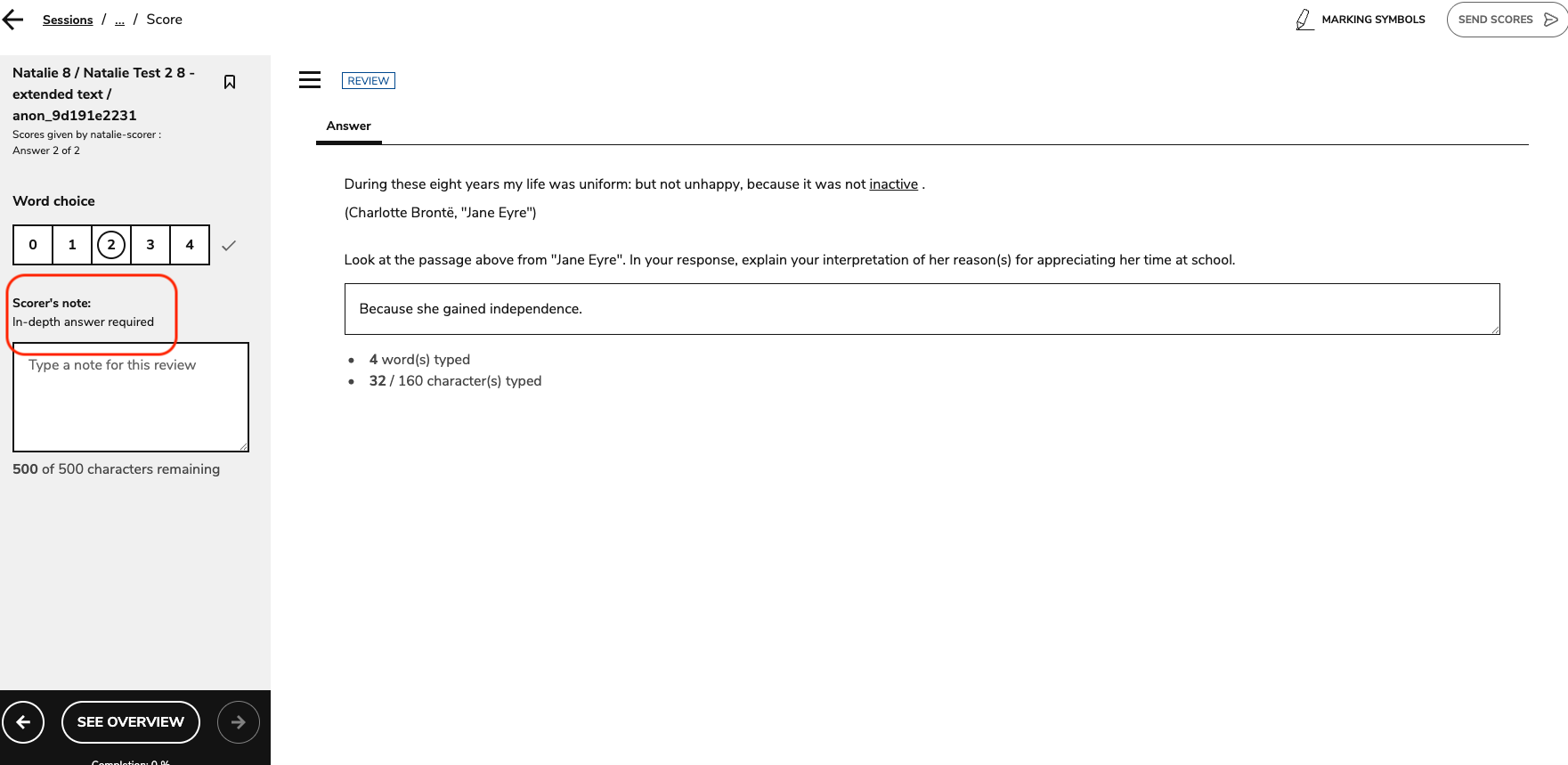
The review interface displays:
-
The Outcome Declaration(s) configured for the item.
-
The available score range for each scoring outcome.
-
The scorer's assigned score.
-
Any notes entered by the scorer.
If scoring has previously been reopened and resubmitted, both the original and updated scores remain visible.
To complete the review, the reviewer:
-
Assigns their own scores.
-
Adds reviewer notes.
-
Annotates responses using the marking tools.
-
Highlights portions of the response and provide inline feedback using Write Feedback.
These tools allow reviewers to verify or adjust scoring while documenting their decisions.
6b. Submitting the review
Once the required responses have been reviewed:
-
Confirm review progress using the completion indicator.
-
Select Send Scores.
The session status updates to Scoring reviewed.
If necessary, administrators can reopen a completed review. In the session overview, select the ellipses for a test taker with the Scoring reviewed status. Select reopen scoring review.
When a review is reopened, the original reviewer scores remain visible for reference.
7. Viewing completed scoring
This section applies to Score Reviewers.
Score Reviewers can access completed scoring in two different ways.
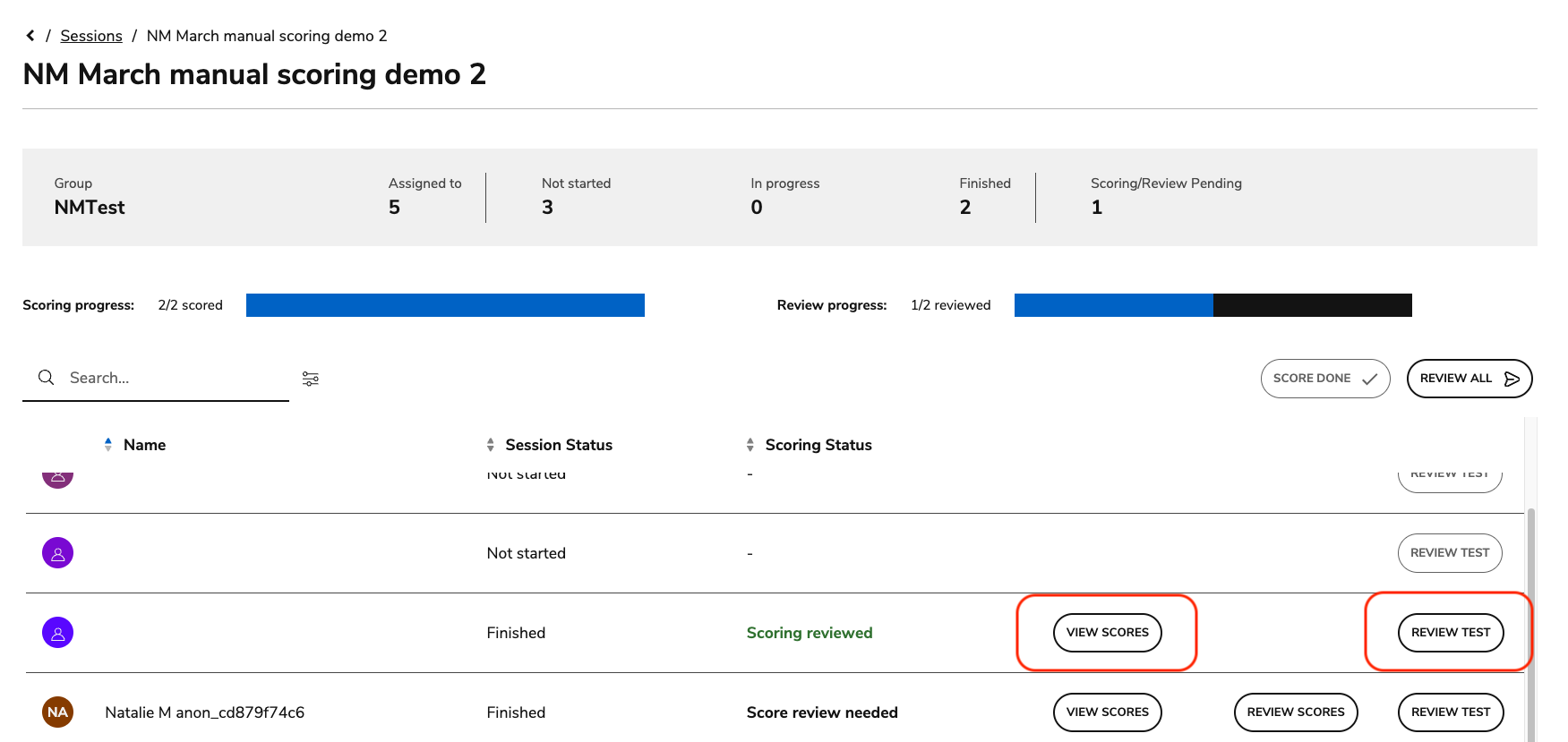
View scores
View Scores opens a read-only version of the completed scoring.
Reviewers can view:
-
Original scorer scores.
-
Reviewer scores.
-
Scorer notes.
-
Reviewer notes.
-
Inline feedback.
This option is available:
-
While the review process is in progress.
-
After the review process has been completed.
Review test
Review Test displays the assessment as the test-taker experienced it.
Three tabs are available:
|
Tab |
Description |
|---|---|
|
Question |
Displays the original assessment item. |
|
Answer |
Displays the test-taker's response, scoring results, and any inline feedback from the scorer. |
|
Correct |
Displays the defined correct response for the item. |
This view becomes available as soon as the assessment has been submitted, regardless of the scoring status.