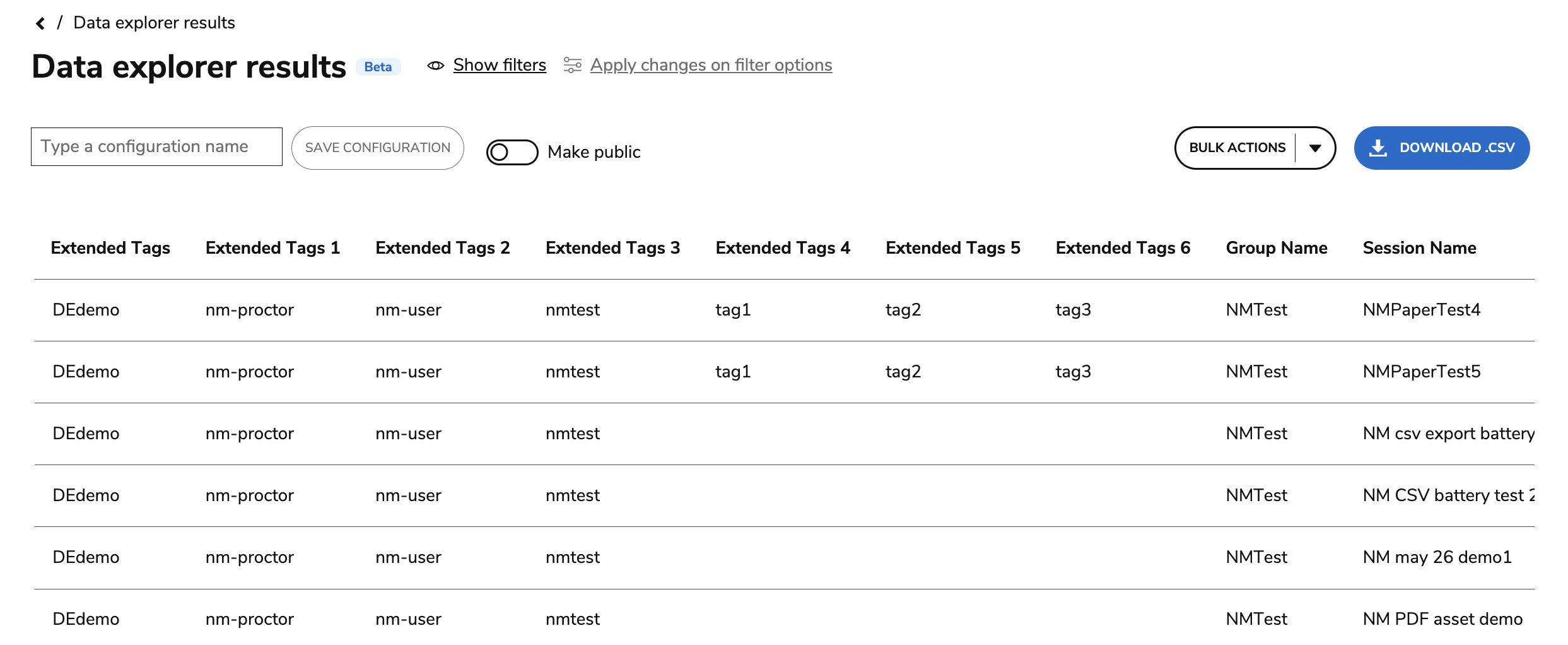
Tags can now be used more broadly across users, groups, sessions, and assets, including UI management, CSV imports, filters, datastore queries, and Data Explorer use cases. This improves search and locating entities in a large organization.
Related articles
Where you can add tags
You can add tags while creating or editing the following entities:
Tags are added by users ad-hoc and there is no central repository listing all tags. It is important to keep track of which tags you use, as well as their meaning.
Using tags to search
You can filter tagged entities to narrow down basic searches:
-
Searching assets
Using tags in Data Explorer
You can use tags to narrow down searches in Data Explorer. For more information, see Using Data Explorer.
Using the Tags filter
Using the Tags filter, you can filter the search of an entity by any assigned tags. More than one can be used.
-
For Data Setup, choose one of the following:
-
Asset
-
Portal Groups
-
Portal Sessions
-
Portal User
-
-
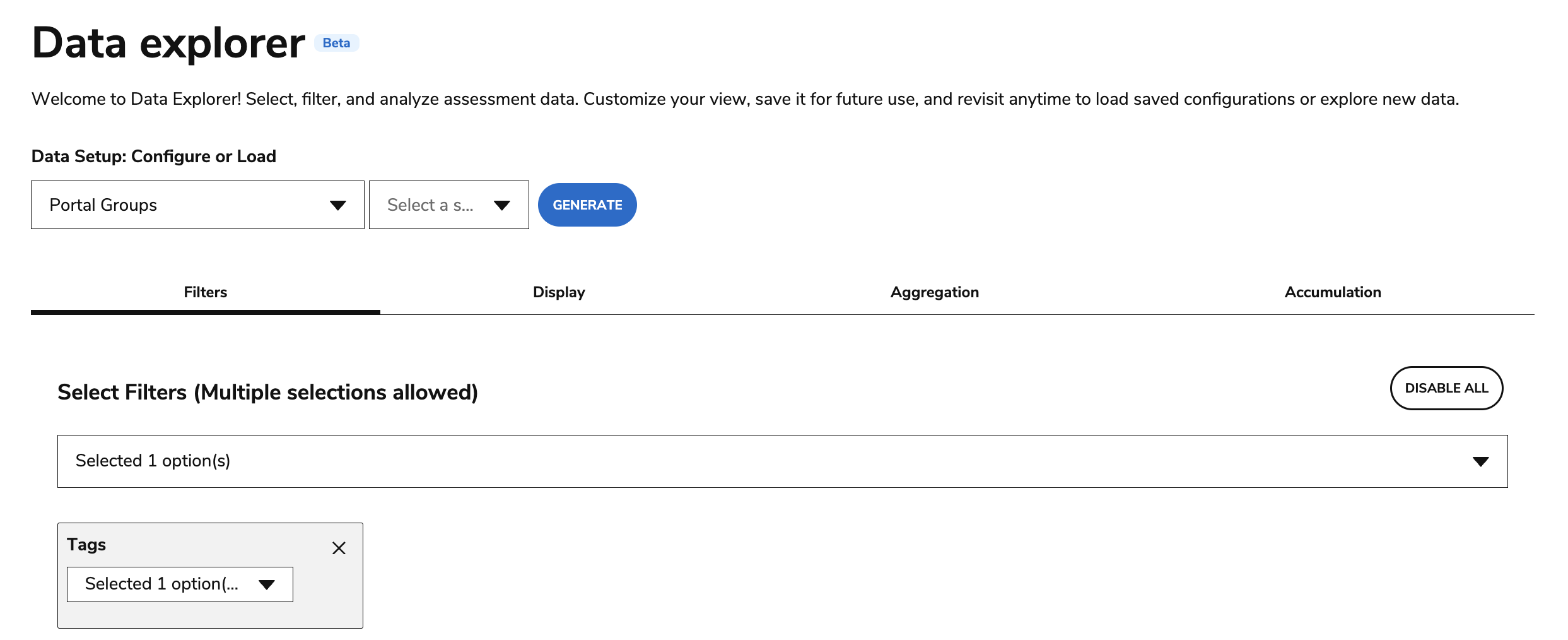
Under Filters, select Tags. You can add one or more tags to the filter.
-
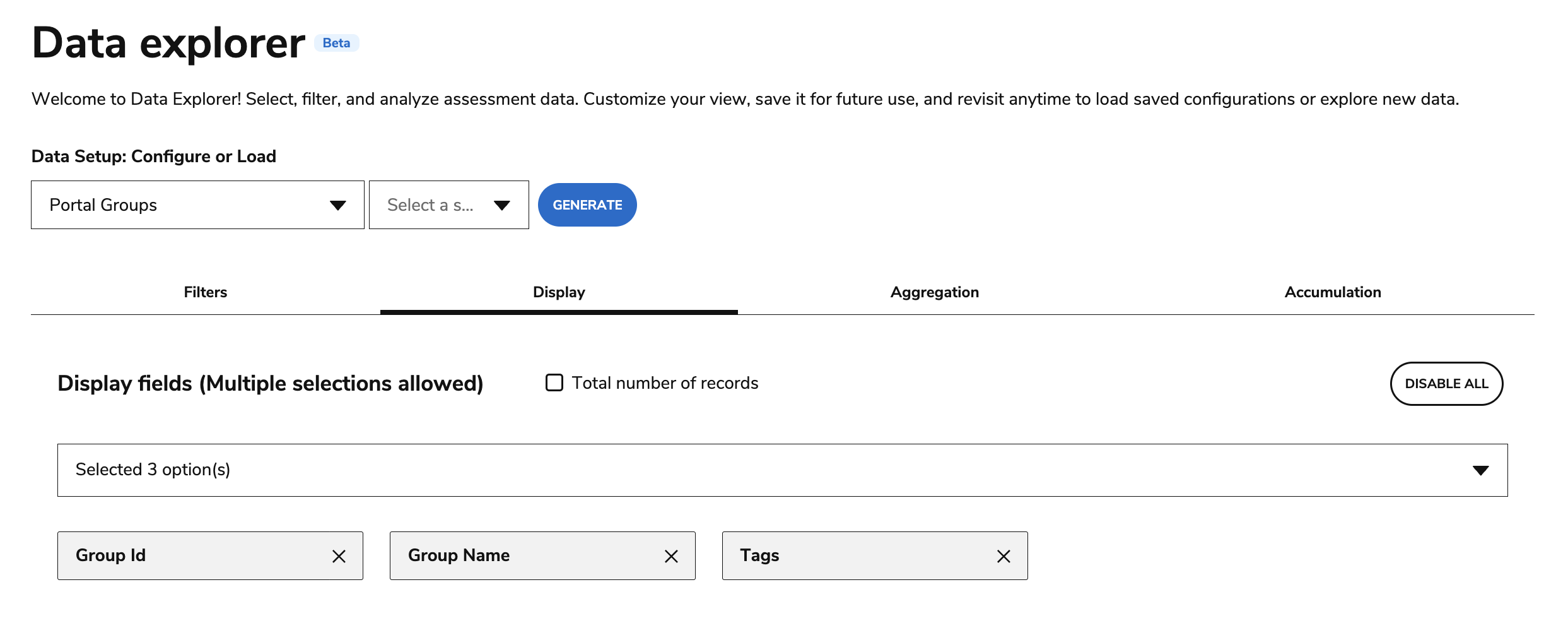
Add display fields and click Generate.
-
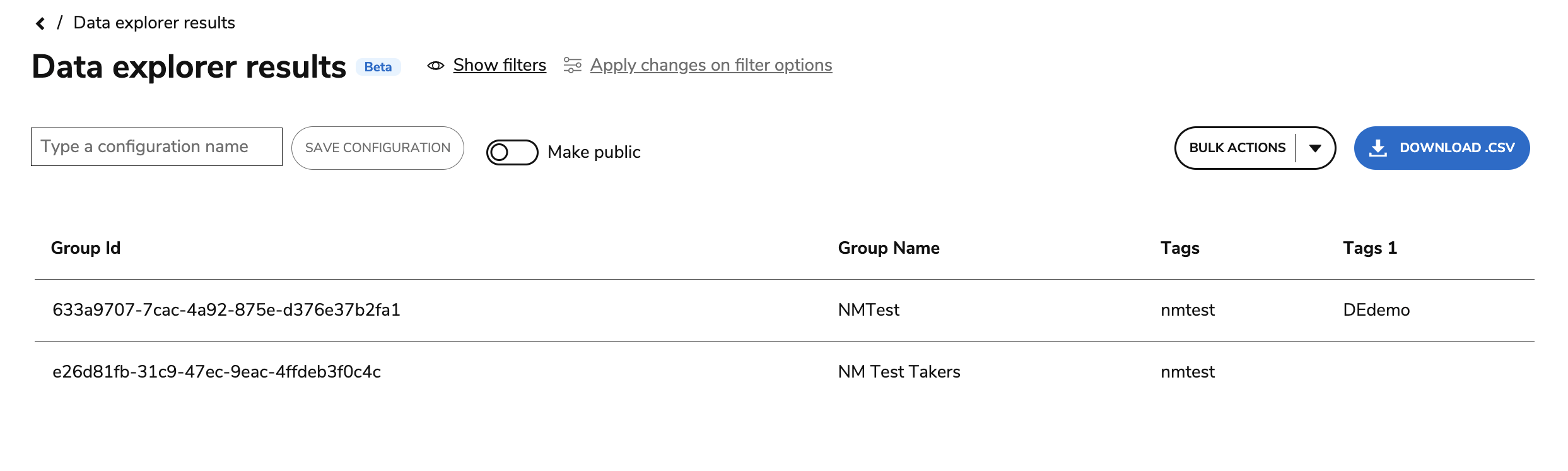
All tagged entities within the designated Data Setup selection will display (for example, all groups).
Using the Extended tags filter
Using the Extended Tags filter and Display options, you can search and filter entities using tags assigned to related entities in Data Explorer and through the API. For example, groups include tags from their users, while sessions include tags from their associated groups and users.
The Extended Tags property contains the following:
-
For sessions:
-
the tags of the group linked to the session
-
the tags of the users for that group
-
-
For groups:
-
the tags of the users belonging to that group
-
Extended tags update automatically as these relationships change:
-
tags are added/removed to individual entities
-
users are linked/unlinked to groups
-
groups are linked/unlinked to sessions
Extended tags search example
As an example, you can search for all sessions assigned to a certain user-based tag or group-based tag.
In this example, we have tagged proctor(s) with a specific tag. We want to search for all sessions assigned to the tagged proctors.
-
In Data Setup, select Portal Sessions.
-
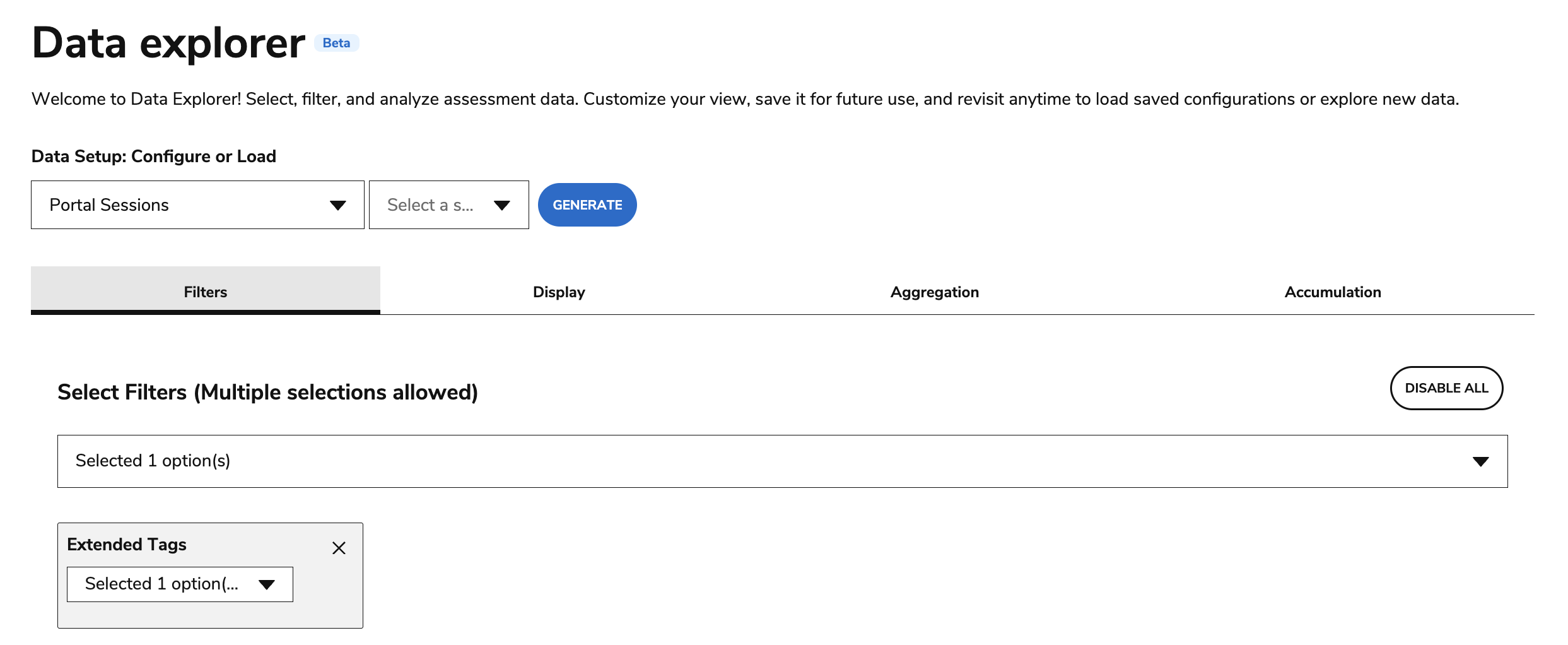
Under Filters, select Extended Tags. In the dropdown, select the tag used for the proctor(s).
-
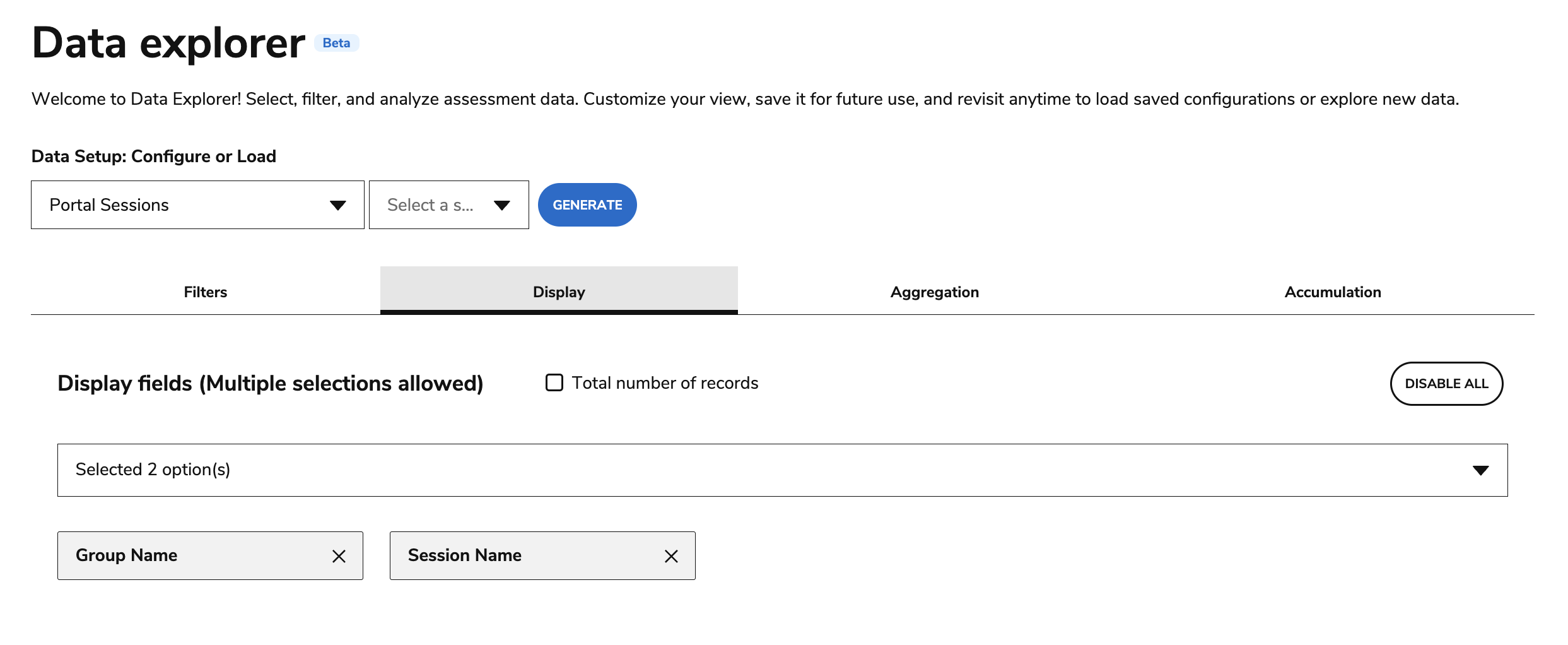
Under Display, select Session Name and Extended Tags. Optionally add other display options, such as Group Name.
-
Click Generate.
-
The results will display the list of all sessions associated with the initial tag (which will display in Extended Tags 1), along with all extended tags for each session listed.