
Related articles
Applies to
Personas
-
Administrators
-
Test takers
Prerequisites
In order to register TAO with LTI and an LMS, please contact your Account Manager; registering TAO with LTI 1.3 must be done by a TAO Administrator. This registration must be configured prior to using TAO tools within the LMS.
Purpose
To present how to use TAO as externally linked tool in an LMS, this chapter will utilize the Canvas platform (though you could similarly attach TAO to any LTI compliant LMS). TAO Advance supports integration with top LMS platforms using LTI 1.3.
This article describes how TAO is integrated initially, and how this integration affects test takers.
For more information, see the Canvas documentation on configuring an external app.
Adding TAO as an external app
TAO needs to be added as an external application following Canvas' documentation using the information provided by OAT for the LTI 1.3 registration. Once the TAO tools have been linked to a course, users can author and link tests to assignments and modules within that course.
-
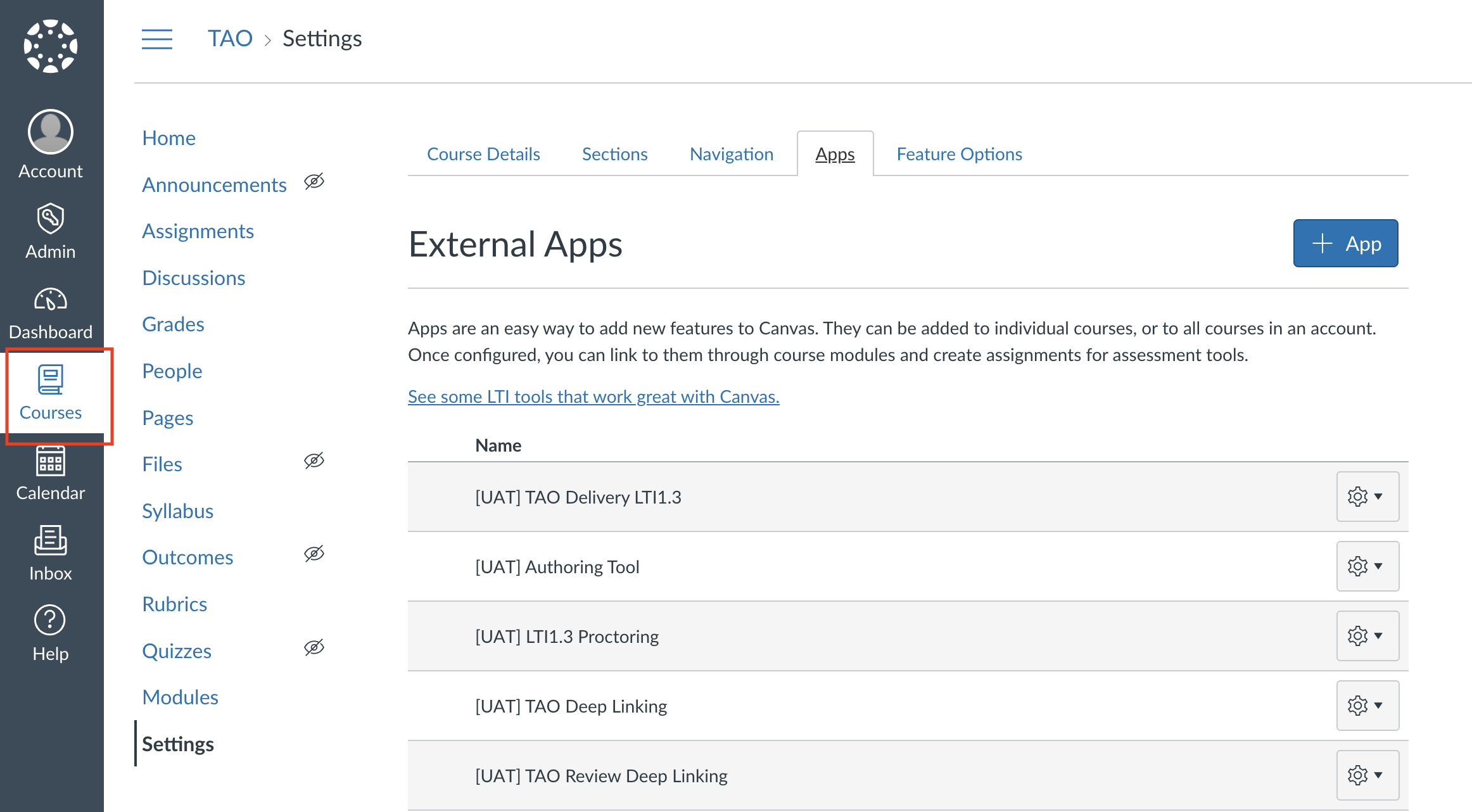
Navigate to the Courses section in the menu on the left of the window.
-
Select +Course to create a new course.
-
Once the course is created, navigate to Settings in the Course menu on the left of the interface.
-
In the top menu in the Settings window, select Apps.
-
Select +App to add an embedded application.
-
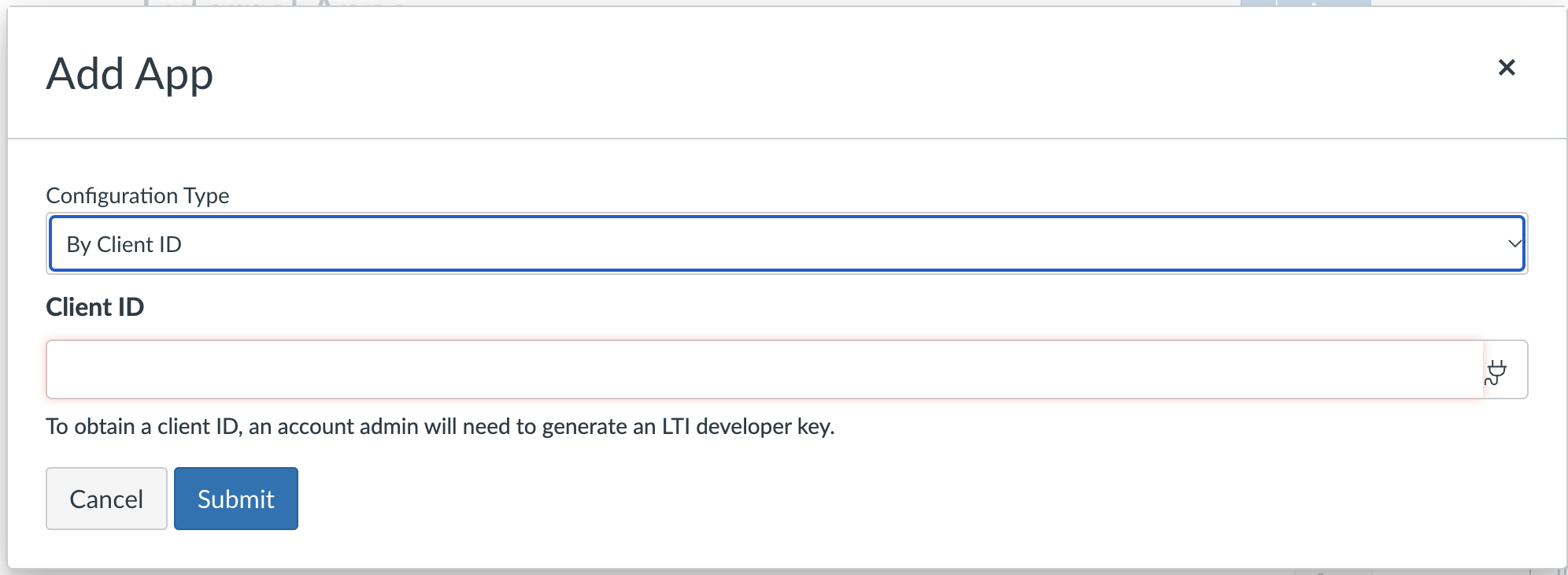
In the Add App form, under Configuration Type select “By Client ID”.
-
Under Client ID, add the LTI developer key provided by your account admin for the external tool you want to link.
-
Click Submit.
-
To confirm the installation, click Install.
The LTI interconnectivity must be set up prior to adding TAO as an external application. For more information, see LTI integration in the TAO Portal.
Using Canvas as a test taker
Test takers are able to access sessions/assessments configured in TAO through the LMS portal.
Taking a test in Canvas
-
Log in as a test taker.
-
In the Courses segment of the Canvas platform, click on Assignments on the left-hand side. From there you can view all assigned assessments and complete them from the platform.
-
From the Courses menu, select Grades to preview the scores of completed assessments. Once an assignment has been graded, you can view the score on both the Assignments and Grades tabs of the Courses section.