
Applies to
Personas
-
Administrators
Prerequisites
-
TAO must be added to Canvas as an external app.
-
A delivery must be published.
Purpose
Resource linking, or deep linking, allows educators to embed links to TAO-authored tests in Canvas courses, modules, or assignments.
Linking a test to an assignment
-
Navigate to Assignments in the Course menu.
-
Click the blue Assignment button for a new assignment.
-
Under Submission type, select External Tool.
-
In the Configure external tool dialog box, click the Find button (in the URL) to view and select the Deep linking option for the registered tool.
-
In the Link resource from external tool dialog box, under Deliveries select your delivery/assessment.
-
Click Link selected and Select to confirm.
Linking a test to a module
-
Select Modules in the Course menu.
-
Select +Module to create a new module within the course.
-
Name the module and click Add Module.
-
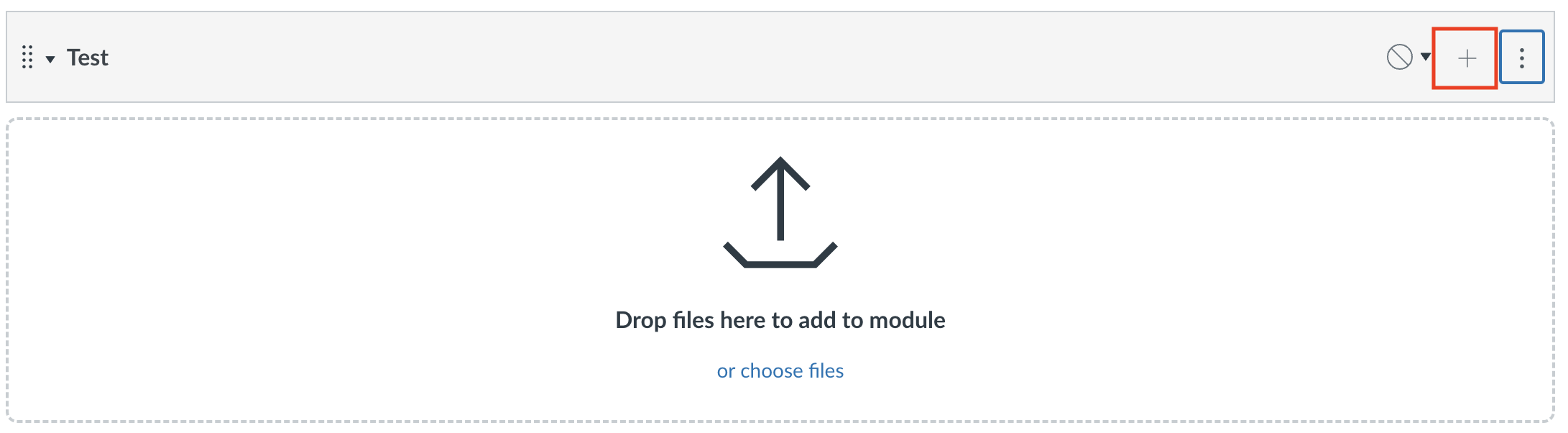
Once the module displays on the home page, select the + button on the right side of the module tile to add an item to the module.
-
In the Add Item form, from the dropdown menu add External tool. Select the Deep linking option for the registered tool and click Add Item.
-
Select the green checkmark to publish both the module and the embedded TAO tool. Once the module and test are published, you can view the test by clicking on the test name in Modules.
Result Exchange via AGS
Resource linking, or deep linking, allows educators to embed links to TAO-authored tests in Canvas courses, modules, or assignments.
Linking a test with automatic scoring
When a TAO test is scored in an LMS, AGS publishes that score to the LMS gradebook automatically. To view grades for completed assessments, select Courses>Grades.