
Applies to
-
Content developers
Overview
There are two options for creating an automatic sequence of two or more items.
Option 1: Guided navigation using item timers
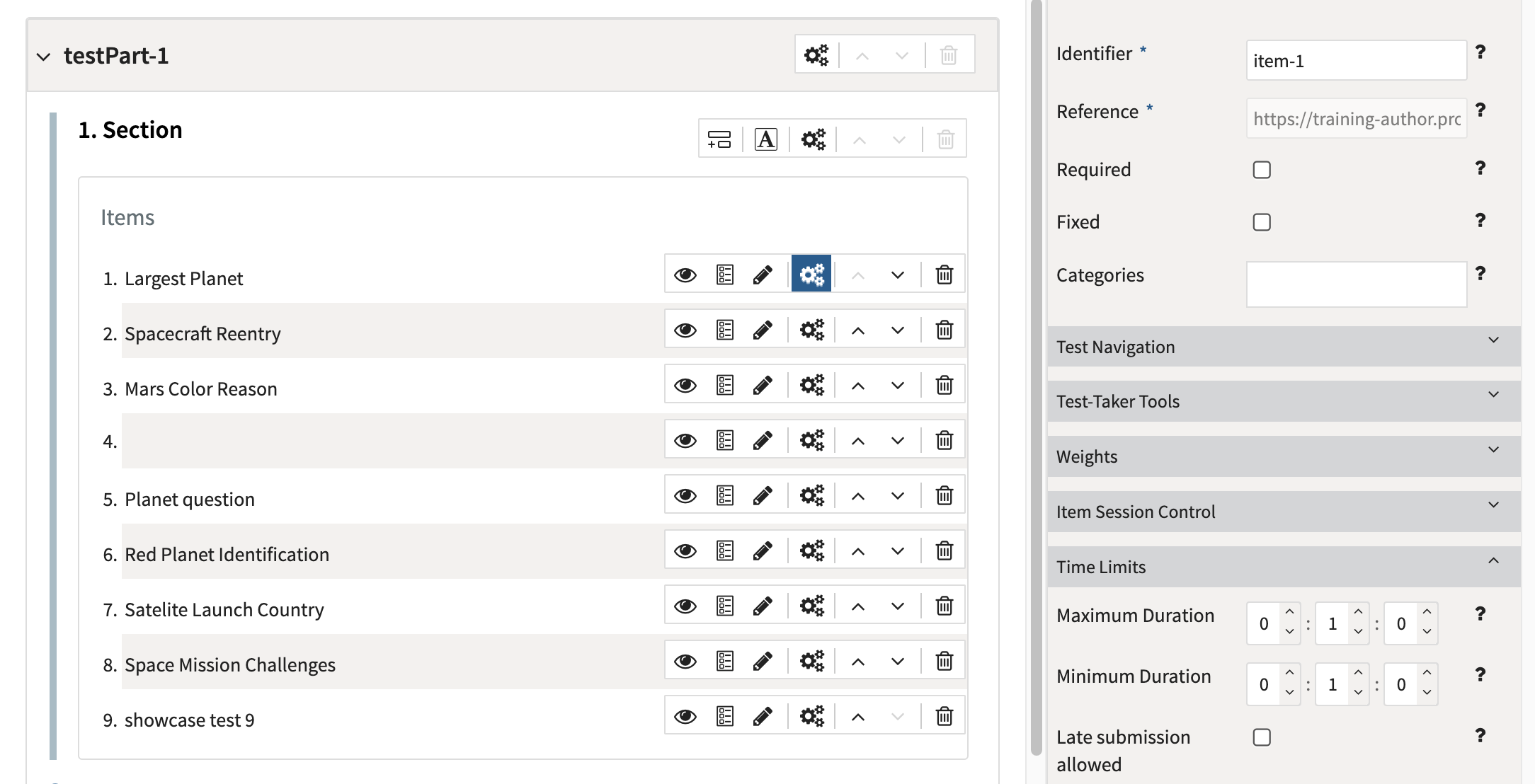
Test authors are able to set a minimum and maximum time limit for an item. If an item’s minimum and maximum duration are identical as part of a linear test Part, the test navigation buttons will be disabled and the test-taker is moved automatically to the next item when the timer expires (with no timer warning).
Related articles:
Select the item’s properties icon, then set the minimum and maximum duration to the same time.
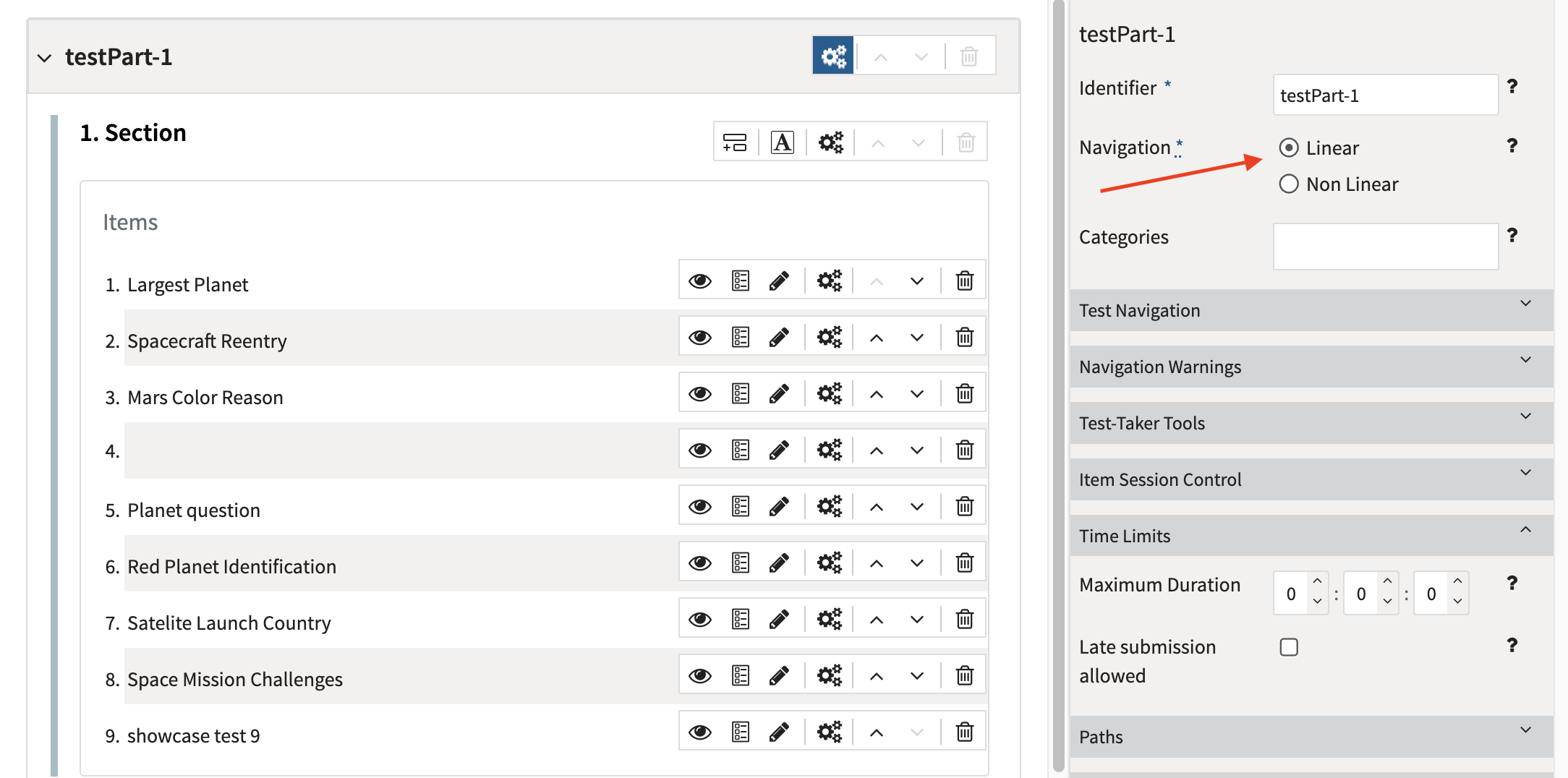
All items with guided navigation need to be grouped together in a test part set to linear navigation.
Option 2: Automatic media playback in an item sequence
This option is typically used for item sequences in which media plays automatically and, once playback is complete, the test advances to the next item automatically (for example, a question based on the media that was just presented).
Related articles:
Using Autostart in a sequence of items
Audio files can be sequenced together across multiple interactions, where test navigation progresses automatically to the next item in the sequence. If autostart is enabled, audio files will play automatically (and potentially repeat). Once the audio file and any repetitions are complete, the test taker will be moved to the next item.
Using Sequential mode is helpful when creating tests where the test-taker is supposed to listen to an audio file without being able to interact with it, either to then answer questions related to it (for instance, assessing their listening ability) or as additional information about the test.
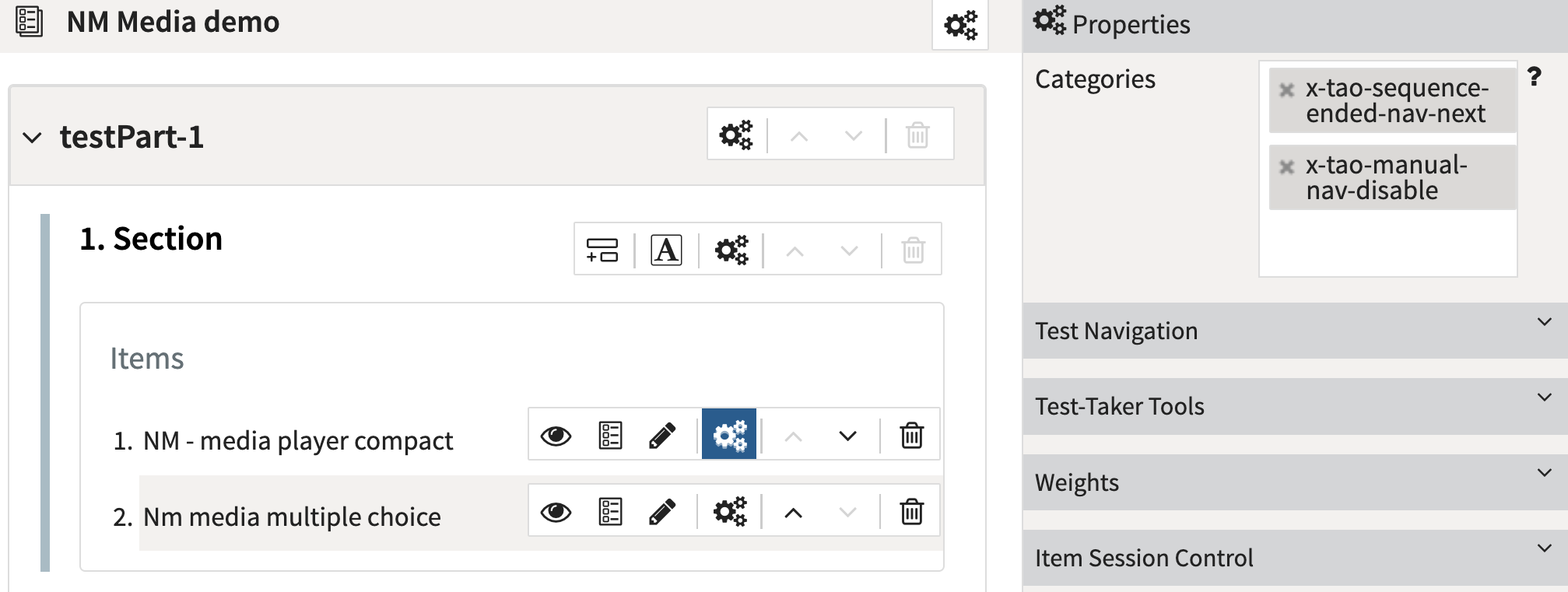
For this mode to be activated for one or more items during a test session, x-tao-sequence-ended-nav-next must be added as a Category to those items during test authoring:
-
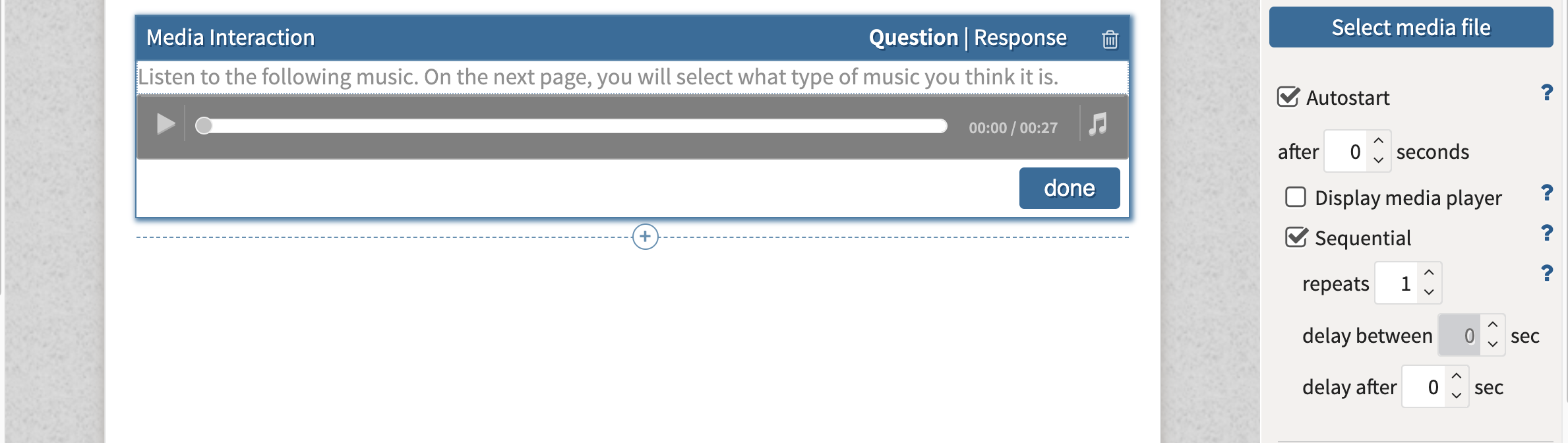
In the media interaction’s Interaction Properties, configure Autostart > Sequential mode.
-
In the item settings Categories box, add
x-tao-sequence-ended-nav-next-
If you want to disable navigation completely while the test taker is on the item, add
x-tao-manual-nav-disable
-
-
Ensure the test Part where the item is located is set to Linear navigation.