
Related articles
Applies to
Personas
-
Content developers
-
Administrators
Prerequisites
Before following this playbook, ensure that:
-
You either have:
-
permission to create or edit tests in TAO Authoring.
-
permission to create or edit sessions in TAO Portal.
-
-
You know which tools or accommodations should be available to test-takers.
-
The test has been created or is ready to be configured.
Purpose
Test-taker tools and accessibility tools help provide supplementary materials, visual supports, and accommodations during testing. Test-taker tools are added during test authoring, while accessibility tools are added during session configuration.
This playbook explains where each type of tool is configured and how to make the correct tools available to test-takers during a session.
Recommended workflow
When preparing tools for a test session, follow these phases:
-
Identify which supports test-takers need.
-
Configure test-taker tools during test authoring.
-
Publish the test as a delivery.
-
Assign the delivery to a session.
-
Configure accessibility tools during session setup.
Workflow
1. Identify the required tools
Before configuring the test or session, determine which tools should be available.
Test-taker tools are configured in the test itself and may apply to:
-
a whole part
-
a whole section
-
an individual item
-
designated categories
Accessibility tools are configured in the session and apply during the test session.
Use this distinction to decide where each tool should be added.
2. Configure test-taker tools in test authoring
This section applies to Content Developers in the Content Bank.
To configure test-taker tools:
-
Open the Tests area of the Content Bank.
-
Select the test you want to configure.
-
Click Authoring.
-
Choose whether to configure tools for a section or an item:
-
To configure tools for a part, click the properties icon next to the part.
-
To configure tools for a section, click the properties icon next to the section.
-
To configure tools for an item, click the properties icon next to the item.
-
-
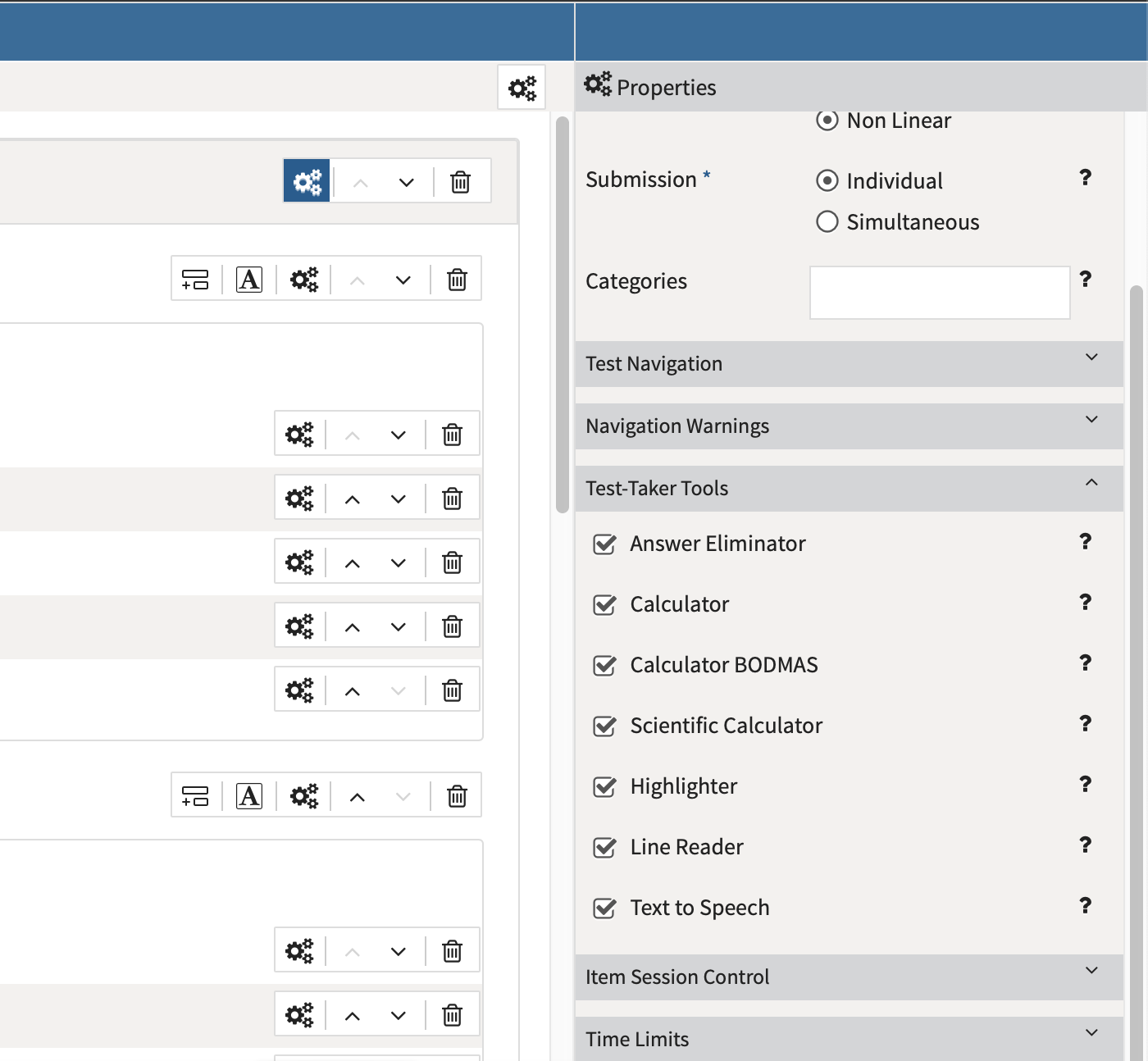
In the Properties panel, open Test-Taker Tools.
Some tools are added via the Categories box in general properties. See the section below for more details.
2a. Choosing the appropriate test-taker tools
Test-taker tools may include calculators, visual aids, print options, text-to-speech, and scratchpad tools.
The following tools are enabled by checking the boxes in the dropdown:
|
Calculators |
TAO provides calculator options including:
If multiple calculators are selected, only the most complex calculator is used. |
|
Visual aids |
Visual aid tools can help test-takers focus on or interact with test content. Available tools may include:
|
|
Print Out |
The Print Out tool allows the test-taker to print item content without user interface distractions such as buttons or icons. This tool is configured at the item level and is currently limited to items with text blocks, images, and/or passages. |
|
Text-to-speech |
Text-to-speech allows test-takers to hear test questions, or parts of them, read aloud. It can be configured at the section or item level. |
|
APIP Text-to-speech |
APIP text-to-speech uses pre-recorded audio files for each item. When enabled, a play button appears beside the item during testing. The audio files must be prepared outside of TAO and imported with compatible APIP content. |
2b. Adding category-based tools
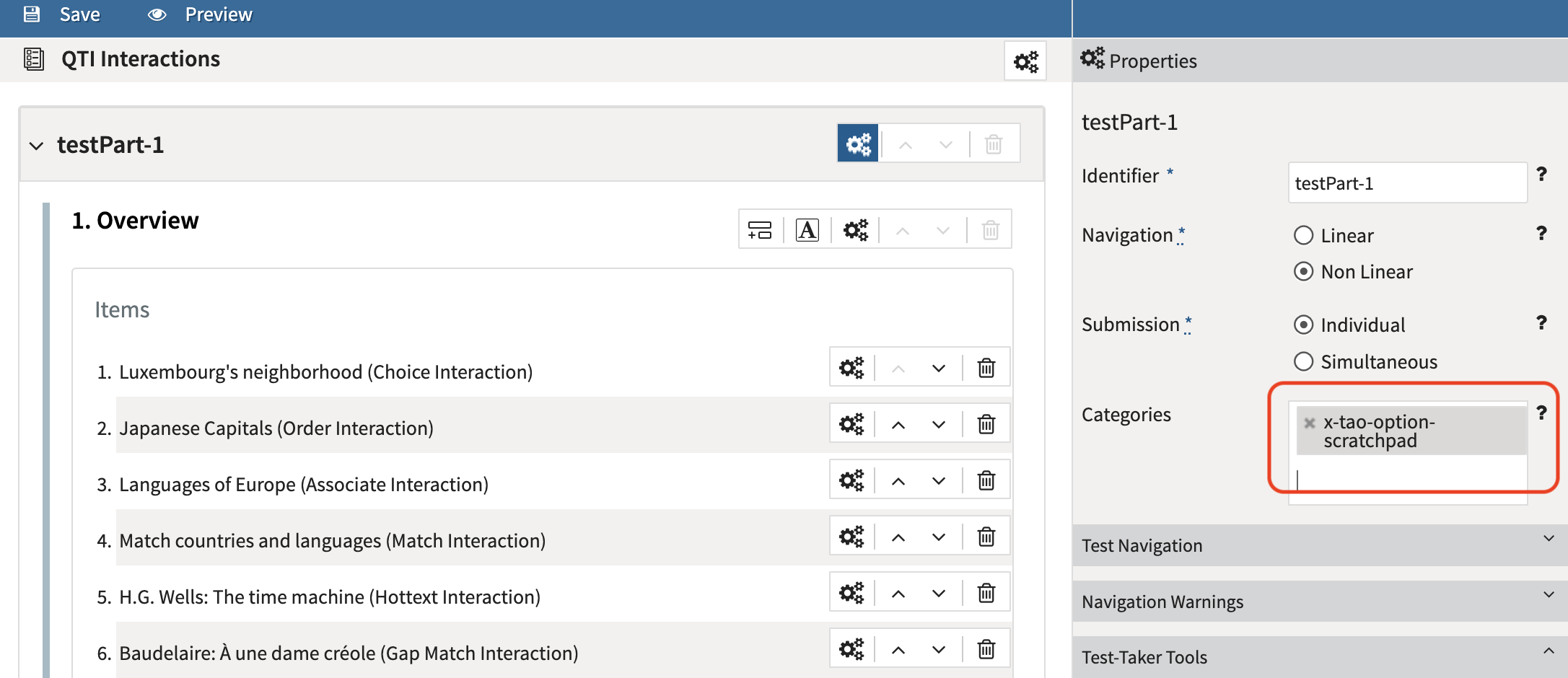
Some tools are configured using test categories instead of the standard Test-Taker Tools checklist. For more information on how to add each of these tools, see Test Categories.
For TAO Ignite users:
-
Answer Masking is enabled by adding a category to the item.
-
Scratchpad is enabled by adding a category to the relevant item, section, or test part.
|
Tool |
Category value |
Used in |
Description |
|---|---|---|---|
|
Scratchpad |
|
Parts, sections, items |
Scratchpad provides test-takers with a space to make notes during testing. |
|
Answer Masking |
|
Items |
Answer Masking allows the test-taker to mask and unmask answers in choice interactions. |
3. Configure accessibility tools for the session
This section applies to Admins in the TAO Portal.
Accessibility tools are added during session configuration.
To configure accessibility tools:
-
Create a new session or edit an existing session.
-
Locate the Accessibility options section (located at the bottom of the form).
-
Select the accessibility tools you want to make available.
-
Save the session configuration.
Only the tools selected in this section will display during the session.
3a. Choosing the appropriate accessibility options
The available accessibility options include:
|
Zoom |
Allows test-takers to zoom in to any area of the screen. |
|
Contrast Theme |
Helps test-takers distinguish text and other interaction elements using color contrast. |
|
Custom Pointer |
Allows test-takers to customize their pointer to suit their needs. |
|
Test Font & Spacing |
Allows test-takers to adjust the font and spacing of text in an interaction. |
|
Read Aloud |
Acts as a screen reader in the defined language of the current question. By default, this option is content-based and is available only during specific interactions. |
For Contrast Theme, Custom Pointer, and Text Font and Spacing, an additional option may display: Always display tool options.
When selected, the tool and its options are expanded by default for the duration of the session. If this option is not selected, the test-taker must manually open the tool to use it.