Applies to
Personas
-
Administrators
-
Content developers
Prerequisites
Before completing this task:
-
Have the Assets beta feature enabled in TAO Portal.
-
Have a supported attachment file available for upload.
Supported formats are: PDF, HTML, or images.
Any unsupported file types may be added, but will not be able to be viewed inline. A download button will be available, though not for sessions enforcing fullscreen mode.
Purpose
This guide explains how to attach a PDF file to a test, test part, section, or item. Attached files are made available to test-takers during a test session and can be used as reference materials or supporting documents throughout an assessment.
The attachment functionality is currently available as an experimental beta feature.
Workflow
This procedure is comprised of:
-
An admin uploading and copying the Asset’s ID in the Portal
-
A content developer configuring the attachment in Test Authoring
Administrator workflow
This section applies to Administrators.
1. Enable the Assets beta feature
-
Open TAO Portal.
-
Navigate to My User settings.
-
Enable the Assets beta feature.
-
Save your changes.
2. Upload the PDF asset
-
Open the Assets module in TAO Portal.
-
Select Upload Asset.
-
Browse for the file on your computer.
-
Optionally add tags to the asset. Using this feature makes it easier when searching for specific assets.
-
Upload the file.

3. Copy the asset ID
-
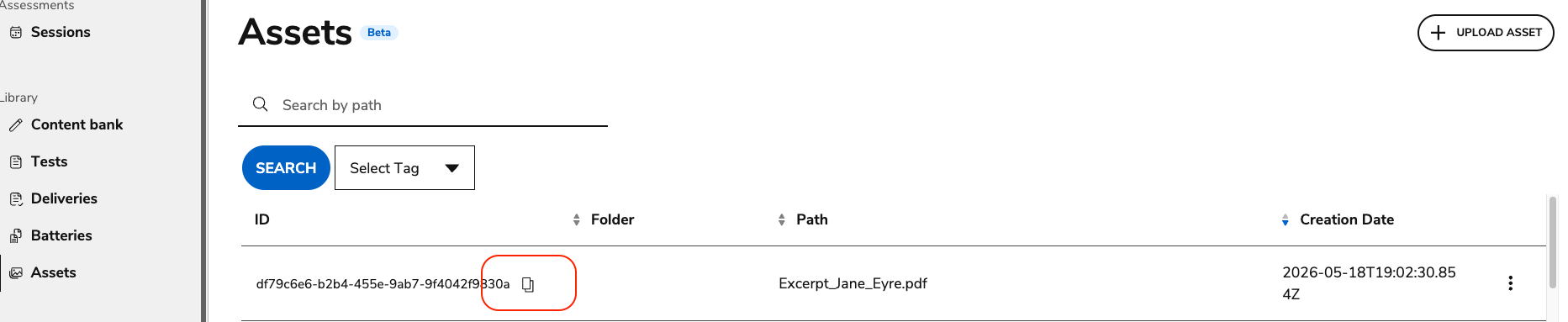
Locate the uploaded file in the Assets list.
-
Find the ID column.
-
Copy the asset ID. The ID will resemble the following format:
df79c6e6-b2b4-455e-9ab7-9f4042f9830a
4. Provide the asset ID to the test author
Administrators have access to the Content Bank, and can therefore complete the authoring segment of this process.
However, a separate user with the role of Content Developer must be provided with the asset ID to attach it to a test.
Content developer workflow
This section applies to Content Developers (or Admins).
Prerequisite: The user completing the following procedure must have the asset ID saved from the Portal.
4. Open the test in authoring mode
-
Navigate to the Content Bank.
-
Open the test you want to modify.
-
Select the item, section, or test part where the attachment should be available.
5. Add the attachment category
-
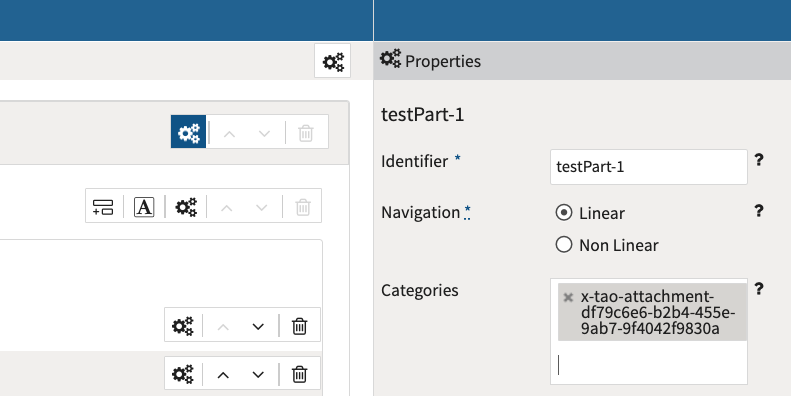
Open the Properties panel for the selected item, section, or test part.
-
Locate the Category field.
Attachments can be added as a category to parts, sections, or items.
-
Create a new category using the following format:
x-tao-attachment-[ID]
-
Replace [ID] with the asset ID copied from the Assets module.
Example:
x-tao-attachment-df79c6e6-b2b4-455e-9ab7-9f4042f9830a
-
Save the changes.
If the category format is incorrect, the attachment will not be available during the test session.
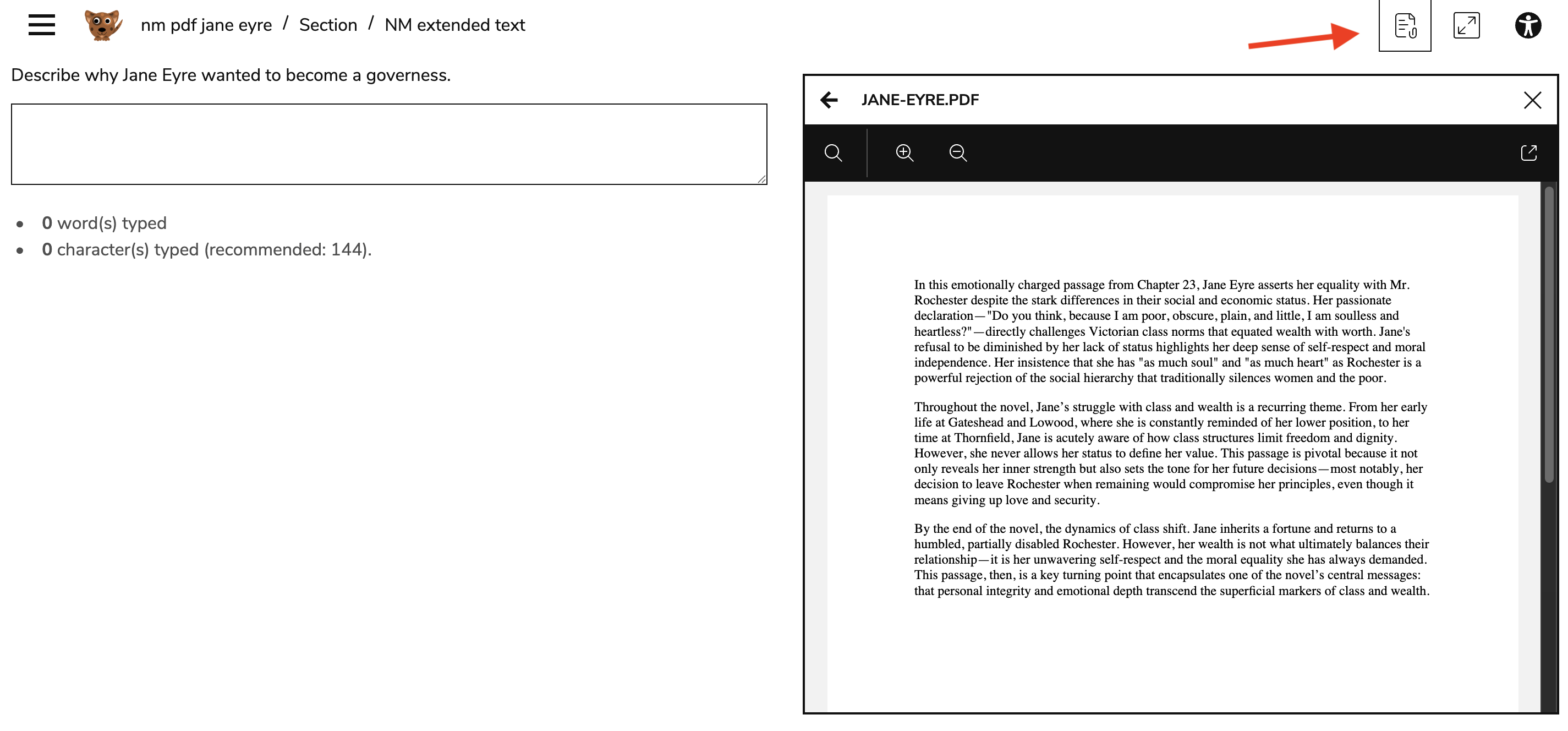
How attachments appear to test takers
The graphic below displays the attachment icon, and how a PDF attachment appears to test takers: