
Related articles
Applies to
Personas
-
Administrators
-
Proctors
-
Group Managers
Prerequisites
Before following this playbook, ensure that:
-
Proctorio has been enabled and configured for your organization by Open Assessment Technologies (OAT).
-
Users who will review recordings have the Proctor or Group Manager role.
Purpose
TAO integrates with Proctorio to provide remote proctoring for online assessments. Proctorio records and monitors the testing environment using the test-taker's webcam, microphone, screen activity, and browser monitoring tools to help identify potential testing irregularities.
This playbook explains how remote proctoring is configured within TAO, what the experience looks like for test-takers, and how authorized users can review completed sessions.
Phases
-
Enable Proctorio for your organization.
-
Configure remote proctoring for a session.
-
Deliver the assessment.
-
Review proctoring results from the Proctorio interface.
Workflow
1. Enable remote proctoring
The Proctorio integration must be configured before it can be used.
Initial enablement and configuration are completed by Open Assessment Technologies (OAT).
Once enabled, remote proctoring becomes available as an option during session creation.
2. Configure a session for remote proctoring
Remote proctoring is configured individually for each session.
When creating or editing a session:
-
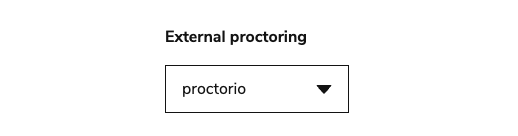
Navigate to the External proctoring section at the bottom of the form.
-
Select Proctorio as the proctoring provider.
-
Complete the remaining session configuration.
3. Session delivery
When a test-taker launches a session with Proctorio enabled, they complete an initial diagnostic check before entering the assessment.
This diagnostic verifies:
-
Internet connectivity
-
Webcam functionality
-
Microphone functionality
Once the diagnostic is complete, the test-taker proceeds into the assessment as normal.
During the assessment, Proctorio monitors the session using the configured monitoring options while TAO continues to deliver the assessment.
4. Reviewing proctored sessions
After the assessment has been completed, authorized users can review recordings and flagged events.
Users with the Proctor or Group Manager role can:
-
Navigate to the externally proctored session.
-
Open the session overview in TAO Portal.
-
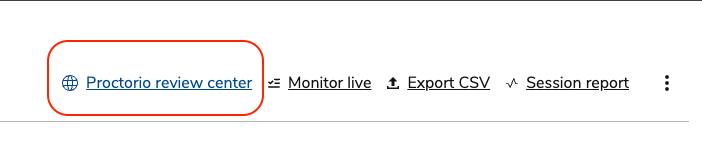
Select Proctorio review center in the top-right corner. This launches the Proctorio review interface.
From the Review Center, users can:
-
View session recordings.
-
Review flagged events.
-
Examine monitoring information for individual test-takers.
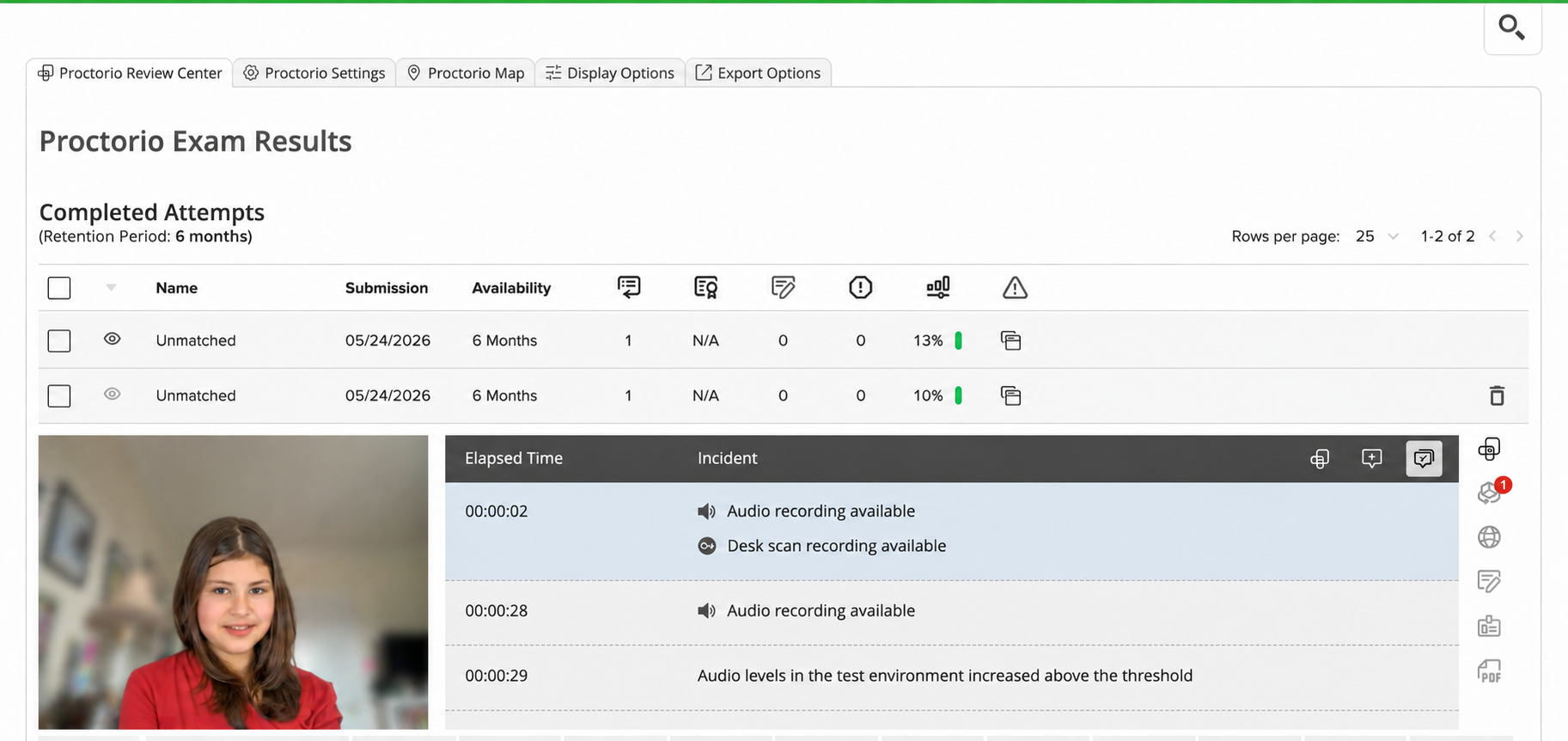
The Review Center provides the information needed to investigate potential testing irregularities after the assessment has been completed.
For detailed guidance on using Proctorio as a proctor or test-taker, refer to the Proctorio Help Center.
5. Understanding the relationship between TAO and Proctorio
Although Proctorio provides remote monitoring, assessment delivery and scoring remain within TAO.
Responsibilities are divided as follows:
|
Function |
Managed by |
|---|---|
|
Assessment delivery |
TAO |
|
Live session monitoring |
TAO |
|
Manual scoring |
TAO Grader |
|
Remote monitoring and recording |
Proctorio |
|
Post-session recording review |
Proctorio Review Center |
Proctorio termination codes
The following table describes user actions and corresponding Proctorio codes when accessing proctoring data from Data Explorer.
|
STEP 1 - Action or event triggered by test taker detected by Proctorio |
STEP 2 - Message/s displayed to the test taker |
STEP 3 - Test is terminated under any of these codes |
|
|
reasonCode |
reasonMessage |
||
|
Unstable Connection - without timer, but test taker has 2 minutes to reestablish connection |
Unstable Connection Internet connection has become unstable. Reconnect to the server to resume the exam. |
0 |
Disconnected from Proctorio |
|
|
|
1 |
The attempt ended when the test taker submitted the exam |
|
Left the exam page |
Exam Removal Your session has ended. |
2 |
Test taker navigated away from the exam. |
|
Exited Full Screen - depending on the setting can have 30 or 15 seconds timer |
1st MESSAGE: Exited Full Screen You have exited Full Screen Mode. Click resume below to re-enter the exam. [Resume]
2nd MESSAGE (if test taker does not revert their behavior):
Exited Full Screen You have exited Full Screen Mode. |
4 |
Left exam when in full screen |
|
Screen share Ended - has 1 minute countdown |
1st MESSAGE: Screen Share Ended You have stopped sharing your screen. Re-share your screen in 60 seconds to resume the exam. [Okay]
Clicking on the 'Okay' button shows new message:
How To Share
[Share] < clicking on the button triggers screenshare modal where test taker can establish screen sharing again |
5 |
Ended screen recording |
|
Extension Uninstalled |
Extension Uninstalled The extension has been uninstalled. |
6 |
Test taker uninstalled Proctorio Extension. |
|
Proxy connection detected |
Interception Detected A proxy connection has been detected by our software. Proxy connections are not allowed during exam attempts. Once a secure connection has been established, you will be able to proceed. You can try turning off your proxy or VPN to resolve this. |
7 |
Switched to a proxy during the exam |
|
Network Changed |
Network Changed Network has changed. |
8 |
Changed networks during the exam |
|
Page Reloaded |
Page Reloaded The page has been reloaded. |
9 |
Closed or reloaded the exam tab |
|
Devtools is open during the attempt |
Developer Tools Detected A developer tool window has been detected. |
12 |
Test taker attempted to modify the quiz page |
|
Download performed |
Download Blocked This download has been blocked. |
13 |
Test taker attempted to download the quiz page |
|
Battery run out on the device |
/ |
14 |
Battery died |
|
Additional Display Detected |
Additional Display Detected An additional display has been plugged in. |
15 |
Test-taker plugged in an additional monitor. |
|
Hardware removed (webcam and/or microphone) - has 1 minute countdown |
Webcam Removed Webcam has been removed. Plug it back in to resume the exam.
Microphone Removed Microphone has been removed. Plug it back in to resume the exam. |
16 |
Unplugged a camera or microphone |
|
Page Unresponsive |
Page Unresponsive This page has become unresponsive. |
21 |
Page became unresponsive during the exam |
|
Exam is submitted after 8-hour time limit |
/ |
23 |
The attempt ended when the test taker exceeded Proctorio 8-hour time limit |
|
Permission for webcam and/or microphone removed |
Permissions Changed Permissions have been changed. |
24 |
Test taker revoked the microphone permission |
|
Permission for webcam and/or microphone removed |
Permissions Changed Permissions have been changed. |
25 |
Test taker revoked the webcam permission |