
Related articles
Applies to
Personas
-
Content Developers
-
Administrators
Prerequisites
Before following this playbook, ensure that:
-
You have access to the Content Bank.
-
You have permission to manage item classes and metadata schemas.
-
You have determined which metadata values should be used.
Purpose
Metadata helps organize content in TAO by attaching searchable properties to resources such as items, folders, tests, and deliveries. These properties make it easier to locate relevant content in large item banks by filtering according to values such as grade level, language, item type, subject area, difficulty, or other custom classifications.
This playbook walks through the complete metadata workflow: planning metadata, configuring lists, creating metadata properties, assigning values to items, and searching the Content Bank using metadata.
Important: This playbook walks through the process of assigning metadata to items and item classes. The same process is followed for tests and assets.
For more information on our recommendations when configuring metadata, see Best practices for using metadata.
Recommended workflow
When working with metadata, follow these phases:
-
Plan the metadata structure.
-
Create lists for controlled values.
-
Configure metadata properties in the schema.
-
Assign metadata values to items.
-
Search the Content Bank using keywords and metadata filters.
-
Review and use the search results.
Workflow
1. Understanding how metadata works in TAO
In TAO, metadata is managed through metadata schemas and metadata inheritance.
-
Metadata schema: defines which fields are available for a resource, what type of data each field accepts, and whether the field uses predefined values.
-
Metadata inheritance: determines how those fields are applied to resources. When metadata properties are added to a class, such as an item class, every item created in that class inherits the same metadata structure. Values per schema field are then added to individual items in the class.
This means:
-
Metadata fields appear automatically for each item in the class (folder).
-
Authors can enter different values for each item.
-
The structure of the metadata remains consistent across the class.
-
New metadata properties must be added at the class schema level.
Think of a class as a template. Any metadata configured for the class becomes the baseline for all items created under it.
2. Plan your metadata structure
Before creating metadata fields, decide which values will help users organize, search, and manage content.
Common metadata properties include:
-
Grade level
-
Subject
-
Language
-
Difficulty
For example, an item class for Grade 2 Science Questions might include:
|
Metadata property |
Example values |
|---|---|
|
Subject |
Biology, Chemistry, Physics |
|
Difficulty |
Easy, Medium, Hard |
|
Grade |
9 |
When planning metadata, decide which fields should use freeform input and which should use predefined values.
2a. Understanding open-ended or closed-ended metadata
Metadata can be open-ended or closed-ended.
Open-ended metadata
Open-ended metadata allows authors to enter freeform values for individual items.
Use open-ended metadata when:
-
Values are unique or highly variable.
-
Authors need flexibility.
-
You do not need predefined options.
Open-ended fields are flexible, but they can lead to inconsistent values, typos, or varied formatting.
Closed-ended metadata
Closed-ended metadata requires authors to select from predefined values.
Use closed-ended metadata when:
-
You need standardized input.
-
You want consistent search and filtering.
-
You are categorizing items by shared values.
Closed-ended metadata is recommended when the field will be used for searching, sorting, filtering, or reporting.
3. Configure lists for closed-ended metadata
This step should be completed before configuring properties for classes.
Lists support closed-ended metadata fields such as dropdowns, radio buttons, and checkboxes.
Use lists when you want authors to select from a controlled set of options, such as:
-
Easy, Medium, Hard
-
Biology, Chemistry, Physics
-
Draft, Reviewed, Approved
To create or edit a list:
-
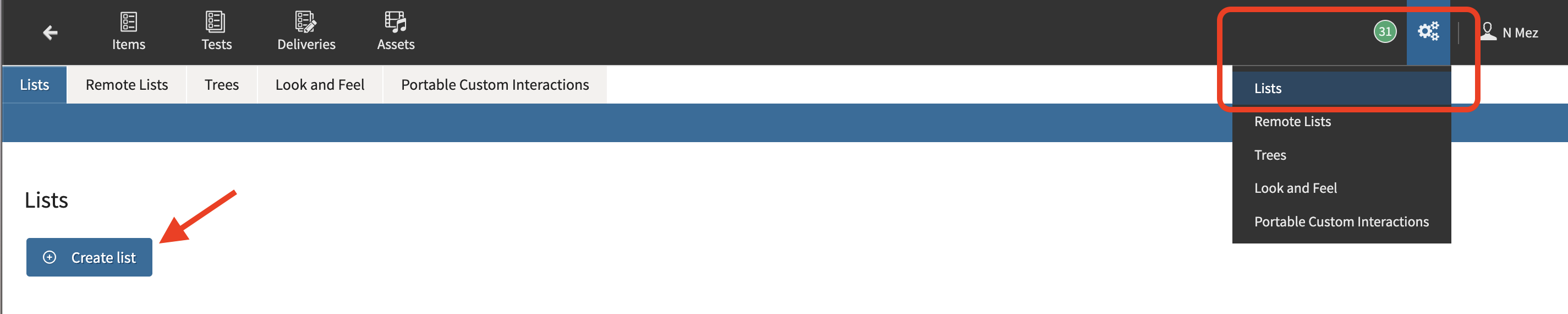
Open the Settings menu using the cogs icon.
-
Select Lists.
-
Create a new list or edit an existing list.
-
Enter the list name.
-
Add the values authors can select.
-
Save the list.
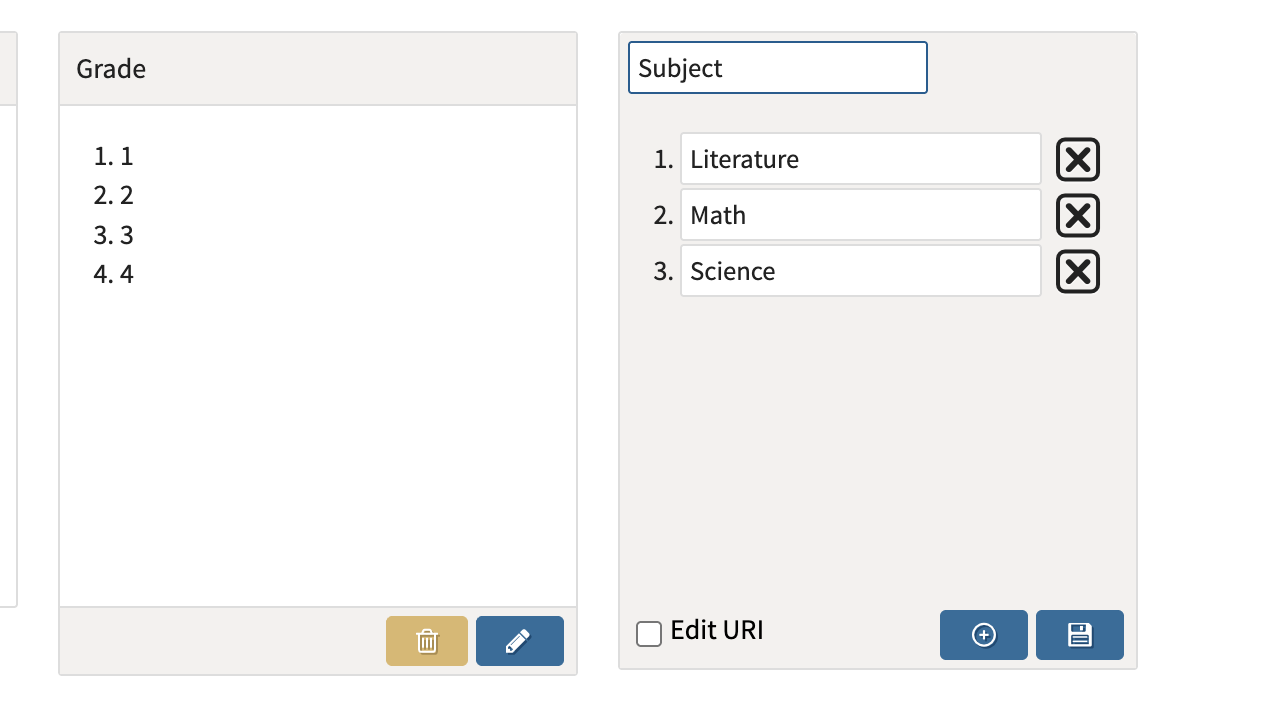
After a list is created, it’s values can be assigned to closed-ended metadata properties in the schema.
4. Configure metadata properties for a class
Metadata properties are created in the metadata schema for a class.
To add metadata properties to an item class:
-
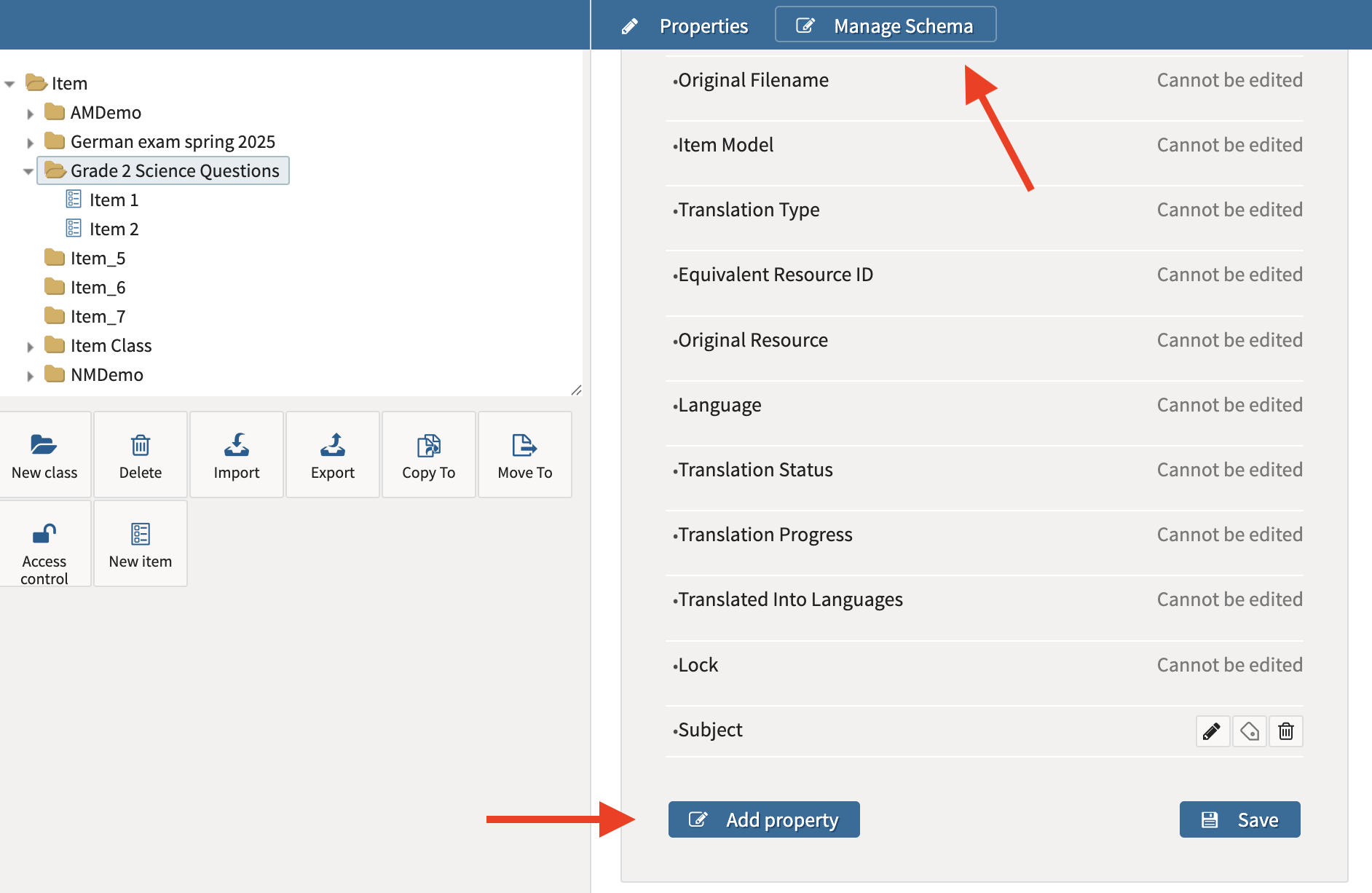
Go to the Classes section of the TAO Library.
-
Select the item class you want to configure.
-
Select Manage Schema.
-
Select Add Property.
-
Configure the property.
-
Save your changes.
Property settings include:
|
Field |
Description |
|---|---|
|
Label |
The name of the metadata field, such as Difficulty Level. The Label field is required and must be unique across all properties in the schema. |
|
Alias |
Optional internal name or shortcut |
|
Is language dependent? |
Use when values may differ by language |
|
Is statistical? |
Use when the field supports reporting or analytics |
|
Form Field Order |
Controls where the field appears in the form |
|
Validation Rules |
Makes the field required when needed |
|
Type |
Defines the field type, such as text, list, tree, or calendar |
System-generated properties, such as Item Content, State, and Lock, are inherited automatically and cannot be edited or removed.
Property Type choices
Open-ended properties
This options will require you to add text values to individual items after the property is created.
|
Field type |
Description |
|---|---|
|
Short Field |
Single-line text input, such as a course code or tag |
|
Long Box |
Multi-line plain text, such as notes or instructions |
|
Long HTML Editor |
Rich-text input with formatting options |
Example: If the difficulty of each item is up to the discretion of the author, create a property labelled Difficulty. Then select Short Field for Type. The author will then be able to write the difficulty level for each item (easy, medium, hard, etc).
Closed-ended properties
This options will require you to select an existing list (see step 3).
|
Field type |
Description |
|---|---|
|
Single Choice (Radio) |
Select one option from a visible list |
|
Single Choice (Dropdown) |
Select one option from a dropdown menu |
|
Multiple Choice (Checkbox) |
Select one or more options |
|
Tree |
Select hierarchical values, such as subject and sub-topic |
Example: If you have a preconfigured list of subjects, select Single Choice (Dropdown) for Type. Select Subject from the List values dropdown.
Special properties
These options will require you to add individual values to items after the property is created.
|
Field type |
Use case |
|---|---|
|
Calendar |
Dates, such as item creation or expiration |
|
Password |
Hidden input for sensitive values |
|
File |
Reference files, such as media or rubrics |
5. Assigning metadata values to individual items
After metadata properties are configured at the class level, authors can assign values to individual items.
5a. Assigning lists to closed-ended metadata properties
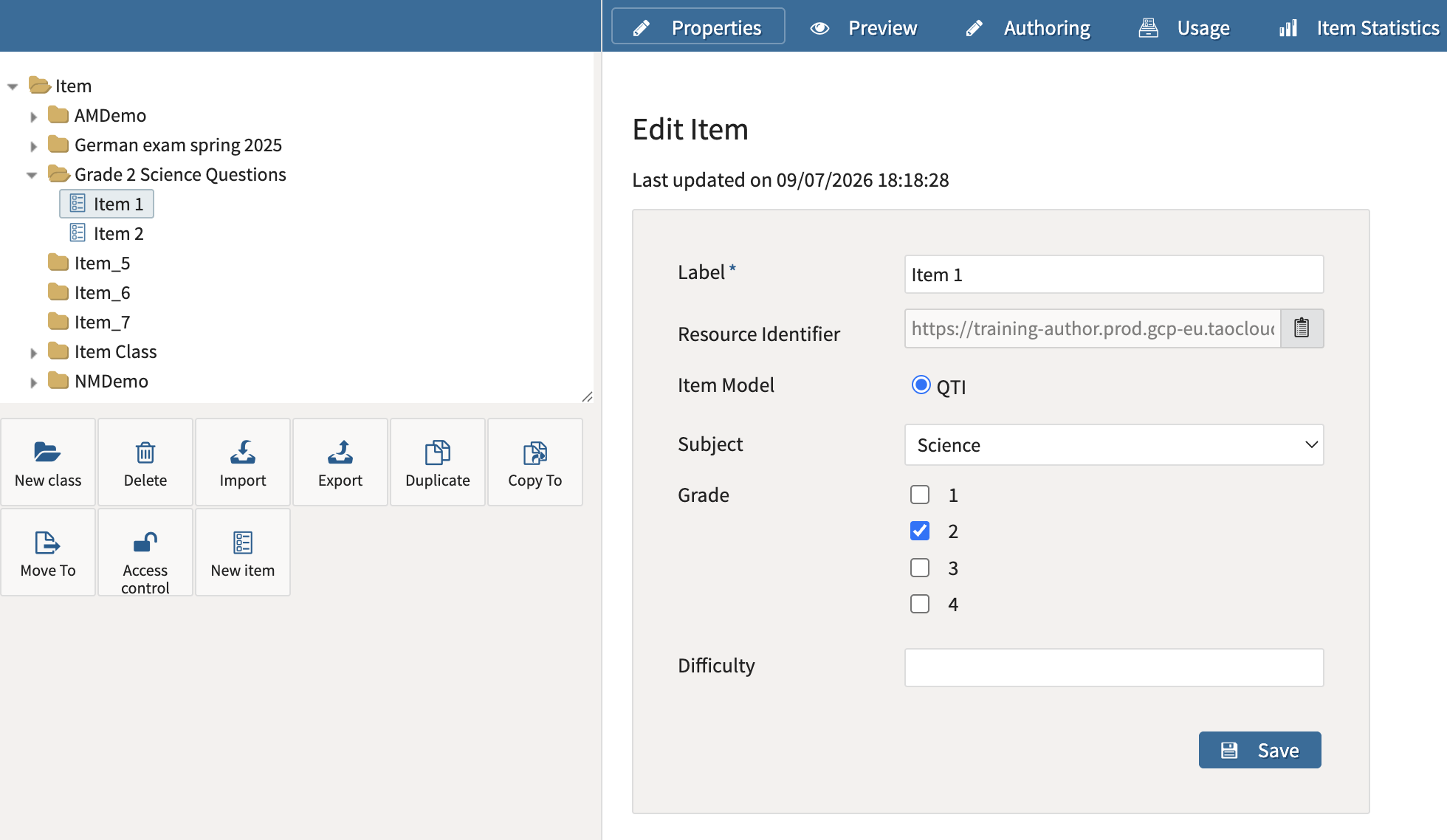
If you have created lists, you can assign values from the list to individual items.
To assign a list value:
-
Select an item within the configured class.
-
Open the item’s properties.
-
Select a value from the configured property lists.
5b. Assigning open-ended metadata values to items
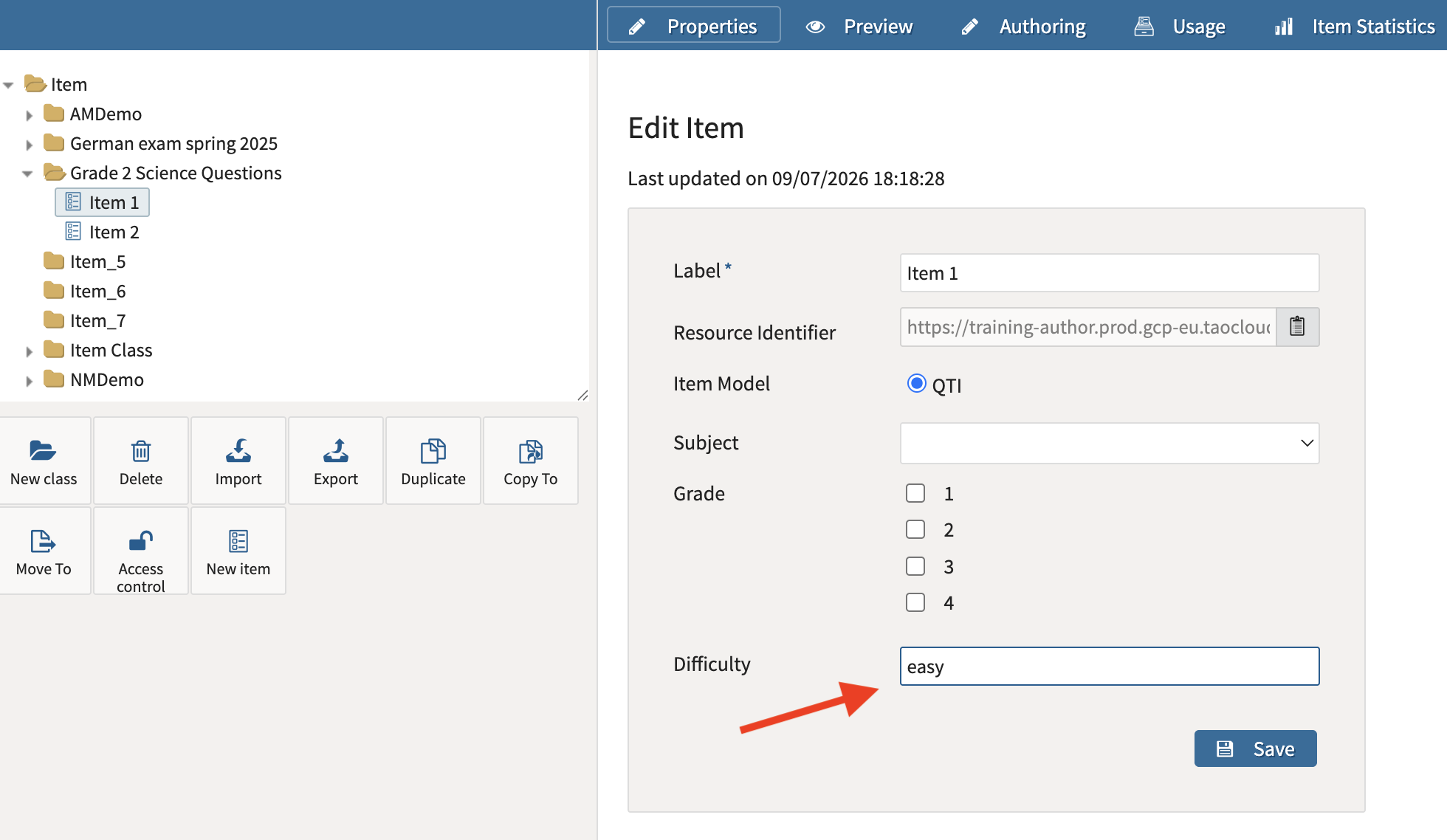
To assign open-ended metadata values:
-
Select an item within the configured class.
-
Open the item’s properties.
-
Enter the value for the metadata fields. For example, all items in a class may include a Difficulty Level field, but one item can be marked Easy while another is marked Hard.
-
Save the item.
6. Search the Content Bank with metadata keywords
Metadata can be used together with keyword search.
To run a keyword search:
-
Navigate to the Content Bank.
-
Select the folder you want to search within.
-
Enter a word or phrase in the search field in the top-right corner.
-
Click Search.
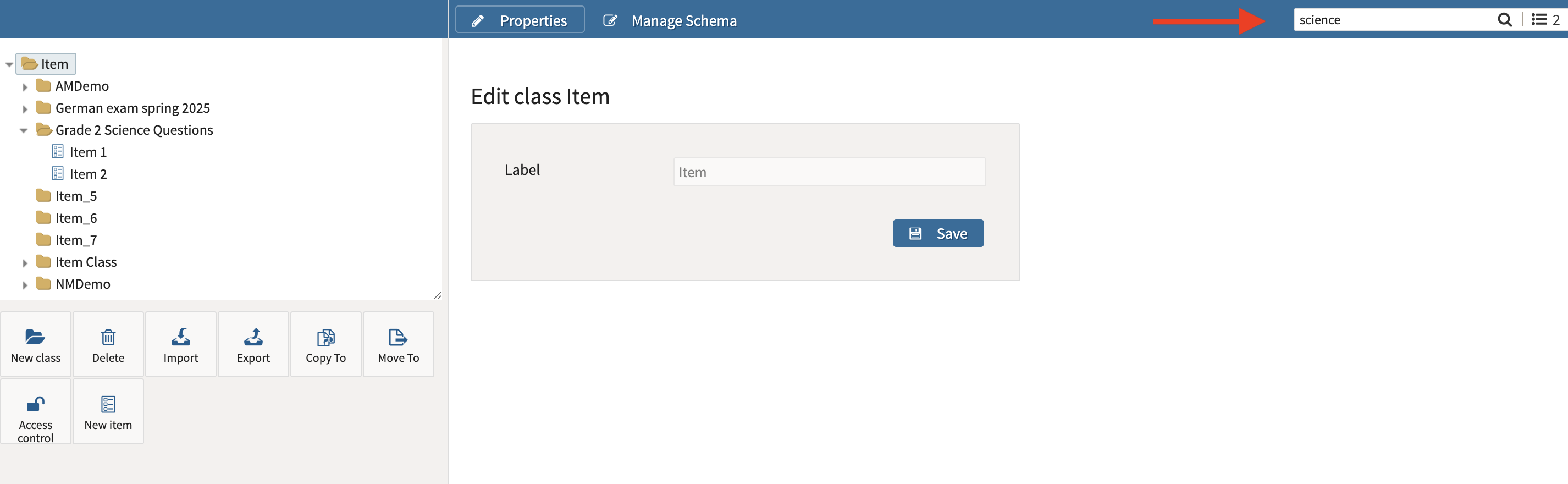
Keyword searches look across both item content and metadata values.
For example, searching for science returns items that contain the term in the item content or in a metadata value.

7. Search the Content Bank with metadata filters
For more targeted searches, use metadata filters.
To search using metadata filters:
-
Navigate to the Content Bank.
-
Select the folder you want to search within.
-
Click the Search icon next to the search bar.

-
Select Add Criteria.
-
Choose a metadata property.
-
Enter or select the value you want to search for.
-
Repeat the process to add more criteria.
-
Click the blue Search button.
The available criteria include metadata properties defined in the selected folder and any child folders.
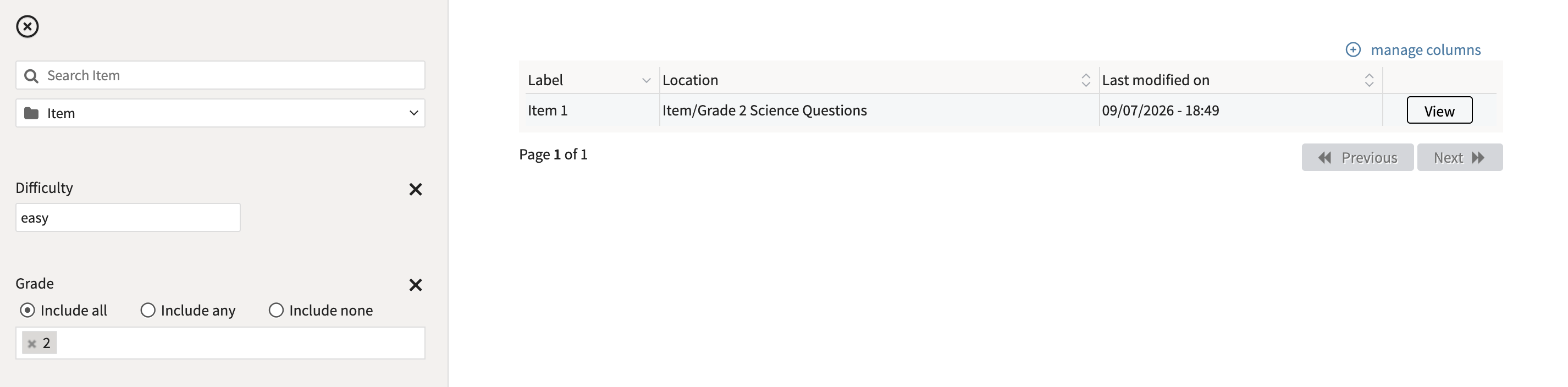
Example searches include:
-
Find all Grade 2 items.
-
Find all items marked with a specific difficulty level.
7a. Configuring list-based search filters
For list-based metadata fields, choose how selected values should be matched.
|
Option |
Description |
|---|---|
|
Include all |
Returns items that contain all selected values |
|
Include any |
Returns items that contain one or more selected values |
|
Include none |
Excludes items that contain the selected values |
Use these options to broaden or narrow the results depending on the search goal.