
How metadata inheritance works
-
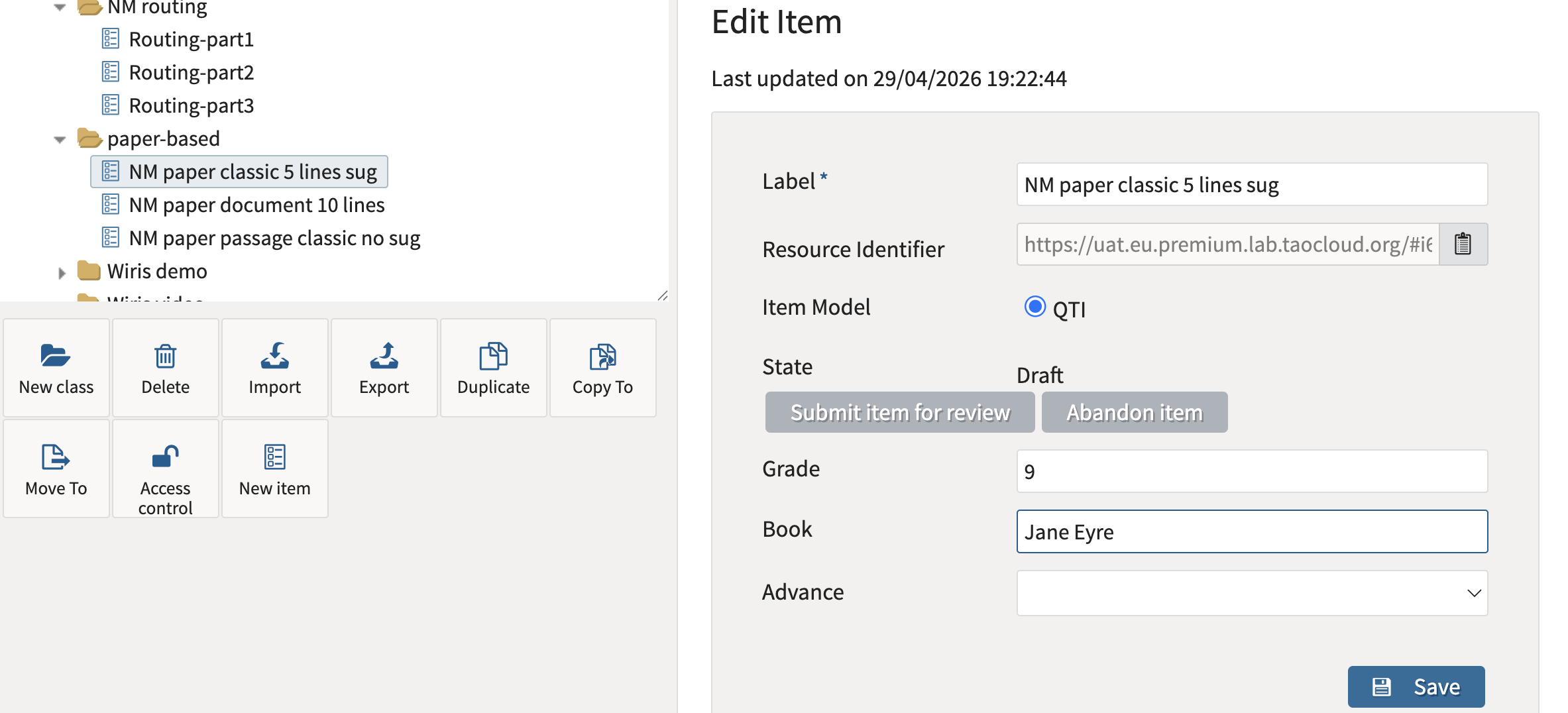
The property fields appear for each resource in the class they were created for
-
Authors can enter individual values for those inherited properties per resource:
-
If all items in a class have a
Topicproperty, you can assign different topic values for each item.
-
You cannot add new properties to individual resources that aren't part of the class schema. To introduce new metadata, you must edit the class schema.
Types of metadata
Metadata can be structured as open-ended or closed-ended, depending on the type of information you're collecting.
Open-ended metadata
Open-ended metadata allows freeform input for individual resources, usually in the form of text.
|
Field type |
Description |
|---|---|
|
Short Field |
Single-line text input (e.g., course code, tag) |
|
Long Box |
Multi-line plain text (e.g., instructions, notes) |
|
Long HTML Editor |
Rich-text input with formatting options |
Open-ended fields offer flexibility but can lead to inconsistent values (e.g., typos, varied formatting), which may impact search accuracy.
Closed-ended metadata
Closed-ended metadata restricts users to select from predefined options. For more information on how to create these lists, see How to manage lists for metadata.
These field types pull from defined lists or trees that you create in the system (see section below on Lists).
Use closed-ended metadata when planning to search, sort, or filter by values later.
|
Field type |
Description |
|---|---|
|
Single Choice (Radio) |
Select one option from a visible list |
|
Single Choice (Dropdown) |
Select one option from a dropdown menu |
|
Multiple Choice (Checkbox) |
Select one or more options |
|
Tree |
Select hierarchical values (e.g., Subject > Sub-topic) |
Special Metadata Field Types
These field types don’t fit cleanly into open/closed categories but serve specific purposes:
|
Field type |
Use Case |
|---|---|
|
Calendar |
For setting dates (e.g., item creation or expiration) |
|
Password |
Rarely used; hides input for sensitive data |
|
File |
Attach reference files to items (e.g., media or rubrics) |