
Access control and permissions determine who can access specific areas and content in your TAO instance, and what actions they can perform there. Proper configuration ensures that users are working in the correct sections of the TAO Content Bank, maintaining content security and editorial integrity - especially in large item or test banks.
In TAO Ignite, authentication and role management are handled through the TAO Portal, while permissions in the TAO Content Bank are controlled using ACL (Access Control Lists). This mechanism applies to items, tests, and assets, but this article will focus on items. The process is the same for other content types.
What is Access Control (ACL)
The Access Control List (ACL) is the system that allows administrators to grant permissions to specific users or roles for content in TAO. These permissions determine whether a user can view, edit, or manage items and folders.
ACL permissions are essential in large content banks, where different authors and reviewers may need varying levels of access to certain folders or subjects.
Roles and Permissions
Only specific roles are meaningful for content permissions. The following roles are available and can be selected when managing Access Control:
-
Content Developer: All users with the Content Developer role in TAO Portal will receive this role in the TAO Content Bank. Can author and edit content. -
Developer: All users with the Admin role in the TAO Portal will receive this role in the TAO Content Bank. Can manage system-level content and permissions. -
Back Office: TAO system role, granted by default to all authenticated users. By default, it is assigned via ACL to all libraries with full read, write, and grant capabilities, but can be added and removed at will, when needed to restrict access only to certain roles or users.
Types of Permissions
There are three levels of access permission in TAO. These can be applied to both users and roles:
|
Permission |
Description |
|---|---|
|
Grant |
Allows a user to give other users or roles access to the folder or item. If this permission is enabled, it enables the write and read permissions automatically. |
|
Write |
Allows a user to create, edit, import, and export items in the selected area. (Includes read access automatically.) |
|
Read |
Allows a user to view the folder or item without making changes. |
Permissions are cumulative; if a user does not explicitly have Write access but holds a role (like Back Office) that does, that user automatically inherits those permissions.
How to configure Access Control
You can define access permissions for any folder or individual item in your Content Bank.
1. Select the Folder or Item
-
In the Content Bank, navigate to the item or folder you want to manage.
-
Click to select it.
2. Open Access Control
-
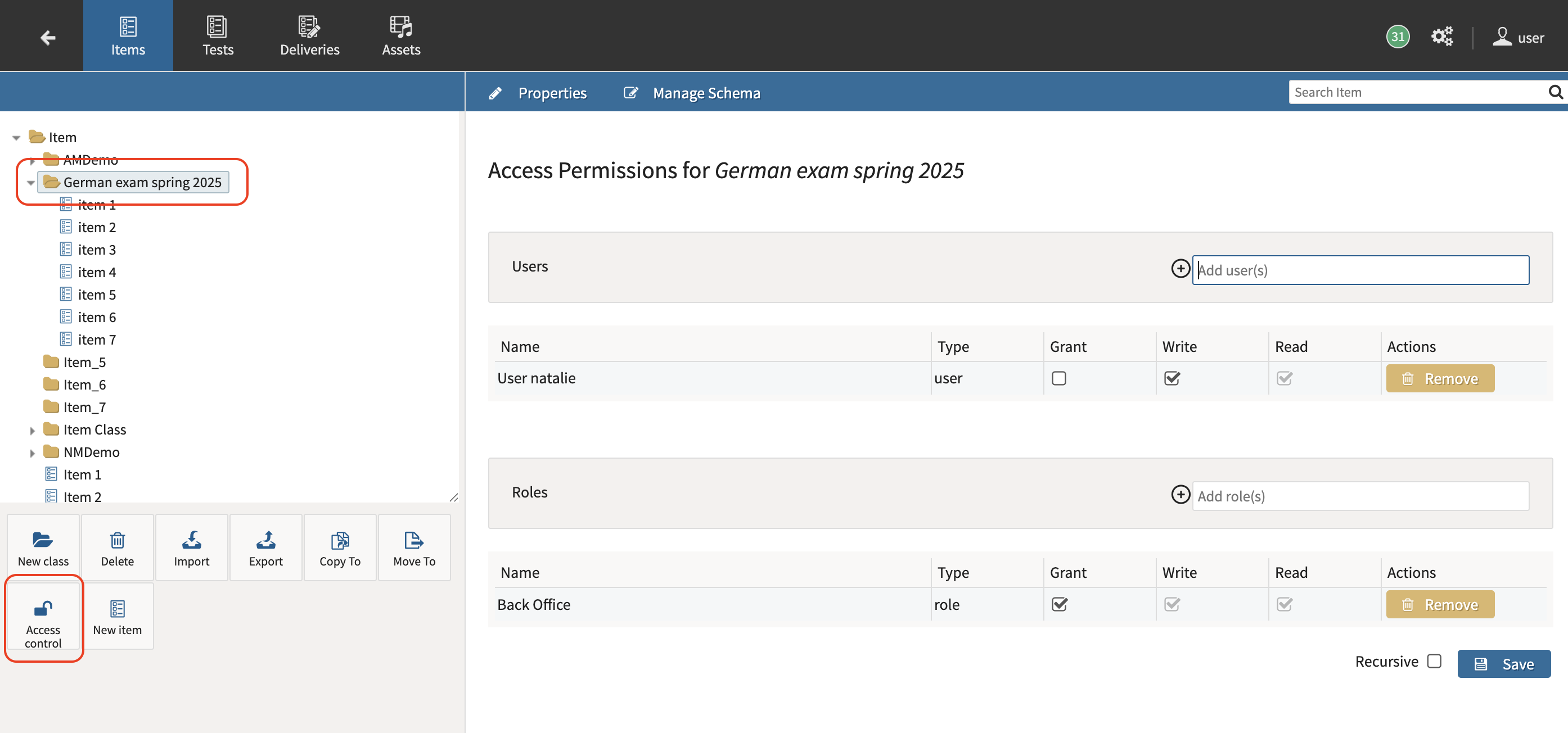
In the Button Bank (below the item library), click Access Control.
-
The Access Control panel opens, displaying two sections:
-
Users
-
Roles
-
3. Define Permissions
In the Users section, you can grant specific individuals permission to the selected folder or item.
In the Roles section, you can define which Portal roles have access.
Use the search bar above each section to find users or roles.
If a role (for example, Content Developer) is listed under Roles, only users assigned to that role in the Portal will be granted access to the resources (according to the Grant/Write/Read permission).
4. Set Permission Levels
For each user or role:
-
Check Grant, Write, or Read as needed.
-
If configuring a folder, you can select Recursive to apply these permissions to all subfolders and items within it.
Step 5: Save and Confirm
Click Save when finished.
Users who log in to the Content Bank will see a yellow lock next to any folders where they have limited access. The options available in the button bank adjust automatically based on their permissions: for example, users with Read access only will not see editing options such as Authoring, Delete, or Access Control.
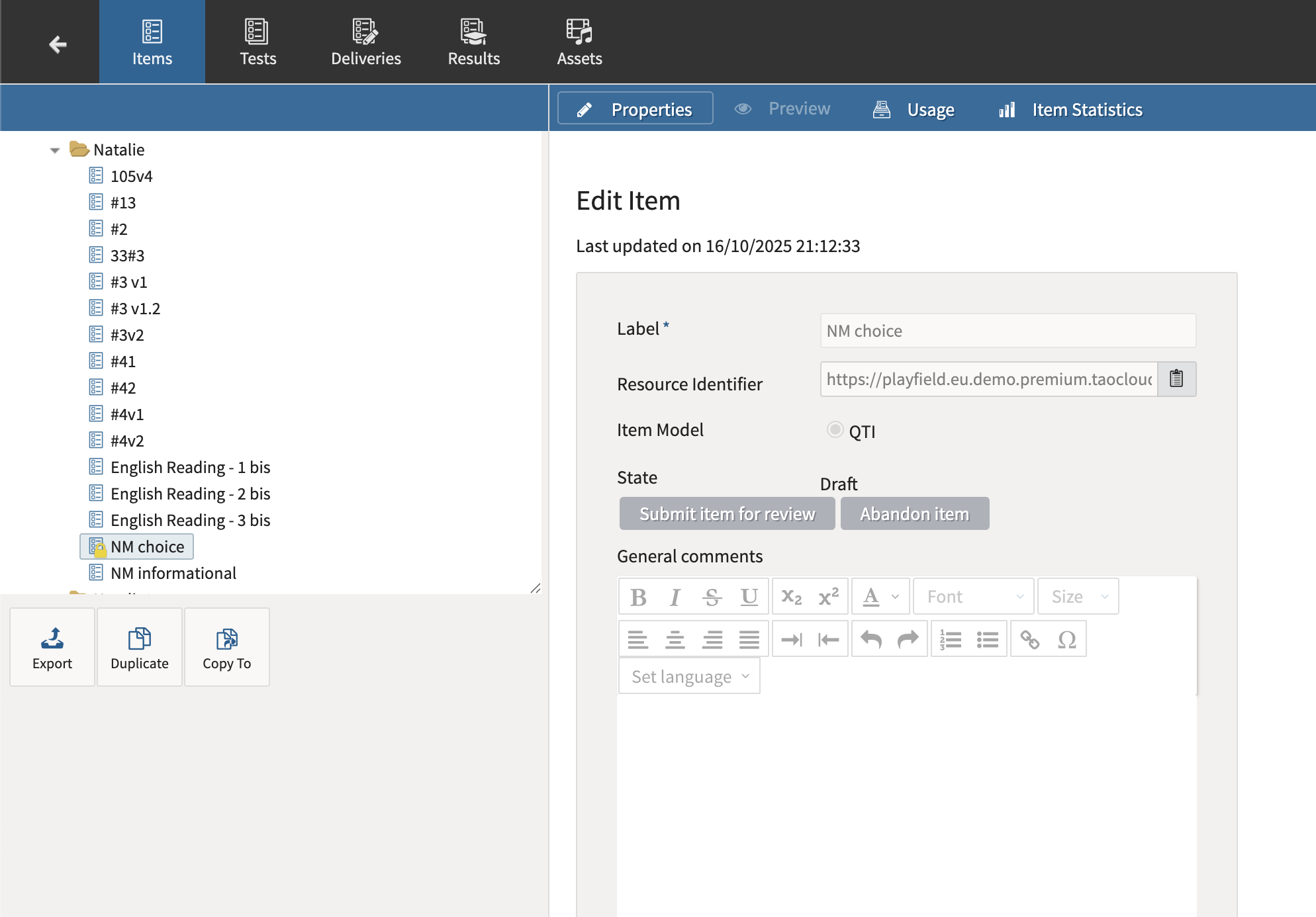
If a user attempts to open a folder they have no access to, a red lock and a warning message will appear.
Re-organization and permission retention
When moving or copying folders or items, users can choose to either retain the existing permissions or inherit the permissions of the destination folder. For more information, see Moving, copying, and duplicating items.