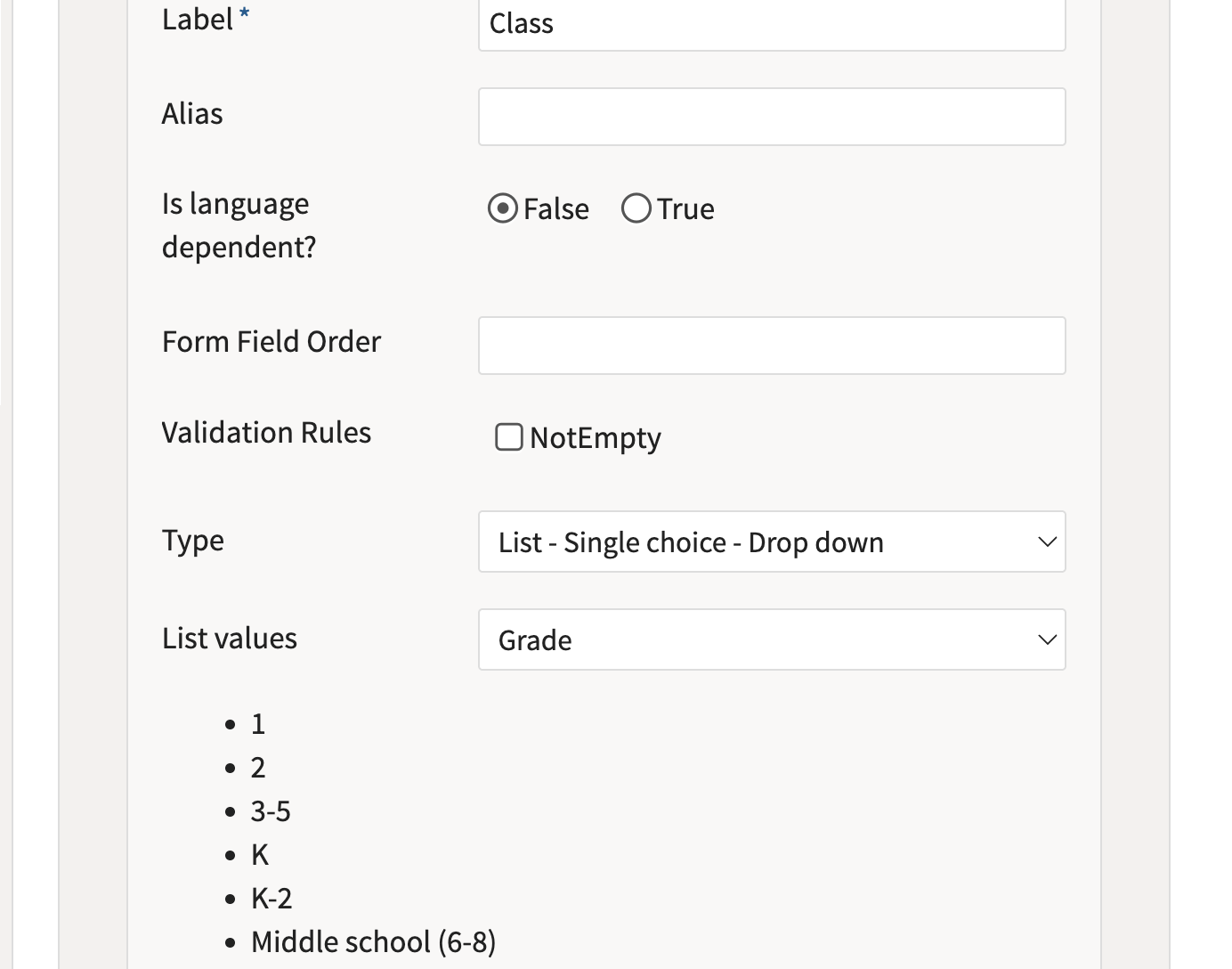
Lists are used to support closed-ended metadata fields such as dropdowns, radio buttons, and checkboxes. Instead of having users type in values manually, Lists provide a controlled set of options to choose from, helping ensure consistency, simplify data entry, and improve search and filtering.
Creating a metadata list
-
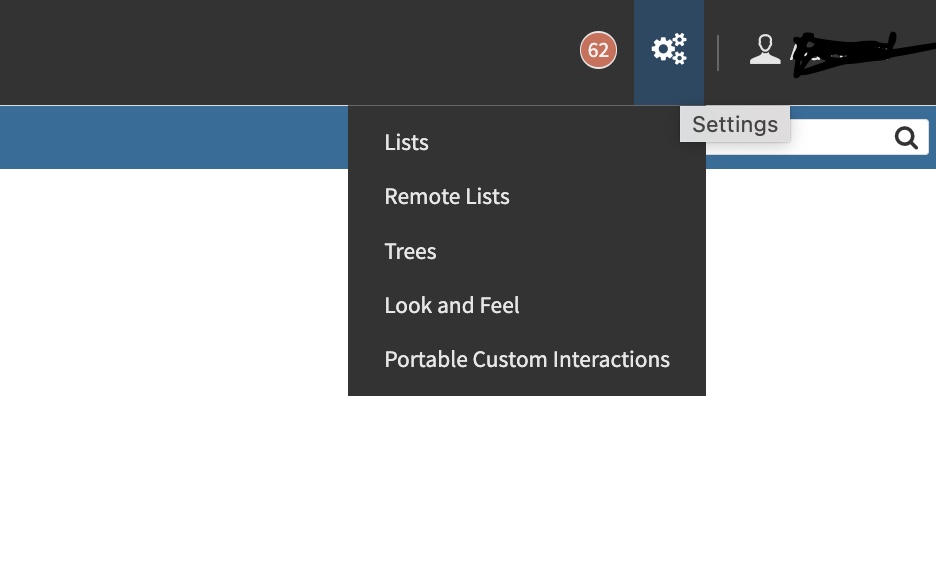
In the Assessment Builder interface, hover over the cogs (⚙️) icon in the top-right corner.
-
Select Lists from the dropdown menu.
-
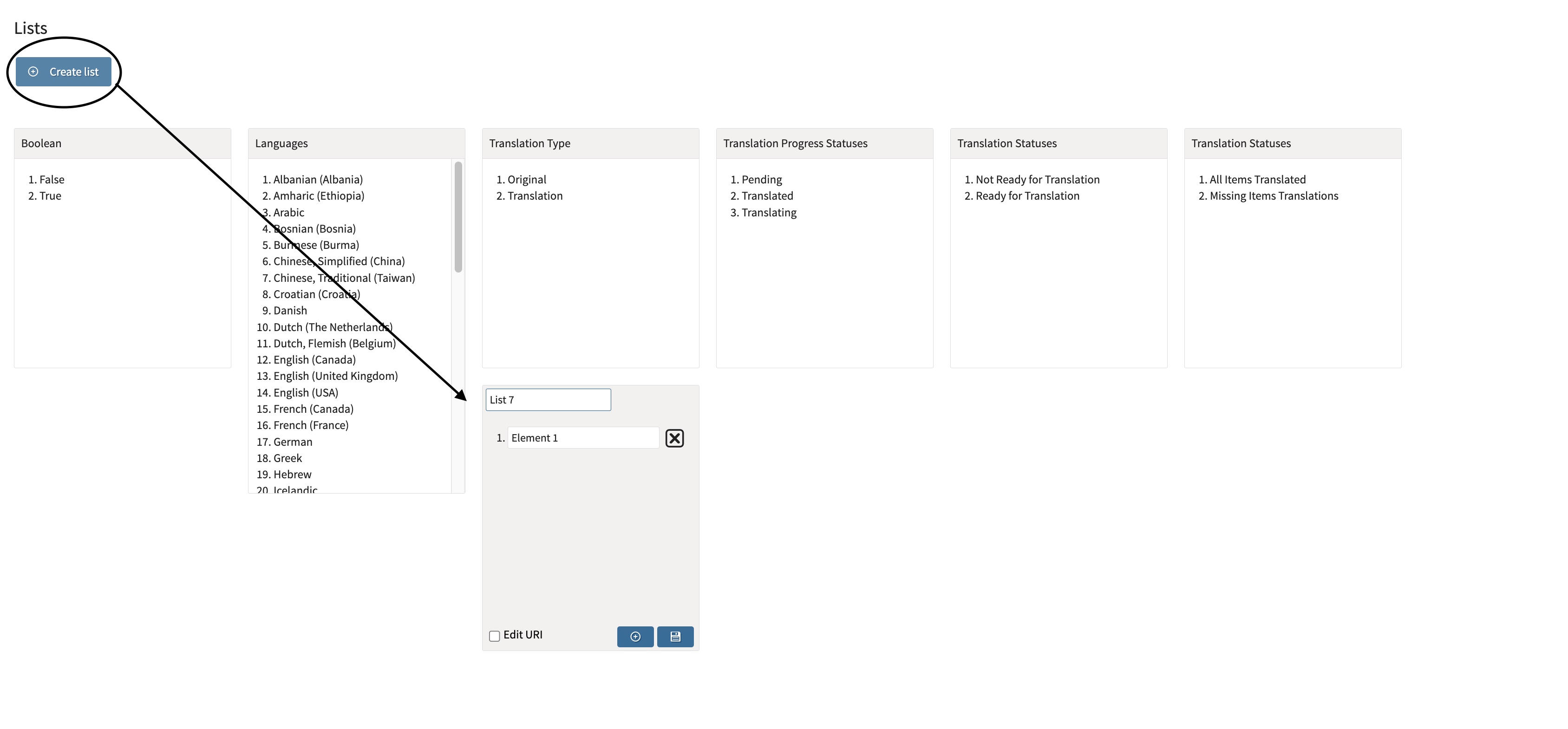
In the left-hand panel, click Add List or Create new list.
-
Enter:
-
List Name (e.g., “Difficulty Levels”)
-
-
Click Next to define the values:
-
Enter each item’s Label (displayed to users)
-
-
Click Save.
-
The list will now be available for selection if close-ended metadata is used for a class.