
The Search option is only available for advanced installations, and does not form part of the official release. Although this section only covers searching for Items, the procedure to search for other entities using metadata is very similar.
For more information on adding metadata to items (and other entities), see Classifying items with metadata.
The Advanced Search option is only available for TAO Ignite.
1. Select the folder you wish to search in, then type the criteria you wish to use in your Search for items.
With the relevant folder selected, enter the value of any of the folder’s properties (for which you wish to retrieve the relevant items) in the search box on the right of the blue Action Bar.
This search can entail any of the values of metadata you entered in the Properties of a given folder (Manage Schema): for example, the Label field (if Items are named for easy retrieval), Language field, item Type, etc.
To make your search more specific, it is also possible to use the name of the Property as well as its value to guide the search. For example, you may wish to retrieve all items with a certain Label field.
Advanced Search (TAO Ignite/Enterprise only)
In TAO’s Advanced Search, you can search in two ways:
-
Keyword Search
Type a word or phrase into the search bar. TAO will look for matches across both the item content and metadata values.
Example:-
Searching for
biologywill return any items that contain the term in their content or metadata.
-
-
Metadata Filter Search
Use the Add Criteria button to select specific metadata fields and define the values you want to filter by.
Examples:-
Find all items labeled for Grade 9.
-
Filter by interaction type.
-
Using these methods, you can adjust your searches for more targeted results.
-
Select Search button (magnifying glass next to the Search bar in the top-right corner).
-
Select which folder you want to confine your search to.
-
Select Add Criteria, and select from the list of available metadata properties. The criteria list includes all metadata defined in the selected folder and any of its child folders, allowing for comprehensive filtering across your content hierarchy. Repeat to expand your filter criteria.
-
For properties that are linked to pre-defined lists of values (close-ended), select Include all, Include any, or Include none:
-
Include all: The search results will include all resources that have the property containing all of the selected values in the criteria. It will exclude resources that have additional values for that property not included in the filter criteria. For example, searching for values of “1”, “2” will find “1, 2, 3”, but will not find “1, 3, 4”.
-
Include any: The search results will include all resources containing any of the values defined for that criteria. It will not exclude resources that have additional values for that property not included in the filter criteria.
-
Include none: The search results will exclude all resources with matching property values to the filter criteria.
-
Selecting Include any provides users with greater flexibility when searching in properties that can hold multiple values from a list. Selecting Include none allows users to filter out resources that contain the filter criteria values and focus only on resources that do not have them.
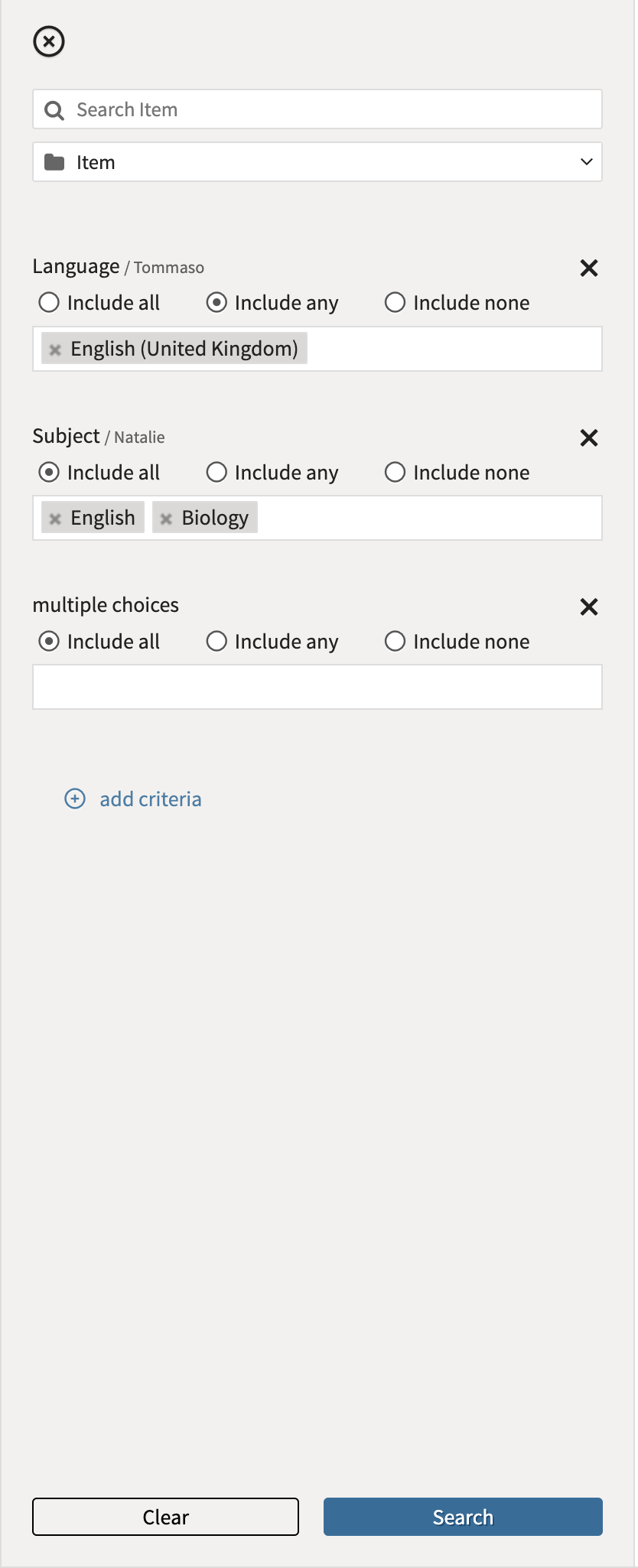
2. Once you’ve selected the filter criteria for your search, click on the blue Search button.
This will bring up a list of Items which meet your filter criteria. In this window, you can select any Item you wish to open. This could be to preview, or to author, or simply to identify where the Item is located for use in building your Test.