This topic describes how test takers use TAO’s accessibility tools.
For a video demonstration of the test taker experience, see Test taker guides in the Knowledge Base.
These tools are enabled at the session level (of the assessment cycle). For more information on how o enable accessibility tools, see Creating a session.
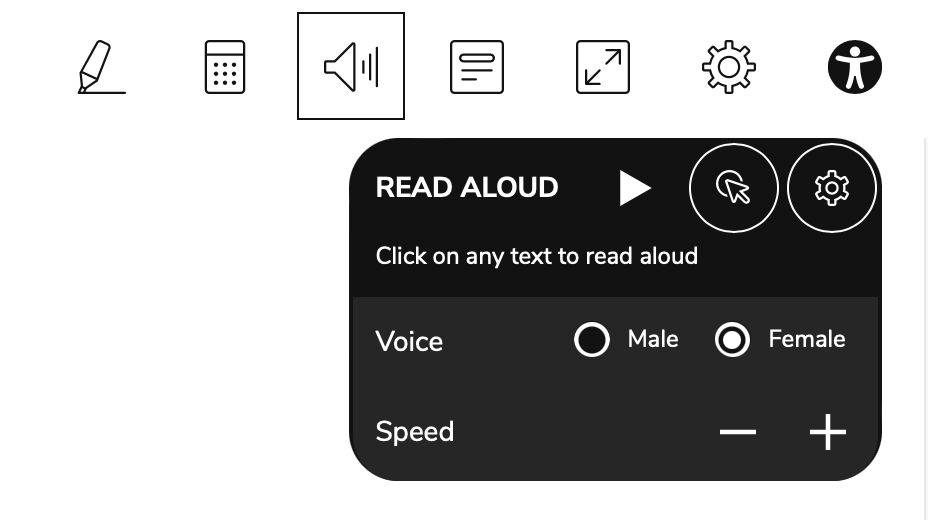
To view the Accessibility tools panel, select the test taker icon on the right of the toolbar (see image below). The Read Aloud tool, when enabled, displays on the toolbar as a speaker icon (see image below).

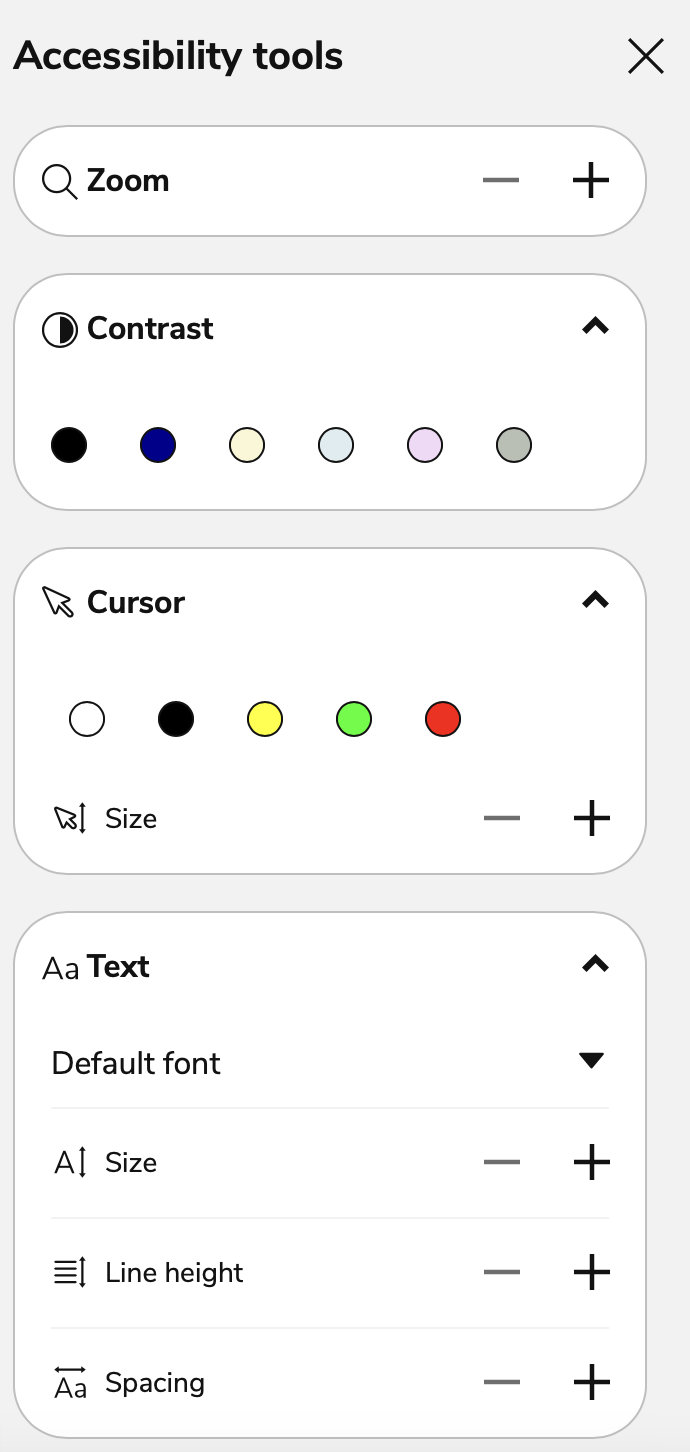
The Accessibility tools provide the following options:
-
Zoom
-
Contrast (customization)
-
Cursor (customization)
-
Text (customization)
-
Read Aloud
Zoom
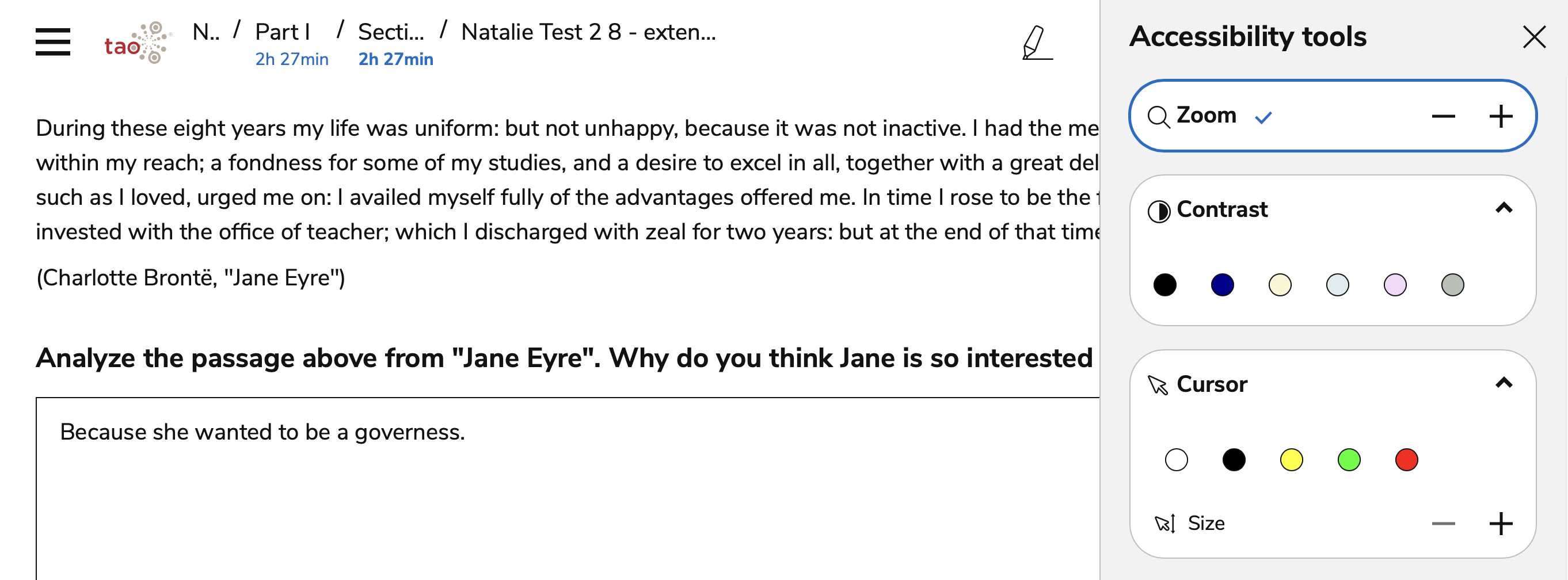
The Zoom tool enables test takers to zoom in and out for better visibility. In the Zoom box, select the plus or minus button to zoom in or out.
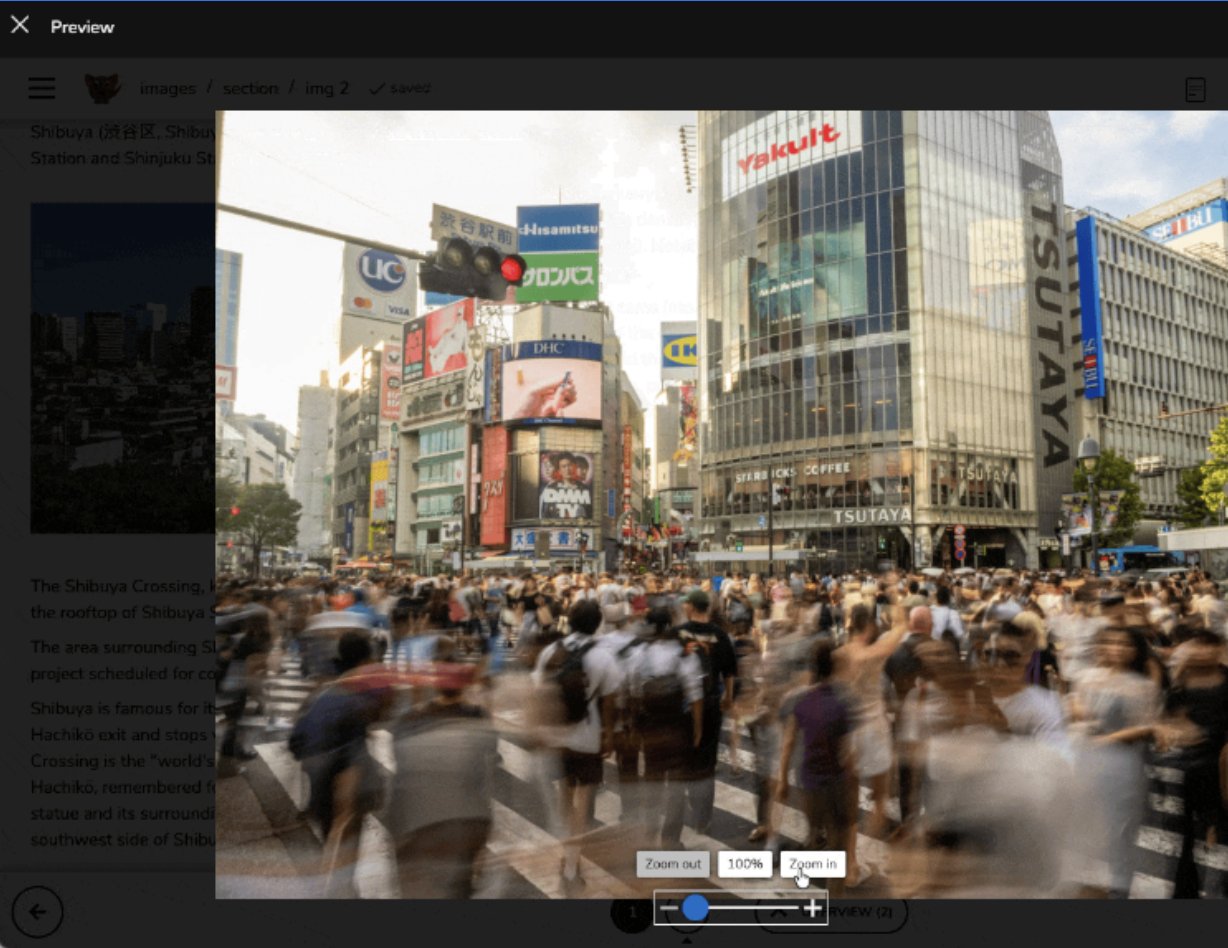
When enabled, click any image to open a fullscreen popup, where you can zoom in, zoom out, and pan across the image.
Contrast Theme
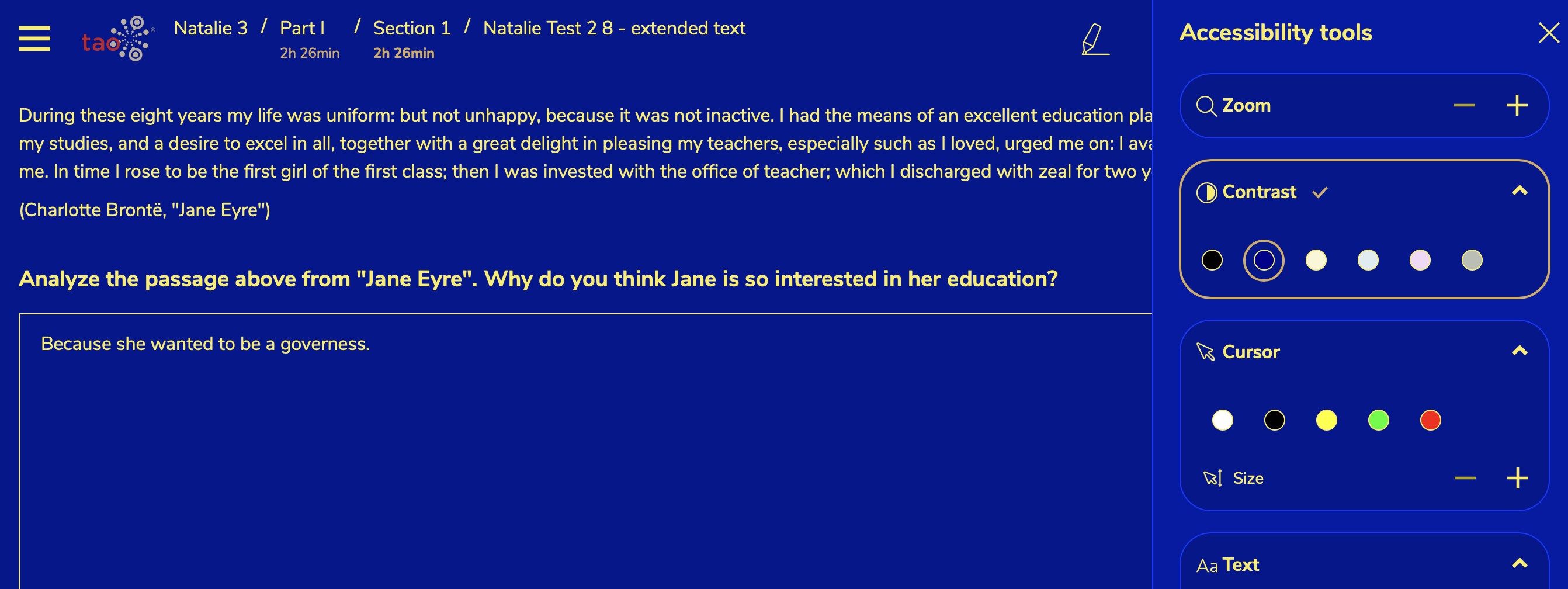
The Contrast Theme tool allows test takers to adjust the color and contrast of the text and background. This tool offers six different color themes to improve readability. Select a color in the Contrast Theme box to view the different color themes.
Custom Pointer
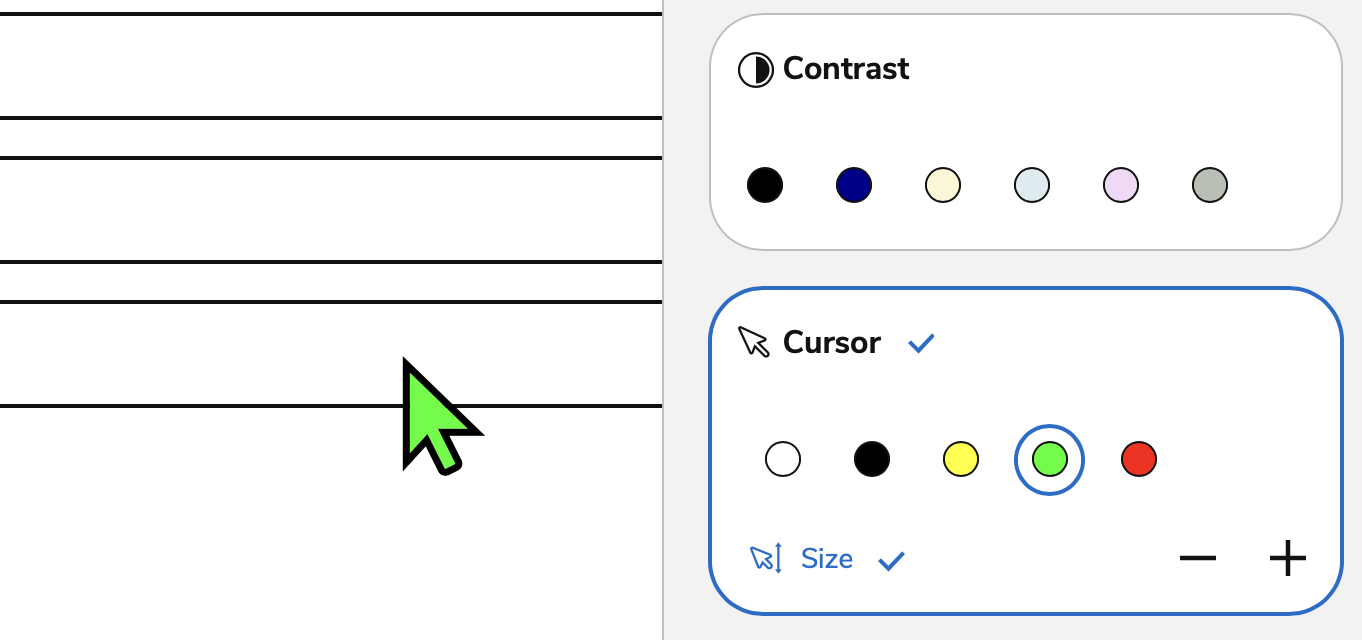
The Custom Pointer tool allows test takers to adjust their pointer size and color. Select a color in the Custom Pointer box to view the different colors for your pointer. Select the plus or minus button to adjust the size of your pointer.
Text Font and Spacing
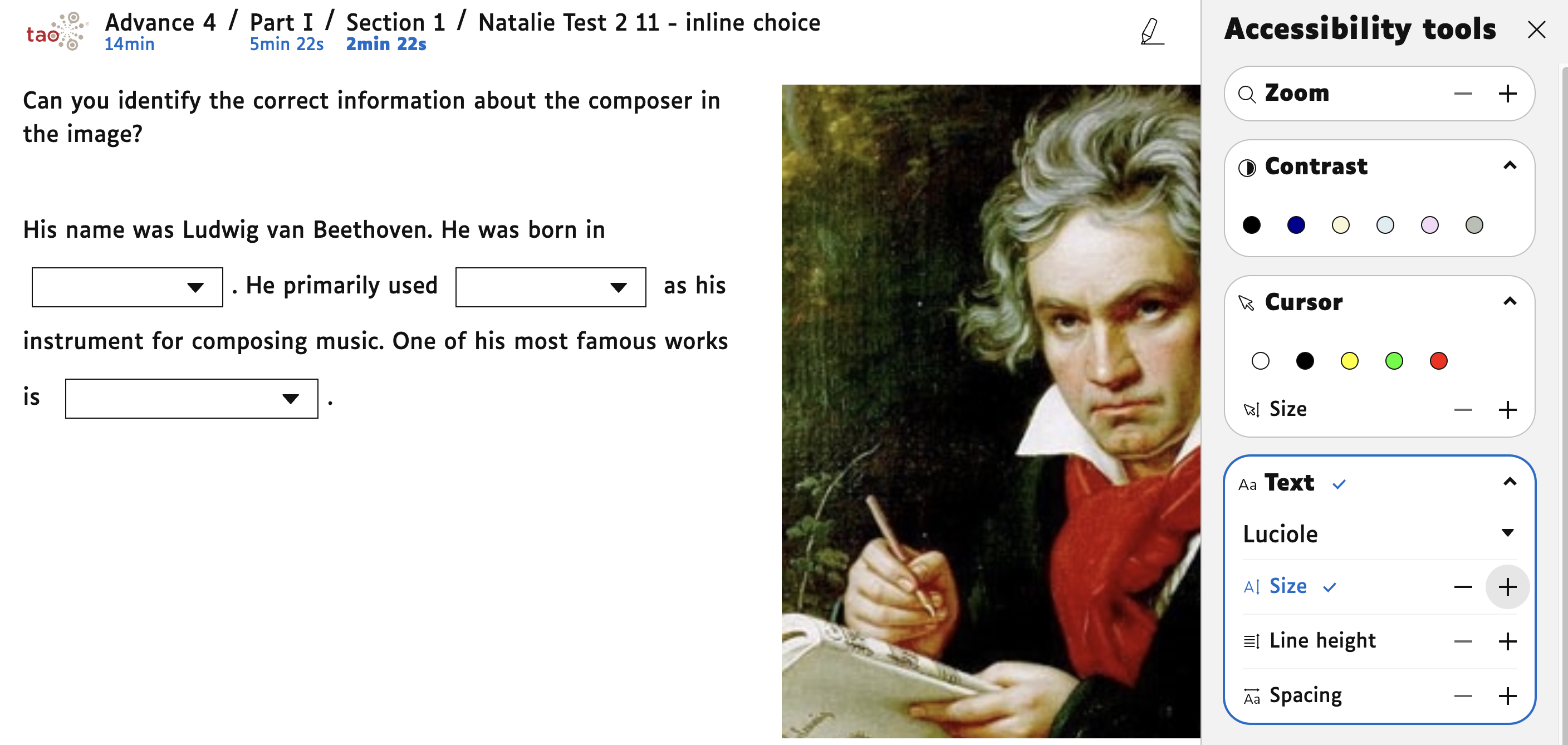
Text Font and Spacing allows test takers to adjust the font size, font type, and spacing between letters and words in the assessment. Select a new font from the drop down menu. Select the plus or minus buttons to adjust size, line height, and word spacing.
Read Aloud
The Read Aloud tool allows test takers to hear the text in an interaction read aloud. Select the speaker icon to use the tool. From there, there are several options:
-
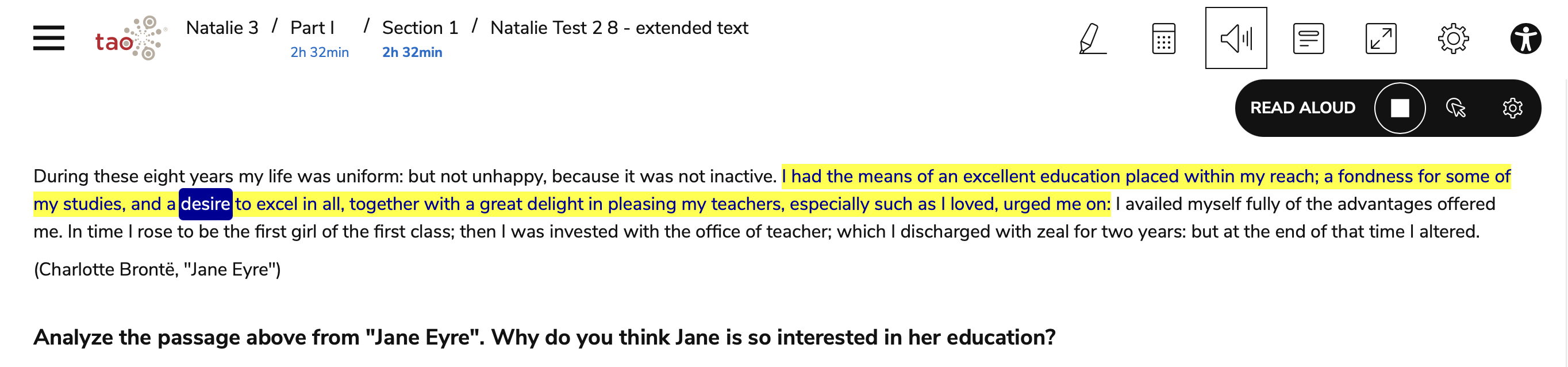
Hand over button: By clicking on this and then on a specific question in the test, that question will be read aloud. The current word being read out will be highlighted.
-
Play button: The questions on the current page of the test will be read aloud if you press the play button. The current word being read out will be highlighted.
-
Stop button: This button halts the read aloud voice on a given word.
-
Settings (interlocking cogs): You can control the speed at which the question, or text, is read here. You can also select which voice you want to hear.