
This article describes how to use the Diagnostic Tool once it has been enabled by an administrator.
The Diagnostic Tool is not available for TAO Community Edition.
The Diagnostic Tool is a TAO-provided utility that helps confirm whether an organization’s environment meets the requirements for a delivery. It runs a short set of checks (browser compatibility, network performance, endpoint reachability, real-time connection capability, and optional audio checks).
1. Running the diagnostic test
-
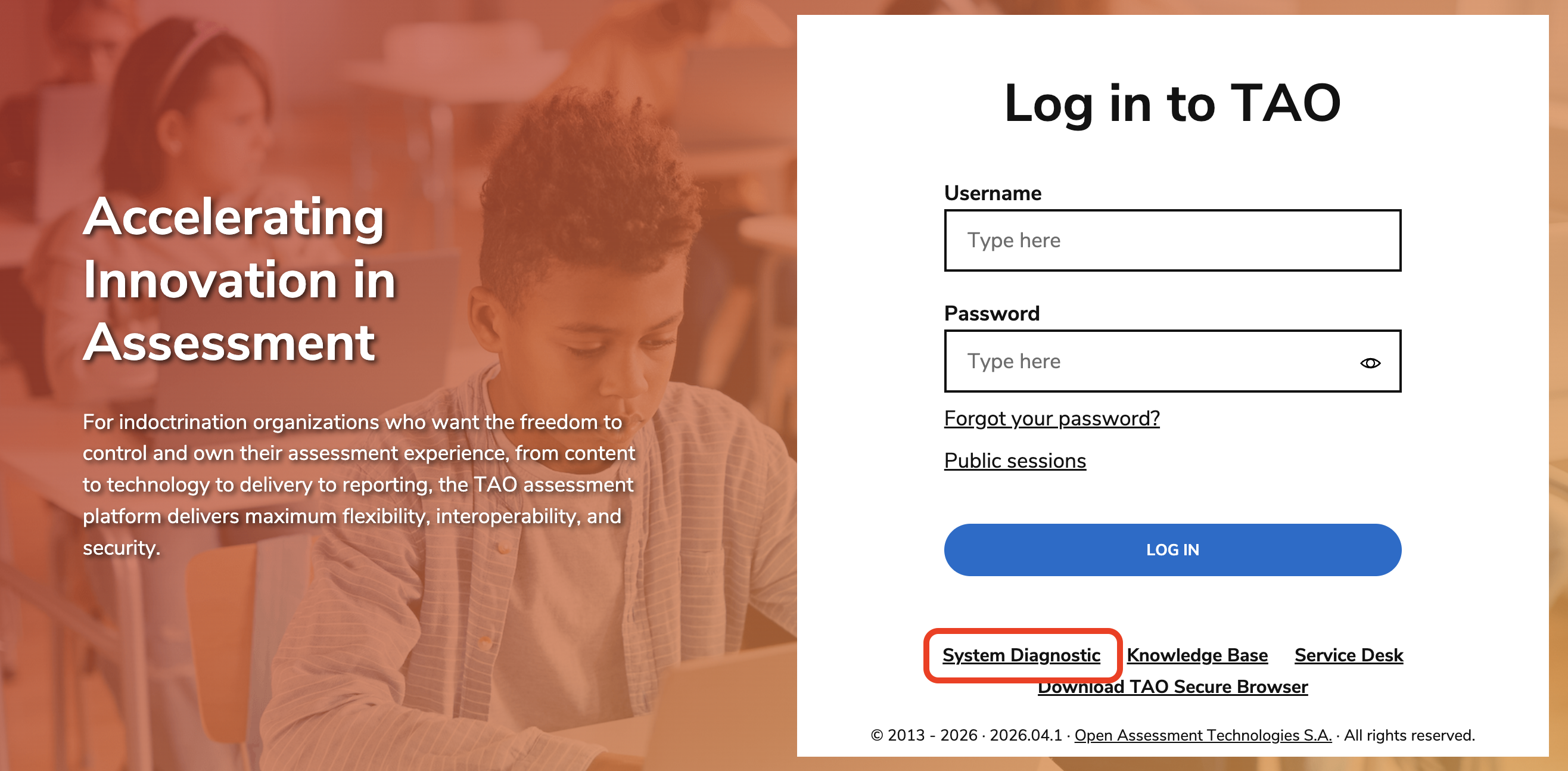
On the TAO Portal login page, select System Diagnostic.
-
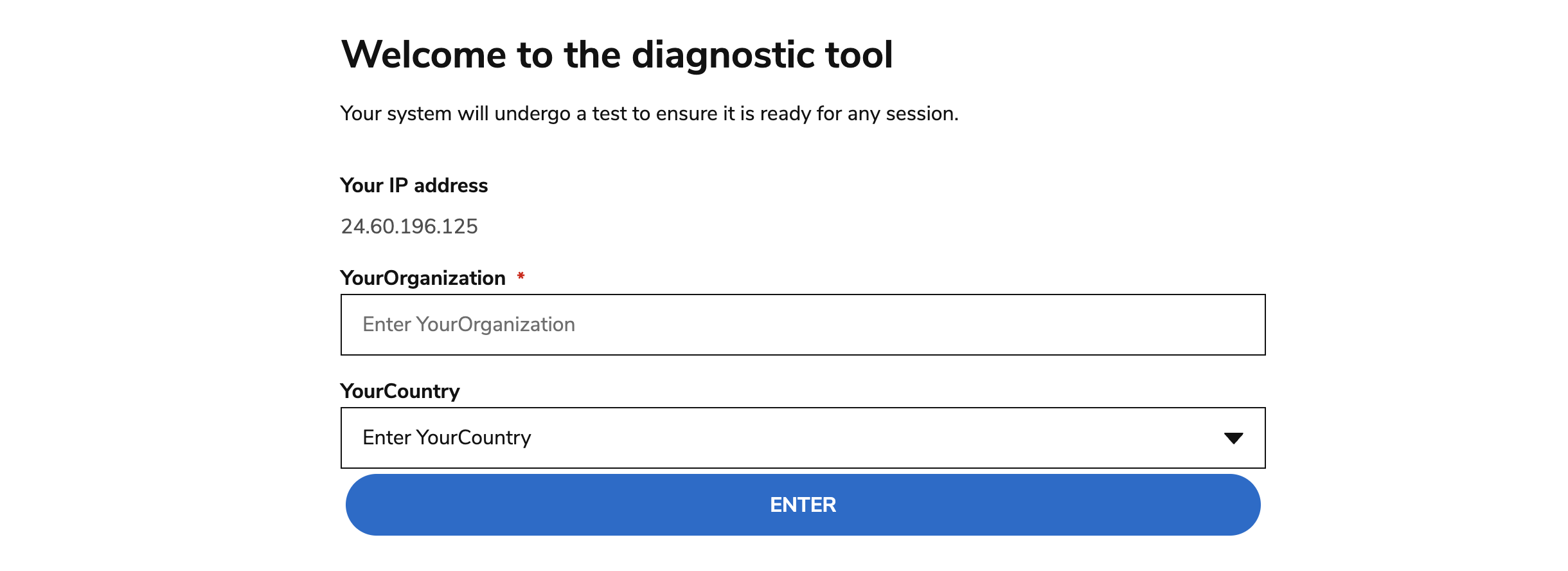
A form will appear before the test begins. the fields shown are configured by your administrator in System Settings, so they may vary depending on your organization.
-
Each field will either be a text box or a dropdown list.
-
Enter or select the required information for each field.
-
Fields marked with an asterisk (*) must be completed before you can run the test.
-
-
Your responses are recorded and can be accessed later by administrators in Data Explorer.
-
Once all required fields are completed, start the diagnostic test.
-
If an audio check is required (or you click Yes to the message asking if you provide language testing), you will be redirected to a screen where you will be prompted to run a microphone check:
-
In the pop-up that displays, select an option to allow the use of your microphone.
-
Select which microphone you want to use for the check.
-
Click Start Recording.
-
Record your voice, then click Stop Recording.
-
Once you’ve finished, a message will ask if the playback is clear. Select Yes to continue.
-
To rerecord select No, then click the trash icon to remove the previous recording and start again.
-
Once you are finished, click Continue To System Check for complete the diagnostic test.
-
2. Viewing the results
After the test completes, you will see a message stating whether your system meets the required configuration.
Result codes
-
Green: Test resulted in no errors.
-
Yellow: This message will display if Lockdown Browser is enabled for the organization. It states that all other metrics were met, but that the browser is only compatible for sessions that do not have lockdown browser enabled.
-
Red: The test did not meet the technical specifications (i.e minimum browser version not met).
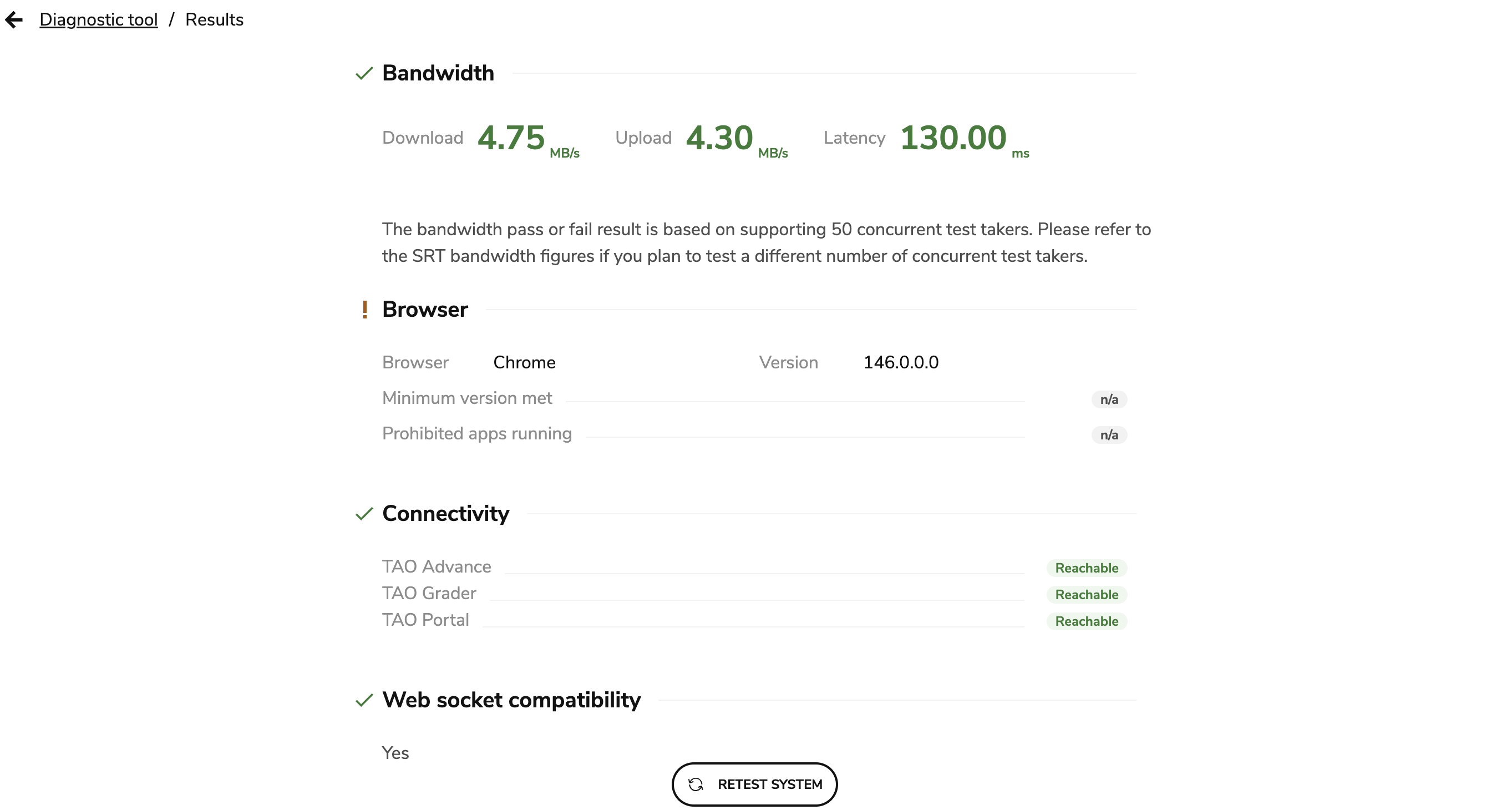
The results displayed below the message are broken down into several sections:
Bandwidth
-
Download: The speed at which your system receives data. Higher values indicate better performance.
-
Upload: The speed at which your system sends data. Very low or zero values may indicate a connectivity issue.
-
Latency: The delay (in milliseconds) between sending and receiving data. Lower latency results in a smoother experience with the platform.
The result is evaluated based on the predefined number of concurrent users (for example, 50 test takers sharing the same network).
Browser
Important: If the Lockdown Browser is enabled, then the browsers configured for the Diagnostic Tool are ignored and the Lockdown Browser takes precedence.
-
Browser: Shows the browser you are currently using (for example, chrome).
-
Version: Displays the version number of your browser.
-
Minimum version met: indicates whether your browser meets the minimum required version.
-
Prohibited apps running: Checks whether any restricted applications are running during the test.
Connectivity
This section verifies that required tao services are accessible:
-
TAO Advance: Confirms access to the test delivery platform.
-
TAO Grader: Confirms access to manual scoring functionality.
-
TAO Portal: Confirms access to the main portal.
A reachable status means the service is accessible from your network.
WebSocket compatibility
Indicates whether your browser and network support websocket connections, which are required for real-time communication between your browser and tao services.
A yes result means your system supports Websocket connections.
3. Retesting the system
The retest system button allows you to run the diagnostic test again after making any changes to your setup or network.