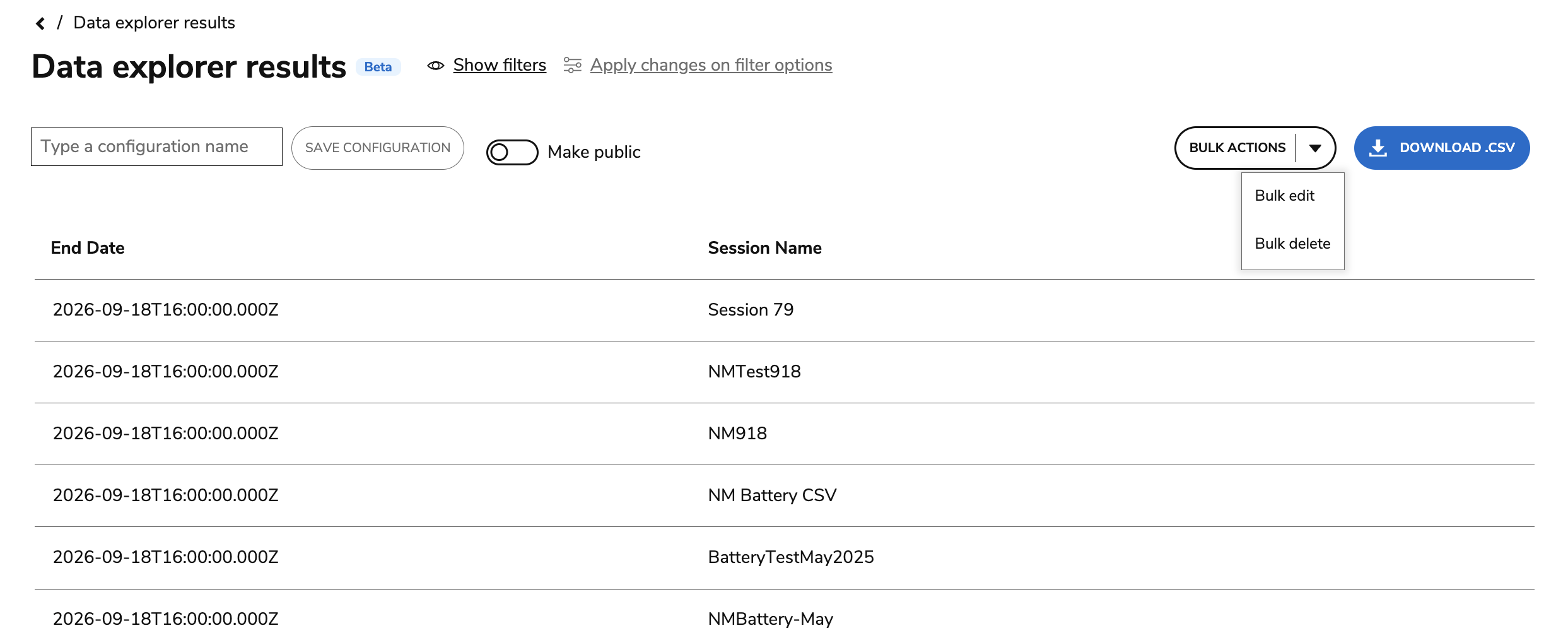
Users can now update multiple sessions, users, or groups directly from the Data Explorer results page.
Who can use the bulk edit feature
-
Administrators
-
Users with the Data Explorer bulk edit role
Non-admin users with the Data Explorer bulk edit role can only edit data for:
-
Sessions where they are currently enrolled as a Group Manager
-
Entities in the same or lower organizational unit
For more information, see Global and Group roles,
Steps
Data Explorer’s filtering capabilities can be used to define a precise subset of entities before applying targeted changes for those entities.
1. Accessing the bulk action menu
The current set of editable properties is available to the following Data Explorer entities from the Data Setup dropdown menu:
-
Users (Portal Users)
-
Groups (Portal Groups)
-
Sessions (Portal Sessions)
In the Filters tab, add one or more of the following:
-
Group
-
Session name
-
Open data
-
Close data
-
Tags
As datastore entities are generic, using one filter per entity is recommended.
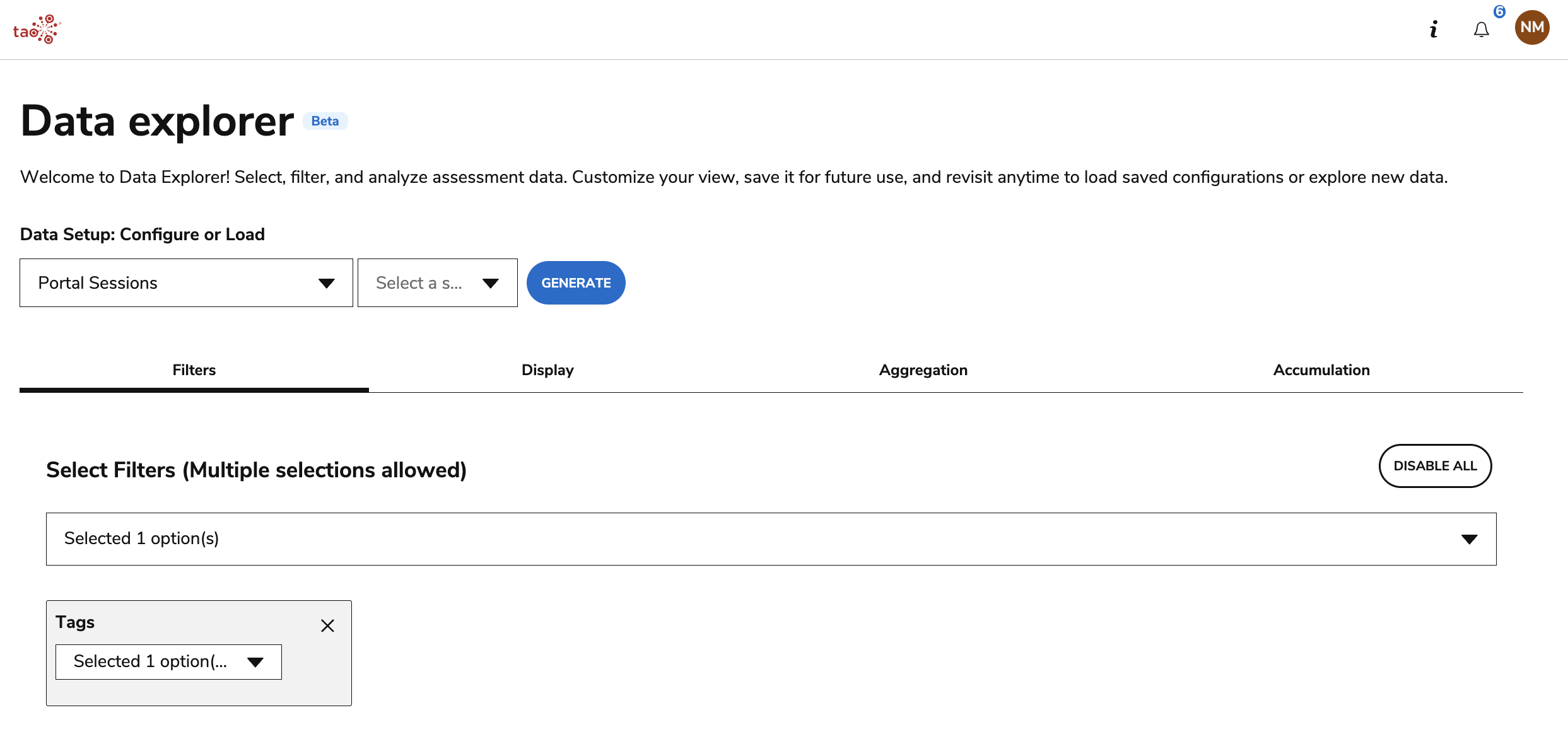
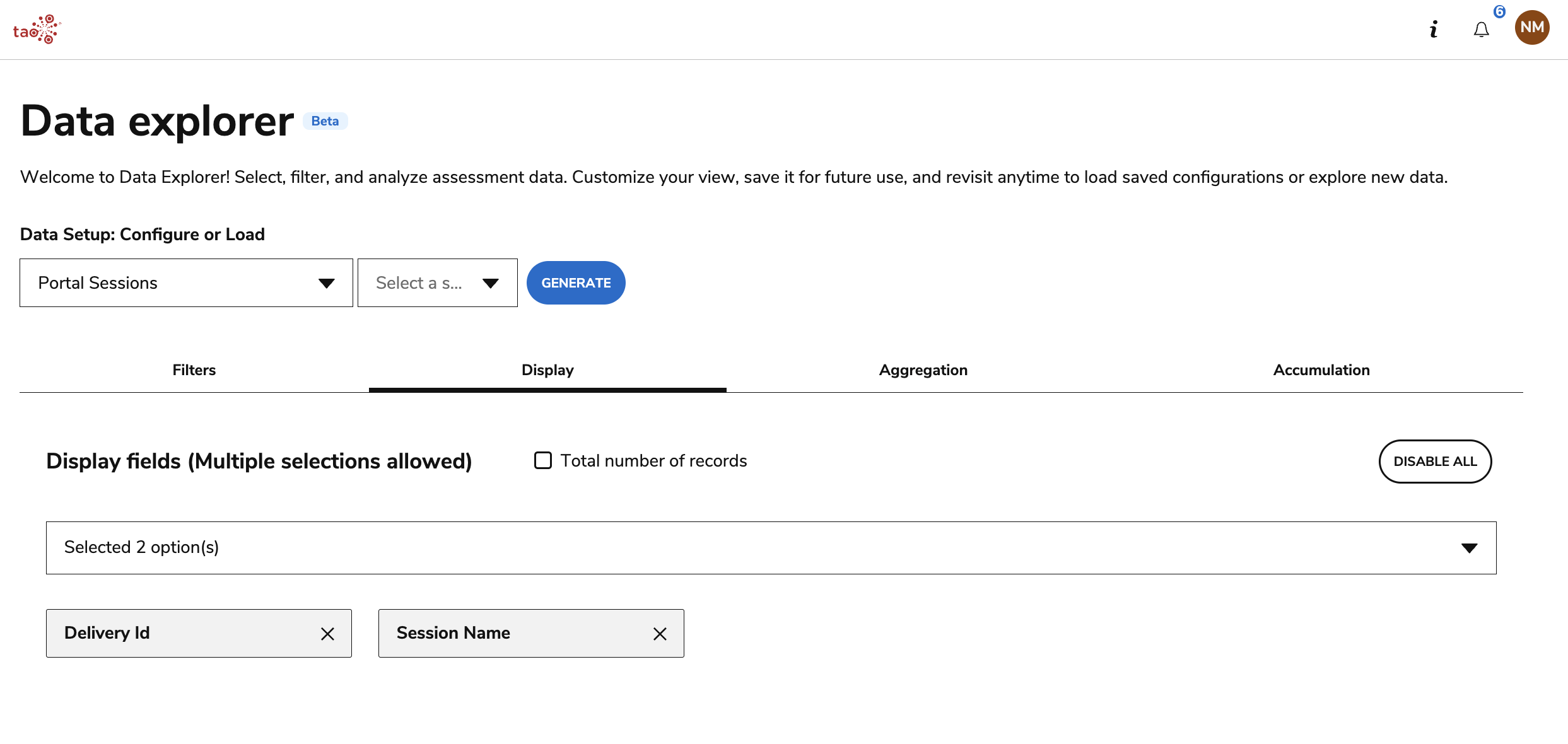
In the Display tab, add which informational fields you want to display. This display options will differ depending on the filter(s) you selected.
Click Generate. You will see the results and a Bulk actions menu on the right.
2. Using the bulk actions menu
Select Bulk Actions in the top-right corner.
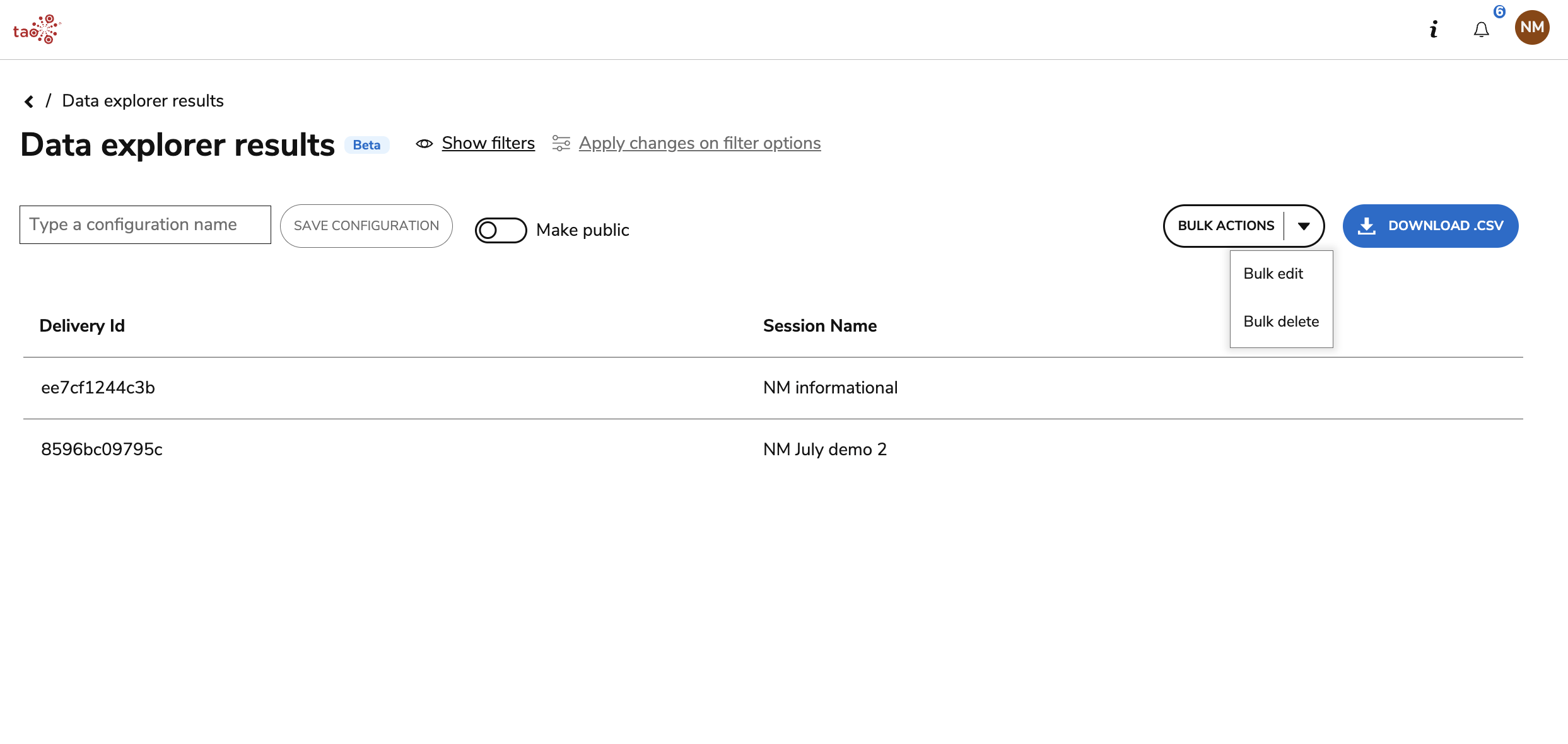
Bulk edit
The available bulk edit actions depend on which initial data set you chose.
-
Portal User
-
Edit the language of all listed users
-
Adjust whether the users accounts or active or deactivated
-
Add a tag
-
Adjust password or password requirements
-
-
Portal Group
-
Edit the group description
-
Edit the activity status
-
Add a tag
-
-
Portal Sessions
-
Most configuration options from session creation are available for bulk edit.
-
This includes the assigned delivery/battery, timezone, start/end date, group, and delivery options
-
For paper-based tests, you can update the number of sheets
-
3. Review bulk updates
Click Review Changes. Ensure that the correct filters and changes have been applied before clicking Confirm Bulk Update.
4. Confirm the changes
You can view the progress of the updates in the notification manager.
Once the updates are complete, you can download a link to a CSV file containing:
-
A list of all affected entities
-
The old and new properties values for each entity, or deletion status
-
Success/fail status for each row
-
An explicit error message in case of failure for a specific row
Important: Currently, filtering results can include entities that were not manually deactivated but are no longer valid for editing. Some editing actions for results that include such entities may result in an error.
Bulk delete
Data Explorer supports bulk soft deletion of deliveries, batteries, groups, sessions, and users. Deleted entities no longer appear in the user interface, and associated enrolments are cleaned up. Historical records are retained for auditing, and deleting a delivery does not affect existing test results.
Tip: Use tags to organize entities for later cleanup. For example, tag entities by test campaign or date range, then select and delete the tagged entities when the campaign or period ends.
Deletion follows a dependency hierarchy. Deletion is blocked when an entity is still required by an ongoing session. For example, you cannot delete a group linked to a current session.
When soft deleting users:
-
A new user with the same login and email can be created
-
The user will not be able to log in to the Portal
Soft deletion example
-
Select Portal Sessions as the Data Setup entity.
-
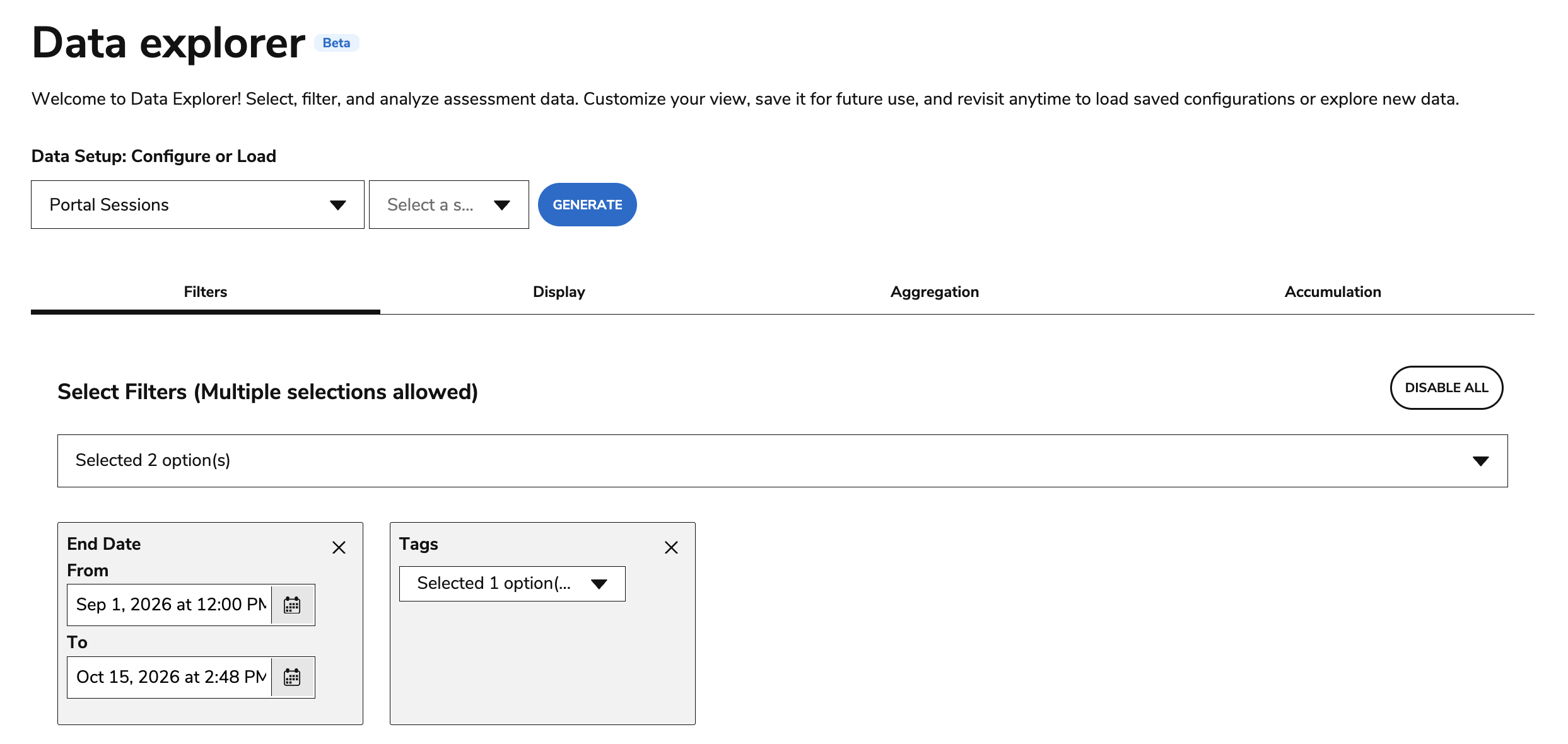
In the Filters tab, select End Date. Configure the timeframe to cover end dates in the past.
-
Select Tags to add another filter.
-
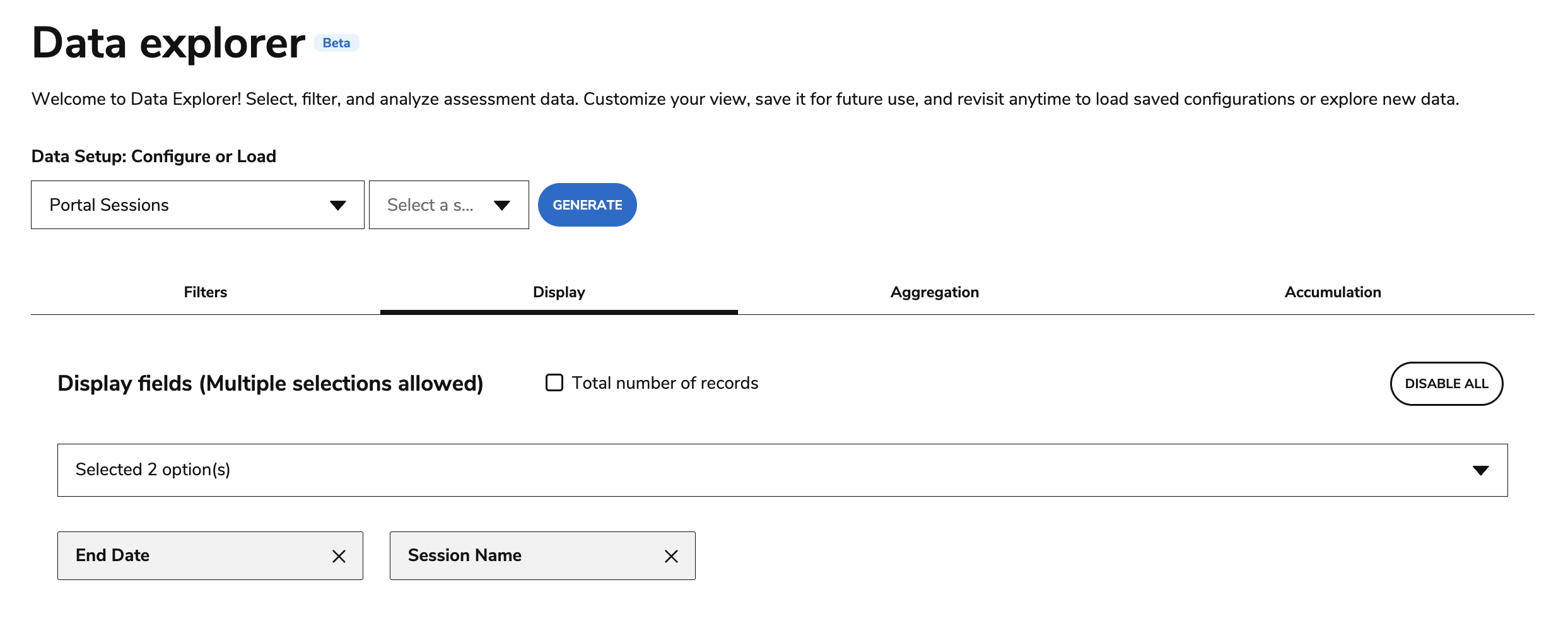
In the Display tab, select End Date and Session Name.
-
Click Generate.
-
Ensure that all session results have an End Date in the past.
-
Under Bulk Actions, click Bulk delete.