
The TAO Secure Browser is a specialized browser used to increase the security of online assessments. It restricts access to the user’s device and system features during a test, helping prevent cheating and unauthorized behavior.
Key security features
The lockdown browser enforces a controlled testing environment by:
-
Running in full-screen mode with no browser navigation controls
-
Restricting use to a single monitor
-
Blocking keyboard shortcuts
-
Preventing printing, screenshots, and screen recording
-
Restricting clipboard access
-
Detecting virtual machines, remote sessions, or modified devices
-
Performing device readiness checks before the test
-
Notifying the system in real time if a security breach occurs
Enabling the secure browser for your organization
This feature is not available in System Settings by default. To use it, contact your Account Manager.
Once the secure browser is implemented for your organization, administrators can enable this feature in System Settings, under the TAO Secure Browser tab.
For more information on how to configure this feature as an administrator, see System Settings - TAO Secure Browser.
Configuring the secure browser for individual sessions
Once this feature is enabled in System Settings, the secure browser is enforced at the session level:
-
In session properties, enable Secure Browser Required under Security Options.
-
When enabled, the option to Pause the test on breaches becomes available. For information on how this option affects test takers, see the section below.
When enabled, TAO validates the following for that session:
-
The test-taker is using the secure browser
-
The browser version meets the minimum requirement
-
If either condition is not met, the test-taker cannot start or resume the test and an error message will display.
The Secure Browser Required flag defaults disabled for new sessions.
Test taker experience
Before the Test
If the secure browser is required for a session the test taker is enrolled in, test takers will need to complete the following steps before attempting to begin the session:
-
Test-takers logging in to My Sessions will see a prompt instructing them to install the secure browser.
-
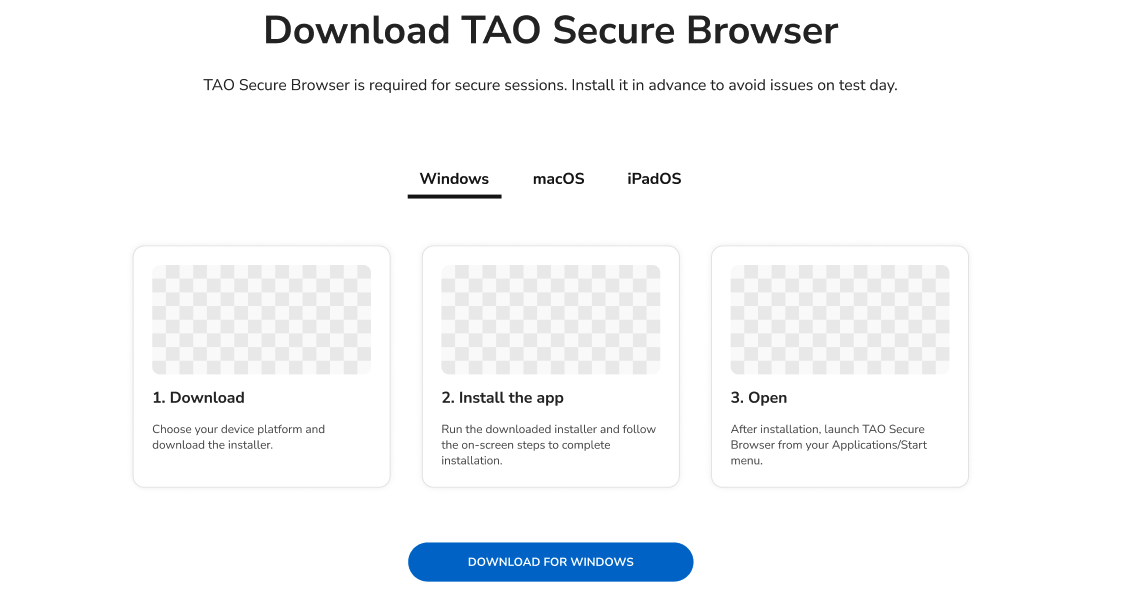
The prompt will contain a link that redirects them to a dedicated download page with installation instructions for supported platforms.
-
This page may also be accessible from the TAO Portal login page (under Download TAO Secure Browser).
If a test taker tries to start a session before downloading the secure browser, or if they have any prohibited applications running when they start the session, these events will be logged (see the section below for details).
During the Test
Once the test begins in the secure browser, the test taker is constricted in the following ways:
-
The test runs in a locked, full-screen environment
-
Access to other applications and system features is restricted
-
The system continuously monitors for security violations
Test-takers are still able to refresh the test page using a built-in browser control (without keyboard shortcuts). This allows recovery from temporary issues (such as loading errors) without leaving the secure environment.
If the lockdown browser malfunctions during the session and the test was configured to pause, a pop-up error message instructs the test-taker to select Exit Test, to close the browser, exit the offending processes and re-launch the browser.
How breaches are logged
If a test taker tries to start the test session without the proper browser, the system generates a log entry in Proctoring Acs Log. The logged event will contain the following fields:
-
Actor: test-taker
-
Action: flag
-
Reason Code: 20999
-
Reason Message: Either:
-
Missing lockdown browser
-
Lockdown browser version mismatch. Required: {vX.X.X}, Detected: {vY.Y.Y}
-
-
User agent
If any blacklisted applications in the Process Deny list are running, the system generates a log entry in Proctoring Acs Log. The logged event will contain the following fields:
-
Actor: test-taker
-
Action: flag
-
Reason Code: 20999
-
Reason Message: Prohibited processes detected: {matched_processes}.