Skip table of contents

Creating a paper-based session

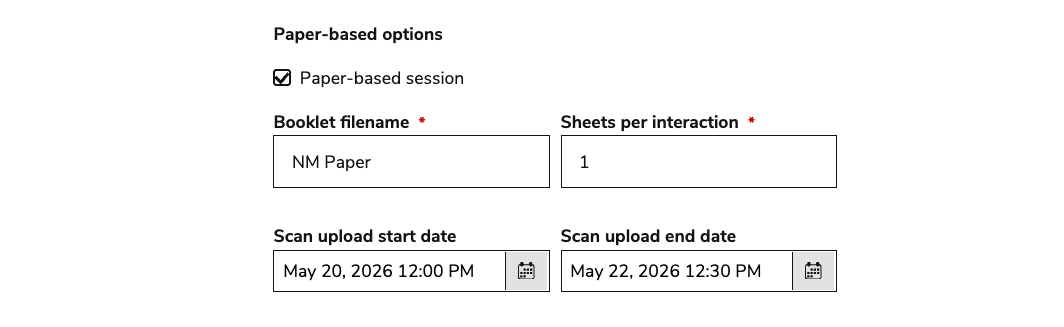
This article describes how to create paper based sessions via CSV import.

Paper-based session CSV fields

Paper-based sessions are uploaded via CSV. For more information on how to format and upload CSV files, see Importing data via CSV file.

The session CSV template you choose (see section below) must have the following fields configured to enable paper-based testing:

CSV column

Description

session_name

Enter the name of the session.

session_deliveryId

The ID of the linked delivery or battery.

group_name

Enter the name of an existing group. If you chose the sessions-with-delivery-in-new-groups, add the name of the new group.

session_paperMode_isEnabled

Enable (1) or disable (0) paper mode. This is required.

session_paperMode_sheetsPerInteraction

Number of response sheets per item. Add a numerical value (must be at least 1).

Example: 2 for draft + final sheets. Sheets are numbered and scorers will see them in order.

session_paperMode_totalInteractions

The number of interaction’s that will be used in the paper-based segment.

session_paperMode_bookletFilename

PDF booklet filename. Enter the text (i.e, school-math)

session_paperMode_scanUploadStartDate

Start of scan upload window. Uploads are allowed after this date. Add as a ISO 8601 date-time string (2023-01-01T11:00:00.000Z).

session_paperMode_scanUploadEndDate

End of scan upload window. Uploads are not allowed after this date. Add as a ISO 8601 date-time string (2023-01-01T11:00:00.000Z).

Creating paper-based sessions via CSV

Linking to an existing group

  1. Assign new or existing users to a new or existing group with the correct paper-based session roles.

    1. Follow the instructions in Assigning roles for paper-based sessions.

  2. Accessing the sessions CSV template:

    1. Main menu → Bulk data import > Download CSV templates

    2. Choose sessions-with-delivery-in-existing-groups.csv

  3. Configure the mandatory fields as described in Importing/updating a session (with an existing group).

  4. Enable session_paperMode_isEnabled (enter 1 as a value).

  5. Configure the other paper-based fields (described in the section above).

  6. Follow the instructions in Importing data via CSV file to upload the file.

Linking to a new group

If you choose this option, you will need to assign paper-based session user roles to the new group after the CSV is uploaded. For more information, see Assigning roles for paper-based sessions.

  1. Accessing the sessions CSV template:

    1. Main menu → Bulk data import > Download CSV templates

    2. Choose sessions-with-delivery-in-new-groups.csv

  2. Configure the mandatory fields as described in Importing/updating a session (with a new group)

  3. Enable session_paperMode_isEnabled (enter 1 as a value).

  4. Configure the paper-based fields (described in the section above).

  5. Follow the instructions in Importing data via CSV file to upload the file.

Important requirements

Before scans can be uploaded:

  • Test-taker sessions must exist and enrolled to the session

  • The test must be launched at least once

  • Sessions must be submitted/closed

    • Use session_submissionDate to enforce this

JavaScript errors detected

Please note, these errors can depend on your browser setup.

If this problem persists, please contact our support.