
Related articles
Applies to
-
Content developers
Prerequisites
-
An existing item with at least one configured interaction.
Purpose
Scoring methods determine how responses are evaluated and how scores are assigned to test-takers. This guide explains how to configure manual scoring for an item, including score ranges and manual scoring rubrics.
Manual scoring allows human scorers to evaluate responses according to defined scoring criteria. Once test-takers submit responses, scorers can access manually scored items from the session overview page and assign scores according to the configured rubric.
Steps
1. Define response processing
Before configuring manual scoring:
-
Open the Response Properties panel for the interaction (Response tab).
-
Select a value for for Response Processing. It is highly recommended to use Match Correct.
2. Create a manual scoring outcome
-
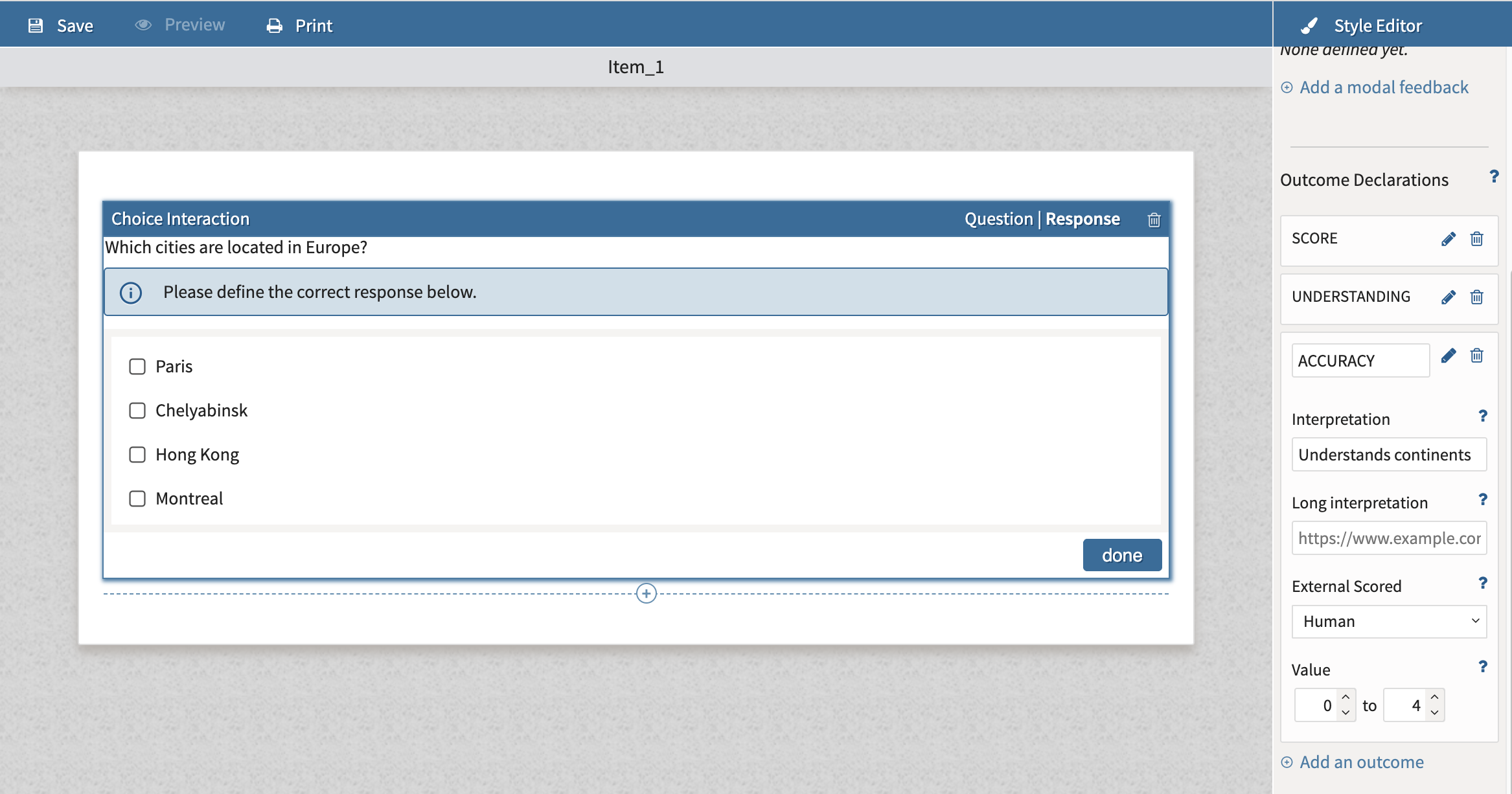
In the Response Properties panel, expand Outcome Declarations.
-
Select Add an outcome.
-
Click the edit icon for the new outcome.
Important: Do not modify the default SCORE or MAXSCORE outcome variables. Changing their default settings may affect score calculations for the item and test.
Configure the new outcome as follows:
-
Enter a value in the text box at the top. This should be a general descriptor for what is being graded, and will display to graders.
-
Select Human from the External Scored menu.
-
Enter the minimum and maximum points (score range) a scorer can award for the item in Value.
An item will only be flagged for manual scoring when:
-
A valid score range is defined.
-
Human is selected in External Scored.
3. Add and interpretation and/or scoring criteria (optional)
-
The value entered in Interpretation is displayed to the scorer during the scoring process. Use a description that further identifies the scoring criterion.
-
Long Interpretation is where you can attach rubrics.
-
Create a scoring rubric and host it as a PDF.
-
Copy the URL for the rubric.
-
Paste the URL into Long Interpretation.
-
The scorer can use this link to review the scoring criteria while evaluating responses.
If the rubric is stored in Google Drive:
-
Set sharing permissions to allow anyone with the link to view the file.
-
Modify the URL to use the following format:
https://drive.google.com/file/d/[file_id]/preview