
Applies to
-
Content developers
Prerequisites
-
Keyboard and operating system support for the language you want to author in.
Purpose
Item language settings determine both the writing direction of an item and the language used by text-to-speech functionality. This guide explains how to configure an item for a specific language, work with right-to-left (RTL) languages, and create multilingual content within a single item.
Steps
1. Open the item for authoring
-
Select the item from the Items Library.
-
Click Authoring in the Action Bar.
By default, new items are configured for English and use a left-to-right (LTR) writing direction.
2. Set an interaction’s language
-
Locate the Language setting in the toolbar panel.
-
Select the desired language from the drop-down menu.
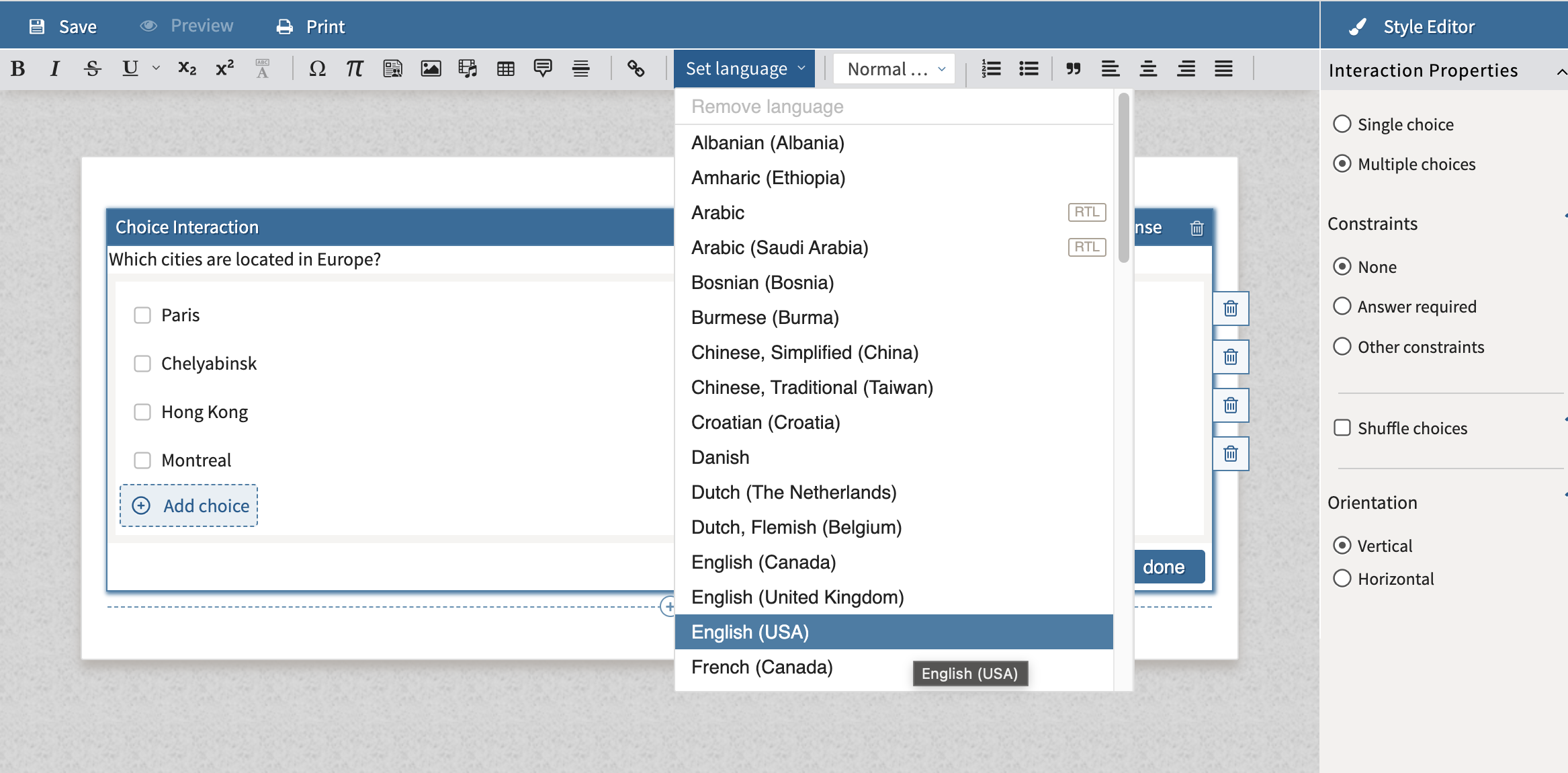
TAO automatically applies the appropriate writing direction based on the selected language.
-
Left-to-right (LTR) languages continue to display content from left to right.
-
Right-to-left (RTL) languages automatically switch the item to RTL mode.
Languages that support RTL display an RTL label in the language list.
Once the language is selected, you can begin authoring the item.
Important: Setting the language for an item does not translate existing content.
3. Configure multilingual items/text blocks (optional)
You can apply language settings to individual text blocks within an interaction. Each text block can use its own language configuration independently of the interaction’s primary language.
-
Select the interaction you want to configure.
-
Select the text box within that interaction that you want to change (from the interaction’s primary language).
-
Set the language for that text block.
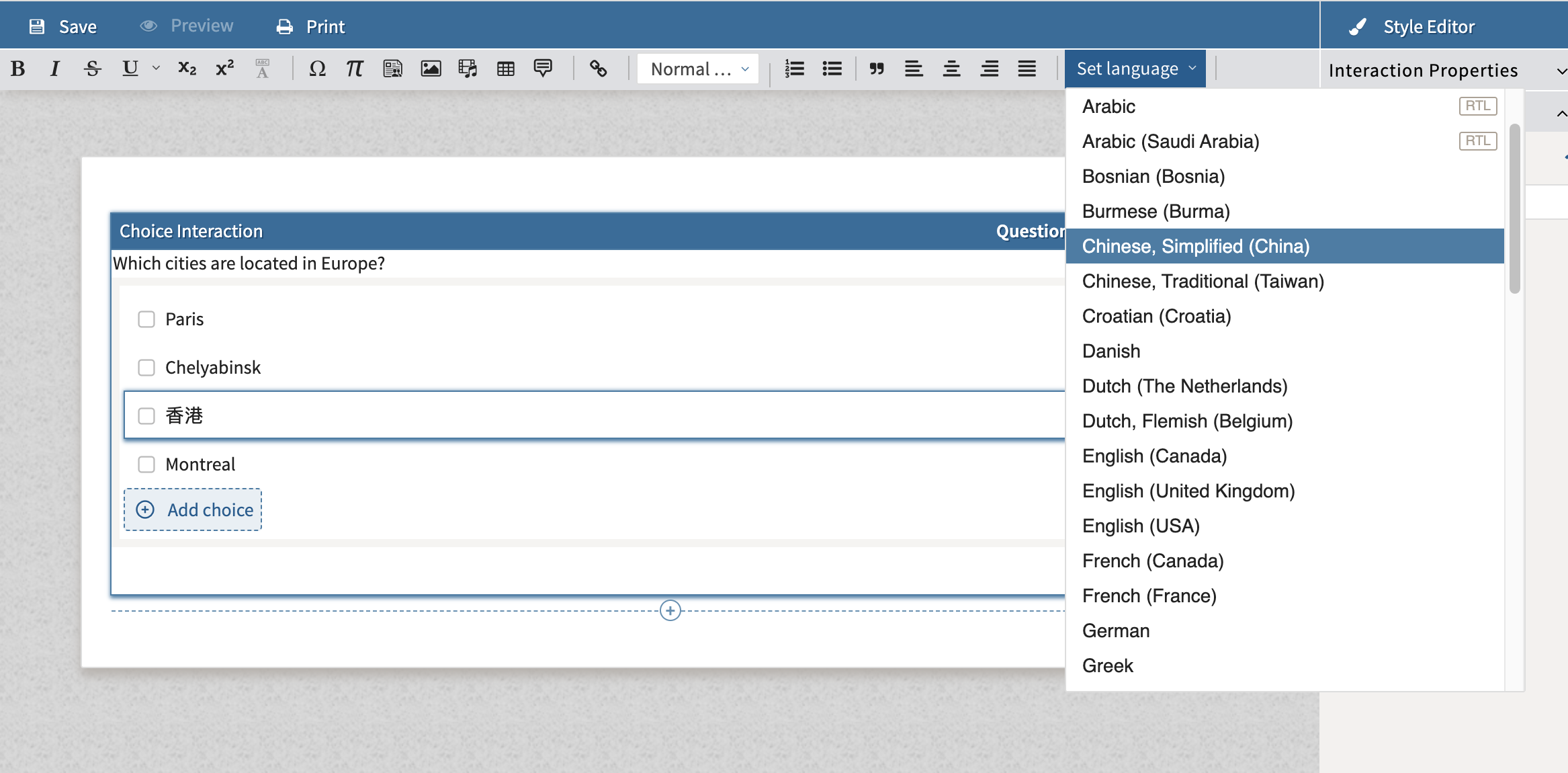
This allows you to:
-
Include multiple languages within the same item.
-
Combine LTR and RTL content in a single item.
-
Improve text-to-speech support for multilingual content.
4. Author content in an RTL language
If you select an RTL language such as Arabic, TAO automatically switches the item layout to RTL mode.
Before authoring content in an RTL language, ensure that your computer is configured to input text in that language.
In RTL mode:
-
Prompts begin on the right side of the canvas.
-
Response options are aligned from right to left.
-
Supported interactions automatically adapt to the RTL layout.
Supported RTL interaction types
The following interaction types support RTL authoring:
-
Associate interactions
-
Audio interactions
-
Choice interactions
-
Extended Text interactions
-
File Upload interactions
-
Gap Match interactions
-
Graphic Associate interactions
-
Graphic Gap Match interactions
-
Graphic Hotspot interactions
-
Graphic Order interactions
-
Hot Text interactions
-
Likert interactions
-
Liquid interactions
-
Match interactions
-
Math Entry interactions
-
Media interactions
-
Order interactions
-
Select Point interactions
-
Slider interactions