
Applies to
Content developers
Prerequisites
-
Add one of the following interactions to an item:
-
Math Entry
-
Extended Text (for math questions that require a response area)
-
Math expression can be added inline to any text block as part of the item content.
Purpose
This guide explains how to insert and format mathematical expressions in an item using the Wiris MathType Editor. Adding math expressions allows you to include equations, formulas, and mathematical symbols in questions, instructions, and other item content.
Steps
1. Insert a math expression
-
Open the item in Authoring.
-
Add a Math Entry or Extended Text interaction to the canvas, or select an existing text block.
-
In the text editor toolbar, select Insert Math Expression (π).
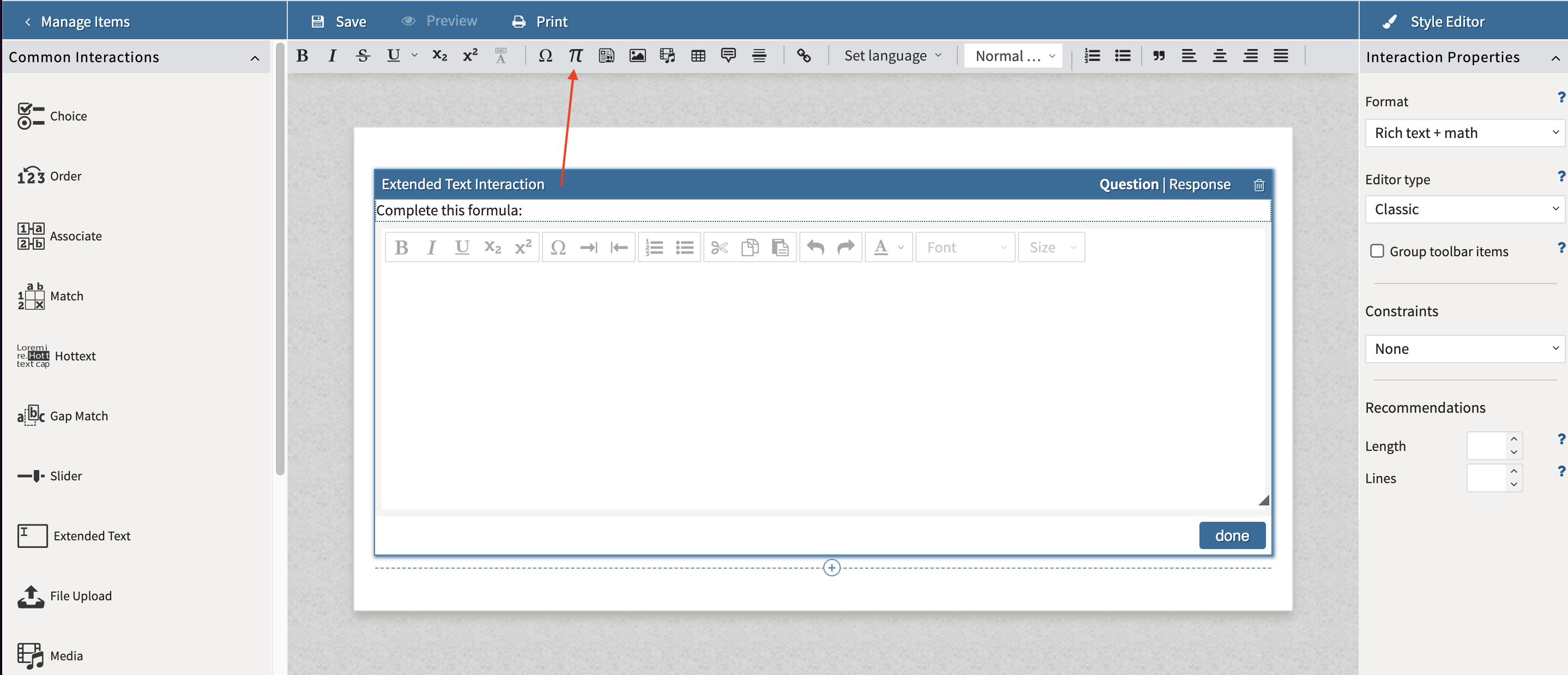
The formula editor opens and a math expression placeholder is inserted where the formula will appear.
2. Configure the Math Expression
-
In the Math Properties panel, choose a Display option:
-
Inline – displays the expression within a line of text.
-
Block – displays the expression on its own line.
-
-
Under Editing Mode, select:
-
LaTeX (recommended), or
-
MathML.
-
3. Create the Formula
-
If using LaTeX, select Wiris Math as the editor.
-
In the Wiris MathType Editor window, select the mathematical symbols and operators you want to use.
-
Build your formula using the available symbols and notation.
-
Save or close the editor to insert the expression into the item.
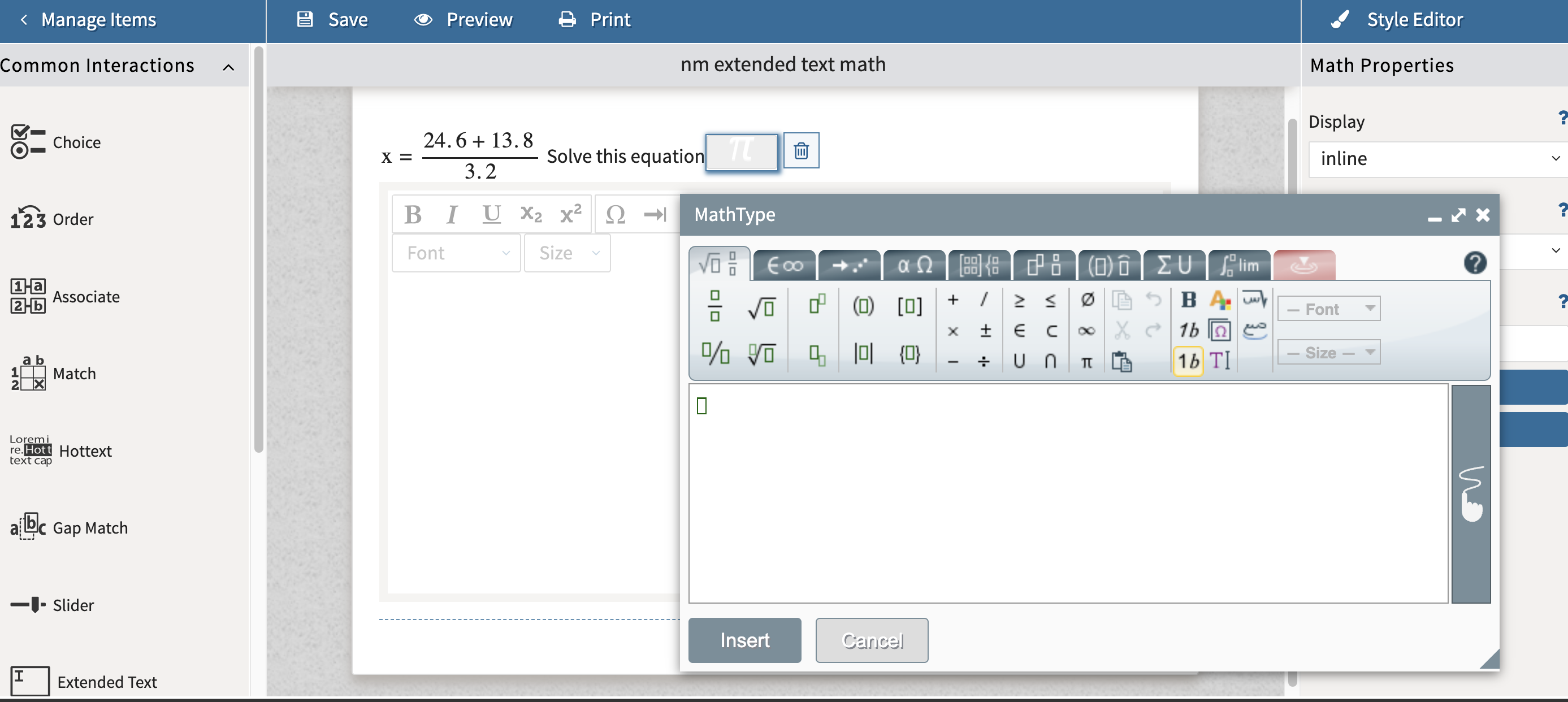
The math editor helps you create mathematical expressions and symbols, but it does not perform mathematical calculations.