
Related articles
See Configuring automatic scoring in the User Guide.
Applies to
-
Content developers
Prerequisites
-
An existing item with at least one configured interaction.
Purpose
Scoring methods determine how responses are evaluated and how scores are assigned to test-takers. This guide explains how to configure automatic and manual scoring for an item, including partial credit.
Steps
1. Configure automatic scoring
Automatic scoring allows TAO to evaluate responses without human intervention immediately after submission. You can configure an item to award either full credit only or partial credit for partially correct responses.
2. Configure interaction settings
-
Open the item in the authoring interface.
-
Open the interaction you want to score.
-
Select the Question tab in an interaction.
-
Configure the interaction settings as needed.
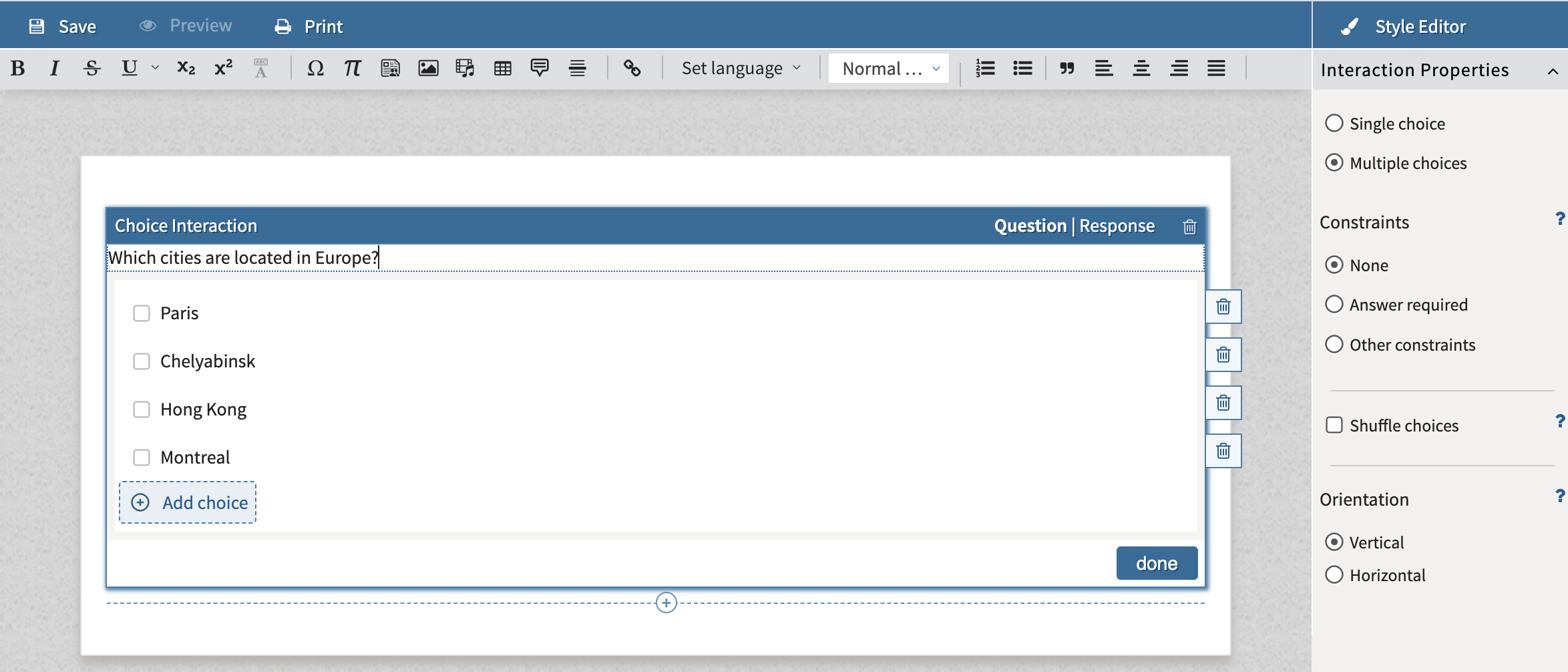
If the interaction allows multiple responses:
-
Select Multiple choices.
-
Under Other constraints, define the minimum and maximum number of allowed selections.
If the interaction only has one correct response, proceed to the next section.
3. Select a response processing method
-
Select the Response tab in an interaction.
-
Locate the Response Processing setting in the Response Properties panel.
-
Choose the appropriate scoring method:
|
Response processing method |
Description |
|---|---|
|
Match Correct |
Awards a score only when the response exactly matches the defined correct answer . No partial credit is awarded. |
|
Map Response |
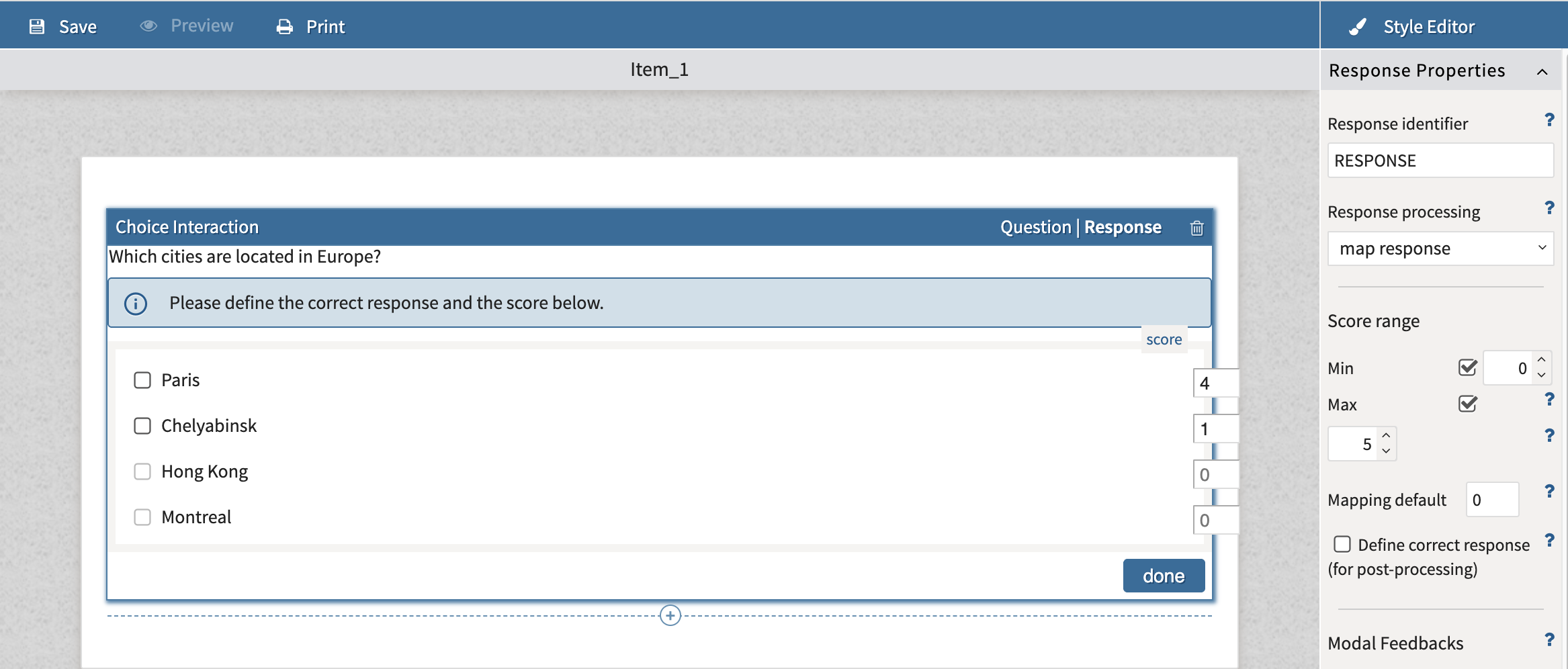
Awards partial credit based on individual response values. Positive values can reward correct answers and negative values can penalize incorrect answers. |
|
None |
Does not define a correct answer or score. |
|
Custom |
Allows you to create custom scoring rules using XML. |
4. Configure scoring values
If you selected Match Correct:
-
Mark the correct answer or answers within the interaction.
-
Save the interaction. No further scoring configuration is required.
If you selected Map Response:
-
Review all possible responses.
-
Assign point values to each response.
-
Enter positive values for correct responses.
-
Enter negative values if you want incorrect responses to reduce the score.
For most interaction types, score fields appear beside each response option.
5. Configure score ranges (optional)
-
Locate the Score Range settings in the Response Properties panel.
-
Enter a minimum score.
-
Enter a maximum score.
For interactions with multiple correct responses, the maximum score should reflect the total points available across all correct responses.