
Applies to
-
Content developers
Prerequisites
-
Have an existing test created in TAO.
Purpose
This guide explains how to configure time limits for a test in TAO.
Time limits can be applied at the test, test part, section, or item level. When multiple timers are configured, the highest-level timer takes precedence.
For example:
-
Test timer: 60 minutes
-
Test Part timer: 30 minutes
If the overall test timer reaches zero, the assessment ends immediately, even if time remains on a lower-level timer.
Steps
1. Open the test properties
-
Open the test you want to configure in Authoring mode.
2. Configure a test-level timer
This timer applies to the entire assessment.
-
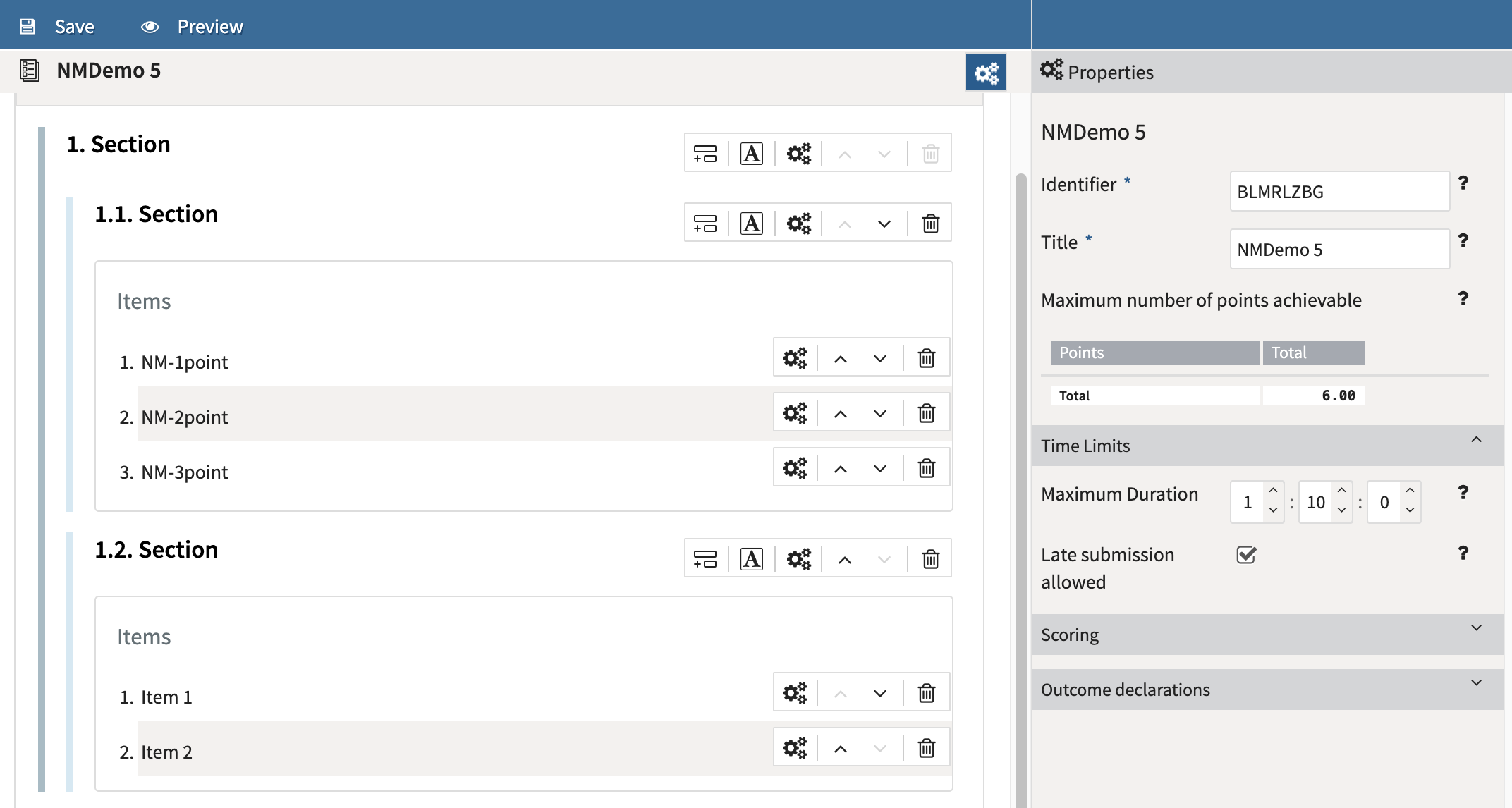
In the test authoring view, locate the Test Properties (cog wheel) icon in the Test Bar at the top of the canvas.
-
Select the icon to open the Properties panel.
-
Locate the Time Limits section.
-
Enter the maximum duration for the test:
-
Hours
-
Minutes
-
Seconds
-
3. Configure timers for test parts
If you want to limit the time available for a specific test part:
-
Locate the test part.
-
Open the test part's Properties panel.
-
Locate the Time Limits section.
-
Enter the desired maximum duration.
Important: All test part timers must amount to less than or equal to the overall test timer (if set).
4. Configure timers for test sections
If you want to limit the time available for a specific test section:
-
Locate the test section.
-
Open the test part's Properties panel.
-
Locate the Time Limits section.
-
Enter the desired maximum duration.
Important: All test section timers must amount to less than or equal to the overall test timer (if set) and/or the parent test Part’s timer (if set).
5. Configure timers for items
Item-level timers apply only to the selected item. If you want to limit the amount of time available for a specific item:
-
Select the item.
-
Open the item's Properties panel.
-
Locate the Time Limits section.
-
Enter the maximum duration.
6. Verify timer settings
-
Confirm that any test part/section/item timers do not exceed the overall test timer (or any parent timers set).
-
Save the test.
Additional information
Late Submission Allowed
The Late submission allowed setting is available with every timer, and determines how TAO handles responses submitted after a timer expires.
When enabled:
-
Responses entered immediately before the timer expires are saved whenever possible.
-
This helps prevent accidental loss of student responses during timed assessments.
When disabled:
-
The time limit is enforced strictly.
-
Responses submitted after expiration may not be accepted
If a proctor terminates a session and the student has not submitted a response for the current item, no response is recorded, even if late submissions are enabled.
Recommended Practice
For high-stakes or large-scale assessments:
-
Configure the primary timer at the Test level.
-
Use test part or item timers only when additional timing controls are required.
-
Verify timer settings before publishing the assessment to ensure the intended testing experience.