
Applies to
Content developers
Prerequisites
-
Have an existing test or create a new test.
Purpose
This guide explains how to randomize the order of sections and/or items within a test.
Section shuffling and item shuffling serve different purposes:
|
Feature |
Result |
|---|---|
|
Section Shuffling |
Changes the order of sections presented to the test-taker. When section shuffling is enabled:
|
|
Item Shuffling |
Changes the order of items within a section. This can be done without creating subsections. If you also want the items within a subsection to appear in a random order, shuffling must be enabled separately in the subsection's settings. |
Steps
1. Open the test
-
Navigate to the test you want to modify.
-
Open the test in Authoring mode.
2. Randomizing subsections
2a. Create subsection levels
Section shuffling requires sections to exist within a parent section.
-
Locate the section where you want to enable shuffling.
-
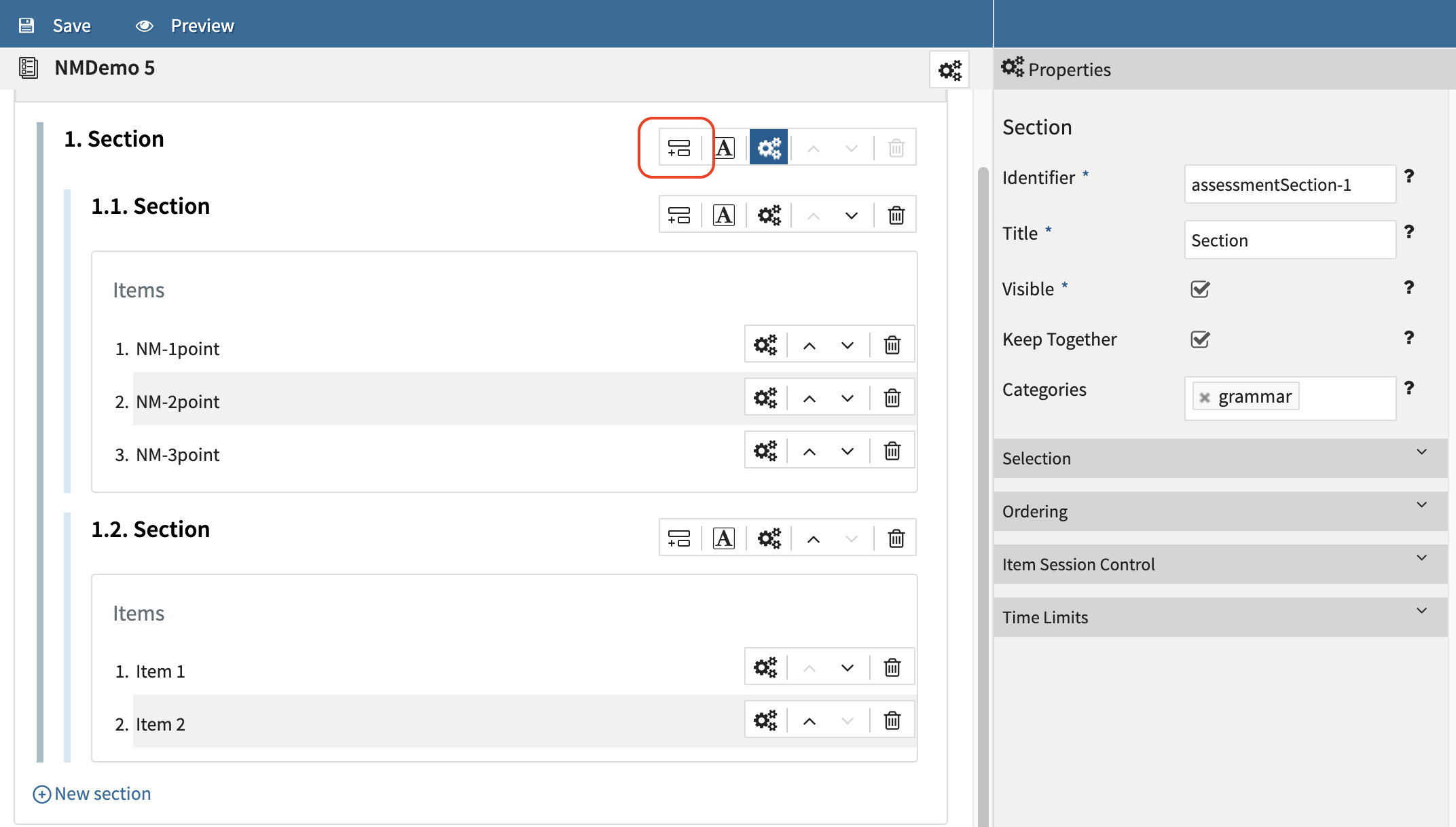
Click the Subsection icon.
-
Create at least two subsections within the parent section by clicking the parent section’s subsection icon twice.
-
Add items to both subsections.
If the selected section already contains items, TAO will display a message indicating that the items will be moved into the new subsection level.
2b. Open the section properties
-
Select the Properties (cog wheel) icon for the parent section.
-
Review the Properties panel displayed on the right side of the screen.
2c. Enable section shuffling
-
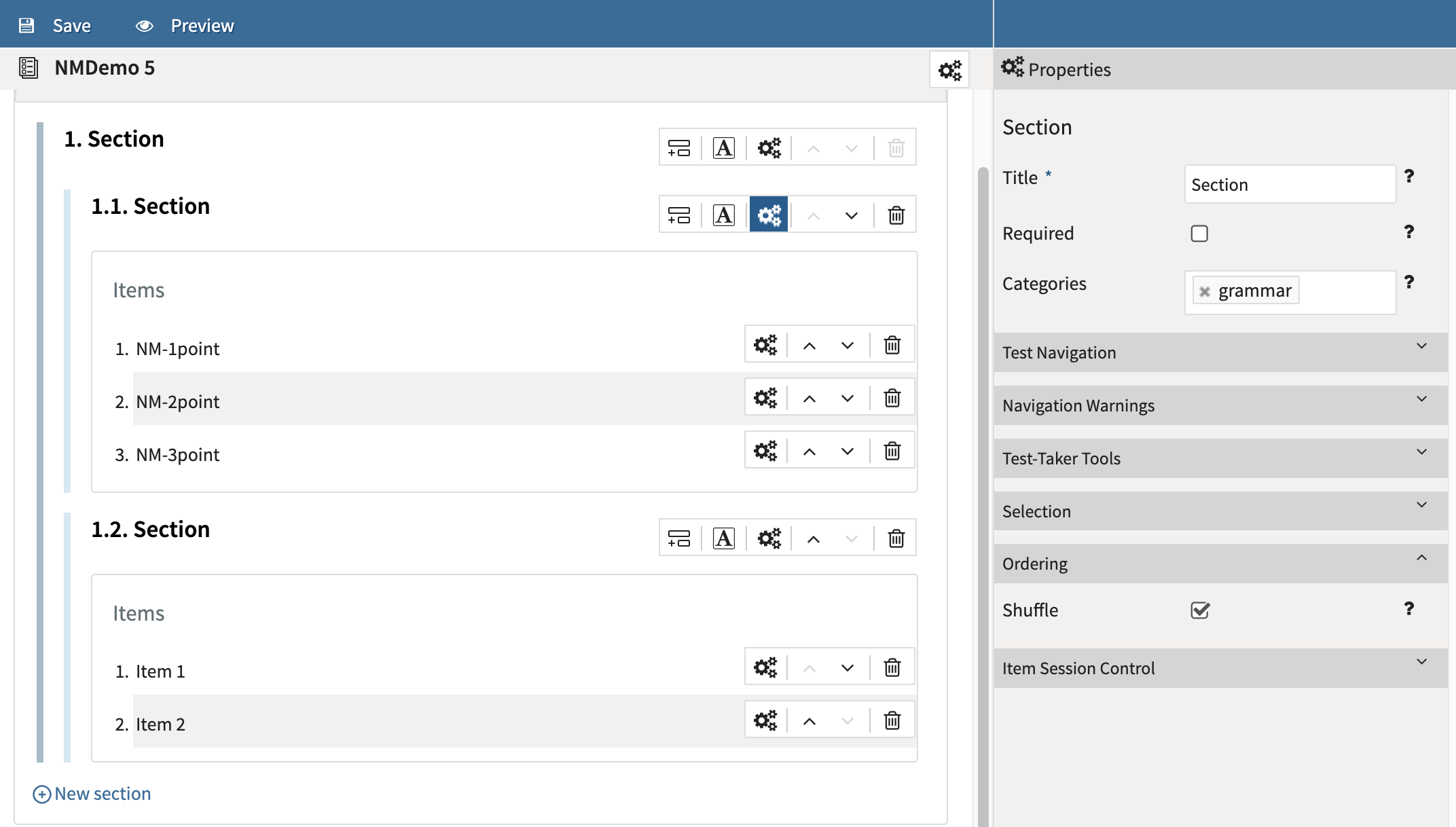
Expand the Ordering section in the Properties panel.
-
Select the Shuffle checkbox.
-
Save the test.
When enabled, TAO presents the subsections in a random order during test delivery.
The Keep Together setting controls how child sections behave when the parent section is shuffled. To keep the items in each subsection grouped during shuffling, in the Section Properties section, select the Keep Together setting.
When Keep Together is enabled:
-
Each subsection remains intact.
-
Entire subsections are moved as a single block during randomization.
When Keep Together is disabled:
-
Child items may be mixed with items from other child sections, depending on the section configuration.
3. Randomizing items within a section
-
If a parent section contains no subsections, the Shuffle checkbox (under Ordering in section properties) will shuffle the order of all items within that section.
-
To randomize items within subsections (i.e, to shuffle both subsections and items), select the Properties icon for a subsection.
-
Select Shuffle under Shuffle.
Example Scenario
A geography assessment contains three sections:
-
Europe
-
Asia
-
South America
With section shuffling enabled, one test-taker may see:
-
Asia
-
Europe
-
South America
While another test-taker may see:
-
South America
-
Asia
-
Europe
The questions within each section remain in their original order unless item-level shuffling is also enabled.