Applies to
-
Content developers
Prerequisites
Before completing this task:
-
Have an existing test containing items.
-
Understand how item-level scoring has been configured.
-
Understand which method test scoring has been configured for.
Purpose
This guide explains how to set up category scoring for a test. Category scoring allows separate reporting for groups of items within the same test. Categories can be applied at the:
-
Test Part level
-
Section level
-
Item level
This can be useful when reporting results by subject area, competency, or learning objective.
Steps
1. Open the test properties
-
Open the test you want to modify.
-
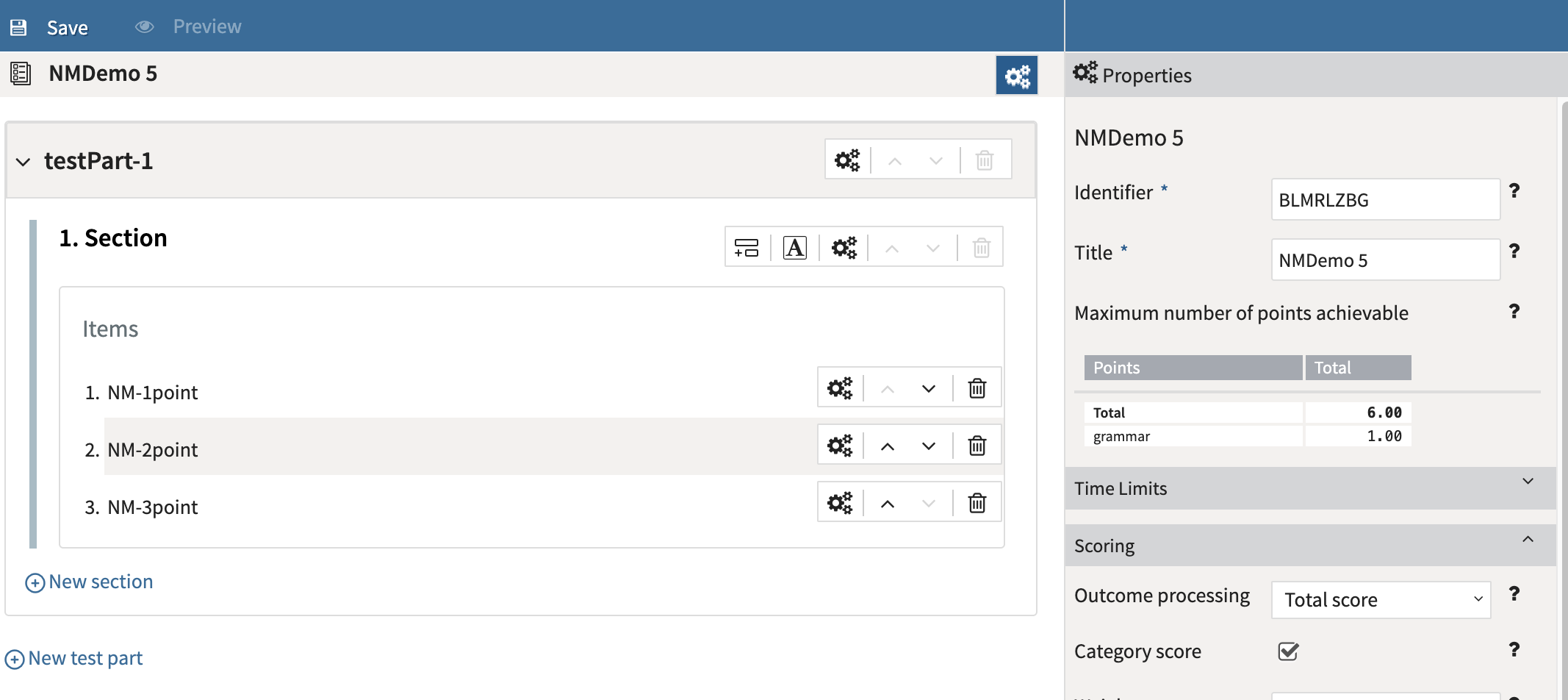
In the test authoring view, select the Test Properties (cog wheel) icon next to the test title.
-
Locate the Scoring section.
-
View which Outcome Processing field was selected, as well as the breakdown of scoring in the Maximum points achievable table in test Properties.
2. Assign categories to items, sections, or test parts
To define categories:
-
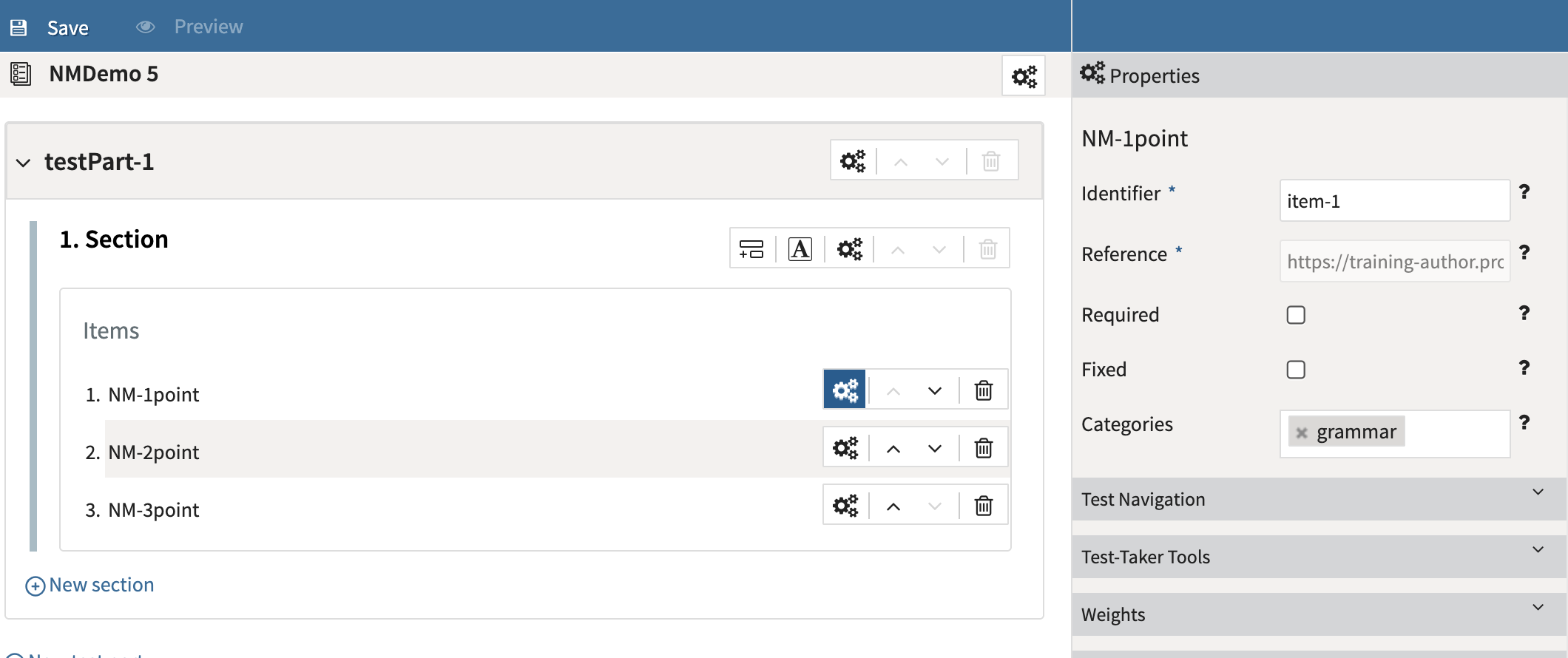
Select the Properties (cog wheel) icon for a test part, section, or individual item.
-
Locate the Category field in the Properties panel.
-
Enter the category name.
-
For example, to view how many points go towards testing grammar (for a writing test), add the category
grammarto all relevant items or the section.
-
Categories assigned at the test part or section level automatically apply to all items within that area unless removed at the item level.
3. Enable category scoring
If your test contains multiple subject areas or reporting categories:
-
Select the Category Score checkbox in the Scoring section.
Category scores are calculated separately for each assigned category.