
Applies to
-
Content developers
Prerequisites
Before completing this task:
-
Have an existing test containing items.
-
Understand how item-level scoring has been configured.
-
Understand which method test scoring has been configured for.
Purpose
This guide explains how to set up scoring weights for individual items in a test. Weighting allows some items to contribute more heavily to the final score than others.
For example:
|
Item |
Raw Score |
Weight |
Weighted Score |
|---|---|---|---|
|
Item A |
1 |
1 |
1 |
|
Item B |
1 |
2 |
2 |
In this example, Item B contributes twice as much to the final test score as Item A.
Steps
1. Open the test properties
-
Open the test you want to modify.
-
In the test authoring view, select the Test Properties (cog wheel) icon next to the test title.
-
Locate the Scoring section.
-
View which Outcome Processing field was selected, as well as the breakdown of scoring in the Maximum points achievable table in test Properties.
2. Assign weights to individual items (optional)
To give certain items a greater impact on the final score:
-
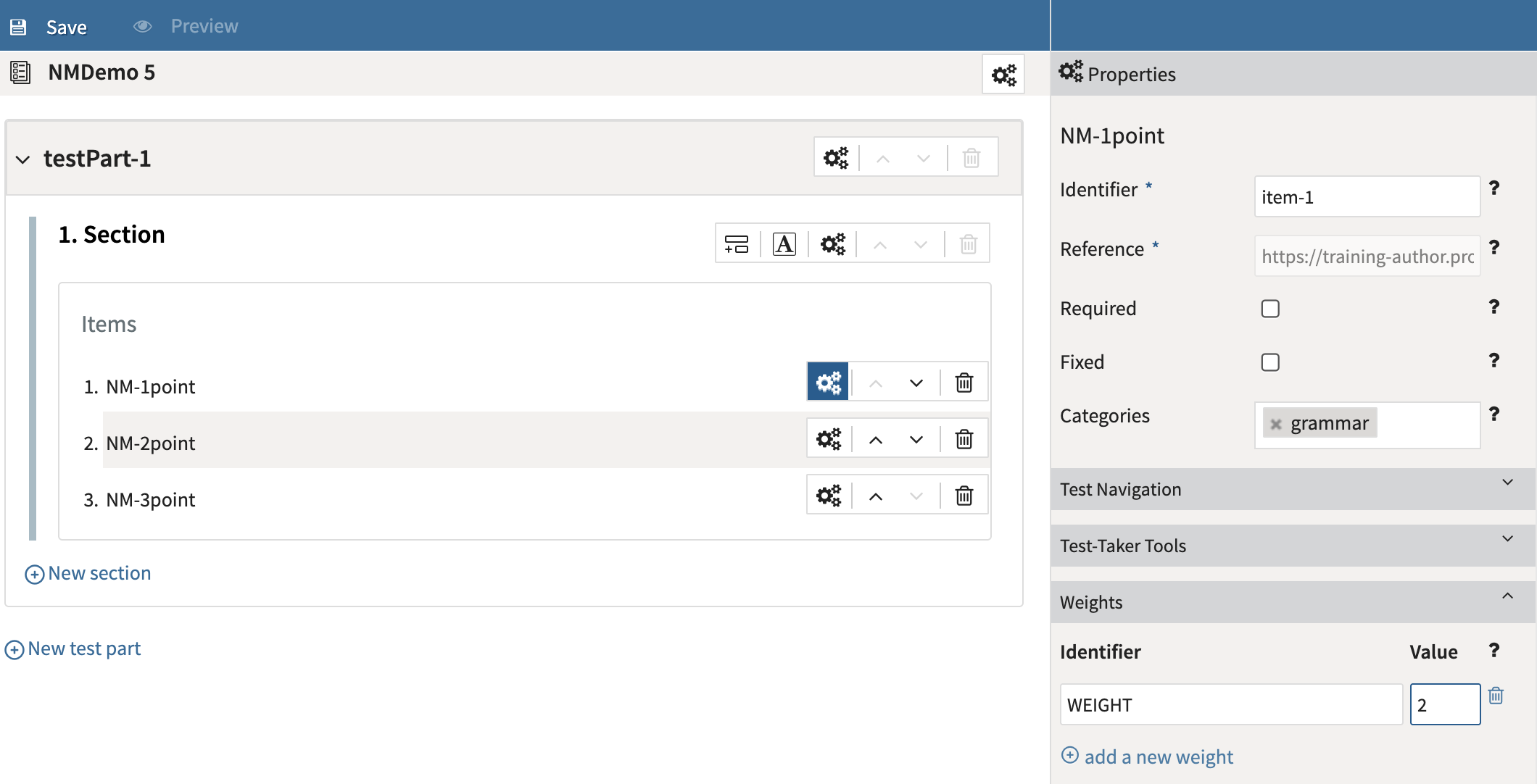
Select the Settings (cog wheel) icon for the item.
-
Locate the Weights section.
-
Enter a Weight Identifier.
-
The default identifier is WEIGHT.
-
-
Enter a weight value.
-
A value of 2 doubles the contribution of the item's score.
-
A value of 1 applies standard weighting.
-
-
Save the test.
3. Apply a weighting scheme to the test
After assigning weights to relevant items:
-
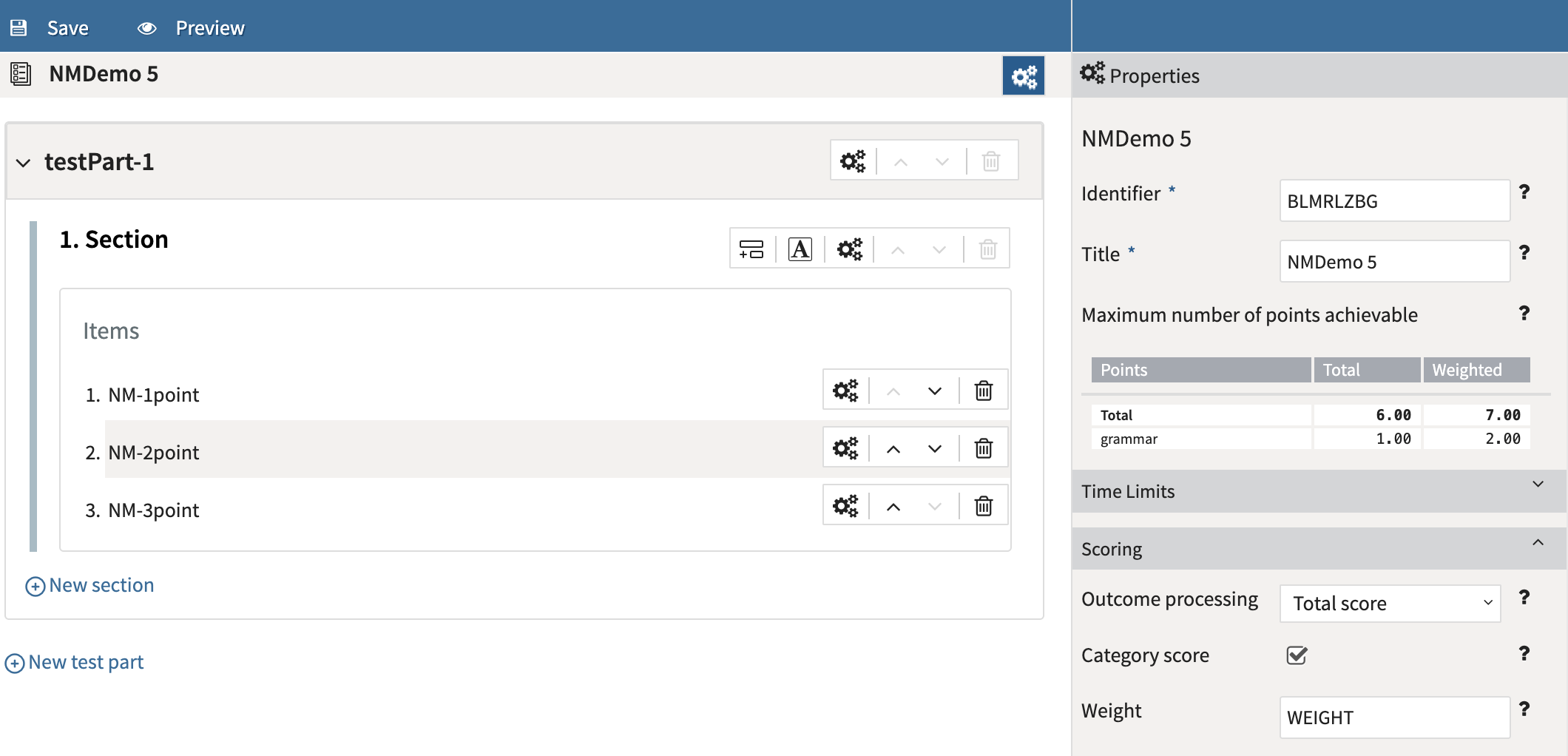
Return to the Test Properties panel.
-
Open the Scoring section.
-
In the Weight field, enter the Weight Identifier used for the items.
-
Example: WEIGHT
-
-
You will be able to view the total points achievable (including the weighted points) in the table:
-
Save the test.
The Weight field is available only when Total Score or Cut Score is selected.